When and How to Reset PRAM/NVRAM on Your Mac: Essential Steps to Fix Startup and Display Issues
Resetting PRAM or NVRAM can quickly resolve stubborn startup and display problems by clearing small non-volatile memory stores that keep key system settings. This article explains what PRAM and NVRAM store, when a reset is likely to help, and exact steps for Intel-based Macs plus the Apple Silicon behavior to expect. If you’re troubleshooting incorrect display resolution, persistent sound or volume errors, wrong startup disk selection, or clock and time-zone inconsistencies, a targeted reset often restores correct defaults without reinstalling macOS. You’ll find concise decision checklists, two quick-reference tables mapping symptoms to stored settings, and step-by-step instructions for the Command-Option-P-R method on Intel Macs and the recommended actions for Apple Silicon. Throughout, I use practical verification tips so you can confirm whether the reset fixed the issue and when to escalate to professional remote support.
What Are PRAM and NVRAM and Why Do They Matter on Your Mac?
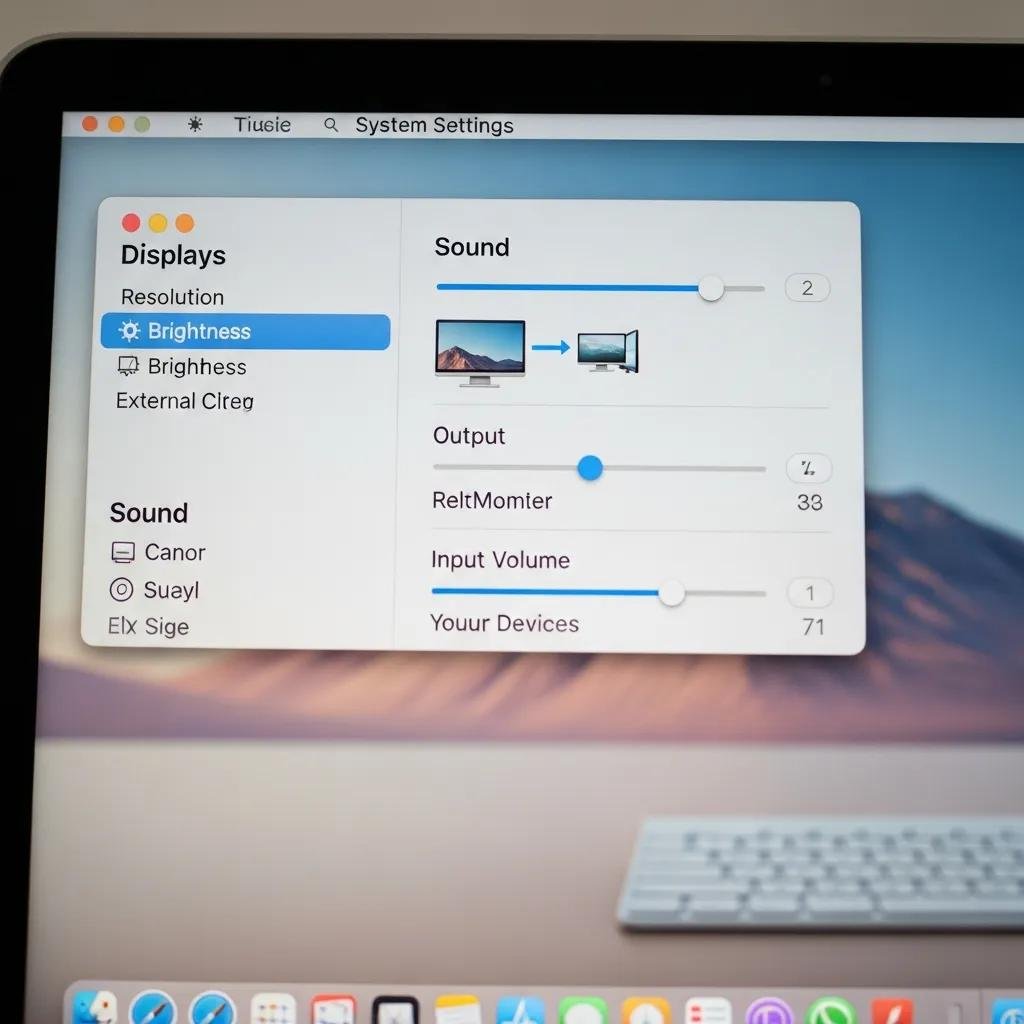
PRAM (Parameter RAM) and NVRAM (non-volatile RAM) are small sections of memory that retain system preferences across reboots, and clearing them returns those stored settings to defaults which can resolve display, audio, and boot selection problems. These memory areas store critical configuration values such as display resolution, speaker volume, startup disk selection, and time zone, so corrupted or incorrect entries can produce visible startup or behavior faults. Resetting PRAM/NVRAM is a low-risk diagnostic step that targets configuration-level issues without affecting user files. The following table summarizes common settings each memory store typically holds, with concrete examples to help you map symptoms to stored values.
The table below shows common settings tied to PRAM and NVRAM and sample values you might see.
| Setting | Stored In | Example Value |
|---|---|---|
| Display resolution | PRAM / NVRAM | 1440×900 |
| Startup disk selection | PRAM / NVRAM | Macintosh HD |
| Speaker volume | PRAM / NVRAM | 50% |
| Time zone / clock offset | PRAM / NVRAM | America/Los_Angeles |
This table clarifies why display, boot, audio, and clock problems often point to PRAM/NVRAM: those specific settings are preserved in these small memory areas and can be reset to remove stale or corrupted values. Understanding which values are involved makes it easier to decide whether a reset is likely to help.
What Is PRAM and What Settings Does It Store?
PRAM, or Parameter RAM, is an older term used for the small persistent memory area where classic Macs and many Intel-based Macs stored hardware-related settings, and it directly saves values that affect how macOS presents audio and video on boot.
Typical PRAM entries include display resolution and color depth, speaker volume and mute status, startup disk choices, and some system-level preferences that influence boot behavior.
When a stored value is wrong or corrupted — for example, an invalid resolution — macOS may boot to an unusable display mode or use incorrect audio output levels. Resetting PRAM forces the system to rebuild these values from defaults or detected hardware, often restoring expected startup and display behavior.
What Is NVRAM and How Is It Different from PRAM?
NVRAM is the modern Apple term for non-volatile RAM that stores the same classes of settings as PRAM but on newer hardware and firmware, and its behavior is closely tied to Apple’s current system management.
Functionally, NVRAM holds display, volume, and boot-selection data like PRAM did, but it is the standard term for Intel-era and Apple Silicon Macs; the practical difference is mainly historical and platform-specific handling.
Because NVRAM is preserved across restarts, corrupted entries can persist until cleared, making a reset useful when settings are clearly wrong. Apple Silicon introduces automated maintenance behaviors around NVRAM that change how and when manual resets are necessary.
When Should You Reset PRAM/NVRAM to Fix Mac Startup and Display Problems?
Reset PRAM/NVRAM when configuration-level symptoms point to stored settings rather than hardware failure: incorrect display resolution after boot, audio output that ignores volume controls, a machine repeatedly booting from the wrong disk, or persistent time/date errors are prime candidates for a reset. Before resetting, rule out simple causes such as loose display cables, external-peripheral conflicts, or macOS bugs that are fixed in updates; if those checks don’t help, a PRAM/NVRAM reset is a non-destructive next step. Below is a quick checklist of symptomatic indicators and a short decision table to map symptoms to stored settings and immediate actions.
Common symptoms that suggest a PRAM/NVRAM reset may help are summarized below.
- Incorrect or unreadable display resolution at startup.
- Audio volume or output device appears wrong after reboot.
- Mac repeatedly boots from the wrong startup disk.
- System clock or timezone shows incorrect values on startup.
These symptoms usually implicate stored configuration values rather than failing hardware, so performing a reset is an efficient diagnostic step before moving to more invasive troubleshooting.
The following table maps symptoms to likely affected stored settings and what to try first.
| Symptom | Likely Affected Setting | Recommended First Action |
|---|---|---|
| Wrong display resolution | Display resolution/color depth | Restart and check Display settings |
| Muted or incorrect audio | Speaker volume/output device | Verify Sound settings and external devices |
| Booting wrong disk | Startup disk selection | Hold Option at boot to choose disk |
| Wrong system time | Time zone / clock offset | Check Date & Time preferences; restart |
This quick reference helps you choose the right initial action and decide if a PRAM/NVRAM reset is the appropriate next step based on which stored setting appears responsible. If a reset still doesn’t resolve the issue, escalation may be required.
For users who prefer professional help rather than performing resets themselves, mcHelper.com offers remote Mac troubleshooting assistance with 24/7 availability, secure remote diagnostics, and a “no fix – no fee” promise that can be useful when symptoms persist or when you’d rather avoid making firmware-level changes alone. Their remote Computer Tech Support and Speed-Up and Optimize your Computer services focus on diagnosing startup and performance problems without requiring in-person visits.
What Common Mac Issues Indicate a PRAM/NVRAM Reset Is Needed?
Several recurring Mac issues reliably point to settings stored in PRAM/NVRAM: unusual display modes after startup, volume and sound output that don’t match settings, boot selection problems where the Mac ignores your chosen startup disk, and persistent date/time inaccuracies.
Each symptom usually links to a specific stored setting — for example, display resolution errors imply corrupted display entries — so the reset targets the likely root cause directly.
Because these memory areas are small and focused on configuration, resetting them is a targeted, low-risk troubleshooting step that often clears odd persistent behaviors quickly. If these issues are intermittent or appear only after updates or hardware changes, a reset is still a helpful diagnostic action.
What Basic Troubleshooting Should You Try Before Resetting PRAM/NVRAM?
Before performing a PRAM/NVRAM reset, try a short pre-reset checklist to avoid unnecessary resets and to catch simpler causes such as external hardware or software issues. First, restart the Mac normally and test whether the problem persists; simple reboots clear many transient errors. Second, check physical connections and external displays or audio devices to ensure the hardware setup is correct. Third, verify System Settings (Display, Sound, Startup Disk, Date & Time) to see if manual correction solves the issue. Fourth, ensure macOS is up to date, since software updates sometimes fix bugs that mimic configuration corruption.
- Restart the Mac: A normal reboot may clear transient configuration issues.
- Check cables and peripherals: Faulty external hardware can cause display or audio anomalies.
- Verify System Settings: Manually confirm Display, Sound, Startup Disk, and Date & Time settings.
- Update macOS: Install updates that may include fixes for related bugs.
If these steps leave the problem unchanged, a PRAM/NVRAM reset is a reasonable next move because it addresses persistent stored settings rather than temporary software glitches.
How to Reset PRAM/NVRAM on Intel-Based Macs: Step-by-Step Guide

On Intel-based Macs, resetting PRAM/NVRAM uses a precise key sequence at startup that forces the firmware to clear stored values and reload defaults, and following the exact timing ensures the reset completes correctly. The basic approach is to shut down, then start the Mac while holding Command-Option-P-R until you observe the second startup sound or a second flash of the Apple logo, which confirms the reset. After the reset, verify Display, Sound, Startup Disk, and Date & Time settings and reconfigure any custom preferences. The numbered steps below provide the exact sequence and verification checklist.
Follow these numbered steps to reset PRAM/NVRAM on Intel Macs:
- Save work and shut down: Close open files and choose Shut Down from the Apple menu.
- Press the power button: Immediately hold Command + Option + P + R as the Mac starts.
- Hold keys for the confirmation: Keep holding until you hear a second startup chime or see the Apple logo appear and reappear.
- Release and let macOS boot: Allow the Mac to start normally and then check settings.
After the reset completes, confirm the problem is resolved by opening System Settings and checking display resolution, sound output, startup disk, and clock settings; reapply any custom configurations that cleared during the reset. This verification step ensures the reset addressed the intended settings rather than masking an underlying hardware issue.
How Do You Shut Down and Prepare Your Intel Mac for Reset?
Proper preparation prevents data loss and avoids confusing peripheral behavior during a PRAM/NVRAM reset, and following three simple prep steps reduces risk. First, save and close all open documents and quit applications to ensure no work is lost when you restart. Second, unmount or eject external drives and storage to avoid drive corruption if the machine restarts unexpectedly. Third, disconnect unnecessary USB or Thunderbolt peripherals that might interfere with startup detection, while keeping essential keyboard input available for the key sequence.
Preparing the Mac as described prevents accidental file loss and reduces peripheral-related startup side effects, which helps the reset focus solely on firmware-stored settings rather than external hardware issues.
What Is the Key Combination to Reset PRAM/NVRAM on Intel Macs?
The exact key combination for Intel Macs is Command + Option + P + R, and timing matters: press and hold those keys immediately after pressing the power button until you hear the second chime or see the Apple logo flash twice. Hold the keys for roughly 20 seconds if your Mac uses the chime indicator, or until the logo appears and reappears on newer models; releasing too early can result in an incomplete reset. Avoid confusing this with SMC reset procedures, which use different key sequences and address different hardware-control functions.
Knowing and using the precise key combo prevents mistakes and ensures the firmware fully clears the targeted configuration values, providing a reliable reset for settings that affect startup and display behavior.
How to Reset NVRAM on Apple Silicon Macs: What You Need to Know
Apple Silicon Macs handle NVRAM differently: the system automatically checks and resets certain NVRAM values during normal startup when it detects invalid or corrupted entries, so a manual NVRAM reset like the Intel key sequence is generally unnecessary. For most transient configuration issues on Apple Silicon, a simple restart will trigger the platform’s built-in maintenance routines and restore correct defaults without user intervention. If a persistent configuration problem remains after restarting, try Safe Mode and Disk Utility checks to rule out software or disk-level causes before pursuing further steps. The guidance below outlines automatic behavior and the limited manual actions appropriate for Apple Silicon.
Apple Silicon’s automatic NVRAM maintenance means a routine restart should clear temporary corrupted values and often resolves the same display and startup symptoms that required manual resets on Intel machines. If restarting doesn’t help, follow basic escalation steps such as booting into Safe Mode to test with minimal system extensions and running Disk Utility to verify and repair the startup disk.
Does NVRAM Reset Automatically on Apple Silicon Macs?
Yes — on Apple Silicon Macs the system is designed to validate and repair NVRAM entries at boot, so many of the issues that required a manual reset on Intel hardware are resolved by a normal restart on newer Macs. This automatic behavior simplifies troubleshooting: instead of using a special key press sequence, begin with a standard restart and then check settings like display resolution and startup disk. If a restart clears the problem, no further action is necessary; if not, proceed to the next troubleshooting steps described below.
Because automatic NVRAM maintenance is built into Apple Silicon firmware, manual clearing of NVRAM is rarely required and is typically reserved for cases where software or disk-level problems persist after restarts.
What Should You Do If Issues Persist After Restarting Your Apple Silicon Mac?
If a restart doesn’t resolve a persistent display, audio, or startup-disk issue on Apple Silicon, escalate through Safe Mode, Disk Utility, and system updates before considering professional diagnostics, and document which steps you tried to speed any remote troubleshooting.
First, boot into Safe Mode to determine whether extensions or login items cause the problem; second, run Disk Utility’s First Aid to repair the startup volume; third, install any pending macOS updates that may include fixes. If these actions don’t clear the symptom, consider remote professional help for deeper firmware or hardware checks.
For optional remote escalation, mcHelper.com offers 24/7 remote Computer Tech Support focused on startup and boot issues, along with Speed-Up and Optimize your Computer services; their secure remote diagnostics and “no fix – no fee” promise can be a practical next step when built-in troubleshooting does not resolve the problem.
- Try Safe Mode: Isolate software conflicts and test the issue without third-party extensions.
- Run Disk Utility First Aid: Repair disk errors that can cause boot and settings problems.
- Install macOS updates: Apply fixes that may address known bugs affecting configuration.
- Contact professional remote support: If unresolved, use secure remote diagnostics to investigate further.
This escalation sequence reduces the chance of overlooking software or disk causes and makes any subsequent remote or in-person support more efficient by providing clear troubleshooting history. mcHelper.com’s remote Computer Tech Support and Speed-Up and Optimize your Computer offerings can be requested if you prefer guided assistance rather than performing deeper diagnostics yourself.
For professional help with persistent startup or display issues, consider mcHelper.com’s remote Computer Tech Support and Speed-Up and Optimize your Computer services as an optional escalation.