

How to Fix 100% Disk Usage in Windows 10/11 Remotely: Effective Solutions for High Disk Activity
High disk usage at or near 100% means the disk subsystem is saturated by read/write operations, which causes severe slowdowns, freezing, and long application or boot times. This guide explains how sustained high disk I/O appears on both HDD and SSD systems, why it matters for day-to-day responsiveness, and which remote actions reliably reduce disk pressure. You will learn how to identify common culprits such as SysMain (Superfetch), Windows Search indexing, virtual memory (page file) misconfiguration, malware scans, and driver or disk errors, and how to address each through secure remote access. The article maps causes to quick remote checks, gives step-by-step remote commands for disabling services and resetting page file settings, and lists prioritized troubleshooting steps including CHKDSK, SFC/DISM, and driver updates. If DIY remote fixes do not clear the problem, guidance is provided on when to escalate to certified remote technicians and what to expect from a professional remote repair engagement.
What Causes 100% Disk Usage in Windows 10 and 11?
100% disk usage means sustained maximum disk I/O that starves other processes and makes the system unresponsive; this can stem from both software services and hardware issues. Common root causes include aggressive background services that read/write constantly, excessive paging when RAM is insufficient or misconfigured, malware or aggressive antivirus scans, faulty or outdated storage drivers and firmware, and disk errors or bad sectors that force repeated retries. Below is a compact mapping of cause to symptom and a quick remote check to prioritize remediation.
| Cause | Symptom | Quick remote check |
|---|---|---|
| SysMain (Superfetch) | Sustained high read activity with spool-like patterns | Check Services and Resource Monitor I/O per process |
| Windows Search indexing | Continuous small reads/writes after boot | Check SearchIndexer service and indexing status |
| Virtual Memory (page file) | High disk activity correlated with low available RAM | Check Performance tab and paged bytes in Task Manager |
This table highlights which remote checks help identify the likely culprit and speeds decision-making for the next actions. Understanding these mappings lets a remote tech prioritize low-risk fixes first and avoid unnecessary changes that can interrupt business systems.
How Do SysMain and Windows Search Impact Disk Usage?
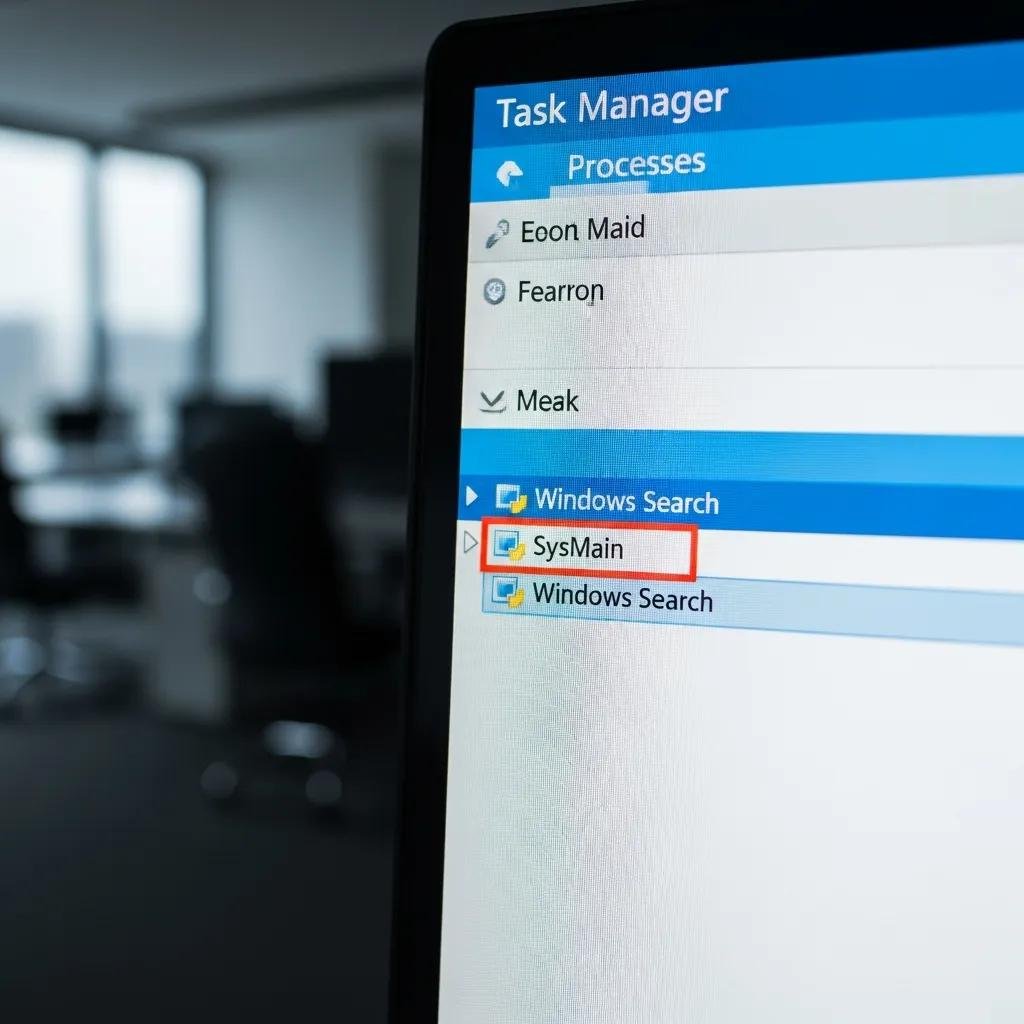
SysMain (formerly Superfetch) preloads frequently used apps into memory to improve responsiveness, but on systems with slow disks or limited RAM it can generate heavy background I/O that appears as 100% disk usage. Windows Search builds and updates an index of files for faster searches, and during indexing it may perform continuous read/write operations that saturate a drive. Remotely, check Task Manager and Resource Monitor to see which service shows the most I/O and look for SearchIndexer.exe or Service Host process spikes. If either service is the top consumer, temporarily pausing or disabling them is a low-risk first step to test impact and gauge whether disk activity drops.
Can Virtual Memory Misconfiguration and Malware Lead to Disk Overload?
Virtual memory uses the disk as an overflow for RAM; when page file settings are too small or the system is under memory pressure, paging activity can saturate the disk and mimic 100% usage. Malware and aggressive antivirus scans can also create sustained reads/writes or spawn many I/O-heavy processes. Remotely inspect the Performance tab for high “Paged” bytes and review running processes for unexpected resource consumption. Running a targeted malware scan and temporarily adjusting page file settings or increasing physical RAM (if possible) are effective follow-ups after confirming these signs.
How Can You Remotely Disable SysMain and Optimize Windows Services?
Before making changes, confirm secure remote access with explicit user permission and ensure the session uses an elevated administrator context. The steps below show safe, reversible methods to stop and disable SysMain and to test effects on disk usage. If you prefer GUI or script control, both are included; always verify results via Task Manager and Resource Monitor and record rollback commands.
- Stop and disable SysMain using Services: Open Services.msc remotely, locate SysMain, choose Stop, then set Startup type to Disabled. Confirm the service shows Stopped.
- Stop and disable SysMain using PowerShell: Run as admin: Stop-Service -Name SysMain -Force then Set-Service -Name SysMain -StartupType Disabled. Verify with Get-Service SysMain.
- Test and rollback: After a 10–15 minute observation period, if disk I/O is reduced, leave it disabled; to rollback use Set-Service -Name SysMain -StartupType Automatic and Start-Service SysMain.
These steps are reversible and low risk when performed during a monitored remote session. If disabling SysMain does not reduce disk pressure, re-enable it and proceed to page file or disk integrity checks described below.
What Are the Steps to Disable SysMain via Remote Access?
To disable SysMain remotely using PowerShell, start an elevated session and run the stop and set commands to change startup behavior; then verify via . If you prefer a GUI path, launch through a remote desktop or support tool, locate SysMain, and change its status to Stopped and Startup type to Disabled. After applying the change, monitor Resource Monitor and Task Manager for at least 10 minutes to confirm a drop in disk I/O. If performance worsens or required apps behave differently, re-enable SysMain with the reverse commands and document the observed effects for future tuning.
How to Manage Windows Search and Background Processes Remotely?
Windows Search can be paused by stopping the Windows Search service or by reducing indexed locations through Indexing Options, accessible remotely via Control Panel or PowerShell (). For background apps and startup items, use Task Manager or Autoruns to identify and disable nonessential entries, then reboot if necessary. Schedule indexing and heavy maintenance tasks outside peak hours to avoid business disruption. Always create a restore point or ensure system backup before disabling critical services so rollback is simple if issues arise.
What Remote Troubleshooting Steps Reduce Disk Activity in Windows 10/11?

A prioritized checklist helps resolve the most common causes of 100% disk usage remotely; start with low-risk service changes, then check virtual memory, run integrity checks, and update drivers. The table below maps remote actions to expected outcomes and succinctly states typical risks so you can choose an approach that fits the system’s criticality.
| Remote Action | Remote Command / Tool | Expected Outcome |
|---|---|---|
| Disable SysMain | Stop-Service / Set-Service | Immediate reduction in background read activity |
| Reset page file | SystemPropertiesAdvanced or PowerShell | Lower paging I/O after reboot |
| Run CHKDSK | chkdsk C: /f /r (scheduled) | Fixes file system errors; may require reboot |
| SFC/DISM | sfc /scannow then DISM /Online /Cleanup-Image /RestoreHealth | Repairs system file corruption that can cause hangs |
| Update disk drivers | Device Manager or vendor tools | Resolves driver bugs causing I/O spikes |
How to Reset Virtual Memory Settings Remotely for Better Performance?
Remotely adjusting page file settings can reduce excessive paging when RAM is constrained. Use SystemPropertiesAdvanced (remote GUI) or PowerShell to set the page file to system-managed or to a recommended fixed size based on installed RAM. After changing, perform a reboot so the new page file takes effect, then monitor paged bytes and disk I/O in Task Manager. If paging drops and responsiveness improves, keep the optimized setting; if not, revert and consider physical RAM upgrades for persistent pressure.
How to Run Disk Checks and Update Drivers via Remote Support?
Run CHKDSK remotely by scheduling which requires a reboot; notify users and schedule off-hours maintenance. Use followed by to repair system files that can cause errant disk behavior. Update drivers through Device Manager remotely or use vendor driver packages when available, and check SSD firmware advisories if applicable. After updates and repairs, reboot and verify disk I/O trends to confirm improvement.
When Should You Seek Remote Expert Help to Fix Persistent 100% Disk Usage?
If core remote troubleshooting (service adjustments, page file reset, CHKDSK, SFC/DISM, driver updates) does not resolve sustained 100% disk usage, or if diagnostics point to hardware failure or complex malware, engaging certified remote technicians is appropriate. Time-sensitive systems, business-critical machines, or situations requiring guaranteed outcomes benefit from professional remote support because experts use specialized tooling and escalation workflows. Below is a concise checklist of signs indicating it’s time to escalate.
- Persistent high disk usage after applying recommended remote steps
- Repeated disk errors or bad sectors reported by CHKDSK or SMART data
- Complex malware or rootkit indicators beyond standard AV remediation
- Business-critical systems where prolonged downtime is unacceptable
These signs help decide when DIY steps are insufficient and when an expert should take over to avoid prolonged outages or data loss. Advanced practitioners recognize that timely escalation reduces risk and recovery time for production systems.
What Are the Benefits of mcHelper.com's Remote Computer Repair Services?
mcHelper.com is a remote computer repair and tech support service operating 24/7 for Mac and Windows users. They specialize in resolving computer performance issues (including slow performance, virus removal, system freezes, boot-up problems) via remote access. Relevant services include Computer Speed-up and Optimization and Computer Tech Support. Their UVPs include 24/7/365 availability of certified technicians, a “No Fix – No Fee” guarantee, secure remote support from the user’s home or office, and an annual subscription option.
How Does Remote Monitoring Prevent Future Disk Usage Issues?
Remote monitoring tracks disk I/O trends, service activity, and scheduled maintenance outcomes to detect early signs of recurring high disk usage and to trigger preventive actions. Alerts for rising paging activity, repeated service restarts, or emerging disk errors allow technicians to intervene before full saturation occurs. Scheduled optimizations, driver and firmware updates, and proactive malware scans form part of a monitoring-driven maintenance plan that reduces recurrence risk. Combining monitoring with periodic remote tune-ups maintains consistent performance and avoids surprise downtime.






