

How to Speed Up Your Web Browser: Effective Tips for Chrome, Firefox, Edge, and Safari
A slow web browser means longer page loads, high memory or CPU use, and a fragmented browsing experience that interrupts work and leisure. This guide explains why browsers bog down, how cache, cookies, extensions, tabs, network settings, and malware create slowdowns, and which quick actions deliver the biggest gains across Chrome, Firefox, Edge, and Safari. You’ll get a concise diagnostic checklist, universal quick fixes you can run in minutes, and browser-specific advanced tweaks that target performance bottlenecks. The article also compares key settings across browsers and maps common slow-browser symptoms to likely causes so you can act with confidence. If you prefer professional help after following these steps, the article notes remote optimization and malware-removal options that specialize in Mac and Windows systems. Read on to diagnose slow performance, apply fast remedies, and optimize each major browser for smoother browsing in 2024.
What Are the Common Causes of Slow Browser Performance?
A slow browser typically results from resource pressure or malicious activity: large caches, numerous extensions, many open tabs, outdated software, or malware each increase CPU, memory, or network overhead and slow page rendering. Understanding the root cause speeds troubleshooting because fixes differ for storage, process, network, or security issues. Below are the five most common causes with brief explanations and immediate signals to watch for.
- Accumulated cache and cookies: large or corrupted cache can serve stale files and slow rendering.
- Too many extensions or background processes: extensions may run scripts or background tasks that consume CPU and network.
- Excessive open tabs: dozens of tabs keep many pages active in memory and spike RAM usage.
- Outdated browser versions and plugins: older builds lack recent performance improvements and security fixes.
- Malware, adware, or poor DNS/network settings: unwanted software injects ads, redirects, or background traffic that steals resources.
These causes overlap; identifying the strongest signal — for example, new pop-up ads indicating adware — guides the next remediation steps.
How Do Cache and Cookies Impact Browser Speed?
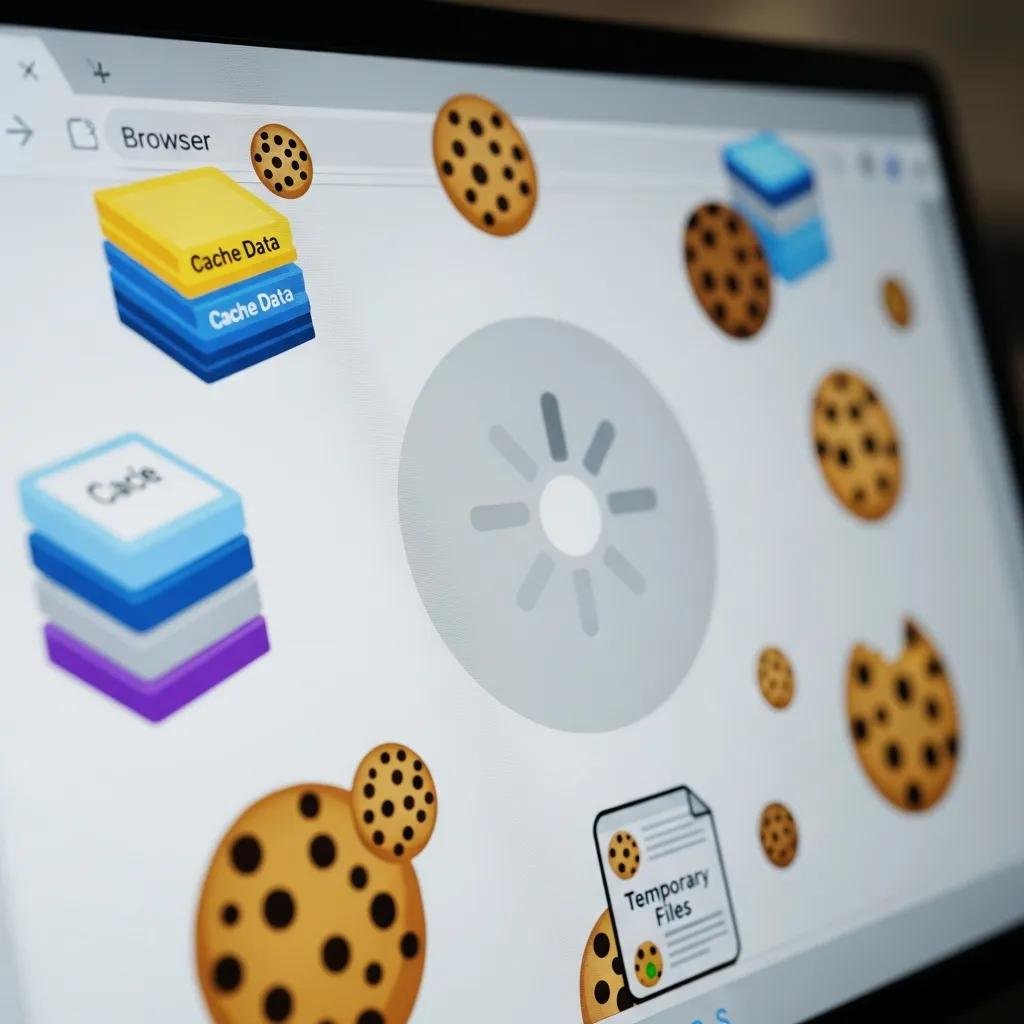
Cache stores local copies of page assets to speed repeat visits, while cookies save session and preference data; both reduce repeated network fetches but can grow large or become inconsistent over time. When cache contains corrupted or outdated resources, pages may render incorrectly or stall while the browser attempts to load incompatible assets, so clearing cache often resolves display or loading errors. The trade-off is losing some session states: clearing cookies removes saved logins and preferences, so choose selective clearing to preserve important sites. For targeted cleanup, remove cached images and files first and only clear cookies for sites where logins are problematic, then re-test page load times to confirm improvement.
Can Browser Extensions and Too Many Tabs Slow Down Performance?
Extensions and tabs are frequent culprits because each extension can run background scripts, inject content, or open helper processes, while many tabs multiply memory and CPU usage across site scripts. Use the browser’s built-in task or performance manager to identify high-CPU extensions or tabs, then disable or pause them to test speed gains. Practical limits help: restrict active extensions to essentials and use tab suspension or grouping features to keep inactive pages from consuming RAM. After pruning, monitor page load and responsiveness to confirm which components caused the slowdown and re-enable trusted extensions one at a time to isolate problems.
How Can You Quickly Fix a Slow Browser Across All Major Browsers?
A short checklist of cross-browser actions often restores acceptable performance in minutes because these steps address the most common resource and software causes. Follow this quick set in order to eliminate easy fixes first and escalate only when needed.
- Restart the browser and the device to clear transient process and memory issues.
- Clear browsing data (cached images/files and selectively cookies) to remove corrupted assets.
- Disable or remove nonessential extensions and restart to observe impact on CPU and memory.
- Update the browser to the latest version to apply performance and security patches.
- Check internet connection and DNS; flush the DNS cache if name-resolution delays appear.
These quick steps resolve many cases of a browser running slow; if problems persist, proceed to the browser-specific optimizations below or run a malware scan to rule out malicious causes.
For readers who prefer professional assistance or who find these steps don’t restore normal performance, mcHelper.com offers remote computer repair and tech support including a dedicated “Speed-Up and Optimize your Computer” remote service that diagnoses browser and system bottlenecks. Their remote Computer Speed-up and Optimization approach targets Mac and Windows systems, and they offer a reassurance policy of “no fix – no fee” plus an annual support package for ongoing maintenance. Choosing remote help can save time for complex cases or when malware removal requires deeper system scans.
What Are the Best Practices for Clearing Cache and Cookies?
Clearing cache and cookies removes stale or corrupted files that slow page rendering while preserving essential credentials when done selectively; prefer clearing cached images/files first and only remove cookies for problematic sites to avoid re-entering credentials. When troubleshooting, use a private/incognito window to test whether cache or extensions cause issues before deleting data. For regular maintenance, clear cache every few weeks or when pages misbehave, and keep cookies for frequently visited trusted sites. Before clearing, note saved passwords or enable a password manager to avoid lost logins, then re-test browsing speed to ensure the issue is resolved.
- Chrome: Settings > Privacy and security > Clear browsing data; select “Cached images and files” and set a time range.
- Firefox: Options > Privacy & Security > Cookies and Site Data > Clear Data; uncheck Cookies if you want to keep logins.
- Edge: Settings > Privacy, search, and services > Clear browsing data > Choose what to clear; prefer cached files first.
- Safari: Preferences > Privacy > Manage Website Data to remove specific sites while preserving others.
These targeted steps help preserve necessary cookies while removing the larger performance burden from cached assets.
How to Manage Extensions and Close Unnecessary Tabs for Speed?
Audit extensions by last-used date and resource consumption, disable rather than uninstalling while testing so you can re-enable quickly if needed; this preserves settings while confirming impact. Use the browser task manager (; ; Edge: browser task manager) to spot heavy tabs or add-ons, then suspend or close offending pages. For many-tabs workflows, use built-in sleeping/hibernation features or tab-suspender extensions to free RAM while keeping tabs available. Finally, limit extensions to essential utilities — privacy blockers and password managers — and avoid overlapping tools that duplicate functionality and multiply overhead.
- Consider these lightweight approaches: Disable unused extensions and restart the browser.Use tab groups, bookmarks, or session save tools instead of keeping dozens of open tabs.Employ sleeping tabs or suspenders to reduce background resource usage.
These practices balance convenience and performance, letting you keep functionality without sacrificing speed.
How to Optimize Google Chrome, Firefox, Edge, and Safari for Maximum Speed?
Different browsers expose unique settings that influence performance; tweaking task managers, hardware acceleration, and profile settings can yield noticeable improvements without reinstalling. The table below compares key settings and their typical effect across browsers so you can target the most impactful adjustments.
| Browser | Setting/Feature | Effect on Performance |
|---|---|---|
| Chrome | Hardware acceleration toggle & Task Manager | Offloads rendering to GPU when stable; Task Manager reveals heavy tabs/extensions |
| Firefox | Refresh/Refresh profile & Troubleshoot Mode | Resets configuration and disables extensions to restore baseline performance |
| Edge | Sleeping tabs & Startup Boost | Reduces background RAM for idle tabs; Startup Boost speeds initial launch |
| Safari | Remove website data & extension management | Clears macOS-specific web caches; limiting extensions reduces CPU on macOS/iOS |
What Advanced Settings Improve Google Chrome Speed?
Chrome’s Task Manager and profile controls are effective for identifying specific resource drains: open Task Manager, sort by memory or CPU to find culprits, then end those tasks or disable the corresponding extension. Toggling hardware acceleration can help or hurt depending on your GPU drivers; test both settings and observe page rendering and video playback. If profile corruption persists, create a new Chrome profile or use the “Reset settings” option to remove rogue flags and customizations. For conservative flag use, avoid experimental network or rendering flags unless you understand the implications and can revert changes.
How Does Malware Affect Browser Speed and How Can You Remove It?
Malware, adware, and browser hijackers insert extra network requests, pop-ups, and background processes that consume CPU and bandwidth, resulting in slow pages and unpredictable redirects. Symptoms that suggest malware include new homepages or search engines, persistent ads despite ad blockers, and spikes in background network activity. Addressing malware restores browser baseline performance and closes privacy and security gaps, which is essential before investing in other optimizations. Use a combination of browser cleanup tools, anti-malware scanners, and targeted removal steps to remove threats; escalate to professional remote removal if problems persist or if scans find system-level infections.
| Threat Type | Symptom in Browser | Recommended Action/Tool |
|---|---|---|
| Adware/Popup injectors | Unexpected pop-ups and ads while browsing | Run adware scanner; remove suspicious extensions and reset browser settings |
| Browser hijacker | Homepage or search engine changed | Restore settings, remove unfamiliar search providers, run malware scan |
| Background miner or process | High CPU/network with no visible tabs | Full system antivirus scan and specialized anti-malware tool |
Why Is Malware Removal Essential for Browser Optimization?
Adware and hijackers often run background scripts that continuously request ads and trackers, increasing CPU, memory, and network usage and slowing legitimate browsing tasks. Beyond performance, these threats compromise privacy and can redirect credentials or inject malicious content, so removal restores both speed and security. Detect early signs such as unexpected redirects or persistent new tabs and act quickly: disable suspect extensions, reset browser settings to defaults, and run reputable anti-malware scans to remove residual components. If cleanup tools fail or system-level persistence remains, professional remote removal may be necessary to fully restore browser and OS integrity.
What Tools and Services Help Detect and Remove Browser Malware?

Free tools like browser-cleanup utilities and basic anti-malware scanners can remove many adware and extension-based problems, while full antivirus suites detect deeper system threats; run both to cover browser and OS layers. For stubborn infections or when users prefer hands-off help, professional remote repair services can run comprehensive diagnostics, remove malware, and optimize browser and system settings for sustained performance. mcHelper.com’s Remote Computer Repair and Tech Support offerings include remote malware diagnosis and removal along with Computer Speed-up and Optimization for Mac and Windows users in the United States, and they provide a “no fix – no fee” assurance plus an annual support package for ongoing maintenance. Choosing professional help is appropriate when manual steps and standard tools don’t restore normal browsing behavior.
For best results, combine smart maintenance — selective cache clearing, extension auditing, and tab management — with periodic scans and updates so your browser stays fast and secure without frequent interruptions.






