Understanding Monitor Refresh Rate for Gaming: Your Guide to Optimal Performance and Smooth Gameplay
Monitor refresh rate is the number of times a display repaints the image each second, measured in Hertz (Hz), and it directly affects how current visual information reaches your eyes during gameplay. In practical terms, a higher refresh rate allows the monitor to show more recent frames, which improves motion clarity, reduces visible tearing, and lowers perceived input lag for fast-paced interactions. This guide explains the mechanics behind refresh rate, compares common tiers like 60Hz, 144Hz, and 240Hz, and shows how FPS, response time, and adaptive sync technologies interact to produce smoother gameplay. You will also find actionable steps to optimize your PC—driver settings, in-game tweaks, and hardware considerations—plus troubleshooting checklists for common refresh-rate issues. Throughout, related concepts such as GPU performance, panel types, and adaptive sync (G-Sync / FreeSync) are woven into practical advice so you can match hardware to playstyle and achieve the clearest, most responsive gaming experience.
What Is Monitor Refresh Rate and Why Does It Matter for Gaming?
Monitor refresh rate defines how many times per second the display updates its image, and higher Hz means more frequent visual updates that present fresher frames to the player. Mechanically, the display controller issues a new frame each refresh interval; when the GPU delivers frames at a rate close to the monitor’s Hz, motion appears smooth and input feels immediate. The primary gamer-facing benefits are improved motion clarity, reduced perceived latency, and fewer visible artifacts like tearing when combined with proper sync methods. Understanding refresh rate helps prioritize upgrades — whether to invest in a faster GPU to drive higher FPS or choose a monitor with adaptive sync to handle variable frame delivery.
How Does Refresh Rate Affect Gaming Visuals and Reaction Time?
Higher refresh rates improve temporal resolution, meaning the screen shows more distinct moments of motion per second, which sharpens perceived movement and helps with precise aiming and tracking. For example, moving from 60Hz to 144Hz increases the number of visual updates by 2.4×, which can reduce the time between the GPU producing a frame and the player seeing it, effectively improving reaction windows in fast shooters. Recent studies and player surveys indicate measurable performance gains in reaction-based tasks when switching from 60Hz to 120–144Hz, though individual results vary with skill and hardware. These perceptual gains are most relevant in multiplayer FPS and esports, while single-player narrative titles benefit more from higher visual fidelity than split-second responsiveness.
What Are Common Refresh Rate Values and Their Gaming Implications?
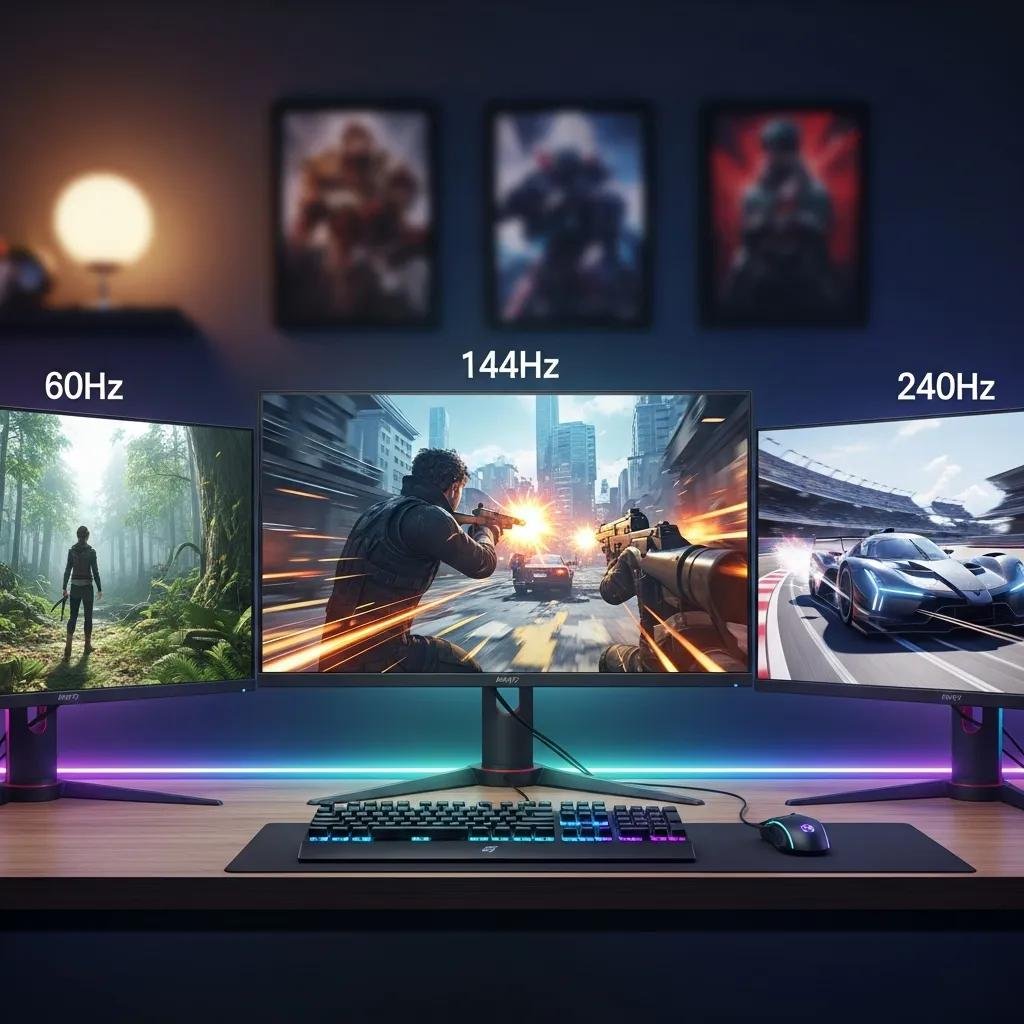
Common refresh tiers—60Hz, 120/144Hz, 240Hz, and emerging 360Hz—map to distinct playstyles and hardware needs, with diminishing returns at very high Hz unless your system sustains matching FPS. Casual players and single-player gamers often find 60Hz acceptable for cinematic experiences, while competitive players benefit substantially from 120–144Hz as a cost-effective sweet spot. Elite esports competitors who can sustain 200–300+ FPS may justify 240Hz or higher to shave off minimal latency and maximize frame granularity. Panel type and response time also factor into perceived smoothness; faster panels (lower ms) reduce ghosting and maintain clarity at high refresh rates.
Different refresh-rate tiers and implications:
- 60Hz: Good for casual play and low-GPU systems; limited temporal resolution.
- 144Hz: Strong balance of responsiveness and achievable FPS for most mid-range GPUs.
- 240Hz+: Targeted at elite competitive play where sustained >200 FPS is possible.
This range overview helps match expectations and hardware before committing to a high-refresh monitor purchase.
Which Refresh Rate Is Best for Your Gaming Style? Comparing 60Hz, 144Hz, and 240Hz
Choosing the right refresh rate depends on playstyle, budget, and whether your GPU can regularly hit target FPS; the following comparison clarifies who benefits most from each tier. Casual players who prioritize visuals or higher resolution often stick with 60Hz and invest in visual quality instead. Competitive players targeting improved aim and tracking typically find 144Hz the most practical upgrade because many GPUs can sustain 120–144 FPS at 1080p or 1440p. Professional esports players or those with top-tier rigs may push for 240Hz to squeeze extra responsiveness, but this requires significantly higher GPU performance and often reduced graphics settings.
| Refresh Tier | Target Audience | Benefit | Typical Hardware Requirement |
|---|---|---|---|
| 60Hz | Casual / cinematic players | Stable visuals, lower GPU demand | Low-to-mid GPU at native resolution |
| 144Hz | Most competitive / serious gamers | Major responsiveness improvement, reasonable GPU needs | Mid-range GPU at 1080p/1440p |
| 240Hz | Elite esports competitors | Minimal added latency, highest temporal detail | High-end GPU capable of 200+ FPS |
This table helps identify the practical sweet spot and trade-offs when matching monitor Hz to your gaming goals.
Key takeaway list for selecting refresh rate:
- Determine primary playstyle (casual vs competitive).
- Check typical FPS your GPU produces at target resolution.
- Balance cost against achievable FPS for meaningful benefit.
These steps guide a sensible upgrade path and avoid overspending on Hz you cannot use.
What Are the Benefits of a 144Hz Monitor for Gaming?
A 144Hz monitor delivers noticeably smoother motion compared with 60Hz, improving aim stability and target tracking in fast-paced games while remaining achievable for many mid-range GPUs. The increased number of updates reduces temporal aliasing and lowers perceived input lag even when FPS occasionally dips below the monitor’s maximum. From a cost-benefit standpoint, 144Hz panels are widely available and often represent the best value for most gamers, offering substantial perceptual gains without the steep GPU requirements of 240Hz. Because 144Hz is the market sweet spot, peripheral ecosystems and driver support tend to be robust, making setup and optimization straightforward.
How Does 240Hz Compare to 144Hz for Competitive Gaming?
240Hz provides finer temporal granularity and can reduce frame-to-frame latency for players who consistently hit high FPS, offering the smallest measurable edge in reaction-sensitive scenarios. However, real-world benefits shrink unless a player’s system sustains high frame rates and the player’s own skill level can leverage those subtle gains; diminishing returns become evident beyond 144Hz for most users. The trade-off includes higher monitor cost and greater GPU demands, and in practice, 240Hz is most justifiable for elite or professional competitors who optimize every millisecond of input-to-display time.
How Do FPS, Response Time, and Adaptive Sync Technologies Impact Gaming Performance?
Frame rate (FPS), pixel response time (ms), and adaptive sync (variable refresh) collectively determine perceived smoothness; aligning these elements reduces tearing, stutter, and ghosting for clearer motion. FPS produced by the GPU must be considered alongside monitor refresh and panel response: high FPS with slow pixel transition produces blur, while mismatched FPS and refresh without sync causes tearing. Adaptive sync technologies dynamically match the monitor’s refresh to GPU frame delivery within a range, reducing both tearing and stutter when FPS fluctuates. Understanding how these three interact helps you pick settings and hardware that minimize artifacts and optimize responsiveness.
| Metric | How It Works | User-Facing Impact |
|---|---|---|
| FPS | Frames per second produced by GPU | Higher FPS improves temporal fluidity; mismatches cause tearing |
| Response Time | Time pixel needs to change (ms) | Faster response reduces ghosting and motion blur |
| Adaptive Sync | Variable refresh aligned to GPU output | Reduces tearing/stutter when FPS is variable |
Quick checklist to diagnose visual issues:
- Check if tearing occurs at uncapped FPS.
- Observe ghosting during fast motion to test response time.
- Enable adaptive sync if FPS fluctuates often.
If adaptive sync or driver issues persist after these checks, certified remote technicians can help diagnose driver conflicts and compatibility — mcHelper.com provides remote technical support focused on system-level troubleshooting for gaming displays.
What Is the Relationship Between FPS and Refresh Rate?
FPS is the rate the GPU produces frames; refresh rate is how often the monitor draws them. Ideally, FPS should match or be a simple fraction of refresh rate to minimize tearing and input latency; for instance, 144 FPS on a 144Hz monitor yields the cleanest result, while 60 FPS on a 144Hz monitor still benefits from smoother updates but may show microstutter if frames arrive inconsistently. When FPS exceeds refresh rate, the monitor only shows a subset of frames and tearing can appear unless adaptive sync or V-Sync is used. Practical guidance: aim for sustained FPS at or above your monitor’s refresh for optimal responsiveness, or use adaptive sync to smooth variable frame delivery.
How Do G-Sync and FreeSync Improve Visual Smoothness?
G-Sync and FreeSync implement variable refresh by allowing the monitor to adjust its refresh timing to the GPU’s frame output within a supported range, which removes tearing and reduces stutter without the input-latency cost of traditional V-Sync. G-Sync is NVIDIA’s solution and FreeSync is AMD’s implementation; both require compatible hardware and up-to-date drivers to function correctly. Common setup issues include driver mismatches, cable limitations, or enabling conflicting options in GPU control panels, which is why checking driver versions and cable type is essential. When functioning correctly, adaptive sync offers the smoothest experience for systems with variable FPS.
How Can You Optimize Your PC for High Refresh Rate Gaming?
Optimizing for high refresh rates involves driver updates, power and performance settings, in-game graphics tuning, and hardware pairing to maintain target FPS while minimizing thermal throttling. Begin by installing the latest GPU drivers and setting power plans to prioritize performance, then adjust in-game presets (shadows, post-processing, ray tracing) to hit FPS targets without sacrificing critical visual cues. Thermal management, such as adequate case airflow and GPU cooling, prevents throttling that lowers FPS mid-game. If upgrades are necessary, balance GPU and CPU capability so neither component bottlenecks refresh-rate performance.
Optimization checklist (HowTo style):
- Update GPU drivers and enable performance power plan.
- Disable background tasks and cap or uncapped FPS according to monitor sync strategy.
- Lower high-cost settings (RT, shadows) to increase sustained FPS for your target Hz.
This ordered checklist helps you prioritize steps that typically yield the largest FPS improvements.
Intro to EAV table for recommended settings and outcomes:
| Component/Setting | Recommended Action | Expected Outcome |
|---|---|---|
| GPU drivers | Install latest WHQL or vendor drivers | Improved frame pacing and compatibility |
| Power plan | Set to high performance | Less CPU/GPU downclocking under load |
| In-game presets | Lower shadow/post-processing | Higher FPS, clearer motion at high Hz |
These settings are the most effective levers to reach and sustain refresh-rate targets for common GPU tiers.
Which GPU and CPU Settings Enhance Refresh Rate Performance?
Prioritize driver updates, power management, and frame pacing: enable the GPU vendor’s performance mode, make sure the OS power plan is set for high performance, and use frame-rate caps or adaptive sync to maintain smoothness. Reduce expensive graphical effects such as ray-tracing, ambient occlusion, and ultra shadows to free GPU cycles for higher frame rates, and monitor background processes that consume CPU time. Proper GPU/CPU pairing avoids bottlenecks: a mid-range GPU paired with a modern multi-core CPU usually supports 144Hz at 1080p, while higher Hz requires more GPU headroom. These practical adjustments help achieve the frame targets necessary to utilize high-refresh displays.
What Troubleshooting Steps Fix Common Refresh Rate Issues?
When the monitor won’t display the expected Hz, verify the monitor OSD and the OS display settings to confirm the chosen refresh rate, then check cable and port capability—DisplayPort typically supports higher Hz than older HDMI versions. Update GPU drivers, reinstall or roll back drivers if issues began after a driver update, and test with a different cable or port to isolate hardware faults. Use in-game FPS counters and benchmark tools to observe frame delivery and enable adaptive sync only after confirming compatibility; if problems persist, try resetting monitor settings to default and testing on another system. For unresolved issues, remote assistance from certified technicians can diagnose complex driver conflicts and system-level performance tuning — mcHelper.com offers remote optimization and troubleshooting services to help reach target FPS and Hz.
| Component | Check | Expected Fix |
|---|---|---|
| Cable/Port | Verify DisplayPort/HDMI version | Replace with compatible cable or use DP |
| Drivers | Update or reinstall GPU drivers | Restores adaptive sync and refresh options |
| Monitor OSD | Confirm reported Hz | Adjust OS or GPU settings to match |
These troubleshooting steps address the most frequent causes of refresh-rate mismatches and restore smooth operation.