Troubleshooting Email Client Problems: Quick Fixes for Outlook, Mac Mail, and Thunderbird
Email clients like Microsoft Outlook, Apple Mail (Mac Mail), and Mozilla Thunderbird handle sending and receiving through SMTP, IMAP, or POP3 and rely on correct authentication such as OAuth2 to work reliably. This guide gives concise, practical fixes to restore sending and receiving, diagnose common errors, and reconfigure accounts across those popular clients so you can resolve most issues without calling support. You will learn quick checks for stuck messages and SMTP problems in Outlook, steps to rebuild or reindex Mail on macOS, targeted troubleshooting for Thunderbird reception issues, and a compact manual-setup checklist covering ports, encryption, and authentication. Each section includes actionable steps, short lists for featured-snippet style answers, and tables that summarize typical server-port-encryption combinations to speed verification. Apply the verification steps first (Outbox, internet, account password, antivirus) and then follow the rebuild or reauthorize flows if problems persist; remote email support options are noted where escalation makes sense.
Why Is Outlook Not Sending Emails?
Outlook fails to send mail when the client cannot hand off messages to the SMTP (outgoing server), when authentication tokens are invalid, or when local items are stuck in the Outbox. The first benefit of checking these areas is rapid isolation: Outbox problems point to client-side issues, SMTP misconfiguration points to server settings, and authentication failures indicate credential or OAuth2 token problems. Understanding these causes lets you prioritize fixes that restore normal send flow quickly and reduces downtime. Below are concise checks you can run immediately to identify the most likely cause before deeper repair.
What Common Issues Cause Outlook Sending Failures?
Start with surface checks that eliminate the most frequent causes before changing server settings or recreating profiles. These quick diagnostics reveal whether the problem is a client artifact, credential mismatch, or network/security block that prevents SMTP traffic. Running these steps narrows troubleshooting to either local repair or server-side reconfiguration.
- Check the Outbox for any unsent messages and remove or resend stuck items.
- Confirm the account password is current and re-enter credentials if you see auth errors.
- Look for large attachments that exceed provider limits and try sending a smaller test message.
Failure to send often maps to one of the above causes, and resolving that item typically permits successful sending; if problems persist, proceed to verify SMTP and authentication settings described next.
How Can I Verify and Correct SMTP Settings in Outlook?
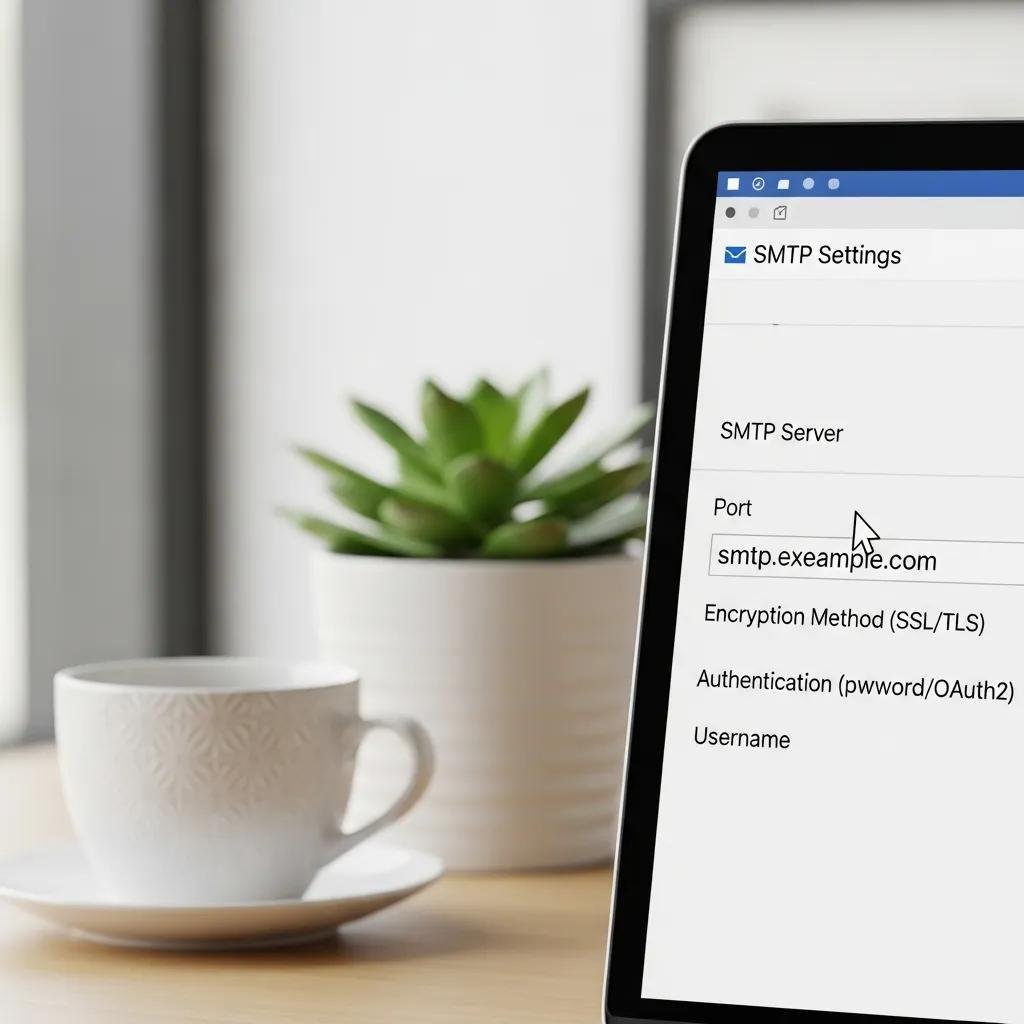
Verifying SMTP ensures Outlook can connect and authenticate with the outgoing server using the correct port and encryption. Open Account Settings, select the account, navigate to Outgoing Server settings, and confirm the server address, port, and encryption method match provider recommendations. Test sending after saving changes; if authentication errors continue, re-enter the full email address and password or re-authorize via OAuth2 where supported.
The table below summarizes common SMTP port/encryption combos to cross-check quickly.
| Server Role | Port | Encryption |
|---|---|---|
| SMTP (recommended) | 587 | STARTTLS/TLS |
| SMTP (alternate) | 465 | SSL/TLS |
| SMTP (legacy) | 25 | None or STARTTLS/TLS (often blocked by many ISPs) |
Summary: Use port 587 with STARTTLS/TLS as the default SMTP setting for modern providers; switch to 465/SSL/TLS only if the provider states that explicitly. If your ISP blocks port 25, moving to 587 usually restores sending. Re-authenticating the account after changing these settings often resolves persistent auth failures.
For users who try the SMTP/Outbox and authentication steps but still cannot send, consider professional assistance. mcHelper.com offers remote Email Support included in its remote computer repair services, providing fast, secure diagnostics for Outlook SMTP or profile corruption; contact them if repairs and reconfiguration do not restore sending.
How to Fix Mac Mail When It Stops Working
Mac Mail stops functioning properly when mailbox indexes become corrupt, stored credentials in Keychain are out of sync, or when network and system updates change permission or connectivity behavior. Rebuilding the mailbox and reindexing message stores often repairs crashes and missing messages because Mail.app rebuilds local indexes and pulls fresh data from the server. Fixes begin with network checks and progress to more intrusive steps like re-indexing or removing and re-adding accounts while preserving backups. The short checklist below outlines the prioritized actions to restore Mail functionality on macOS quickly and safely.
What Are Typical Causes of Mac Mail Connectivity Problems?
Network interruptions, VPNs, or Wi-Fi issues can prevent Mail from reaching IMAP or SMTP servers, while Keychain-stored credentials and expired passwords block authentication. Permission changes after macOS updates may also prevent Mail.app from accessing its local storage or network stack, producing timeouts or sync failures. Checking these areas first eliminates many transient causes before you rebuild or remove accounts.
- Verify Wi-Fi or Ethernet connectivity and test web access to webmail for the same account.
- Disable VPN or proxy temporarily to see if encrypted tunnels interfere with Mail.app.
- Open Keychain Access, find stored passwords for the account, and update credentials if they prompt errors.
If connectivity and Keychain entries are correct but Mail continues to fail, proceed to mailbox rebuild and reindex steps described next to restore local message indexes and data integrity.
How Do I Rebuild the Mailbox to Resolve Mac Mail Crashes?
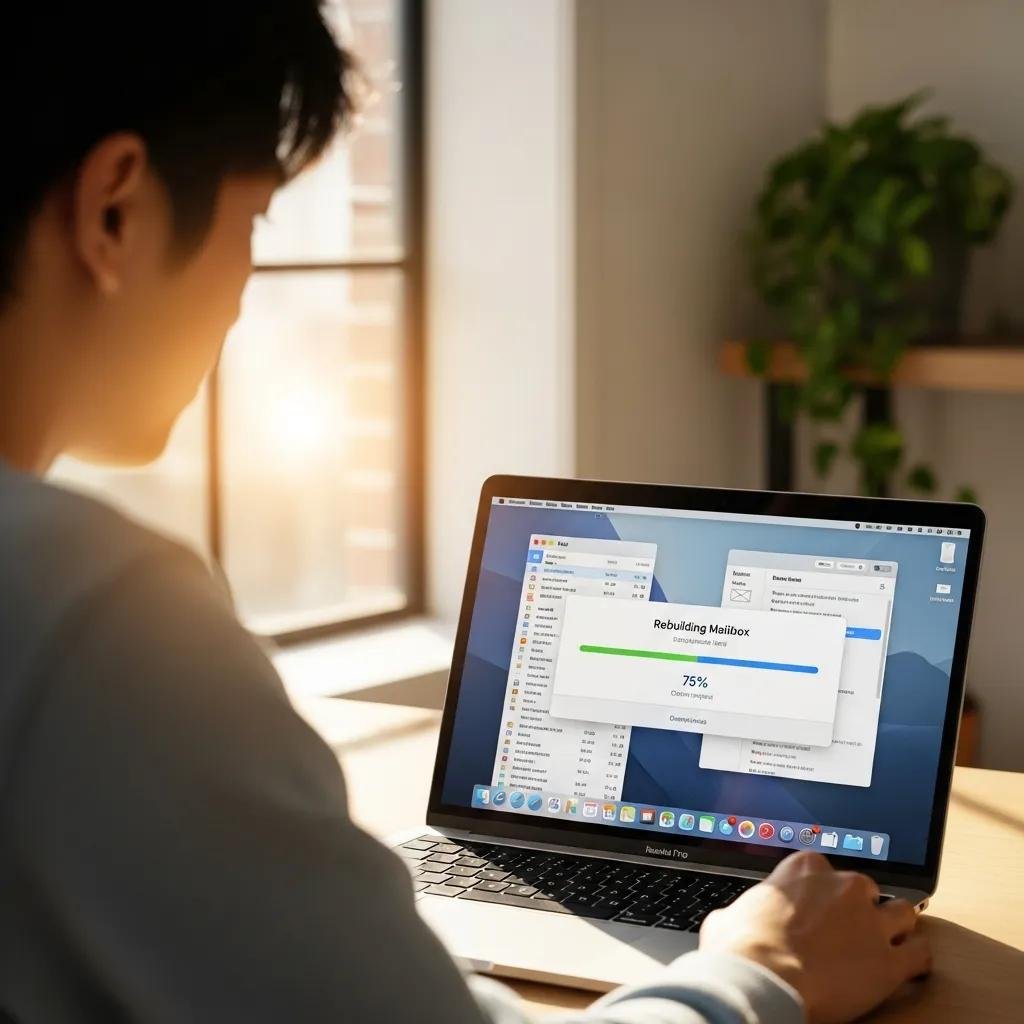
Rebuilding a mailbox in Mail.app forces Mail to re-download messages and recreate its local index, which solves many crashes and missing-message issues. First, back up your Mail folder or ensure Time Machine is enabled; then select the mailbox, choose Mailbox > Rebuild, and allow Mail to complete the download and index rebuild. If the problem remains after rebuilding, remove and re-add the account from Mail preferences to refresh server-synced data; re-adding is particularly effective when account-level settings or OAuth2 tokens are corrupted. Always keep a backup before removing accounts to avoid accidental data loss.
If rebuilding the mailbox or re-adding the account does not resolve the issue, remote diagnostics can help identify deeper permission or macOS-specific conflicts. mcHelper.com provides remote Mac email diagnostics as part of its Email Support service to check Keychain, permissions, and mailbox integrity when local steps fail.
What to Do When Thunderbird Is Not Receiving Emails
Thunderbird fails to receive when the incoming server (IMAP/POP3) settings are incorrect, authentication tokens have expired, or security software is blocking the client from establishing incoming connections. Testing with webmail helps determine whether the server is delivering mail; if webmail shows new messages but Thunderbird does not, the issue lies in client settings, folders, or security blocks. The checklist below helps you isolate whether the fault is server-side, client-side, or related to local security tools so you can apply the right fix quickly.
Which Settings Affect Thunderbird's Email Reception?
Incoming server name, port, encryption, authentication type, and folder subscriptions all determine whether Thunderbird retrieves messages. Incorrect port/encryption pairs or disabled folder subscriptions can make messages appear missing even when the server has them. Confirming these settings and using a send-to-self test helps validate reception without changing account credentials.
- Check IMAP port (typically 993) or POP3 port (995) and ensure SSL/TLS is selected for encryption.
- Verify the authentication method matches provider guidance (OAuth2 vs. normal password).
- Open Folder Subscriptions and confirm inbox and important folders are selected for synchronization.
After validating account settings, test receiving using webmail or a send-to-self message to determine if the issue persists; if webmail shows mail, focus on folder subscriptions and client-side filters in Thunderbird.
How Can Firewall or Antivirus Software Block Thunderbird?
Security software can block Thunderbird by preventing outbound or inbound connections on necessary ports, quarantining the application, or interfering with certificate exchanges during TLS handshakes. Safely testing involves temporarily disabling antivirus/firewall (only briefly) or adding Thunderbird to the security software’s allowed apps list to see if reception resumes. Additionally, router-level or ISP port blocks can prevent IMAP/POP3 connections, so testing on a different network or using mobile tethering isolates network-level restrictions.
- Temporarily disable antivirus/firewall protections and retry receiving to test for interference.
- Add Thunderbird to the firewall or antivirus allowed applications list if the temporary disable restores reception.
- Test on a separate network to rule out router or ISP port blocking before changing client settings.
If these steps point to complex cross-client or network configuration problems, remote troubleshooting for cross-platform issues can save time. mcHelper.com offers remote troubleshooting for firewall, antivirus, and cross-client configuration issues through its Email Support service to isolate and resolve network-level blocks.
How to Resolve Common Email Client Setup Problems
Manual account configuration requires selecting IMAP or POP3 for incoming mail, entering correct incoming/outgoing server values, choosing the appropriate ports and encryption, and setting the right authentication type such as OAuth2 or normal password. Proper setup ensures synchronization, reliable sending, and secure authentication tokens, which reduces long-term errors. Below is a compact three-step manual configuration summary followed by a comparison table of typical IMAP/POP3/SMTP port and encryption pairs to use when adding accounts across Outlook, Mac Mail, and Thunderbird.
- Choose IMAP for multi-device syncing or POP3 if you prefer to download-and-remove mail from the server.
- Enter incoming and outgoing server types, set IMAP to port 993 with SSL/TLS or POP3 to 995 with SSL/TLS, and set SMTP to 587 with STARTTLS/TLS.
- Select authentication type—use OAuth2 when available to avoid password resets, or use an app-specific password where providers require it.
Intro to table: The table below maps the common server role to recommended ports, encryption, and a provider example to speed manual setup checks across clients.
| Server Type | Typical Port | Encryption | Provider Example |
|---|---|---|---|
| IMAP (incoming) | 993 | SSL/TLS | Gmail / Outlook.com |
| POP3 (incoming) | 995 | SSL/TLS | Generic corporate or ISP |
| SMTP (outgoing) | 587 | STARTTLS/TLS | Gmail / Outlook.com |
Summary: Use IMAP/993/SSL or POP3/995/SSL for incoming and SMTP/587/STARTTLS for outgoing as a baseline; adjust only when a provider specifies alternate values. OAuth2 changes the login flow by issuing tokens instead of passwords and requires periodic reauthorization; if OAuth2 fails, re-authorize the account in the client or use an app password when supported by the provider. When setup steps and reauthorization still fail, escalating to a technician can save time—mcHelper.com provides Email Support as part of its remote repair services to assist with manual configuration, OAuth2 token troubleshooting, and secure reauthorization when needed.