Staying Safe on Public Wi-Fi: Essential Security Tips to Protect Your Data
Public Wi-Fi is any wireless network offered in shared spaces such as cafes, airports, hotels, and libraries, and while it provides convenience it also creates openings for attackers to intercept data and compromise devices.
This guide explains the most common public Wi-Fi vulnerabilities, shows practical protections you can apply immediately, and maps when to seek professional assistance for setup or recovery. You will learn clear definitions of attacks like man-in-the-middle and evil twin hotspots, step-by-step preventive measures such as using encryption and disabling sharing, and how layered controls like HTTPS, two-factor authentication, and timely updates reduce real exposure. The article is organized into four focused sections: the biggest risks and how they operate, effective protections you can implement, best device and network hygiene practices, and how mcHelper.com supports remote security, VPN setup, malware removal, and data recovery. Throughout, keywords such as secure hotspot usage, VPN for public Wi-Fi, and data encryption public networks are used to help you find practical, actionable advice. Read on to get a compact checklist and decision guide for staying private and secure on any public hotspot.
What Are the Biggest Risks and Dangers of Using Public Wi-Fi?
Public Wi-Fi exposes users to a range of network security threats because traffic often traverses shared infrastructure with weak or no encryption, which makes interception and impersonation feasible. Attackers exploit unencrypted packets, duplicate SSIDs, and session weaknesses to steal credentials, inject malware, or hijack active sessions, producing outcomes that range from identity theft to full device compromise. Understanding these threats helps prioritize defenses and reduce risk during every hotspot session.
Below is a concise comparison of common threats and the primary mitigation approaches to keep in mind before you connect.
| Threat | How it works | Likely impact / Mitigation |
|---|---|---|
| Man-in-the-Middle (MITM) | Attacker intercepts or modifies traffic between user and site | Credential theft, session hijack — Use VPN and HTTPS |
| Evil Twin (rogue hotspot) | Fake access point mimics legitimate SSID to capture connections | Data capture, phishing — Verify SSID, avoid auto-join |
| Packet sniffing | Passive monitoring of unencrypted traffic on the same network | Exposure of plain text data — Use encryption (VPN/HTTPS) |
| Malware distribution | Malicious content or downloads pushed via compromised network | Device infection — Avoid untrusted downloads, run antivirus |
This table highlights that encryption and cautious connection behavior directly reduce most public Wi-Fi threats, which leads naturally into protective controls you can deploy immediately.
How Do Man-in-the-Middle and Evil Twin Attacks Compromise Your Security?

A man-in-the-middle attack occurs when an adversary places themselves between you and the service you intend to reach, intercepting or altering communications without your knowledge.
An evil twin attack sets up a fraudulent access point that appears legitimate, prompting devices to connect and then capturing credentials, session cookies, and other sensitive data.
Common signs include duplicate SSIDs, sudden certificate warnings, weak or no encryption labels, and unusually slow connections; noticing these indicators should prompt immediate disconnection.
If you detect suspicious hotspots, stop activity, forget the network, and change any exposed passwords from a trusted network or using mobile data.
What Other Threats Like Malware and Identity Theft Should You Know About?
Malware can be introduced through drive-by downloads, malicious redirects, or software exploits that target unpatched services on your device while connected to public Wi-Fi.
Session hijacking uses stolen cookies or tokens to impersonate authenticated users, allowing attackers to access accounts even without credentials.
Identity theft can follow credential compromise and lead to financial loss, fraudulent accounts, and extended recovery efforts.
Basic mitigations include keeping systems patched, running reputable antivirus/firewall tools, avoiding downloads on public networks, and enabling two-factor authentication on critical accounts.
How Can You Protect Your Data on Public Wi-Fi Effectively?
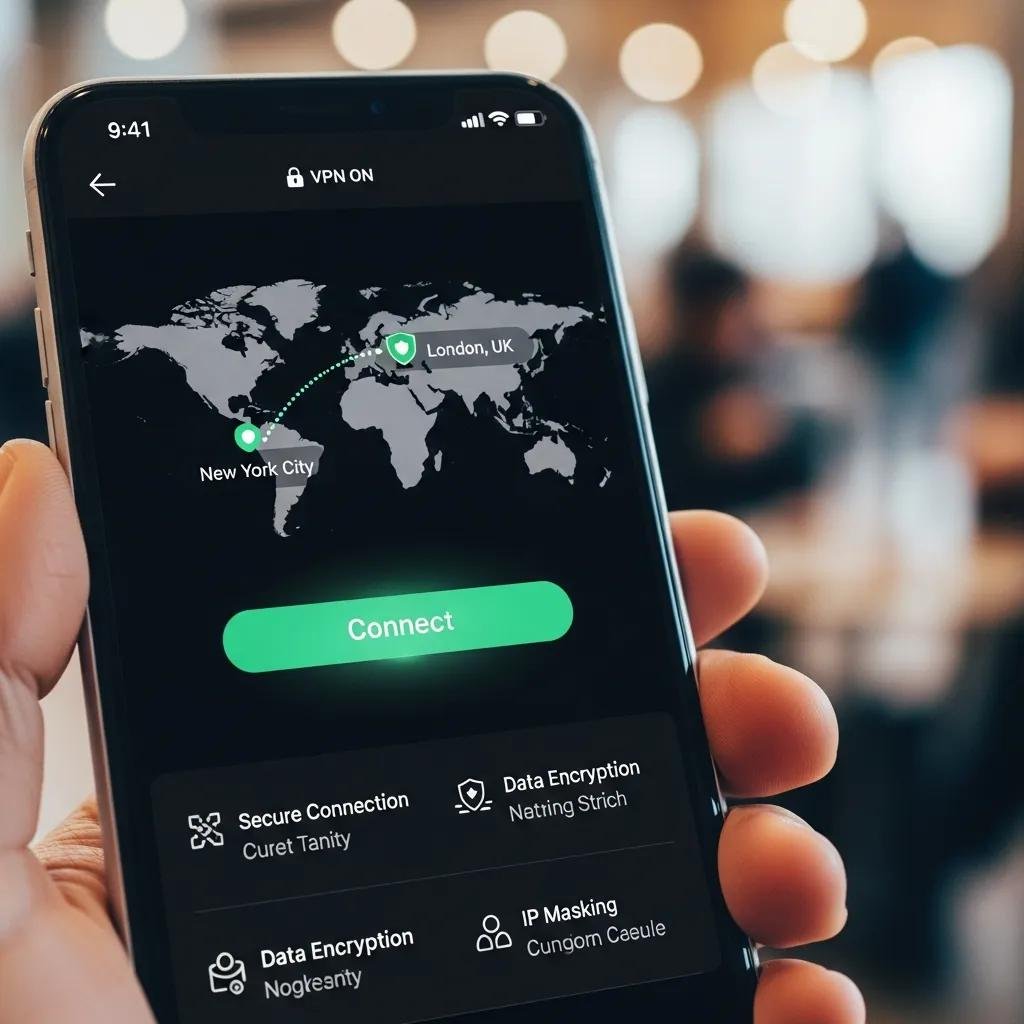
Protecting data on public Wi-Fi relies on layered defenses that combine encrypted tunnels, authenticated services, device hygiene, and cautious behavior to reduce attack surface and limit exposure.
A few immediate controls—using a VPN, verifying HTTPS, enabling 2FA, keeping software current, and disabling sharing—cover most common risks and should be habitual whenever you use a hotspot.
| Protection Method | What it does | Practical Tip / Example |
|---|---|---|
| VPN (encrypted tunnel) | Encrypts traffic between device and VPN server | Use a reputable VPN client and enable at all public hotspots |
| HTTPS / TLS | Encrypts web sessions end-to-end to visited sites | Check for padlock and valid certificates before logging in |
| Two-Factor Authentication (2FA) | Adds second verification step beyond passwords | Use app-based 2FA where possible, not SMS when available |
| Software updates | Patches vulnerabilities in OS and apps | Enable automatic updates for OS and browsers |
| Disable file sharing | Prevents network discovery and unsolicited access | Turn off sharing and network discovery before joining hotspots |
These controls work together: a VPN secures raw network transport, HTTPS protects individual sessions, and 2FA mitigates credential reuse if a password is exposed. If you prefer hands-off setup or suspect a compromise, mcHelper.com offers remote Computer & Internet Security and Virus/Spyware Removal services to harden devices or remediate infections quickly.
Why Is Using a VPN Crucial for Public Wi-Fi Safety?
A Virtual Private Network (VPN) creates an encrypted tunnel between your device and a remote server, preventing local eavesdroppers from reading packet contents or capturing credentials transmitted in the clear.
While a VPN does not protect against compromised endpoints or malicious websites, it significantly reduces risk from packet sniffing, basic MITM interception, and rogue access points on the local network.
When choosing and configuring a VPN, prefer modern protocols and reputable clients, enable kill-switch features, and avoid free VPNs that may log or sell traffic. For users who want setup help, mcHelper.com’s VPN Support service provides remote configuration assistance and protocol selection guidance to ensure safe hotspot usage.
How Do HTTPS, Two-Factor Authentication, and Software Updates Enhance Security?
HTTPS/TLS encrypts web traffic to specific sites, preventing intermediaries from reading or modifying page content and credentials during transmission, so verifying the padlock and valid certificate reduces impersonation risk.
Two-factor authentication requires an additional factor—such as an authenticator app or hardware token—so stolen passwords alone cannot grant account access, dramatically lowering the chance of account takeover.
Regular software updates close known vulnerabilities in operating systems and applications that attackers exploit on public networks; enabling automatic updates provides continuous protection with minimal effort.
What Are Best Practices for Maintaining a Secure Public Wi-Fi Connection?
Best practices for public Wi-Fi combine pre-connection checks, device configuration, and interaction habits to minimize exposure during each session. Verify the exact SSID with staff where appropriate, avoid automatic network joins, and prefer WPA2- or WPA3-enabled networks when available.
Below are focused steps you can adopt every time you connect.
- Confirm the network name: Ask the venue for the exact SSID to avoid evil twin traps.
- Disable auto-join: Turn off automatic connections to open networks in your OS settings.
- Use a VPN and HTTPS: Always use an encrypted tunnel and check site certificates before logging in.
Adopting these habits decreases the likelihood of accidental connections to malicious networks and makes targeted attacks much harder to execute, which naturally points to device settings to enforce these protections.
How to Disable File Sharing and Manage Auto-Connect Settings Safely?
Most operating systems offer quick privacy settings to disable file and printer sharing and to stop auto-connecting to open networks, and changing these defaults removes easy attack paths for local intruders.
On desktops and laptops, set network profiles to “public” or “not discoverable” and explicitly turn off sharing services in system preferences or control panels.
Mobile devices allow you to forget networks and disable auto-join for untrusted SSIDs; combine that with a strong screen lock and device encryption for added protection. Regularly review saved networks and remove ones you no longer use to reduce unintended exposures.
When Should You Use Mobile Hotspots Instead of Public Wi-Fi?
A personal mobile hotspot provides a private, carrier-managed connection that is usually safer than public Wi-Fi for sensitive tasks because it avoids shared local infrastructure and rogue access points.
Consider using your phone’s hotspot for banking, remote work, or when you need a reliable, private channel, while weighing battery use and data caps.
Tethering best practices include using strong hotspot passwords, device encryption, and disabling hotspot when not in use. For extended remote access or frequent secure sessions, a mobile hotspot is often the simpler, lower-risk choice.
How Does mcHelper.com Support Your Public Wi-Fi Security Needs?
mcHelper.com is a remote computer repair and tech support company that provides targeted services to help individuals secure their devices for public Wi-Fi use and to recover after breaches. Their remote certified technicians assist with VPN support, Internet security hardening, virus and spyware removal, and data recovery, offering 24/7 availability and a “No Fix – No Fee” promise to reduce friction for users needing urgent help.
| Service | What it covers | When to contact mcHelper.com |
|---|---|---|
| VPN Support | VPN selection, installation, configuration, kill-switch setup | When you need encrypted tunnels on every hotspot or help choosing protocols |
| Computer & Internet Security | Firewall setup, security hardening, update management | When you want preventative setup or ongoing protection |
| Virus/Spyware Removal | Malware diagnosis, cleanup, system restoration | If you suspect infection after public Wi-Fi use |
| Data Recovery | Recovery of lost or encrypted files after compromise | When important files are missing or corrupted post-breach |
These remote services are designed to complement the self-help protections described earlier and provide a rapid path to remediation and recovery following suspected compromise. mcHelper.com’s remote model makes it straightforward to get professional help for setup or post-incident cleanup without disrupting your workflow.