Should You Defragment Your Hard Drive in Windows 10/11? Essential Guide to Disk Optimization
Defragmentation is a targeted maintenance task that improves performance on mechanical hard disk drives (HDDs) but is unnecessary—and potentially harmful—for solid state drives (SSDs). This guide explains what fragmentation is, how it affects HDD speed and stability, when to run defragmentation in Windows 10/11, and why SSDs rely on TRIM and other firmware features instead of defrag. Readers will learn step-by-step instructions for using the Windows Optimize Drives utility, sensible frequency rules for manual defrag, and how Windows automates optimization for different drive types. The article integrates practical troubleshooting tips and clear signals that indicate an HDD needs attention, plus concise comparisons between HDD and SSD behaviors. Throughout, keywords like defrag hdd benefits, optimize hard disk, ssd defrag myth, and how to defrag windows 10 are used to help you find the exact actions you should take to maintain drive performance.
What Is Hard Drive Fragmentation and How Does It Affect Performance?
Hard drive fragmentation occurs when files are written in non-contiguous blocks across the magnetic platters of an HDD, forcing the read/write head to seek multiple locations to assemble a single file. This mechanical seeking increases average seek time and rotational latency, which directly reduces sequential read speeds and adds disk queue pressure under load. The benefit of defragmentation is reclaiming contiguous free space and reorganizing file fragments so the head moves less, which improves boot times and application load times on affected systems. Understanding these mechanics clarifies why fragmentation is a disk-level performance problem specific to HDDs and why free-space level matters for effective optimization.
Fragmentation creates observable symptoms you can monitor to decide whether to optimize your hard disk next.
- Slow boot and application startup: Programs take longer to open when critical files are scattered.
- High disk activity: The HDD shows constant high utilization during normal tasks.
- Long file copy or save times: Single-file operations take disproportionately long on heavily fragmented drives.
These symptoms lead naturally to quantifying the impact and deciding when to act, which the next subsection explains.
| Component | Attribute | Impact |
|---|---|---|
| File fragments | Non-contiguous allocation | Increased seek time and slower sequential reads |
| Free space blocks | Fragmented free space | Reduced efficiency of defragmentation and inability to consolidate files |
| Disk sectors/platters | Physical layout | Higher rotational latency and mechanical wear when seeking fragmented files |
This table summarizes how specific fragmentation attributes translate into measurable performance effects on HDDs and why managing free space improves defrag results. The next subsection gives concrete examples of the speed and stability outcomes to expect.
How Does Fragmentation Impact HDD Speed and Stability?
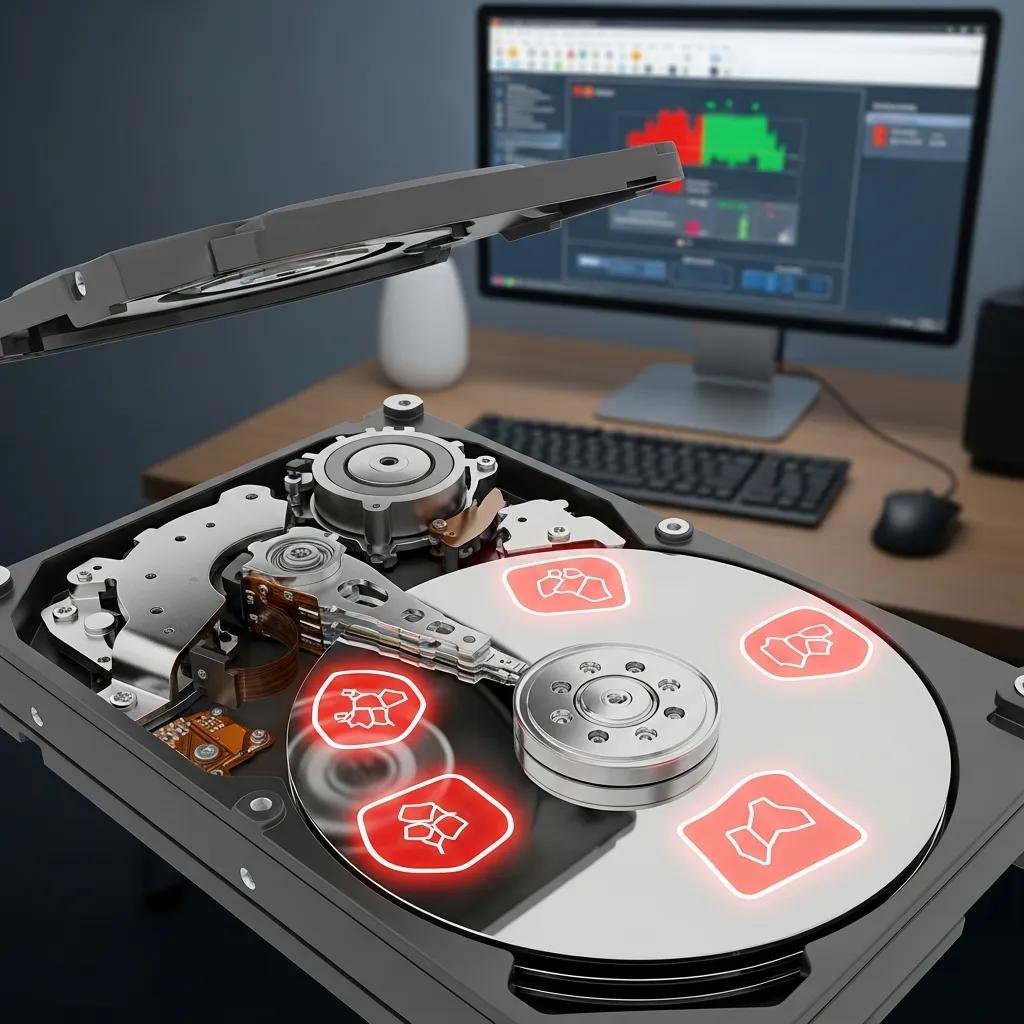
Fragmentation increases average seek distance and causes many small random reads for what could be single sequential reads, so an HDD’s effective throughput can drop noticeably under heavy fragmentation. For example, boot times and application launches may lengthen because the operating system must assemble fragmented system files from dispersed sectors. Fragmentation can also increase disk queue length and I/O wait, which feels like system sluggishness during multitasking. If your drive is older, nearly full, or used for frequent large-file edits, fragmentation’s impact on speed and responsiveness is likely to be higher and worth addressing with optimization.
Recognizing these symptoms helps you decide whether to run a defrag now or rely on automated maintenance, which is covered in the procedural section that follows.
Why Is Fragmentation Less Relevant for SSDs?
Fragmentation is largely irrelevant for SSDs because they use flash memory with near-instant random access times and no moving parts, so the physical location of file blocks has negligible effect on read latency. The SSD’s controller, wear-leveling algorithms, and high IOPS capacity mean that scattered file blocks do not create the same penalties experienced by HDDs. Myth-busting: defragmenting an SSD does not meaningfully improve performance and instead creates extra write cycles that can reduce the drive’s lifespan. Understanding the SSD architecture and transitioning to TRIM-based maintenance is the safer, recommended approach for solid-state storage.
This architectural contrast sets up the next practical section: when and how to run defragmentation on HDDs in Windows 10/11.
When and How Should You Defragment an HDD in Windows 10/11?
You should defragment an HDD when Windows reports high fragmentation percentages, you observe HDD-specific performance symptoms, or after large file deletions that leave fragmented free space; ensure you have at least 15–20% free space before running a full defrag for best results. Manual defragmentation is most helpful on older desktop HDDs, boot/system drives with heavy churn, or external mechanical drives used for frequent large-file storage. The overall benefit—improved sequential read performance and reduced seek activity—translates to faster boot times and smoother application loads on affected machines. Before proceeding, back up critical data, close background applications, and verify you have administrative privileges.
Below are concise, featured-snippet–style steps to defragment using Windows built-in tools, followed by quick troubleshooting tips.
- Open the Windows search, type Defragment and Optimize Drives, and run the utility as an administrator.
- Select the HDD (not the SSD), click Analyze to view fragmentation, then click Optimize to start defragmentation.
- Monitor the process; allow it to finish uninterrupted and rerun if fragmentation remains high or stalls.
These steps provide an actionable how-to for users asking how to defrag Windows 10 or defragment hdd Windows 11, and they lead into frequency guidance and what to do if the built-in tool fails.
For users who prefer professional help or who encounter problems during defragmentation, mcHelper.com offers remote “Speed-Up and Optimize your Computer” services with certified technicians, 24/7 availability, and a no fix – no fee promise. Their technicians can run safe HDD defrags, verify backups, and diagnose stalled processes remotely, which can be useful if Windows’ Optimize Drives reports persistent issues.
What Are the Step-by-Step Instructions to Defrag Your Hard Drive?
Before starting, confirm administrative access, ensure important files are backed up, and free at least 15–20% of the drive to improve consolidation efficiency. Open , select the targeted HDD (confirm it’s not an SSD), click Analyze to check fragmentation percentage, and then choose Optimize to begin. Close heavy applications and avoid interrupting the process; if the defrag stalls, reboot into Safe Mode and retry or check for disk errors using built-in diagnostics. After completion, review the post-optimize fragmentation percentage and repeat only if needed.
Following these steps ensures a controlled defragmentation that minimizes disruption and maximizes defrag hdd benefits. The next subsection provides guidance on how often this should be done.
How Often Should You Perform HDD Defragmentation for Optimal Results?
Frequency depends on usage: enable automatic scheduling if the PC is used daily, but manual runs are appropriate when you see symptoms or large file churn. As a rule of thumb, monthly defragmentation is reasonable for heavy-use systems (media editing, frequent installs), quarterly for typical home desktops, and rarely for light-use or archival machines. Monitor fragmentation percentage and system responsiveness rather than a rigid calendar; heavy file writes or low free space warrant more frequent checks. If Windows’ Optimize Drives is correctly configured, manual intervention should be infrequent.
These scheduling guidelines transition to safer SSD practices and why manual defrag is discouraged for modern flash storage.
Why Should You Avoid Defragmenting SSDs? Understanding the Defrag SSD Myth

No — you should generally avoid manual defragmentation on SSDs because it offers negligible performance gains and creates unnecessary write cycles that shorten flash lifespan. SSDs use TRIM, wear leveling, and internal garbage collection to maintain performance; these mechanisms remove and consolidate stale blocks without the expensive full-disk rewriting that defragmentation performs. The correct maintenance approach for SSDs is ensuring TRIM is enabled, keeping firmware up to date, and avoiding third-party defrag tools that do not differentiate drive types. This explanation addresses the ssd defrag myth directly and points to safer alternatives.
| Drive Type | Attribute | Effect of Manual Defragmentation |
|---|---|---|
| SSD | Limited write cycles | Manual defrag increases writes, accelerating wear |
| SSD | TRIM support | OS-level TRIM is sufficient for garbage collection and maintains performance |
| SSD | Wear leveling | Controller manages block distribution; defrag offers no benefit |
This comparison clarifies why “should I defrag my SSD” is answered with avoidance and TRIM-focused care, which the following subsections explore in detail.
What Is the TRIM Command and How Does It Optimize SSDs?
TRIM is an OS-to-drive command that marks deleted file blocks as available so the SSD controller can garbage-collect or erase them proactively, which maintains write performance and reduces unnecessary write amplification. In Windows 10/11, TRIM is typically enabled by default; you can verify it by querying the file system behavior via the utility. TRIM reduces the number of background writes required to prepare free blocks for new data and works in concert with wear leveling to prolong usable drive life. Ensuring TRIM is active and that the drive firmware is current is the recommended maintenance path for SSDs.
Understanding TRIM naturally leads into why manual defragmentation harms SSD lifespan, discussed next.
How Does Defragmentation Affect SSD Lifespan and Performance?
Manual defragmentation rewrites many blocks across the SSD, increasing total write volume and contributing to write wear without offering measurable read-performance improvements. Since SSDs deliver high random access speeds, any tiny gains from rearranging logical block addresses are negligible compared to the cost in write cycles. Modern operating systems and SSD controllers already minimize fragmentation impact and use TRIM and garbage collection to keep performance stable. Therefore, the trade-off is clear: avoid defrag tools on SSDs and favor TRIM verification and firmware updates for longevity.
These SSD recommendations connect directly to how Windows handles optimization automatically, which the next section explains.
How Does Windows 10/11 Automatically Optimize Your Drives?
Windows’ Optimize Drives utility identifies drive type and runs appropriate maintenance: scheduled defragmentation for HDDs and TRIM/trim-like operations for SSDs, typically on a weekly or scheduled cadence. The utility analyzes fragmentation and shows a status indicator, and Windows also integrates complementary tools such as Disk Cleanup and Storage Sense to remove temporary files and free space. For most users, leaving automatic optimization enabled delivers balanced upkeep without manual intervention, while advanced users may adjust schedules based on workload. Knowing what the utility does helps you configure it safely for both HDD and SSD environments.
| Drive Type | Automatic Action | Frequency / Effect |
|---|---|---|
| HDD | Defragment (consolidate files) | Scheduled weekly by default; improves sequential reads |
| SSD | Re-trim / retrim-like optimization | Scheduled as TRIM operations; maintains free block availability |
| All drives | Report drive status and last optimized | Helps users decide on manual intervention when needed |
This summary shows how Windows balances defrag hdd benefits with SSD-safe maintenance and why automatic optimization is sufficient for most systems. The next subsection lists specific features of the utility.
What Features Does the Windows 'Optimize Drives' Utility Offer?
The utility provides Analyze to estimate fragmentation, Optimize to perform defrag or TRIM, scheduled optimization to run automatically, and a status display showing last run and current drive recognition. Analyze offers a quick fragmentation percentage that informs whether manual action will help, while Optimize executes the appropriate algorithm based on drive type. Scheduled Optimization keeps regular maintenance without user involvement and can be adjusted for frequency or paused for specific drives. These features make Optimize Drives the primary first-line tool for both defragment hdd windows 11 tasks and SSD maintenance.
These feature descriptions lead into explicit steps for checking and configuring automatic settings.
How to Check and Configure Automatic Disk Optimization Settings?
Open Optimize Drives, click Change settings to view or adjust the schedule, and verify each drive’s “Automatically optimize” checkbox; set frequency to Weekly for typical systems and ensure power settings allow background optimization. Confirm that Windows correctly identifies SSDs so TRIM is applied rather than defrag; if a drive is misidentified, seek professional diagnosis before forcing actions. For enterprise or multi-drive systems, consider leaving scheduling on and having a technician audit drive recognition and cleanup routines if Windows mislabels a device. If automatic optimization fails or reports errors, document the status and escalate to specialized support.
If you prefer a remote audit and configuration of automatic optimization across multiple drives, mcHelper.com can perform a thorough optimization audit and adjust settings, while also running deeper system cleanups as needed; their remote service is available 24/7 and focuses on safe, drive-type–aware maintenance.
| Drive Type | Automatic Action | Recommended User Setting |
|---|---|---|
| HDD | Defragment | Leave automatic on; manual monthly if heavily used |
| SSD | TRIM / retrim-like | Leave automatic on; do not run manual defrag tools |
| External/Removable | Dependent on device | Verify device type before running optimize |
This final table reiterates recommended settings and emphasizes leaving automatic optimization enabled for most users, completing the practical configuration guidance.
For complex cases or persistent performance issues after following these steps, consider professional assistance from mcHelper.com‘s certified technicians who offer remote “Speed-Up and Optimize your Computer” support with a no fix – no fee assurance, available any time to help diagnose drive recognition problems and optimize system settings.