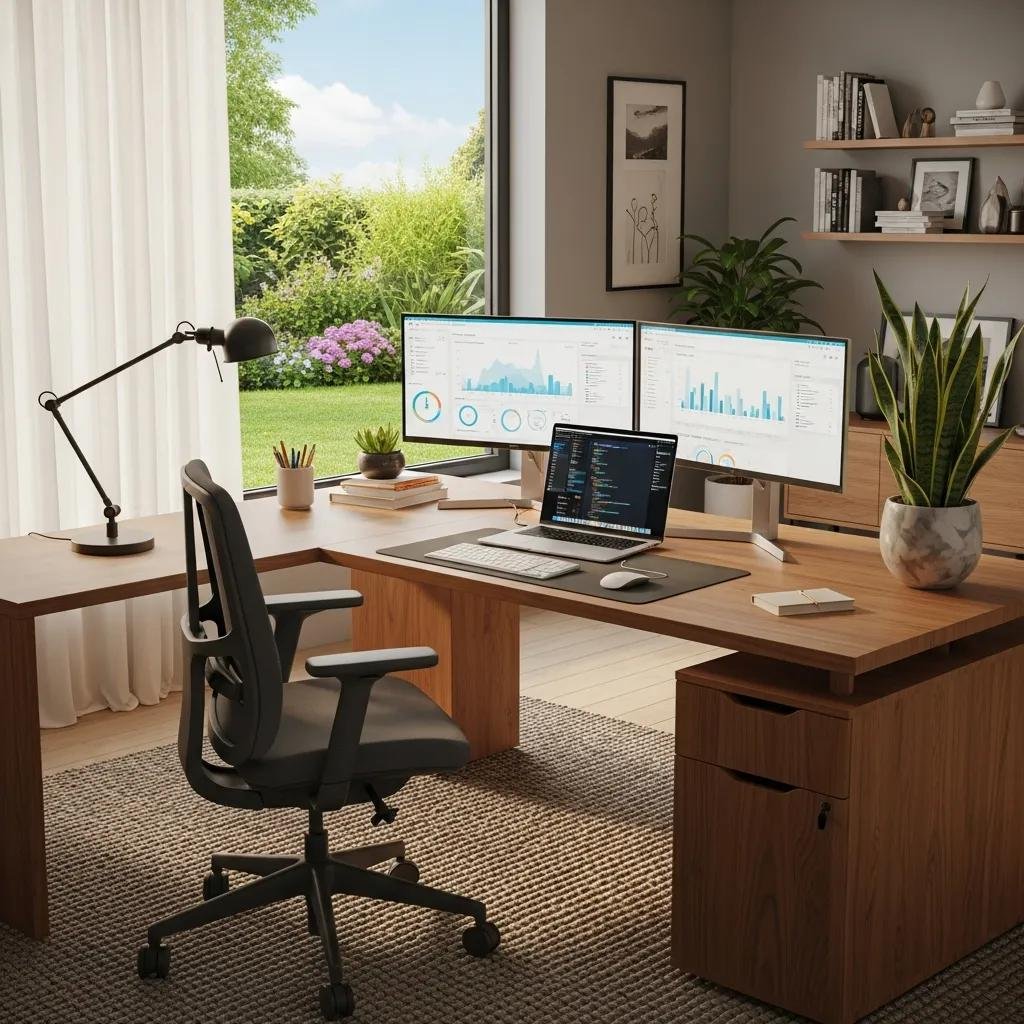
Remote Work Tech Setup: Essential Tips for a Productive Home Office
A strong remote work tech setup is the foundation of consistent productivity, low friction meetings, and reliable file access when working from home. This guide outlines what a productive home office requires, explaining the hardware choices, network configuration, ergonomic adjustments, and maintenance routines that minimize downtime and cognitive load. Readers will learn which computers and monitors best support multitasking, how to optimize home Wi-Fi for stable video calls, ergonomic choices that reduce strain, and practical troubleshooting steps to keep systems running. Each section provides concrete specs, checklists, and comparison tables so you can make quick decisions and implement changes without guesswork. Practical keywords covered include work from home computer, remote setup guide, home office tech essentials, and home network optimization for productivity to help you find and apply the most relevant solutions.
What Are the Core Hardware Essentials for a Seamless Remote Work Setup?
Core hardware essentials are the physical devices and peripherals that enable reliable remote work by delivering processing power, clear communication, and comfortable interaction. Choosing the right computer, monitor configuration, input devices, and audio/video gear reduces interruptions and improves task throughput, especially during video meetings and multitasking. Below is an ordered list of the primary items to prioritize for a productive home office, with concise reasons for each choice and how they affect workflow. These essentials form the baseline that lets software and network optimizations deliver predictable performance.
Core hardware essentials for a productive home office:
- Reliable computer (laptop or desktop): Handles apps, browser tabs, and conferencing without freezing.
- SSD-based storage: Speeds boot and app launch times, reducing idle waiting.
- 8GB RAM minimum, 16GB recommended: Supports multitasking with multiple apps and browser tabs.
- Dual monitors or large single monitor: Improves window management and reference visibility.
- HD webcam and clear microphone: Ensures professional video and understandable audio.
- Noise-canceling headphones: Reduces background noise during calls and focus work.
Which Computers and Monitors Best Support Remote Work Productivity?
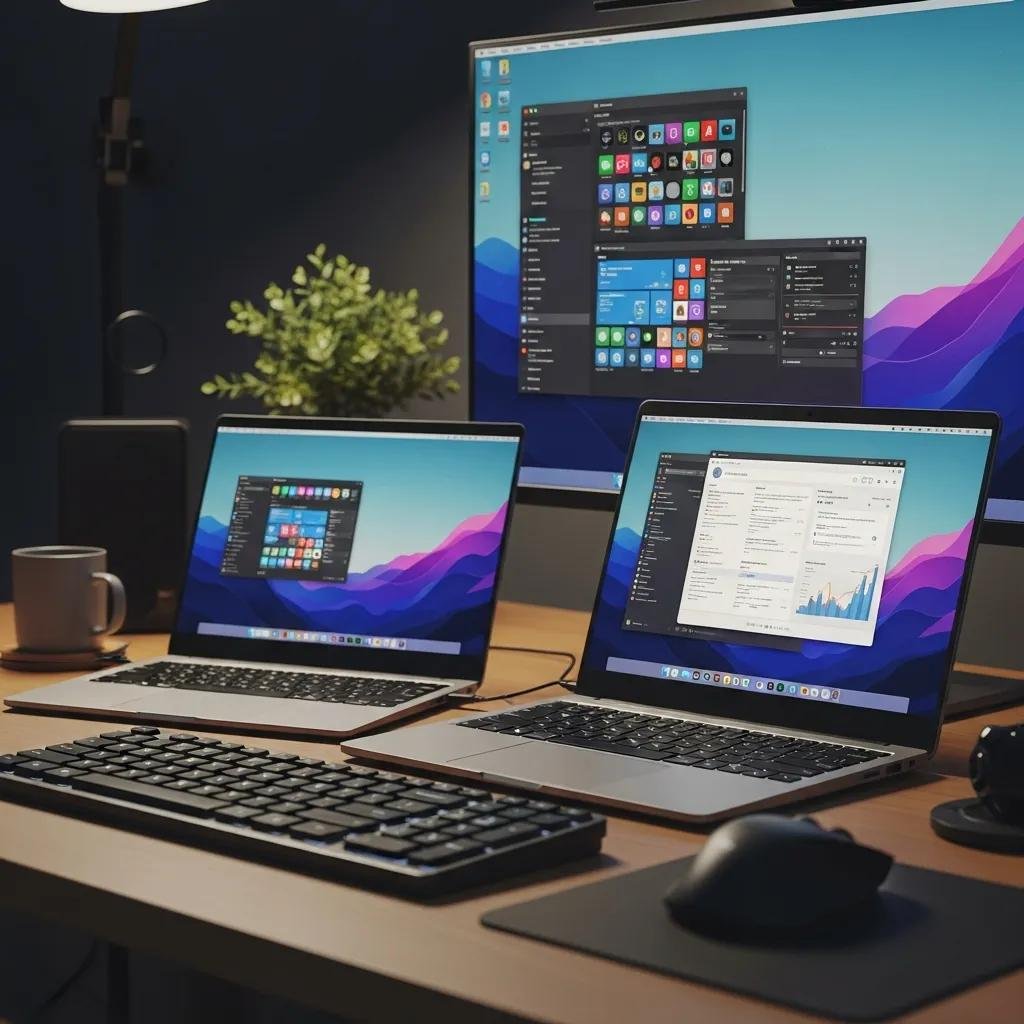
Choosing between laptops and desktops depends on portability needs versus raw power, but both should meet minimum performance thresholds to avoid slowdowns. Aim for an SSD, a modern multicore CPU, and at least 8–16GB of RAM; 16GB is preferable for heavy multitasking with virtual meetings. Dual-monitor setups (a primary 24–27″ 1080p/1440p display plus a vertical or secondary panel) dramatically reduce context switching and make reference documents and chat windows visible while you work. For budget-conscious users, a well-equipped laptop with an external monitor offers flexibility; for power users, a desktop with a dedicated GPU and ample RAM delivers the smoothest multi-app experience. If your system feels sluggish despite meeting these specs, mcHelper.com offers speed optimization and configuration support to tune performance and remove bottlenecks.
This hardware comparison clarifies typical choices and leads into a compact spec table for quick comparison.
| Device Type | Recommended Spec | Benefit |
|---|---|---|
| Laptop | SSD, quad-core CPU, 8–16GB RAM | Portability with sufficient multitasking |
| Desktop | SSD, 6+ core CPU, 16GB+ RAM | Higher sustained performance and upgradeability |
| Monitor | 24–27″ 1080p or 1440p, IPS | Clear text, accurate colors, better workspace |
The table shows how choosing the right device and monitor aligns with your workflow needs and budget, and the next subsection explains peripherals that improve communication and comfort.
What Peripherals Enhance Communication and Comfort in a Home Office?
Peripherals determine how effectively you communicate and how comfortable you remain during long workdays, directly impacting productivity and health. Prioritize an HD webcam (at least 720p, preferably 1080p), a dedicated microphone or headset with a noise-reducing boom, and an ergonomic keyboard and mouse to prevent strain. Position webcams at eye level and use a microphone with a pop filter or noise suppression to reduce distractions during meetings. For collaborative work, a set of noise-canceling headphones improves focus while open-plan homes benefit from a small USB speaker for non-sensitive audio. Proper peripheral selection complements the core computing hardware covered earlier and prepares you for network and ergonomic adjustments.
How Can You Optimize Your Home Network for Reliable Remote Work Connectivity?
Optimizing your home network means ensuring bandwidth, coverage, and security align with remote work demands so video calls, cloud apps, and file transfers remain stable. Start by testing baseline internet speed and latency, then match an ISP plan to your typical simultaneous demands—video calls, cloud backups, and smart devices. Router capability (Wi-Fi 6, dual-band) and placement influence coverage; consider a mesh system for larger homes. Basic QoS settings prioritize conferencing traffic, while a VPN protects data when required. When local tuning isn’t enough, mcHelper.com’s home wireless network support can assist with router configuration, mesh setup, VPN configuration, and backup connection planning via remote diagnostics and guided setup.
Begin by following a concise checklist to assess and improve your connection quality.
- Test speed and latency during a typical work hour to measure real-world performance.
- Upgrade router firmware and enable dual-band or Wi-Fi 6 features for better throughput.
- Place the router centrally and avoid obstructing materials; consider a mesh system for dead zones.
- Configure QoS to prioritize video conferencing traffic and critical work apps.
These network checks reveal whether you need equipment upgrades or configuration changes, and the next table compares common network options and recommended thresholds.
| Network Option | Characteristic | Recommended Threshold |
|---|---|---|
| ISP Plan | Download/upload speeds vary | 100 Mbps down / 10 Mbps up — baseline for HD calls |
| Router | Wi-Fi 6, MU-MIMO, dual-band | Modern router for multiple concurrent devices |
| Mesh Wi-Fi | Multiple nodes for coverage | Use when single-router signal drops in key rooms |
This comparison helps you choose upgrades that match your household size and work patterns, and the following subsection explains VPNs and backup connections for security and resilience.
What Are the Best Practices for Setting Up High-Speed Internet and Wi-Fi?
Setting up high-speed internet and Wi-Fi begins with measuring current performance, selecting an ISP plan that meets peak needs, and placing quality hardware optimally to reduce packet loss and latency. Run speed tests near your workstation and during typical work hours to assess variability, then choose routers with modern standards (Wi-Fi 6 where affordable) and enable both 2.4GHz and 5GHz bands for device flexibility. For larger homes, deploy a mesh network to ensure consistent throughput at remote desks; avoid cheap extenders that halve bandwidth. After hardware placement, secure the network with a strong password and routine firmware updates to maintain both performance and safety, which connects naturally to VPN and backup strategies.
How Do VPNs and Backup Connections Improve Network Security and Stability?
A VPN secures data in transit by encrypting traffic and protecting remote access to work resources, reducing the risk when using shared or guest networks. VPNs also enable secure access to company resources that require an internal IP while maintaining confidentiality during file transfers and conferencing. Backup connections such as a secondary ISP, mobile hotspot, or tethered phone provide resilience when the primary service fails, keeping critical meetings and uploads uninterrupted. For complex VPN configuration, professional remote setup can ensure correct routing and minimal performance impact; this is a common point where remote tech support is valuable before moving into ergonomic considerations.
What Ergonomic Solutions Create a Comfortable and Healthy Home Office Environment?
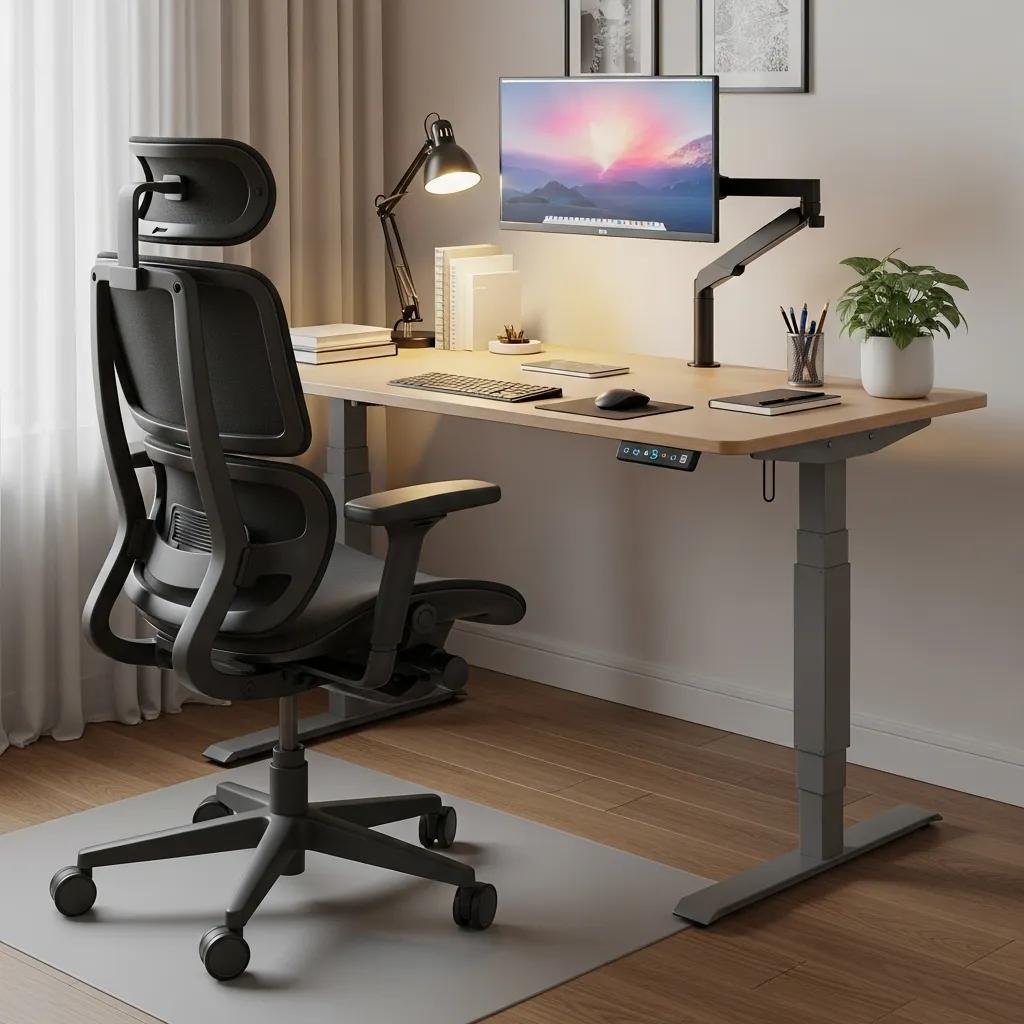
Ergonomic solutions are the furniture and setup choices that reduce musculoskeletal strain, improve circulation, and sustain focus throughout the workday. Key elements include an adjustable chair with lumbar support, a desk at the correct height (or adjustable sit-stand desk), and monitor positioning that keeps the top of the screen at eye level. Proper keyboard and mouse placement reduce wrist extension and shoulder tension, while regular micro-breaks and simple stretching routines prevent fatigue. This section offers product attributes in a comparison table and practical recommendations to implement immediately.
| Product | Adjustable Feature | Primary Benefit |
|---|---|---|
| Ergonomic Chair | Lumbar, tilt, arm adjustments | Reduces lower back strain |
| Standing Desk | Height range for sitting/standing | Improves circulation and posture |
| Monitor Arm | Tilt and height adjustment | Aligns screen to eye level, reduces neck strain |
The table clarifies which features matter most for ergonomic benefit, and the next subsections explain chair and desk adjustments plus lighting and workspace layout tactics.
How Do Ergonomic Chairs and Adjustable Desks Prevent Work-Related Strain?
Ergonomic chairs and adjustable desks work by keeping the spine neutral, supporting lumbar curves, and enabling frequent posture changes that distribute muscular load. Adjust seat height so feet rest flat with knees at roughly 90 degrees, set lumbar support to match the lower back contour, and keep armrests aligned to allow relaxed shoulders. For sit-stand desks, alternate positions every 30–60 minutes to improve circulation and reduce prolonged static loading of any one muscle group. Establishing these adjustments and a micro-break routine prevents chronic pain and supports sustained productivity, which pairs directly with lighting and layout choices next.
What Lighting and Workspace Arrangements Boost Focus and Reduce Fatigue?
Lighting and workspace arrangement influence visual comfort and cognitive energy by minimizing glare, balancing ambient and task lighting, and reducing visual clutter. Position monitors perpendicular to windows to avoid direct glare, use adjustable task lamps for document work, and favor neutral color temperatures to reduce eye strain during long sessions. Keep frequently used items within arm’s reach and use cable management to reduce distractions; a tidy desk lowers cognitive load and improves focus. These layout changes support ergonomic posture and make technical troubleshooting simpler when issues arise.
How Do You Maintain and Troubleshoot Your Remote Work Tech Setup Effectively?
Effective maintenance and troubleshooting keep interruptions short and predictable by combining routine care with quick diagnostic steps for common issues. Regular maintenance includes OS and driver updates, scheduled backups, disk cleanup, and antivirus scans to prevent performance degradation. When problems occur, a short, ordered troubleshooting process—restarting, isolating the issue, testing with another device, and checking network status—resolves many problems quickly. If issues persist, escalate to professional remote support that can perform secure diagnostics, remove malware, and optimize speed without an in-home visit.
Common quick fixes for frequent remote work problems:
- Sluggish computer: Restart, close background apps, free disk space, and check for updates.
- Audio/video issues: Test devices in system settings, verify app permissions, and restart conferencing software.
- Wi-Fi drops: Reboot router, test wired connection, and run a speed test to identify ISP issues.
These steps handle most interruptions, and if you need escalation criteria, the next subsection explains when to involve professionals.
What Are Common Tech Issues and How Can You Resolve Them Quickly?
Common tech problems include slow performance, corrupted audio/video during calls, and intermittent Wi-Fi; each has fast checks that often restore function. For slow systems, reboot first, then check Task Manager or Activity Monitor for resource hogs, ensure sufficient free disk space, and run system updates; these steps often restore acceptable performance. For conferencing audio/video, verify device selection inside the meeting app, test with the platform’s device test page, and check microphone/camera permissions in the OS. For persistent networking issues, run a speed test, try a wired connection, and reboot network devices; if problems are recurrent or suggest malware, escalate to remote support for deeper diagnostics.
When Should You Seek Professional Remote Tech Support Services?
Seek professional remote tech support when self-help steps fail, when issues involve suspected malware, when hardware diagnostics are required, or when the time cost of troubleshooting outweighs the benefit of doing it yourself. Professional remote support can perform secure diagnostics, remove viruses and spyware, enhance computer and internet security, and perform speed optimization that often restores sustained performance. mcHelper.com provides dedicated remote computer repair and tech support for both Mac and Windows users with 24/7 availability, offering services such as virus and spyware removal, computer and internet security improvements, speed optimization, and home wireless network support. Their “No Fix – No Fee” promise and around-the-clock access make escalation an efficient option when issues persist beyond basic troubleshooting.