Optimal Router Placement for Best Wi-Fi Signal: Your Essential Wifi Router Placement Guide
Correct router placement is one of the fastest, lowest-cost ways to improve home Wi-Fi coverage and reduce persistent dead zones. This guide explains where to put a router, why placement affects signal propagation, and practical steps — from simple relocation and antenna tweaks to choosing mesh or extenders — that you can apply today to improve wifi signal and optimize home wifi coverage. Many users see significant improvements by moving a router only a few feet, because wireless signal strength declines with distance and is disrupted by metal, concrete, and active appliances. Below you’ll find clear placement rules, diagnostic steps to identify and eliminate dead spots, comparison guidance for mesh vs extenders, and actionable setup tips including antenna positioning and band selection. If DIY steps don’t resolve persistent issues, the final section explains when to consider professional remote support for home wireless network optimization. Throughout this article you’ll find targeted advice to reduce dead zones, improve wifi signal, and answer the question: where to put router for best results.
Where Is the Best Location for Your Router to Boost Home Wi-Fi Signal?
Place the router centrally on the main living level, elevated and out in the open, because a central, elevated location shortens average device distance and reduces the number of obstructing walls. A central position improves line-of-sight to more rooms and balances signal distribution, which directly improves coverage for mobile devices and streaming hubs. Below are focused placement priorities that capture the core recommendations for best router location and immediate action points to improve wifi signal.
- Place the router near the center of your home to reduce average device distance.
- Elevate the router on a shelf or wall mount to avoid floor-level attenuation.
- Keep the router out of enclosed cabinets and away from large metal objects.
These quick rules deliver immediate improvements for most homes, and the table below shows recommended placements by common home type to make the choice concrete.
Recommended placement by home layout:
| Home Type | Recommended Location | Rationale & Quick Tip |
|---|---|---|
| Single-story house | Center of the main floor, elevated on open shelf | Shorter average distance to devices; avoid placing in corners next to appliances |
| Multi-story home | Central room on the primary living level; consider node on each floor | Central on main level for most devices; add a mesh node or reposition for upstairs coverage |
| Apartment or condo | Central wall near living area, away from metal HVAC | Higher density of neighboring networks — use channel selection and elevation to reduce interference |
This table clarifies practical choices by dwelling type and prepares you to test coverage patterns before moving to deeper diagnosis and fixes.
Why Does Router Placement Matter for Wireless Network Coverage?
Router placement matters because Wi-Fi uses radio waves that attenuate with distance and are absorbed or reflected by common building materials, which reduces throughput and raises latency. Denser materials like concrete, brick, metal, and mirrored glass create the biggest signal loss, while wood and drywall have less impact; understanding these differences helps prioritize relocation choices. Interference from appliances such as microwaves and cordless phones compounds placement effects by introducing noise on overlapping frequencies, degrading real-world throughput. Recognizing how distance, obstruction, and interference interact is the first step toward targeted fixes and leads naturally into why a central location often outperforms a corner placement.
How Does a Central Location Improve Wi-Fi Signal Distribution?
A central router location reduces the average distance between transmitter and devices, which directly improves received signal strength and data rates across the home. With shorter average paths, fewer walls and obstacles typically lie between devices and the router, lowering attenuation and improving both range and consistency for phones, laptops, and streaming devices. Central placement also simplifies expansion: nodes or extenders placed from a central hub yield more even coverage than those tied to a corner-located router. Understanding this distribution effect helps when deciding whether small relocations or hardware additions will be the most efficient remedy.
How Can You Eliminate Wi-Fi Dead Zones in Your Home?
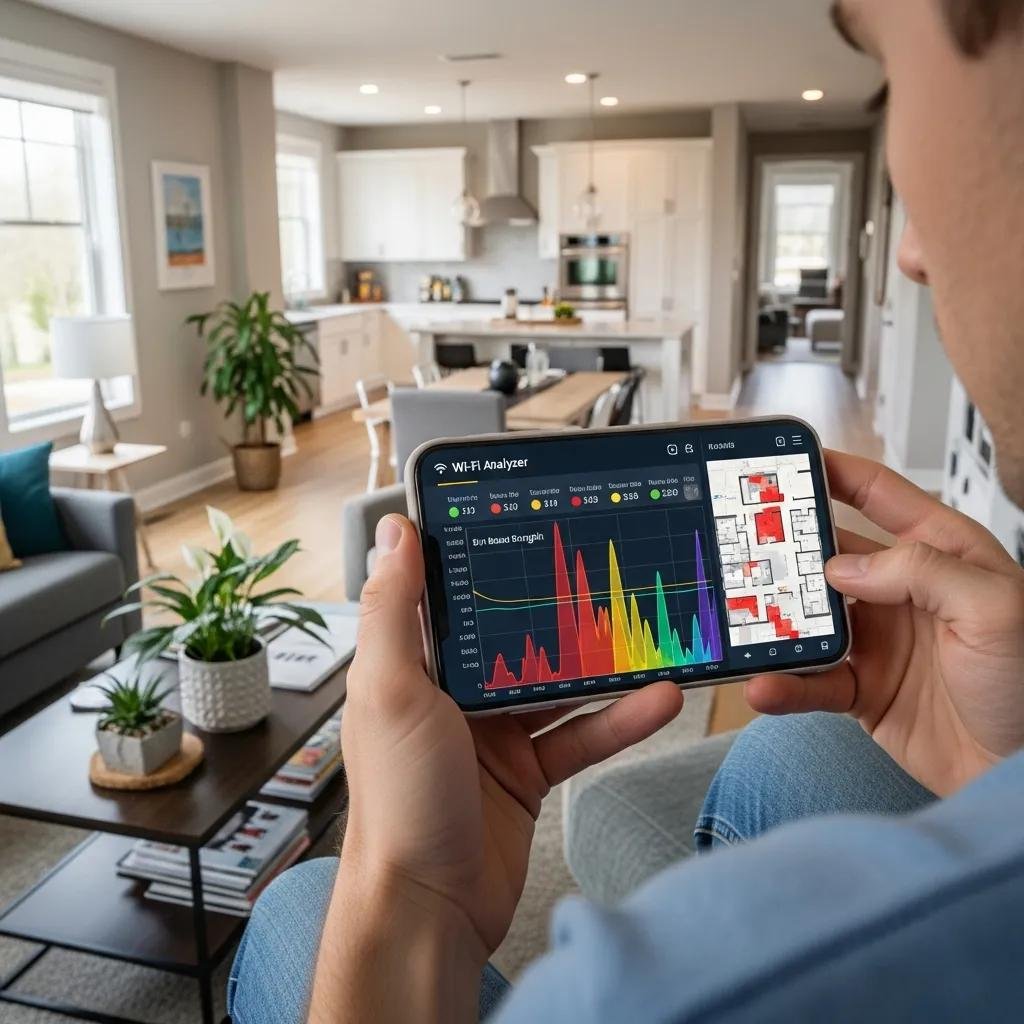
Identifying and eliminating dead zones requires measurement, strategic relocation, and sometimes additional hardware; start by mapping signal strength and running speed tests to identify weak points. After diagnosis, try repositioning the router and adjusting antennas before adding hardware, because many dead zones respond to small positional changes. For complex or persistent dead zones that don’t respond to relocation and tuning, remote diagnostics or professional support — such as a home wireless network service — may be appropriate to identify layout or configuration issues beyond basic fixes.
- Run a speed test and a Wi-Fi analyzer app to locate weak areas.
- Try moving the router to a more central, elevated spot and retest signal levels.
- Add mesh nodes or an extender where signals remain weak, then test again.
These steps provide a repeatable path: measure first, relocate second, then expand coverage if needed. The comparison table below helps choose between mesh, extenders, or replacing a router for persistent dead zone solutions.
Solution comparison for eliminating dead zones:
| Solution | Best For | Pros / Cons |
|---|---|---|
| Mesh Wi-Fi systems | Whole-home, multi-story coverage | Pros: seamless roaming, uniform coverage. Cons: higher cost than extenders. |
| Wi-Fi Extender | Spot coverage boost, tight budget | Pros: lower upfront cost. Cons: possible SSID split and bandwidth loss. |
| New Router (higher power/modern bands) | Outdated single-router setups | Pros: improved range and features. Cons: replacement cost and configuration effort. |
What Are Common Causes of Wi-Fi Dead Spots and Interference?
Dead spots and interference usually stem from a short list of common causes: physical obstructions, competing networks, and household electronics that emit radio noise. Thick walls, metal studs, and appliances like microwaves or Bluetooth-enabled devices block or scatter signals, while nearby Wi-Fi networks using the same channels create congestion, especially on 2.4 GHz. Device density, router age, and misconfigured channels or bands also contribute to spotty coverage; simple mitigation includes channel re-selection, moving noisy appliances, and ensuring good router ventilation. Addressing these causes sequentially — materials and placement first, then configuration and hardware — yields the most efficient improvements.
Which Solutions Work Best for Multi-Story Homes: Mesh Wi-Fi or Extenders?
For multi-floor coverage, mesh Wi-Fi systems usually outperform standalone extenders because mesh nodes form a unified network that handles roaming and load balancing across floors. Extenders can work for localized gaps but often create separate SSIDs or halve throughput when repeating the same radio, which undermines performance for streaming and gaming across floors. Placement of mesh nodes should be staggered between floors with at least one node on each level where devices are used frequently, ensuring overlapping coverage but avoiding nodes being too close to each other. Choosing mesh over extenders is generally the recommended approach for households with many connected devices and multi-story layouts.
What Are the Key Tips to Improve Wireless Network Coverage Through Router Setup?
Optimizing router settings and physical setup yields measurable coverage gains: position antennas correctly, update firmware, choose the appropriate frequency band, and select clean channels. Antenna orientation and elevation affect vertical and horizontal coverage patterns, while firmware updates improve stability and security and sometimes include performance optimizations. Regularly using a Wi-Fi analyzer and scheduled speed tests helps you verify changes and prevent regressions over time. The short reference table below summarizes key settings and recommended actions to maintain an optimized wireless network.
Quick settings reference for better coverage:
| Setting | Effect | Recommended Action |
|---|---|---|
| Band selection (2.4 GHz vs 5 GHz) | Range vs speed tradeoff | Use 2.4 GHz for long-range devices, 5 GHz for nearby high-speed devices |
| Channel selection | Reduces interference | Use analyzer app to pick least-crowded channel |
| Firmware | Stability and security | Check and apply official updates regularly |
How Does Router Elevation and Antenna Positioning Affect Signal Strength?
Elevation reduces obstruction-related attenuation by clearing furniture and low barriers, so mounting a router on a shelf or wall typically improves coverage relative to floor placement. For routers with omnidirectional antennas, orienting antennas vertically favors horizontal coverage, while angling one antenna horizontally can assist devices on different floors; directional antennas concentrate energy toward problem areas when needed. Small adjustments often produce measurable gains—retest after each change to confirm the effect and iterate as necessary. Thoughtful antenna positioning is an inexpensive optimization that frequently solves marginal coverage problems.
Why Are Firmware Updates and Frequency Band Selection Important for Wi-Fi Performance?
Firmware updates fix bugs, close security holes, and sometimes improve radio performance, so keeping router firmware current promotes both stability and safety of your home network. Frequency band selection balances range and throughput: 2.4 GHz provides better range and wall penetration, while 5 GHz and 6 GHz deliver higher speeds at shorter distances; matching band choice to device location and use case improves overall experience. Channel selection reduces contention with neighbors — using an analyzer to pick a quiet channel on 2.4 GHz or 5 GHz reduces retransmissions and latency. Together, regular updates and intelligent band/channel choices maintain consistent, high-performing wireless networks.
When Should You Seek Professional Help for Optimal Router Placement?

Consider professional help when your home layout is complex, problems persist after sensible DIY steps, or you need help with security and ongoing maintenance; these are scenarios where remote diagnostics and tailored design pay off. Large multi-floor homes, irregular floorplans with many obstructions, or persistent interference after repositioning are clear signals that expert analysis can save time and cost compared with trial-and-error. Professional support can also advise on equipment selection, optimal node placement, and configuration changes that match your device mix and usage patterns.
How Does mcHelper.com Provide Remote Support for Home Wireless Network Optimization?
mcHelper.com offers remote computer repair and tech support that includes a “Home Wireless Network” remote support service, providing troubleshooting and optimization for Mac and Windows users according to the available service description. Their remote support is available 24/7, enabling diagnostics and configuration assistance outside normal hours, and they state a “No Fix – No Fee” promise for eligible repairs as described in service materials. Using remote tools, technicians can guide router configuration, recommend placement adjustments, and suggest whether mesh or extenders are appropriate based on measured performance. If hands-on or hardware replacement is required, mcHelper.com’s remote assessment helps determine the next best steps.
What Are the Benefits of Personalized Wi-Fi Network Design and Maintenance?
A tailored network design aligns router and node placement with a home’s unique layout, device density, and performance needs, producing more consistent speeds and fewer service interruptions. Personalized maintenance — including scheduled firmware checks, periodic performance testing, and targeted security updates — reduces the chance of repeat issues and keeps the network resilient as devices change. Professional setups often include documentation of optimal node positions and channel settings, making future troubleshooting faster for homeowners. For recurring problems or high-performance requirements, investing in customized design and maintenance yields long-term reliability and better user experience.