McHelper Customer Success Stories: Real Remote Computer Repair Reviews and Client Experiences
McHelper.com provides 24/7 remote computer repair and tech support for Mac and Windows users across the USA, and this article examines real patterns in customer outcomes, common issues resolved, and what satisfied customers report after remote sessions. Readers will learn which remote repair problems are reliably fixed remotely, how technicians approach virus removal and system optimization, the themes that appear in tech support testimonials, McHelper’s core guarantees and certifications, and the exact steps to start a remote repair session. Many prospective customers search for remote repair reviews and tech support testimonials to judge trustworthiness; this piece synthesizes outcomes, measurable improvements, and practical next steps to help evaluate remote support options. The focus is on evidence-based descriptions of diagnostic and repair workflows, typical resolution timelines, and customer experience indicators like responsiveness and data-safety practices. Throughout, references to McHelper’s services are supplementary, clarifying how their no fix – no fee promise, 24/7 availability, and certified technicians support the technical outcomes described below.
What Remote Computer Issues Has McHelper Successfully Resolved?
Remote computer repair typically addresses software-centered failures by diagnosing system behavior, isolating root causes via remote access tools, and applying targeted fixes that restore function without hardware replacement.
Common problem types include malware/virus infections, slow performance and bloat, boot and startup issues, system freezes and crashes, partial data recovery, and network or printer setup problems; each has a characteristic diagnostic method and measurable outcome. Below is a concise list of frequent remote issues and brief outcomes observed in customer reports and remote-repair reviews.
- Virus and malware infections are identified and removed during a single remote session in many cases.
- Slow performance is often improved by startup and cleanup routines yielding noticeable speed gains.
- Boot and freeze issues are commonly resolved with system repairs or configuration fixes without on-site service.
This quick enumeration shows the range of remote repairs commonly discussed in tech support testimonials and sets up specific procedural examples in the subsections that follow.
How Does McHelper Handle Virus Removal and Malware Cleanup?
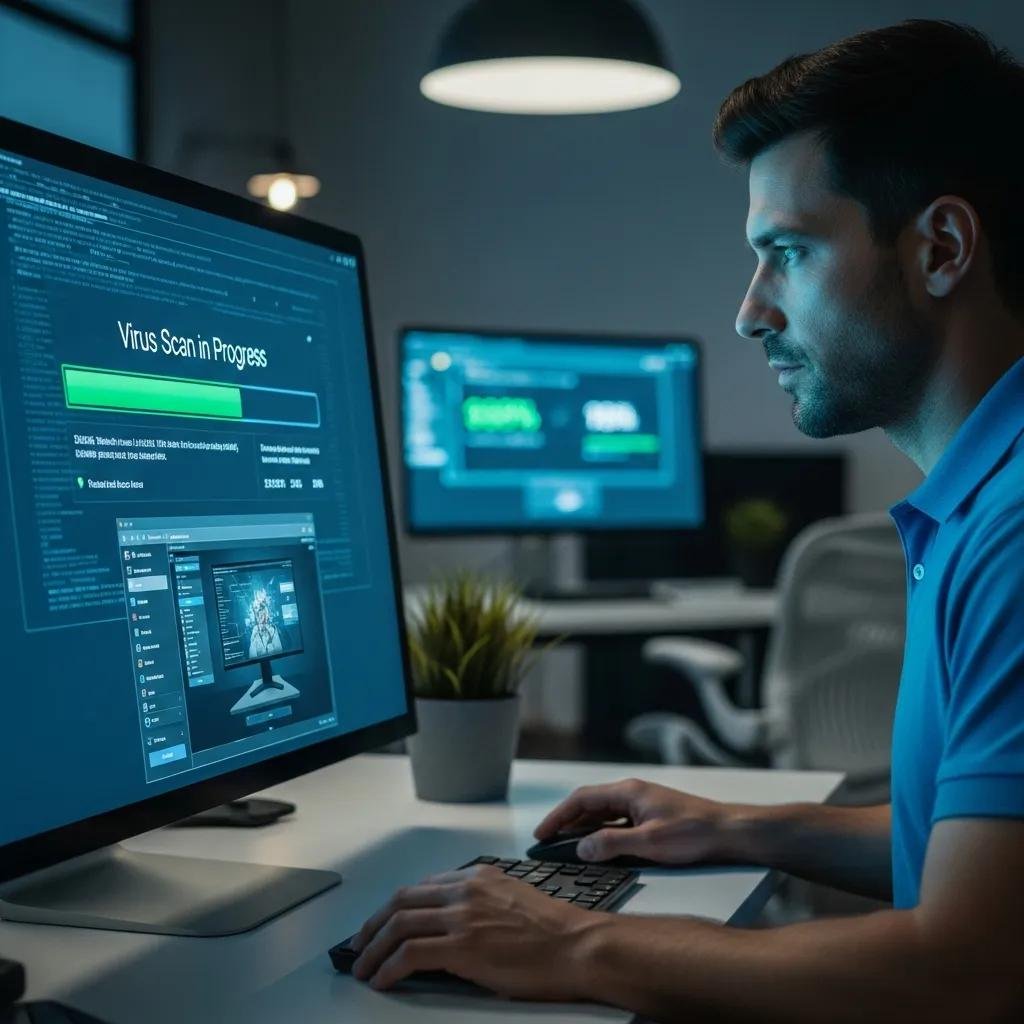
Virus removal begins with a defined diagnostic phase where remote access software is used to scan, identify, and isolate malicious processes while preserving user data and privacy. Technicians then remove malware using layered tools and manual cleanup steps, followed by system validation and hardening to reduce reinfection risk; secure session protocols and session logging are emphasized to protect privacy. Typical outcomes reported in remote repair reviews include restored performance and removal of persistent pop-ups or unauthorized processes, usually accomplished within an hour for software-only infections. Understanding this diagnostic-to-validation workflow helps users see why many remote malware cases resolve without physical service, and it leads naturally to how optimization efforts improve everyday performance.
Before presenting optimization examples, a short EAV table summarizes typical issues, diagnostic approaches, and expected outcomes to make comparisons easier.
Different remote issues require specific diagnostic steps and produce measurable outcomes.
| Issue Type | Diagnostic / Repair Method | Typical Outcome |
|---|---|---|
| Virus removal | Full remote scan → isolate → remove → validate | Malware removed; system cleaned (~45–90 minutes) |
| Slow performance | Startup cleanup, bloat removal, disk/ram cleanup | 20–50% perceived speed improvement |
| Data recovery | File-system analysis and targeted recovery tools | Partial/full recovery depending on overwrite risk |
| Boot problems | Boot repair, configuration fix, safe-mode triage | System boots reliably; startup time reduced |
This table clarifies which remote methods produce which measurable benefits and helps readers compare repair expectations across common issues.
What Are Examples of Performance Improvement and System Optimization?
Performance improvement work centers on identifying resource bottlenecks, reducing unnecessary startup processes, cleaning temporary files, and adjusting system settings to prioritize responsiveness. Technicians apply a sequence of diagnostics: resource-monitoring, disk-health checks, and targeted removals of bloatware or errant services, then validate gains with before/after metrics like boot time and application launch speed. Customer-facing outcomes in remote PC speed-up reviews commonly include faster boot times, snappier app launches, and longer sustained responsiveness—often quantified in percentage gains or seconds shaved off startup. These optimizations typically succeed when issues are software-related, while hardware limitations may be flagged for upgrade recommendations and possible on-site support.
Practical optimization steps are described next so readers understand exactly what to expect during a remote session.
How Do Customers Describe Their McHelper Tech Support Success Stories?
Customers who leave feedback about remote support often highlight responsiveness, technician professionalism, and clear explanations of fixes, which drive high satisfaction in remote repair reviews. Common themes in tech support testimonials include quick turnaround, secure handling of remote sessions, and visible performance improvements or successful data recovery; these themes repeatedly appear in aggregated customer feedback.
- Quick response and rapid diagnosis that minimize downtime for the user.
- Clear technician communication that explains steps and expected outcomes.
- Affordable and predictable pricing backed by outcome-oriented guarantees.
This thematic summary clarifies how customers describe their experiences and connects directly to the value propositions discussed in the next section.
What Positive Feedback Do Clients Give About McHelper’s 24/7 Remote Support?
Clients frequently emphasize the availability of support outside typical business hours, noting that off-hours access to technicians turned potential emergencies into manageable remote fixes. Reports in remote repair reviews stress the value of 24/7 availability for urgent situations like ransomware detection or sudden system failures that occur at night or on weekends. Customers often note quick initial response and the reassurance of knowing a certified technician can begin a diagnosis immediately, which reduces stress and accelerates recovery.
The next subsection highlights platform-specific experiences to show how support spans Mac and Windows environments.
Which Mac and Windows Repair Experiences Stand Out in Customer Reviews?
Customer experiences highlight that Mac and Windows repairs follow similar remote workflows—diagnose, isolate, remedy, validate—while platform-specific tools and steps differ due to OS architecture and permissions. Representative patterns in reviews show Mac repairs often involve macOS-specific maintenance, permission resets, and disk utility procedures, whereas Windows cases frequently focus on driver updates, registry cleanup, and startup-service management. Reported results include recovered performance and restored application functionality on both platforms, with customers valuing technicians’ cross-platform competence. These cross-platform outcomes reinforce why many users searching for “Mac remote repair experiences” and “Windows remote troubleshooting feedback” find remote support effective for software-level issues.
Why Choose McHelper for Reliable Remote IT Support?
Choosing a remote IT provider depends on guarantees, technician qualifications, security practices, and consistent outcomes; McHelper’s stated UVPs—no fix – no fee, 24/7 availability, and certified technicians—address these decision factors directly. These differentiators reduce customer risk, ensure timely help when problems arise, and provide trained personnel to diagnose complex software issues remotely.
The table below compares those UVPs with the customer-facing benefits they deliver, helping readers evaluate whether remote support is appropriate for their needs.
The following EAV-style comparison clarifies how core policies and capabilities translate into customer outcomes.
| Capability | What It Means for Customers | Benefit |
|---|---|---|
| No Fix – No Fee Guarantee | Payment contingent on successful software resolution | Lowers financial risk for customers |
| 24/7 Availability | Support accessible any time across USA | Faster incident response and reduced downtime |
| Certified Technicians | Trained staff using secure remote protocols | Higher probability of correct diagnosis and safe fixes |
This comparison helps readers weigh McHelper’s claims against practical benefits, then leads into the mechanics of the guarantee and the technician qualifications that enable it.
How Does McHelper’s No Fix - No Fee Guarantee Benefit Customers?
A no fix – no fee guarantee removes the financial penalty when a remote session cannot resolve a software-based issue, which reduces hesitation to seek remote help for urgent problems.
For customers, that guarantee means they pay only when a technician delivers a successful outcome for the identified software problem, shifting risk away from the consumer. This assurance is particularly valuable for issues likely to be software-resolvable, such as malware removal or performance optimization, and it encourages users to attempt remote repair before pursuing costlier on-site options. Understanding the practical application of this guarantee helps customers decide when a remote session is an appropriate first step, especially during off-hours when quick triage matters most.
Next, we describe the technician qualifications that underpin reliable remote interventions.
What Makes McHelper’s Certified Technicians Trusted Experts?
Certified technicians apply standardized diagnostic workflows and secure remote access practices to isolate issues quickly and reduce unnecessary steps that can prolong downtime. Certification and training mean the technician is familiar with cross-platform troubleshooting, escalation paths for complex issues, and data-protection practices that maintain user privacy during remote sessions. Customers benefit from reduced mean time to resolution because experienced technicians prioritize root-cause fixes and validate outcomes before ending a session. That expertise is a key reason many remote repair reviews cite technician skill as a leading driver of satisfaction.
How Can You Start Your Own Successful Remote Repair Experience with McHelper?
Starting a remote repair session is typically a brief sequence: initiate contact, authorize secure remote access, allow diagnostic scanning, and then review recommended fixes with the technician before implementation. This predictable process minimizes surprises, preserves user control over the session, and delivers a clear timeline for expected resolution.
Below is a simple numbered process designed to function as a featured-snippet-style quick reference for “How does remote computer repair work?”
- Contact support and describe the problem so the team can triage the issue.
- Authorize a secure remote-access tool to allow technician diagnostics.
- Technician runs diagnostics, isolates root cause, and proposes fixes.
- Technician implements approved fixes and validates system stability.
- Session closes once the customer confirms the outcome and any follow-up steps are documented.
This stepwise outline shows prospective users what to expect, and the next subsection provides contact guidance and prep tips to streamline the process.
What Is the Process for Getting Fast and Secure Remote Computer Repair?
A typical remote repair session begins with rapid triage to determine whether the issue is software-resolvable; if so, the technician requests secure session authorization and runs non-invasive diagnostics. Time estimates vary by problem type, but many software incidents are diagnosed within 10–20 minutes and resolved within 30–90 minutes for common issues like malware removal or performance tuning. Security best practices during the session include explicit consent, limited access scope, session logging, and post-session validation to confirm no unintended changes remain. Preparing basic information—OS type, recent error messages, and a description of when the issue occurs—helps the technician shorten diagnosis time and improves the likelihood of a successful remote outcome.
How Do Customers Contact McHelper for Immediate Tech Support?
Customers typically begin with the provider’s online support pathways or the immediate support options noted on the company’s service descriptions, choosing the fastest available channel for urgent issues and providing concise problem details to speed triage. When contacting for immediate help, provide OS version, a brief description of the symptoms, and any error codes so the technician can prioritize diagnostics efficiently. Given the provider’s 24/7 model and certified technicians, customers can expect expedited response during emergencies and clear guidance on whether a remote session is likely to resolve the issue.
- Key contact preparation tips include: having system details ready, saving critical files beforehand, and keeping login credentials accessible during a secure session.
- Quick-response advice: prioritize immediate outreach for symptoms like ransomware warnings, persistent crashes, or sudden loss of core functionality.
- Post-session follow-up: confirm that the technician documented actions taken and any recommended next steps for continued stability.
These contact and preparation steps conclude the practical guidance on beginning a secure, fast remote repair session and close the article after the last required heading.