How to Manage Background Apps to Improve PC Performance and Extend Battery Life
Background apps are programs and services that run without an active window and can consume CPU, RAM, disk I/O, and network resources, which directly reduces PC performance and shortens laptop battery life. This guide shows how background processes impact system resources, how to stop unnecessary apps on Windows 10 and Windows 11, and how to manage startup programs and services safely to speed boot times and reduce power drain. You will learn to identify resource hogs using Task Manager, adjust Settings and Privacy controls, and use Battery Saver and Power & battery features to preserve energy. Practical step-by-step instructions and quick decision checklists are included so you can act immediately, and we also explain when complex or risky interventions merit professional remote assistance. Read on for concise, actionable steps and reference tables that compare process types, Settings locations, and DIY risk levels, helping you reduce CPU usage, free RAM, and extend battery runtime.
What Are Background Apps and How Do They Affect Your PC Performance and Battery Life?
Background apps are processes that run without direct user interaction; they perform updates, sync data, index files, or provide real-time notifications. These processes use CPU cycles and resident memory, generate disk and network activity, and can prevent a system from entering low-power states, which collectively reduces responsiveness and battery runtime. Understanding which processes are system-critical versus optional third-party background tasks helps you prioritize what to stop or disable safely. The following table compares common categories of background processes and their typical impacts to help you triage what to address first.
| Process Category | Typical Location | Typical Impact (CPU / RAM / Network / Battery) |
|---|---|---|
| System services (OS tasks) | services.msc / System process | Low–Moderate CPU, essential RAM, low network, moderate battery |
| Third-party apps (sync, updaters) | Installed apps / Background apps settings | Moderate–High CPU, moderate RAM, high network, high battery |
| Startup apps | Task Manager → Startup | High initial CPU, persistent RAM, variable network, increases boot time |
| Background browser tabs/processes | Browser process tree | Variable CPU, high RAM with many tabs, network when active, battery impact high |
This comparison shows that third-party sync and updater processes typically cause the largest battery and performance hits, while system services are often essential and should be handled cautiously. Use Task Manager to verify specific processes before taking action and move next to identifying the usual resource hogs.
Which Background Processes Consume the Most CPU and RAM?
Common high-impact background processes include cloud sync tools, messaging apps, auto-updaters, search indexers, and browser sub-processes, and these often show sustained CPU or memory percentages in Task Manager. To spot them, open Task Manager, sort by CPU or Memory, and watch for persistent spikes or sustained elevated usage; columns for Disk and Network reveal I/O-heavy tasks that also drain battery. When you find an offender, check the process name and publisher, research unknown entries, and consider ending the process temporarily or adjusting background permissions; avoid ending processes labeled as “System” or from Microsoft unless you have confirmed safety. After a controlled change, monitor system behavior for a day to confirm improved performance; if problems arise, re-enable the process to restore functionality and investigate alternate fixes.
How to Disable Background Apps Using Windows 10 and Windows 11 Settings
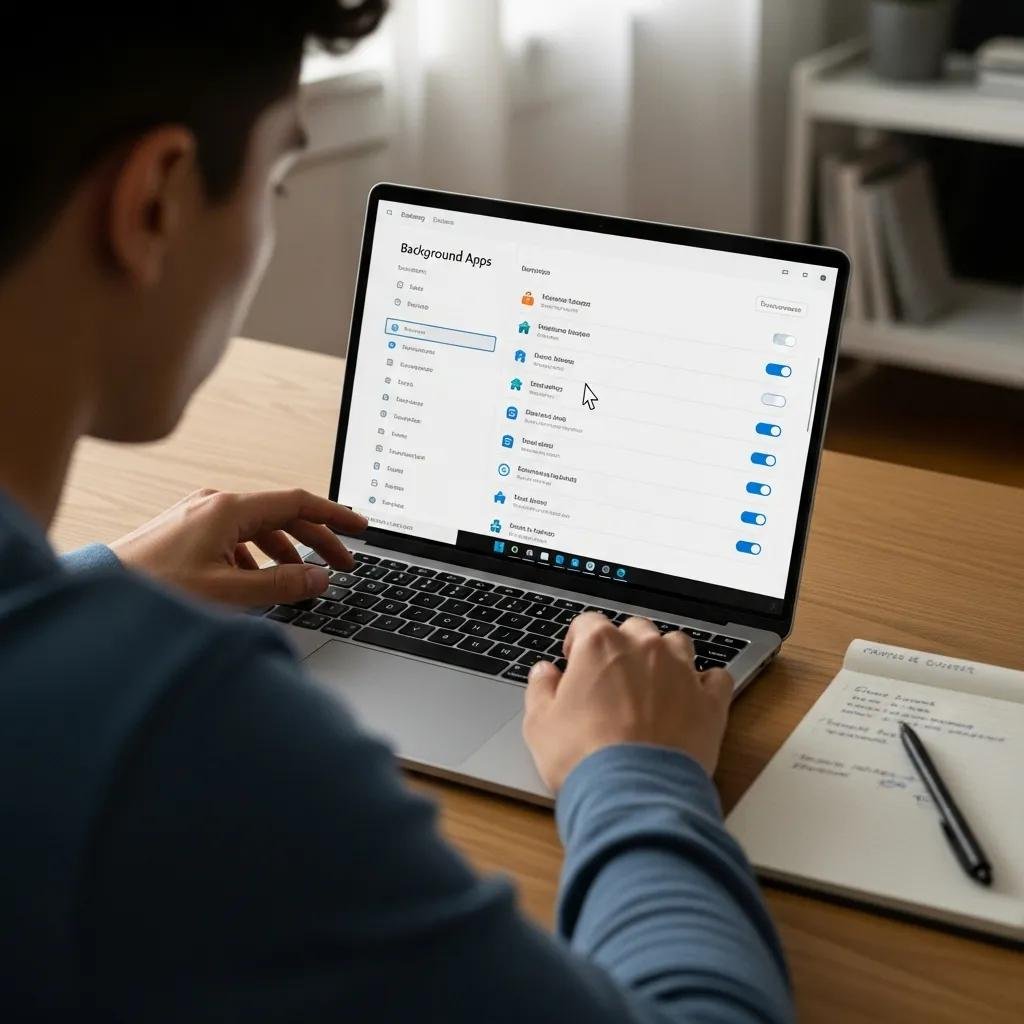
Disabling background apps through Settings reduces permissions for apps to run unseen, which lowers CPU and network activity and conserves battery on laptops. In Windows 10 and Windows 11, the paths differ slightly, but both allow per-app toggles and global controls under Privacy or Apps plus Power & battery settings; using Battery Saver adds an automatic layer that restricts background activity when power is low. The table below lists the exact Settings locations and the toggle/action to change on each OS so you can navigate directly.
| Setting Area | Windows 10 Path | Windows 11 Path |
|---|---|---|
| Background app toggle | Settings → Privacy → Background apps → Toggle off per app | Settings → Apps → Installed apps → Advanced options → Background apps permissions |
| Battery Saver | Settings → System → Battery Saver → Turn on automatically | Settings → System → Power & battery → Battery saver |
| Per-app power settings | Settings → System → Battery → App usage | Settings → System → Power & battery → App power management |
Use these exact locations to find and toggle background permissions quickly; the next section gives a step-by-step featured-snippet style procedure you can follow for immediate results.
- Open the correct Settings area: Follow the table path for your OS to reach background app permissions.
- Toggle global or per-app permissions: Turn off background access for nonessential apps and enable Battery Saver for automatic management.
- Test and monitor: After changes, use Task Manager and battery reports to confirm lower CPU and improved runtime.
These three steps provide a fast route to stop apps running in the background and are safe for most users when applied to non-critical third-party apps. If an app loses needed functionality (for example, file sync or messaging), re-enable it and consider less aggressive measures like throttling or scheduling.
How to Use Privacy Settings to Stop Apps Running in the Background
Privacy settings control whether apps may run tasks when not in the foreground; adjusting these stops unnecessary background work while preserving user-facing features. To change per-app permissions, open the Settings path appropriate for your OS (see the table above), locate the app in question, and switch off background activity or reduce permissions; for classic Win32 apps, use their own preferences or uninstall unused components. Safe candidates for disabling include updaters, optional sync clients, and media assistants, while essential services like antivirus, cloud backup for critical files, or communications apps you rely on should remain active. After applying changes, reboot or sign out to ensure toggles take effect and then monitor CPU and battery metrics over a typical usage period to confirm gains.
How to Manage Startup Programs and Services to Optimize Windows Performance
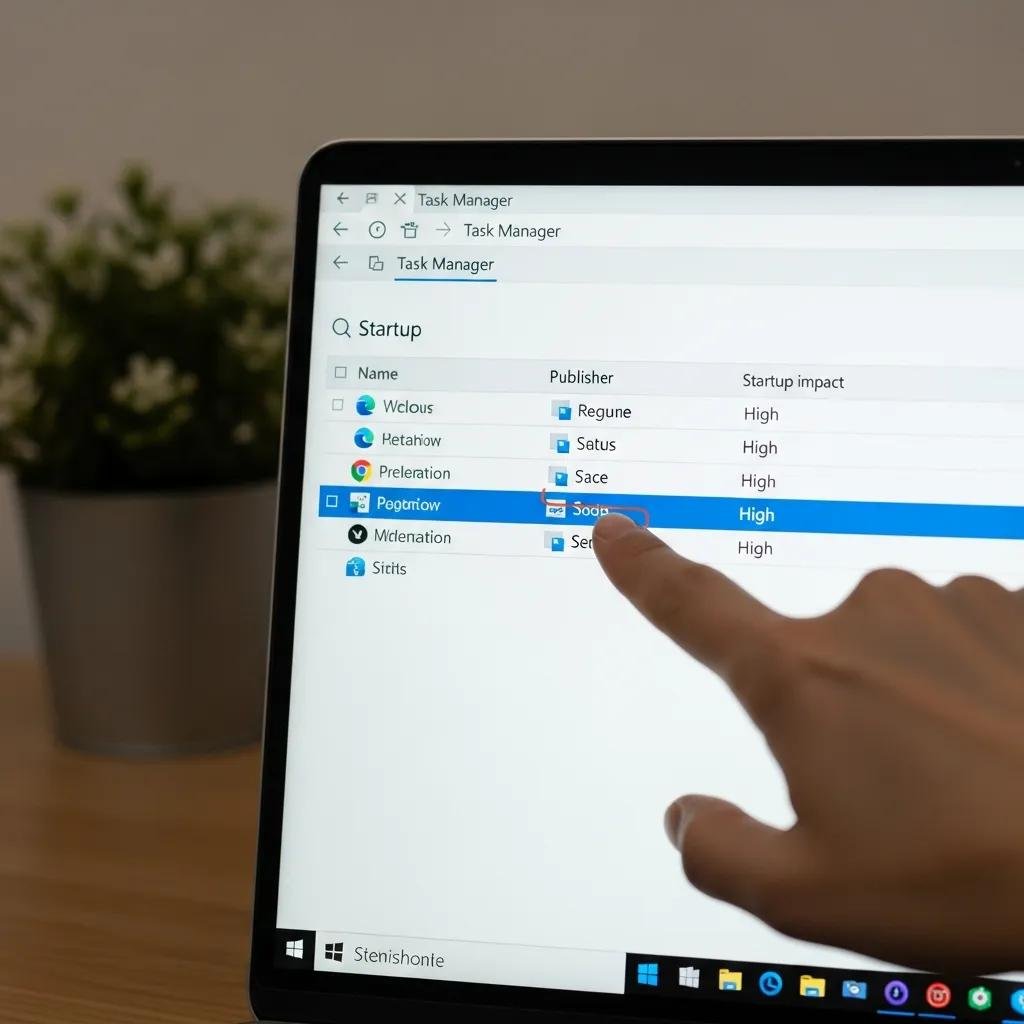
Startup programs and services launch at boot and can significantly slow startup times and continue consuming resources afterward; managing them via Task Manager and helps reduce boot impact and background load. Use Task Manager’s Startup tab to see each entry’s Startup impact, publisher, and enable/disable controls, and reserve for more advanced service dependency adjustments, being careful not to disable system-critical services. The short checklist below explains safe startup management steps and common items that are safe to disable versus those to leave enabled.
Startup management checklist — do this before changing anything:
- Open Task Manager and switch to the Startup tab to view impact and publisher.
- Disable nonessential third-party apps with High or Medium impact that you recognize as optional.
- Research unknown startup entries online before disabling; re-enable if you experience issues.
After you disable items, reboot to measure boot time and system responsiveness, and if problems occur, re-enable the item and investigate alternatives such as updating the app or adjusting its internal settings. For services, use only when you understand service dependencies; stopping a service like Windows Update or core networking services can break functionality, so prefer disabling startup app entries and using Settings when possible.
When to consider professional help for startup/services troubleshooting:
- If disabling a service causes unexpected system instability or dependency errors, seek expert help.
- If startup entries keep re-enabling themselves after removal or updates, a remote technician can trace persistent installers or scheduled tasks.
- If you’re uncomfortable editing services.msc or the Registry, remote support minimizes risk.
This is the right place to consider remote assistance for risky or time-consuming troubleshooting; a brief professional intervention can prevent misconfiguration and restore safe lean startup behavior.
How to Disable Startup Apps via Task Manager for Faster Boot Times
Disabling startup apps in Task Manager is straightforward: open Task Manager (), go to the Startup tab, sort by Startup impact, select an unnecessary app, and click Disable to stop it from launching at boot. The Impact column gives a quick heuristic—High items typically add noticeable delay and are prime candidates for disabling—while the Publisher column helps identify vendor-trusted software; research unknown publishers before action. After disabling, reboot and time the boot process; if an essential function is missing, re-enable the app and try alternatives like changing the app’s internal startup preference. Keep this checklist in mind for safe practice.
- Open Task Manager and view Startup tab.
- Sort by Startup impact and identify nonessential High-impact items.
- Disable the selected app, reboot, and verify system behavior.
These steps help reduce boot time and background load with minimal risk; if you encounter repeated re-enabled entries or complex service chains, a technician can safely resolve root causes.
When Should You Seek Professional Help to Manage Background Apps?
DIY controls handle most simple background app issues, but scenarios involving persistent problems, risky registry or Group Policy changes, or services with complex dependencies are when a professional can reduce risk and save time. If performance problems persist after following Settings and Task Manager steps, or if background tasks reappear after removal, those are clear indicators that an automated task, scheduled job, or installer is reasserting itself and requires deeper troubleshooting. The table below compares common actions, their DIY risk level, and when to call a remote expert to help you decide quickly.
| Action | DIY Risk Level | When to Call a Pro |
|---|---|---|
| Toggle background app permission | Low | No pro needed unless app breaks critical workflow |
| Disable startup entry in Task Manager | Low–Moderate | Call pro if entry reappears or unknown publisher persists |
| Edit services via services.msc | Moderate–High | Call pro for dependency issues or unclear services |
| Registry or Group Policy edits | High | Call pro to avoid system instability or data loss |
This table clarifies that Registry or Group Policy edits are high-risk and good candidates for remote professional assistance, while per-app toggles are low-risk actions most users can perform safely. Use the decision guidance above to weigh time, risk, and technical ability before proceeding.
What Are the Benefits of mcHelper.com's Remote PC Optimization Service?
mcHelper.com offers remote computer repair and tech support available 24/7 for both Mac and Windows users, making professional optimization accessible from anywhere in the USA. Their Speed-Up and Optimize your Computer service is provided as part of an annual support package priced at $199.99 and emphasizes remote convenience, certified technicians, and proactive maintenance under subscription. Key service benefits include a “NO FIX – NO FEE” promise, expert troubleshooting of persistent background tasks and service dependencies, and scheduled proactive maintenance that prevents recurrent performance regressions. Choosing remote optimization is appropriate when DIY steps are ineffective, edits would affect critical system components, or you prefer a hands-off, professionally maintained configuration.
mcHelper.com’s remote approach reduces the time and risk associated with advanced edits while providing ongoing prevention through an annual plan; for users facing recurring background app reactivation, unstable services, or complex dependency issues, remote optimization offers practical value without local visits.