Fix Loud Computer Fan & Computer Overheating Solutions: Causes, DIY Repairs, and When to Seek Professional Help
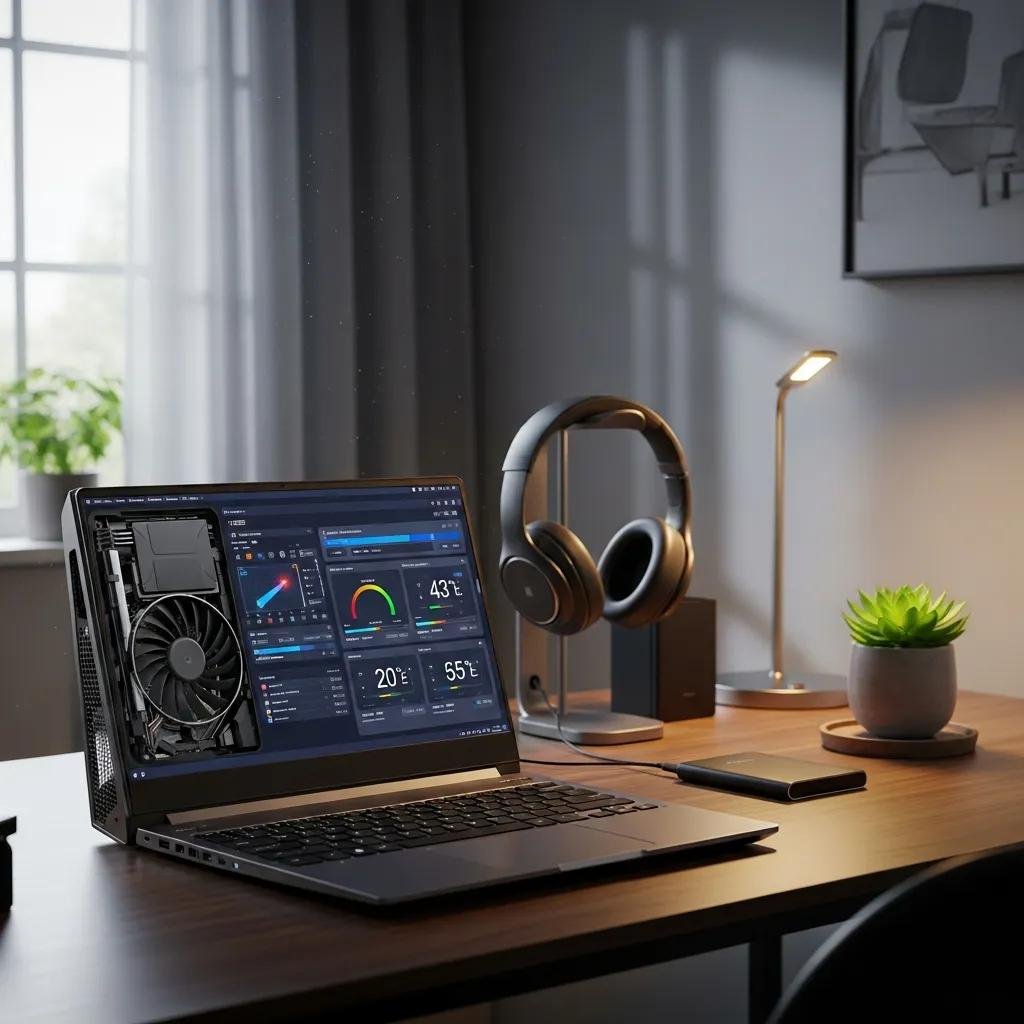
A loud computer fan is a visible symptom of thermal stress: the cooling system is working harder than intended to remove excess heat, and many causes are fixable with targeted checks and interventions. This article explains why fans become noisy, how heat builds up in components like the CPU and GPU, and what immediate steps you can take to reduce computer heat and restore quiet operation. You will learn quick diagnostic checks, safe pc fan cleaning methods, software optimization tactics to lower CPU load, and clear criteria for when to escalate to professional repair. Practical lists and decision tables provide fast guidance for homeowners and power users, while step-by-step procedures cover both external cleaning and internal maintenance such as thermal paste considerations. The final section outlines remote diagnosis and advanced solutions, including what remote repair can accomplish and when services such as mcHelper.com become the right choice. Read on for actionable fixes for noisy laptop fan problems and preventative maintenance to avoid recurring overheating.
Why Is My Computer Fan So Loud? Common Causes of Loud Computer Fans
A computer fan becomes loud when cooling demand rises or fan hardware fails: increased heat from the CPU/GPU forces fan controllers to raise RPM, and worn bearings or blocked airflow amplify noise. Mechanical issues, dust-clogged vents and heat sinks, high sustained CPU/GPU load from apps or malware, and degraded thermal paste are common root causes that each create distinctive symptoms and risks. Identifying which combination is present lets you prioritize fixes that reduce computer heat quickly and safely. The following quick comparison table summarizes typical causes, their primary symptom, and immediate impact so you can triage loud fan noise before attempting repairs.
Different causes produce predictable noise signatures and thermal consequences.
| Cause | Typical Symptom | Immediate Impact |
|---|---|---|
| Dust accumulation | Reduced airflow, higher fan RPM | Raises component temperatures and fan wear |
| Malware / high CPU load | Sustained high CPU/GPU usage | Continuous high fan speeds and performance throttling |
| Faulty fan hardware | Grinding, rattling, intermittent spin | Mechanical failure and possible shutdowns |
| Degraded thermal paste | Higher temps despite clean airflow | Poor heat transfer from CPU/GPU to heat sink |
This comparison helps prioritize simple fixes like cleaning or software scans before moving to mechanical replacement or thermal paste work, which reduces time spent diagnosing noisy laptop fan issues.
How Does Dust Accumulation Affect Fan Noise and Overheating?
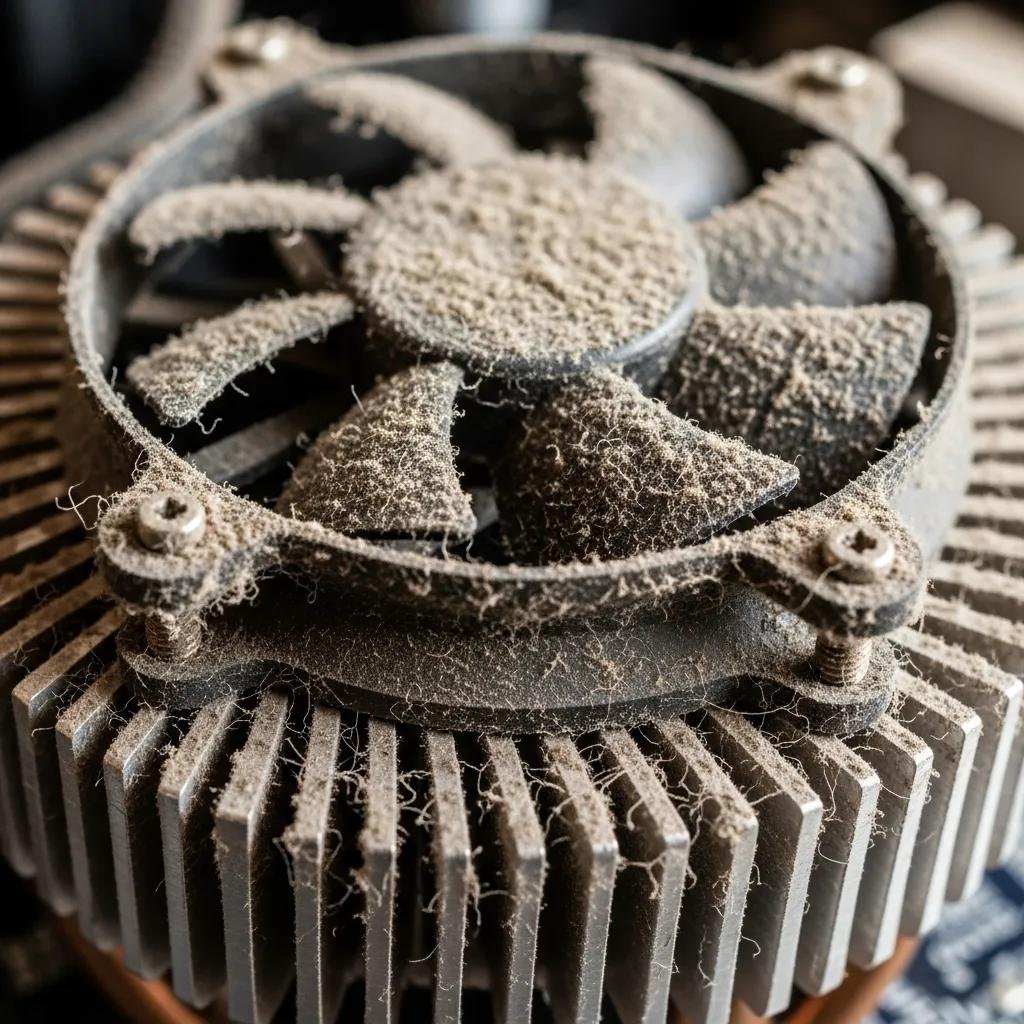
Dust accumulation blocks vents, coats fan blades, and clogs heat sink fins, which reduces the effective surface area for heat dissipation and forces fans to spin faster to maintain safe temperatures. When airflow is obstructed, the CPU and GPU heat up more quickly under load, causing the fan controller to increase RPM and generate louder noise; dust on bearings also causes grinding sounds and accelerated wear. A visual inspection of intake vents, exhausts, and heat sink fins often reveals the problem, and cleaning typically yields measurable temperature drops. Regular preventative maintenance through targeted pc fan cleaning and case airflow optimization prevents repeated overheating and prolongs fan lifespan.
Cleaning is a first-line fix, and understanding dust behavior leads to safe cleaning methods described next.
Can Malware and High CPU Usage Lead to Loud Fan Noise?
Malware or runaway processes can sustain high CPU or GPU usage, creating prolonged heat production that forces fans to run at elevated speeds and produces continuous noise. Checking Task Manager on Windows or Activity Monitor on macOS will reveal processes consuming large CPU percentages; suspicious, unfamiliar entries or consistently pegged cores indicate possible malware or poorly optimized software. Ending the offending process can temporarily reduce fan speed, but a full malware scan and driver updates are crucial to prevent recurrence and to reduce computer heat systematically. Maintaining updated software and removing unnecessary startup items are preventative steps that reduce the chance of software-driven overheating.
Detecting software versus hardware causes helps determine whether cleaning or deeper diagnostics are the next step.
How Can I Fix a Noisy Laptop Fan? Effective DIY Cleaning and Software Optimization
Fixing a noisy laptop fan combines safe physical cleaning, airflow improvements, and software measures to control fan speed and workload: start with power-down cleaning, then apply software optimization to reduce CPU/GPU load. Physical cleaning addresses meronyms like fan blades, heat sink fins, and vents, while software fixes tackle high-load processes and monitoring. Below is a clear tool-and-action reference to prepare you for safe pc fan cleaning and to guide choices like when to replace thermal paste or use fan control utilities.
Prepare the right tools and safety notes before opening or cleaning any device.
| Tool | Recommended Use | Action & Safety Note |
|---|---|---|
| Compressed air can | External dust removal | Short bursts; hold fan blade to prevent overspin |
| Soft brush / microfiber | Dislodge dust in vents | Gentle strokes to avoid bending fins |
| Isopropyl alcohol (90%+) | Clean residue on fan hub | Power off and dry fully before reassembly |
| Screwdriver set | Remove access panels | Use correct bits to avoid stripped screws |
Using proper tools and technique reduces risk of damage and often restores normal temperatures, which lowers fan noise after cleaning.
What Are the Step-by-Step Methods to Clean Your PC Fan Safely?
Start by powering down and unplugging the device, removing external power and battery if possible to eliminate electrical risk. Use compressed air in short controlled bursts to dislodge dust from vents and heat sink fins while preventing fans from free-spinning at high speed; hold blades steady when accessible. If the chassis is easily opened, remove the access panel and gently brush away remaining dust, then clean the fan hub and bearings with isopropyl alcohol if sticky residue is present. After reassembly, run a temperature monitoring tool to confirm lower CPU/GPU temperatures and observe whether the noisy laptop fan condition has improved; repeat cleaning if necessary but avoid aggressive disassembly unless comfortable with hardware work.
Careful progression from external cleaning to monitored testing reduces risk and clarifies whether further action is needed.
The following step-by-step list outlines a safe cleaning and verification workflow.
- Power off, unplug, and remove battery where possible before any physical work.
- Use compressed air to clear vents; keep bursts under two seconds and hold fan blades still.
- Open the chassis only if you are comfortable; brush and vacuum dust lightly, then reassemble.
- Boot and monitor temperatures using a computer temperature monitoring tool to confirm improvement.
Completing these steps provides a systematic route to reduce computer heat and noisy fan problems without unnecessary hardware replacement.
How Does Software Optimization Reduce Computer Heat and Fan Noise?

Software optimization reduces workload on processing components and can lower temperatures without mechanical intervention by closing background apps, disabling unnecessary startup items, and updating drivers and firmware. Use Task Manager or Activity Monitor to identify high-CPU or GPU processes, then apply targeted fixes such as ending tasks, adjusting application settings, or reinstalling problematic software to prevent repeated spikes that trigger fan speed increases. Temperature monitoring tools and fan control software allow you to diagnose thermal behavior and, where supported, lower fan curves or set performance profiles that balance cooling and noise. Running a reputable malware scan addresses one common source of sustained high CPU usage and helps prevent repeated overheating events.
Combining these software steps with physical cleaning yields the best reduction in fan noise and improves long-term system stability.
Common software controls and monitoring steps include:
- Checking Task Manager/Activity Monitor for runaway processes and stopping them when safe.
- Updating graphics and chipset drivers to ensure efficient power and thermal management.
- Installing temperature monitoring tools to observe CPU and GPU behavior under load.
- Using fan control utilities when available to customize fan curves for quieter operation.
These software measures complement physical maintenance and help maintain optimized airflow and temperature profiles.
When Should I Seek Professional Repair for Overheating and Loud Fans? Remote Diagnosis and Advanced Solutions
Professional repair is warranted when symptoms indicate mechanical failure, persistent overheating after cleaning and optimization, or when warranty or complexity make DIY unsafe: grinding noises, repeated shutdowns, BIOS error codes, and visible hardware damage are objective escalation signals. Remote diagnosis can perform many useful steps such as performance triage, malware removal, driver and firmware updates, and guided configuration changes, but mechanical tasks like thermal paste replacement or fan motor swaps typically require in-person service. Below is a decision table to help you decide when to continue DIY and when to contact a professional.
Use this decision guide to quickly choose the appropriate next step.
| Symptom / Scenario | DIY Viable? | Recommended Action |
|---|---|---|
| Dust-clogged vents, mild noise | Yes | Clean and monitor temperatures |
| Grinding or rattling motor noise | No | Seek professional hardware replacement |
| Repeated shutdowns under load | No | Professional diagnostics and possible component repair |
| High CPU usage from unknown processes | Yes/No | Run scans and updates; consult remote support if persistent |
This table clarifies that while many issues can be addressed by users, certain mechanical failures and recurring shutdowns are best left to professionals to avoid data loss or further damage.
What Are the Signs That Indicate Professional Computer Repair Is Needed?
Objective signs for professional escalation include loud grinding/rattling that indicates bearing failure, repeated thermal shutdowns despite cleaning and software fixes, persistent error codes or BIOS beeps pointing to hardware faults, and situations where disassembly risks voiding warranty. If temperatures remain high after verified cleaning and driver updates, or if you are uncomfortable with thermal paste replacement and fan motor swaps, seek professional assistance to avoid component damage. Professionals can measure thermal performance with calibrated tools and perform precise hardware tasks safely, which reduces the risk of costly mistakes. Recognizing these signs early helps prevent cascading failures and preserves data integrity.
Knowing when to stop DIY prevents worsening the problem and sets the stage for efficient professional intervention.
How Does mcHelper.com’s Remote Repair Service Address Overheating Issues?
mcHelper.com provides remote computer repair and tech support that can diagnose overheating causes, run malware and performance scans, update drivers and firmware, and advise on thermal paste replacement or hardware replacement when in-person service is required. Their remote technicians offer 24/7 availability and a No Fix – No Fee promise, delivering certified technical assistance for software-level problems such as malware overheating PC scenarios or configuration issues that affect fan control. For mechanical faults like fan bearing failure or thermal paste reapplication, mcHelper.com can perform remote diagnostics and then recommend an in-person repair path if necessary, ensuring you pay only for the resolution you receive. Using remote support from mcHelper.com can speed triage, reduce downtime, and guide safe next steps for hardware interventions.
When remote fixes are insufficient, mcHelper.com’s certified technicians clearly explain escalation options so you get targeted repairs without unnecessary expense.