Is Windows Registry Cleanup Necessary? Benefits of Remote PC Tune-Up Services
The Windows Registry is a central hierarchical database that stores low-level settings for the operating system and installed applications, and many users assume cleaning it speeds up a slow PC. This article explains why registry cleanup is rarely the performance cure it’s marketed to be, summarizes Microsoft’s safety guidance, and shows which maintenance steps actually improve responsiveness. You will learn what the registry does, common myths about registry errors, the real causes of sluggish Windows performance, and how a professional remote PC tune-up addresses those root issues. Along the way we compare DIY registry cleanup to modern maintenance approaches and show how remote services focus on safer, higher-impact fixes like malware removal, disk cleanup, and startup management. Read on for practical diagnostics, safe cleaning methods, and a factual look at mcHelper.com’s remote optimization approach for Windows PCs.
What is the Windows Registry and how does it affect PC performance?
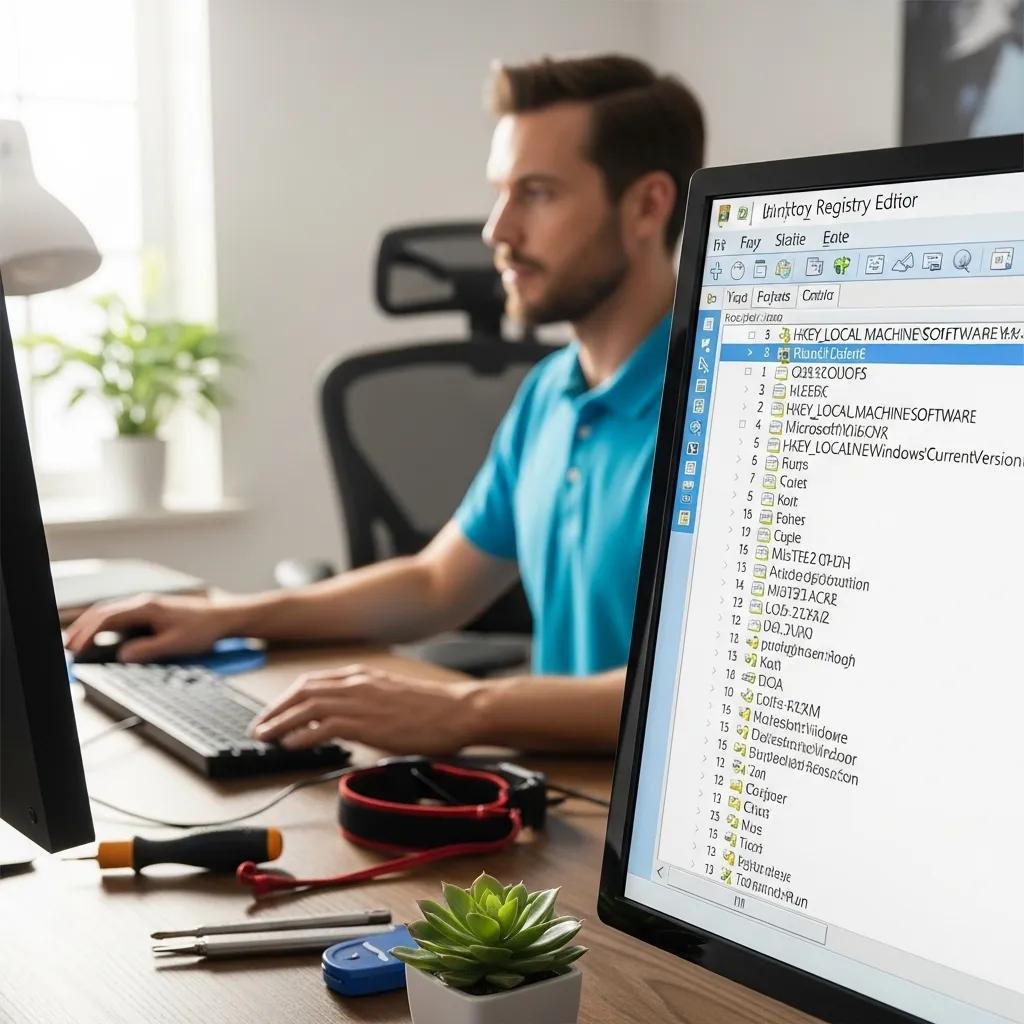
The Windows Registry is a hierarchical database that records configuration settings for the OS, device drivers, user profiles, and applications; it affects behavior by letting Windows and apps read and write configuration values. Corrupted or incorrect registry entries can cause specific errors, failed launches, or misapplied settings, which occasionally produce performance symptoms when an app repeatedly fails or triggers error loops. Most performance problems, however, stem from processes, storage, or malware rather than sheer registry size; registry bloat alone does not usually slow modern Windows significantly. Understanding where registry issues genuinely matter helps prioritize safer maintenance and avoids risky automated edits that can break functionality.
Understanding the role of the Windows Registry in system configuration
The registry stores keys and values organized by hives such as HKEY_LOCAL_MACHINE and HKEY_CURRENT_USER, and entries map to settings like startup behaviors, file associations, and device options. When Windows or an application needs configuration data it queries the registry, so a correct entry ensures the intended behavior; for example, an app’s toolbar or default file path is often saved there. Because the registry is integral to configuration, manual edits by experienced technicians can fix specific problems, but those edits must be precise to avoid side effects. Knowing this role clarifies why broad automated deletions rarely provide meaningful speed gains and why targeted troubleshooting is preferable.
Common misconceptions about registry errors and their impact
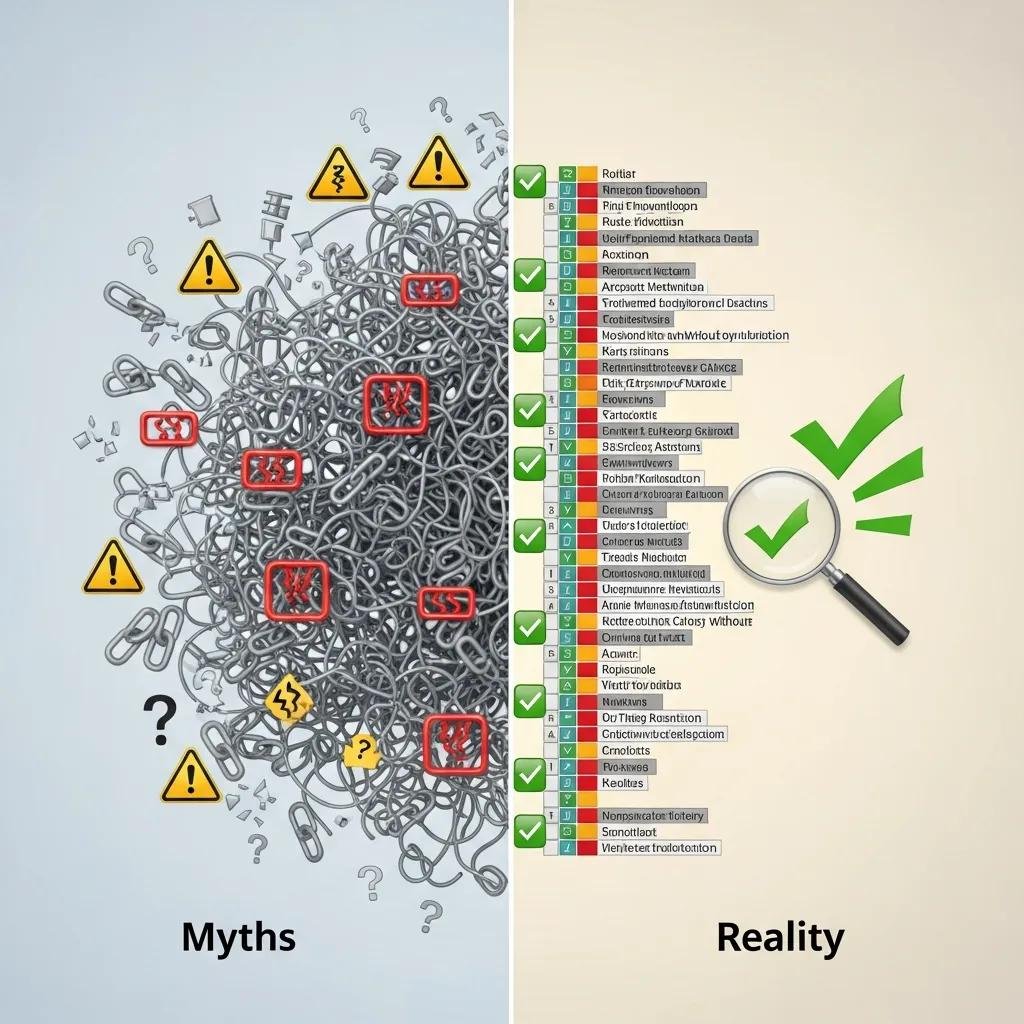
Many users assume deleting “orphaned” or “invalid” registry entries produces noticeable speed improvements, but that myth overstates the registry’s influence on CPU and I/O bottlenecks. In truth, modern Windows manages registry access efficiently and small numbers of leftover keys seldom translate into measurable latency reductions for everyday tasks. Automated cleaners can also mislabel required entries as redundant, which risks application failures or system instability if removed. Recognizing these misconceptions leads naturally to the next question: whether registry cleanup is necessary for modern Windows systems or whether other maintenance actions deliver better results.
- Common registry-related myths and facts:
- Myth: Removing unused keys noticeably speeds up boot times.
- Fact: Boot performance is usually determined by startup processes and disk speed, not registry size.
- Myth: Automated cleaners are harmless.
- Fact: Improper deletions can break apps and settings.
This short myth-versus-fact list frames why a targeted, evidence-based approach is safer than wholesale registry purging.
Is Windows Registry Cleanup necessary for modern Windows PCs?
Short answer: in most cases, no—registry cleanup is not necessary for modern Windows systems and often offers negligible performance improvement. Microsoft guidance cautions users that third-party registry cleaners can cause unintended problems because automated rules may remove keys required by the OS or applications. That guidance, combined with contemporary system architecture where I/O, memory pressure, background processes, and malware are the usual bottlenecks, makes routine registry cleaning an unreliable optimization method. Instead, targeted troubleshooting and corrective edits by experienced technicians are appropriate when a specific registry-related error is identified.
Why Microsoft advises against most registry cleaners
Microsoft’s position emphasizes caution because registry cleaners perform broad automated modifications without the context of how keys are used by installed software, increasing the chance of deleting critical entries. Automated cleaners may not detect when a seemingly orphaned key is referenced by a seldom-used application or driver, so removal can produce instability or feature loss. The prudent alternative is to follow official troubleshooting steps or let certified technicians perform precise edits when logs and error messages point to registry corruption. This safety-focused stance explains why many experts recommend other optimization steps first.
| Approach | Effectiveness | Risk | When to use |
|---|---|---|---|
| Automated registry cleaners | Low for speed gains | Moderate to high (deletion errors) | Generally avoid for routine maintenance |
| Manual registry edits by technician | High for targeted fixes | Low when performed by expert | Use when logs show specific registry corruption |
| System maintenance (disk, startup, malware) | High for performance | Low | First-line for slow PCs |
This comparison shows that registry cleaners have limited effectiveness but higher risk compared with targeted actions and expert intervention. The table clarifies decision-making: favor diagnosis and safe fixes over blanket cleaning.
Potential risks and minimal benefits of registry cleaning
The main risks from indiscriminate registry cleaning include deleted keys that Windows or apps expect, resulting in errors, crashes, or lost preferences, and in severe cases a need for system repair or reinstallation. Benefits are typically minimal: a registry clean may remove tiny unused entries but rarely translates into measurable gains in responsiveness, CPU load, or disk throughput on modern hardware. A concrete example is an automated cleaner removing a COM registration key used by a legacy plugin, which then prevents the plugin from loading and forces manual recovery. Given this tradeoff, safer maintenance steps should be attempted first.
- Key takeaways on risks vs benefits:
- Risk: Broken applications or settings after cleanup.
- Risk: Potential system instability requiring recovery.
- Benefit: Rare, minor reduction in registry size without measurable speed gain.
These points support prioritizing safer fixes like malware removal and startup management before considering registry edits. After addressing these higher-impact areas, a technician can evaluate whether any registry edits are truly needed.
What are the true causes of slow PC performance beyond the registry?
Slow Windows PCs most commonly suffer from a handful of high-impact issues that are unrelated to registry size: malware and spyware, excessive temporary files and low disk free space, many startup programs and background processes, outdated drivers and unpatched software, and hardware limits such as insufficient RAM or an HDD instead of an SSD. These causes affect CPU, memory, and disk I/O directly, and resolving them typically produces clear, measurable speed improvements. Effective troubleshooting maps symptoms (high disk usage, slow boot, frequent hangs) to these root causes and applies focused remediation rather than generalized registry cleaning.
- Malware and spyware — run a full antivirus/anti-malware scan and remove threats.
- Junk files and low disk space — perform disk cleanup and clear temp files to restore free space.
- Excessive startup programs — disable or delay nonessential startup items to improve boot time.
- Outdated drivers and software — update device drivers and apply OS patches for stability.
- Hardware limitations — consider RAM upgrades or switching from HDD to SSD for major I/O gains.
This bulleted list highlights the high-return fixes technicians target first and sets up a concrete mapping of cause → symptom → fix in the table below.
| Cause | Typical symptom | Fix / Service to address |
|---|---|---|
| Malware & spyware | High CPU, slow responsiveness | Remote computer virus removal; full system scan |
| Junk files / low disk space | Full disk, slow file operations | Disk cleanup and temp-file removal |
| Excessive startup programs | Long boot times | Startup program management and configuration |
| Outdated drivers / software | Device errors, crashes | Driver updates and OS patching |
| Hardware limits (RAM/HDD) | System stalls, swapping | Hardware upgrade recommendations |
This EAV table links common slow-PC causes to symptoms and concrete remediation services that produce measurable improvements. Next, we explain how a remote tune-up addresses these issues.
How does mcHelper.com's remote PC tune-up provide a comprehensive optimization solution?

mcHelper.com positions itself as a provider of 24/7 remote computer repair and technical support for Mac and Windows users, offering a Remote Computer Speed-Up and Optimization Service that targets the real causes of slowness rather than defaulting to registry scrubbing. The service mix emphasized in their positioning includes virus & spyware removal, disk cleanup, startup management, driver updates, and general computer tech support—services that map directly to the causes listed above. Their stated unique value propositions include 24/7 availability, remote support convenience, a “No Fix – No Fee” promise, certified technicians, and an affordable annual subscription option; these attributes aim to assure safety, reliability, and ongoing maintenance rather than one-off risky fixes. For users in the USA seeking remote optimization, a professional tune-up focuses on measurable fixes like malware removal and freeing disk I/O before making any registry edits.
Services beyond registry cleaning: virus removal, disk cleanup, and startup management
mcHelper.com’s service components align with the high-impact fixes technicians prioritize: virus & spyware removal reduces malicious CPU and network load; disk cleanup and temp-file removal restore free space and reduce fragmentation-related I/O delays; startup management trims boot-time processes for faster sign-in. Each service maps to a clear outcome: fewer background tasks, reduced scanning and syncing load, faster application launches, and more responsive multitasking. The EAV-style mapping below summarizes these service → problem → outcome relationships.
| Service | Problem addressed | Outcome |
|---|---|---|
| Virus & spyware removal | Malicious processes and resource drain | Restored performance and improved security |
| Disk cleanup / temp removal | Low disk space, high I/O | Faster file operations and fewer stalls |
| Startup program management | Excessive boot-time processes | Reduced boot time and background load |
This table illustrates how professional remote tune-up services target real bottlenecks rather than relying on registry cleaning as a primary remedy.
Benefits of professional remote tune-up: convenience, expert support, and guaranteed results
Choosing a remote expert brings convenience because technicians can diagnose and remediate issues without an in-person visit, and 24/7 availability reduces wait times for urgent problems. Certified technicians apply systematic diagnostics—scanning for malware, analyzing startup impact, updating drivers, and evaluating hardware limits—so remediation is precise and less likely to introduce new problems compared with automated cleaners. The “No Fix – No Fee” promise functions as a customer assurance that work targets real issues with accountable outcomes. Together, these service features help users achieve meaningful speed improvements through safe pc cleaning methods and expert pc tune up service practices rather than risky registry-only shortcuts.
- Summary of expected user outcomes:
- Faster boot and app launch times after startup optimization.
- Improved responsiveness following malware removal and disk cleanup.
- Lower risk of breakage because certified technicians perform targeted fixes.
These benefits underscore why a holistic remote tune-up typically delivers more value than isolated registry cleanup attempts.