

Fixing Windows Blue Screen of Death Errors Remotely: Expert Troubleshooting and Solutions
Windows Blue Screen of Death (BSOD) errors are abrupt system crashes that halt operations and display a stop code identifying the fault, and many of these issues can be diagnosed and often repaired via secure remote tools. This guide explains how to interpret stop codes, perform remote BSOD analysis, and apply targeted fixes such as driver rollbacks, SFC/DISM repairs, memory checks, and malware removal so you can restore system stability without onsite service. Readers will learn a practical remote diagnostic checklist, comparisons of remote tools and native Windows utilities, and step-by-step remediation paths that map common stop codes to corrective actions. The article also covers when to escalate to professional remote repair and what to expect from certified remote support providers. Throughout, keywords like stop code repair, bsod fix windows, and remote crash dump analysis are used to help you locate the right procedures and tools for Windows 10 and Windows 11 systems.
What Are Windows Blue Screen of Death Errors and Stop Codes?
A Windows Blue Screen of Death (BSOD) is a critical error screen that appears when the operating system detects a condition it cannot safely recover from; the stop code shown points to the affected subsystem. Stop codes are concise identifiers such as that map to driver or memory issues, and that often indicates invalid memory access; reading the stop code is the first diagnostic step. Interpreting a stop code reduces guesswork by narrowing causes to drivers, hardware faults, corrupt system files, or firmware conflicts. Understanding stop codes supports efficient remote BSOD analysis by guiding which logs, minidumps, and utilities to collect during a remote session.
How to Identify and Understand Common BSOD Stop Codes Remotely
When you have remote access, begin by asking the user for a clear screenshot of the BSOD or by retrieving the minidump files from using the remote session; these artifacts contain the stop code and faulting module. Use remote file transfer or a command-line copy to pull minidumps, then analyze them with WinDbg or an online decoder to map the stop code to a likely cause, such as a faulty driver or bad RAM. Correlate minidump output with Event Viewer logs to see preceding events like driver installs or disk errors that indicate whether the problem is recent or long-standing. This targeted collection lets you prioritize remote fixes such as driver rollback or file-system repair.
Common stop codes to check remotely:
- IRQL_NOT_LESS_OR_EQUAL — indicates a kernel-mode driver accessed invalid memory.
- PAGE_FAULT_IN_NONPAGED_AREA — shows an invalid memory reference in nonpaged pool.
- DRIVER_IRQL_NOT_LESS_OR_EQUAL — points to a specific device driver fault.
- MEMORY_MANAGEMENT — often signals RAM or paging issues.
This list helps prioritize diagnostics and leads into targeted tests like memory checks and driver analysis.
What Are the Typical Causes of BSODs in Windows Systems?
BSOD root causes fall into several categories that are distinguishable remotely: device driver conflicts or corrupt drivers, failing hardware (RAM or storage), corrupted system files, recent Windows updates or firmware changes, and malware that corrupts kernel components. Driver-related BSODs commonly follow hardware or driver updates and show device names or faulting modules in minidump analysis, while hardware faults manifest as intermittent crashes and memory-management errors. Corrupted system files that produce SFC/DISM repairable errors often follow improper shutdowns or disk issues, and persistent unexplained stop codes may require deeper firmware or BIOS/UEFI review. Identifying the category guides whether to run SFC/DISM, perform remote driver rollback, run memory diagnostics, or scan for malware.
How Can You Diagnose BSOD Issues Remotely?
Remote diagnosis for BSOD follows a compact checklist: establish a secure remote connection, collect evidence (screenshots, minidumps, Event Viewer), run integrity checks (SFC/DISM), and perform hardware triage (memory and disk tests). The goal is rapid triage to classify the error as driver, OS corruption, malware, or hardware, enabling focused remediation such as a driver rollback or system-file restoration. Use native tools remotely when possible and escalate to specialized analysis tools if minidump output is ambiguous.
What Remote Tools and Methods Are Used for BSOD Diagnostics?
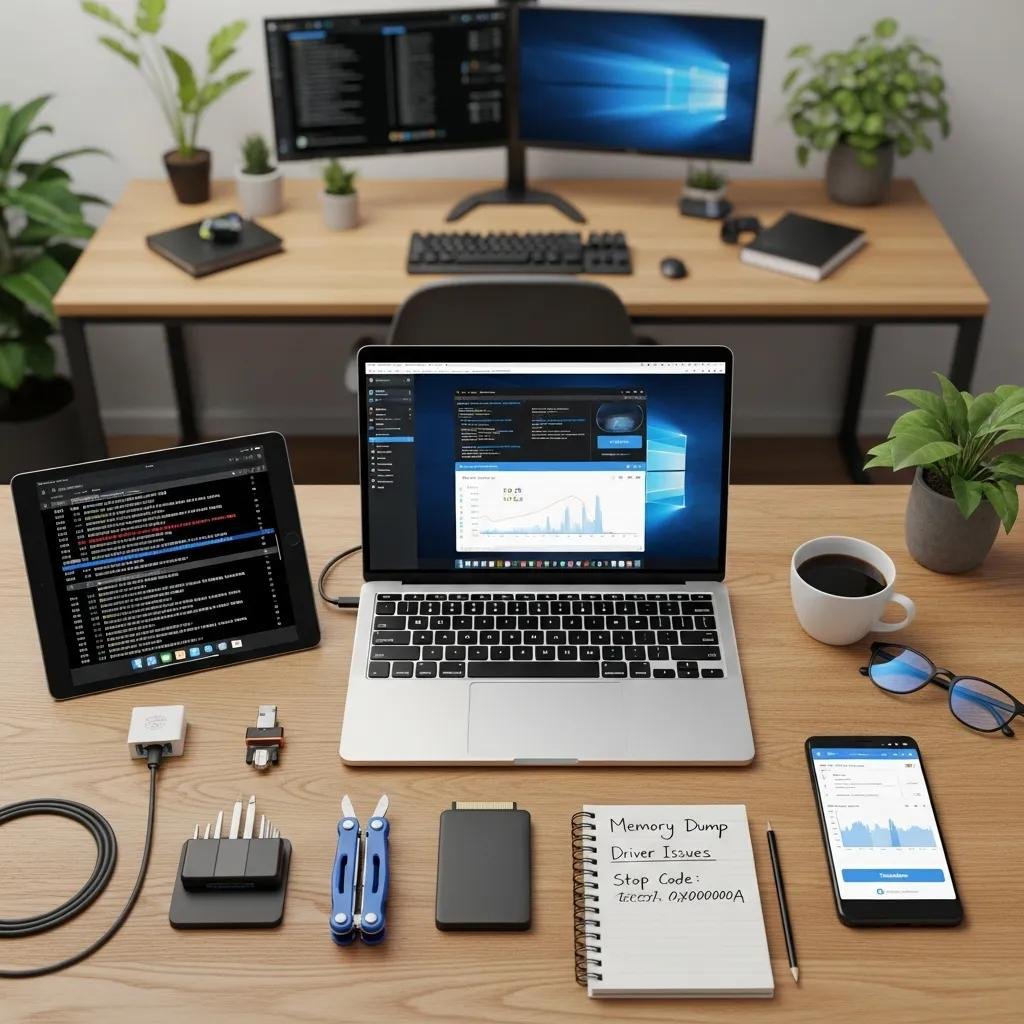
Remote-access tools like RDP, TeamViewer, AnyDesk, and Zoho Assist enable interactive troubleshooting, each with trade-offs in security and convenience; choose encrypted, consented access and prefer vendor-trusted clients. Native Windows utilities that run remotely include Event Viewer for system logs, WinDbg for minidump analysis, SFC and DISM for system-file integrity, and Windows Memory Diagnostic for RAM checks; these compose the diagnostic toolkit. Below is a compact comparison of commonly used diagnostic tools to guide selection and remote execution.
Intro: This table compares diagnostic tools you can employ remotely and highlights remote-capability and a concise run example.
| Tool | Remote Capability | Example Remote Command / Action |
|---|---|---|
| Event Viewer | Full access via remote desktop | Open eventvwr.msc and filter System/Application logs |
| WinDbg (KD) | Requires minidump transfer | Analyze with !analyze -v on collected minidump |
| SFC / DISM | Run in elevated remote command shell | sfc /scannow ; DISM /Online /Cleanup-Image /RestoreHealth |
| Windows Memory Diagnostic | Schedule on reboot via remote session | mdsched.exe and set to run on next boot |
How to Access Safe Mode and Run System Utilities Remotely?
To invoke Safe Mode remotely, use to set a Safe Boot or trigger advanced startup options through the Settings app if the system remains responsive; if not, schedule a reboot and enable diagnostic startup from a remote shell. Run SFC and DISM from an elevated command prompt to repair system files: followed by , and verify results in CBS logs. For memory or disk tests, schedule Windows Memory Diagnostic or CHKDSK using command-line switches so they run on the next reboot; collect results post-boot via Event Viewer or log files. These utilities offer low-risk repair paths that often resolve corruption-related stop codes without full OS reinstall.
What Are Effective Remote Solutions to Fix BSOD Errors?

Remote fixes map to the diagnosed cause: driver updates/rollback for driver-related stop codes, SFC/DISM for system-file corruption, targeted malware removal for infection-related crashes, and hardware-level tests for RAM or disk failures that may prompt replacement. Remote remediation begins with low-risk steps—log collection and restore points—then escalates to driver reinstalls, in-place OS repairs, or system reset only when necessary. Complex or time-sensitive cases can be escalated to professional remote technicians for faster resolution and guaranteed outcomes.
Common remote repair actions:
- Driver rollback or clean install for driver-caused BSODs.
- SFC/DISM sequence to repair system-file corruption.
- Remote malware scan and quarantine followed by integrity checks.
- Scheduling hardware diagnostics and advising physical service if tests fail.
Intro: The table below outlines repair actions with when to use them, remote method, and risk.
| Repair Action | When to Use | Remote Method / Example |
|---|---|---|
| Driver Update/Rollback | Minidump lists driver or Device Manager shows errors | Use Device Manager remotely or PowerShell driver package install |
| SFC / DISM Repair | Corrupt system files or failed system services | Run sfc /scannow then DISM commands in elevated shell |
| Malware Removal | Signs of infection, unexpected services | Run full AV/antimalware scans and quarantine, then recheck SFC |
| Memory/Disk Tests | MEMORY_MANAGEMENT or read/write errors | Schedule Windows Memory Diagnostic or CHKDSK on next boot |
How to Perform Remote Driver Updates and Rollbacks for BSOD Fixes
Identify suspected drivers from minidump analysis or Device Manager error codes, then choose rollback if a recent update preceded the BSOD or update if the driver is outdated. Remotely use Device Manager via a desktop session or employ PowerShell commands to uninstall and reinstall driver packages silently; always create a restore point before making driver changes. Test after each driver action with stress or stability checks and monitor Event Viewer for recurrence; if instability continues, consider driver signature enforcement checks or vendor-supplied tools. Keep driver changes reversible and document steps for audit and rollback.
How to Remove Malware and Repair System Files Remotely?
Run a full remote malware scan using a reputable antimalware tool with quarantine enabled, then remove detected threats and reboot as necessary. After malware removal, run SFC and DISM to repair any damaged system files that may have caused or resulted from the infection, and re-analyze minidumps to confirm resolution. If automated cleanups fail, isolate the device network-wise, collect forensic logs if needed, and escalate to professional remote support for deeper remediation and recovery. Validate successful remediation by monitoring for recurrence and ensuring system stability over several reboots.
When Should You Seek Professional Remote BSOD Repair Services?
Seek professional remote repair when DIY diagnostic steps fail, minidump analysis is inconclusive, hardware failure is suspected, or the system is business-critical and downtime is costly. Professional remote technicians bring rapid stop code repair workflows, access to certified tools, and experience with complex crash dump analysis that reduce mean time to repair. For users who need guaranteed outcomes or 24/7 responsiveness, professional intervention shortens resolution time and limits data-risk from repeated unsafe attempts.
Decision checklist to escalate to pros:
- Repeated BSODs after standard repairs.
- Inability to boot safely or access recovery tools.
- Business-critical systems with high downtime cost.
- Signs of hardware failure or suspected firmware corruption.
These criteria help decide when to move from DIY remote troubleshooting to certified remote assistance.
What Are the Advantages of mcHelper.com's Remote BSOD Repair Service?
mcHelper.com provides 24/7 remote availability and certified technicians who perform remote BSOD repair, including minidump analysis and driver remediation, offering convenience and secure remote resolution without leaving home. Their service model emphasizes reliability and continuous access through an annual subscription support package that suits repeat or business-critical needs. The company also presents a “no fix – no fee” promise and positions remote repair as a cost-effective alternative to onsite service.
How Does mcHelper.com's 'No Fix - No Fee' Promise Work?
The “no fix – no fee” promise, as described in service materials, means customers are not charged when the attempted remote repair does not resolve the reported issue through the provider’s documented remote remediation efforts. This statement signals confidence in remote BSOD analysis and provides a risk-reduction incentive for users considering professional support. For precise terms or details about eligibility, customers are encouraged to contact mcHelper.com directly to learn how the promise applies to their specific remote repair scenario.






