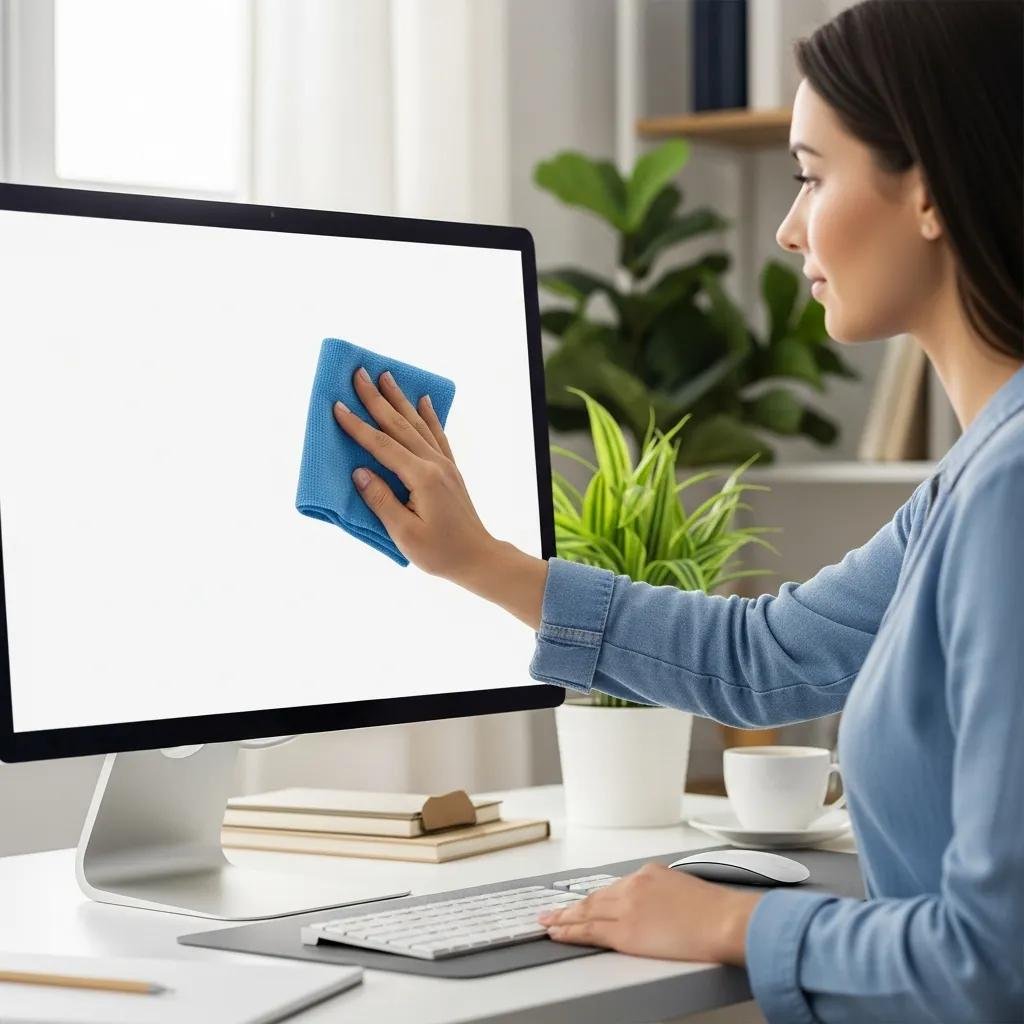
How to Safely Clean Your Computer Monitor Screen: Best Practices for Clear and Protected Displays
Keeping a clean, streak-free computer monitor improves visibility, preserves anti-glare coatings, and reduces eye strain while protecting delicate layers from accidental abrasion. This guide explains what to use and what to avoid, how to prepare and power off your monitor, and step-by-step methods for removing dust and smudges without damaging LCD, LED, or matte finishes. You will learn recommended materials—microfiber cloths, distilled water, and safe isopropyl dilutions—along with quick-reference comparisons and actionable cleaning routines sized for modern electronic display care. The article maps the best materials, tailored cleaning approaches for different screen types, a how-to sequence for smudges and dust, and clear warnings about harmful products and tools. Practical tips and short tables help you choose the right solution for your screen type, while brief guidance points to remote professional help if a cleaning issue becomes a technical concern. Read on to get monitor cleaning best practices that prevent scratches, remove streaks, and extend the life of your display.
What Are the Best Materials and Solutions for Safe Screen Cleaning?
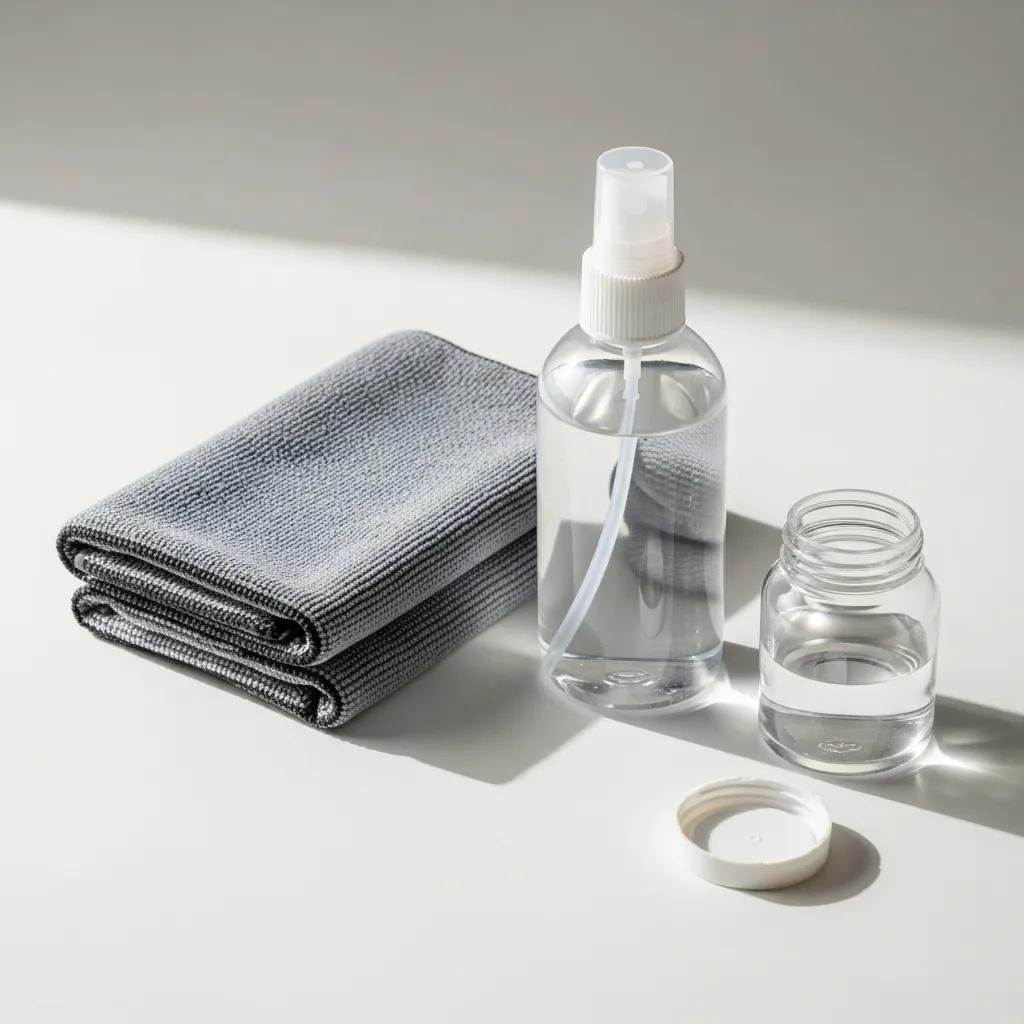
Safe screen cleaning uses soft, lint-free materials and minimally mineralized liquids to remove oils and dust without abrading coatings. Microfiber cloths trap particles in their fine weave, distilled water avoids mineral streaking, and diluted isopropyl alcohol (when permitted) dissolves oils while evaporating cleanly. Below is a comparative table that summarizes common choices and where they are safe to use, so you can quickly decide what to use for a given display.
| Material | Safety Notes | Recommended Use |
|---|---|---|
| Microfiber cloth (ultrafine) | Gentle, lint-free, non-abrasive | Dry dusting; light damp wiping |
| Distilled water | No minerals, leaves no residue | Dampening cloth for smudges |
| Isopropyl alcohol 50/50 (with distilled water) | Effective on oils; may affect coatings | Use only if manufacturer allows |
| Commercial screen cleaner (screen-safe) | Formulated for coatings | Use as directed on sensitive screens |
This table helps prioritize microfiber and distilled water as first-line options, reserving alcohol-based solutions for tolerant displays and targeted problems. Next we’ll explain why microfiber and distilled water work well and how to use them safely.
Why Use Microfiber Cloths and Distilled Water for Monitor Cleaning?
Microfiber cloths are engineered with ultra-fine synthetic fibers that lift and trap dust and oils instead of dragging them across the surface, which reduces micro-scratches and lint residue. Distilled water lacks minerals that cause white streaks or spotting after drying, so it prevents the residue common with tap water. When using these materials, lightly dampen the cloth rather than spraying the screen directly to avoid liquid entering seams or electronic components. Regularly wash microfiber cloths on a gentle cycle without fabric softeners to keep them effective and avoid contamination that could scratch screens. These precautions preserve anti-glare coatings and maintain clarity for longer periods.
Can Isopropyl Alcohol Be Used Safely on Computer Screens?
Isopropyl alcohol can remove stubborn fingerprints and oils because it dissolves grease and evaporates quickly, but it also carries a risk to some anti-glare and oleophobic coatings when used at high concentrations. A conservative approach is a 50/50 mix of 70% isopropyl alcohol and distilled water applied to a cloth—not directly to the screen—and only after checking the manufacturer’s guidance. Test any alcohol solution on a small, inconspicuous corner and wait for the coating to show no change before proceeding. If you prefer a ready-made option, choose a commercial “screen-safe” cleaner explicitly labeled for coated displays as a safer alternative.
How Do You Properly Clean Different Types of Computer Monitor Screens?
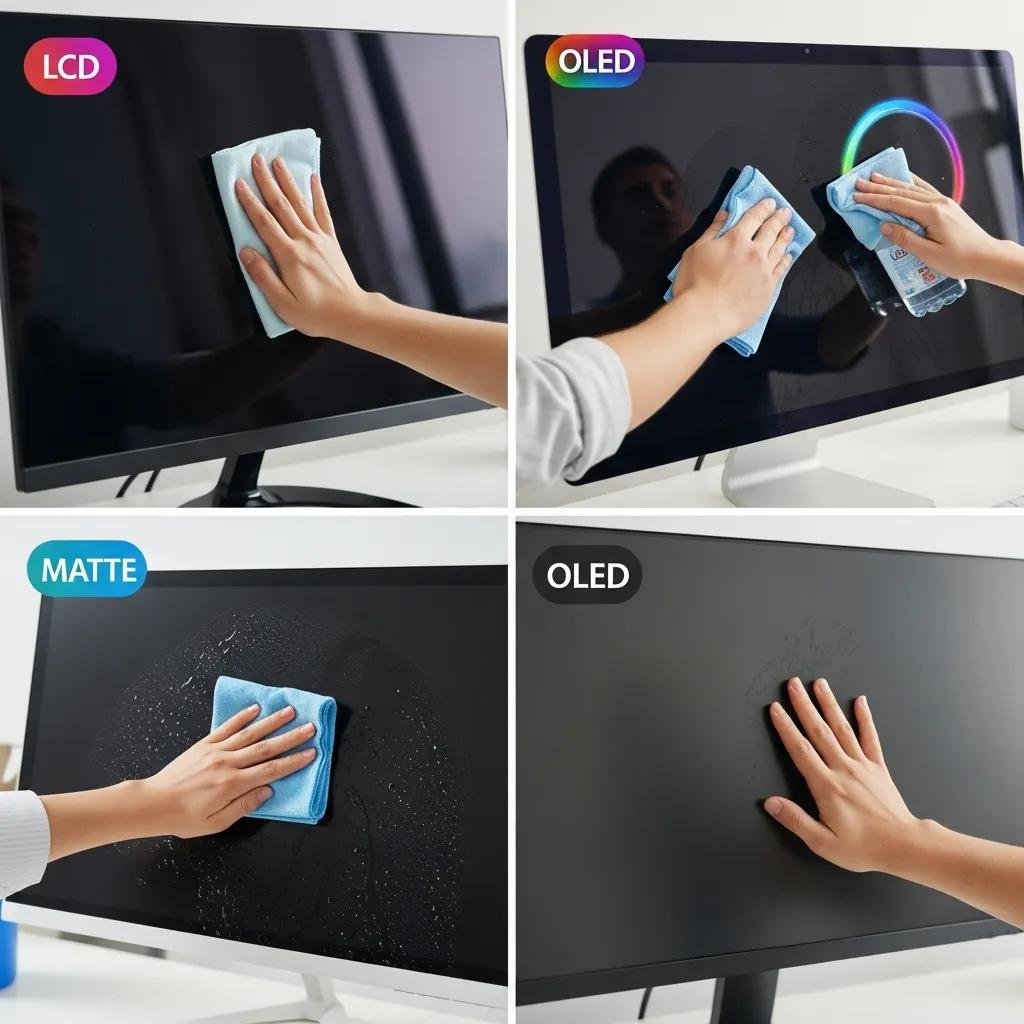
Different monitor technologies and finishes have varying vulnerabilities, so cleaning methods should match the screen type to avoid damage. Glass and glossy LCDs tolerate slightly more aggressive wiping than matte or anti-glare coated displays, while OLED and modern LED panels are sensitive to pressure and solvent exposure. The table below maps screen types to vulnerabilities and recommended cleaning methods as a quick reference.
| Screen Type | Vulnerability / Coating | Recommended Cleaning Method |
|---|---|---|
| LCD (glossy) | Susceptible to fingerprints; sturdy glass/plastic surface | Dry microfiber, dampen cloth for smudges |
| LED / OLED | Sensitive to pressure; delicate layers beneath surface | Light pressure, minimal liquid, test first |
| Matte / Anti-glare | Coating can wear or cloud with solvents | Use only microfiber and distilled water |
| Touchscreens | Oils from hands; touch layers sensitive | Use gentlest fluids, avoid alcohol unless specified |
This comparison makes clear that matte and coated screens require the gentlest care, while glassy panels can handle slightly firmer cleaning when done correctly. Next, learn specific, actionable tips for LCD, LED, matte, and coated displays.
What Are the Specific Cleaning Tips for LCD, LED, and Matte Screens?
For LCD and glossy LED screens, begin with a dry microfiber sweep to remove loose dust, then use a lightly dampened cloth to remove fingerprints in smooth, even strokes. For OLED panels, avoid heavy pressure and never use abrasive actions because pixel layers and thin films are fragile; minimal moisture on a microfiber is safest. Matte or anti-glare finishes should only see distilled water and a soft cloth—avoid solvents and vigorous rubbing that can polish or remove the coating. Always follow manufacturer instructions for your specific model and test any method on an unobtrusive area first to confirm compatibility.
How to Protect Anti-Glare Coatings During Cleaning?
Anti-glare coatings reduce reflections but are thin and vulnerable to solvents and abrasion, so protect them by using only soft microfiber and distilled water applied with very light, circular motions. Avoid ammonia-based cleaners, window sprays, or paper-based products that abrade the coating or introduce residues; these chemicals can etch coatings over time. If stubborn marks remain after gentle cleaning, consult the device manual or manufacturer support before using stronger solutions. Preserving the coating often means cleaning more frequently with gentler methods rather than aggressive scrubbing when grime accumulates.
What Steps Should You Follow to Remove Smudges and Dust Without Damaging Your Screen?
A reliable cleaning routine minimizes risk and takes just a few minutes when done correctly; prepare safely, remove dust first, then treat smudges with a damp cloth and finish by inspecting for streaks. Follow the numbered steps below for a predictable result and an estimated total time of about 3–7 minutes per cleaning session.
- Power down and unplug the monitor: Turning the screen off reduces heat and makes smudges easier to see.
- Dry dusting first: Use a clean microfiber cloth to remove loose dust and particles.
- Dampen a cloth: Lightly moisten a microfiber cloth with distilled water or a 50/50 isopropyl/distilled mix if the screen allows.
- Wipe gently: Move the cloth in straight, light strokes; avoid circular scrubbing on coated surfaces.
- Dry and inspect: Use a dry section of the cloth to remove streaks and examine for missed spots.
- Repeat only if necessary: Reapply minimal liquid to the cloth and retest on a small area before full wipes.
These steps prioritize safety and minimize liquid exposure while effectively removing oils and fingerprints. If you prefer a quick checklist for routine maintenance, the next list summarizes daily-safe actions.
- Daily-safe actions: Use a dry microfiber at the start and end of the day; avoid food and drink near screens; keep hands clean before touchscreens.
For users who encounter unusual display artifacts after cleaning or suspect physical damage, professional remote assistance is available. mcHelper.com offers remote computer repair and tech support for Mac and Windows users, providing 24/7 assistance with troubleshooting, virus removal, and performance optimization; their “no fix – no fee” approach can be helpful if a cleaning-related issue looks like a hardware or software problem. Contacting remote support is appropriate when streaks or visual anomalies persist after following the safe cleaning steps above.
How to Prepare and Power Off Your Monitor Before Cleaning?
Preparation reduces electrical risk and lets you see the screen’s actual dirt and smudges, so always power off and unplug the display before cleaning to prevent potential shorting and to allow the screen to cool. Remove peripherals and move keyboards or mice away to avoid accidental knocks, and place the monitor on a stable surface or adjust stand height for comfortable access. Inspect the bezel and ports for dust and clean the surrounding plastic with a dry microfiber before touching the panel to prevent tracked debris. Proper prep makes the actual cleaning faster and lowers the chance of liquid reaching internal components.
What Is the Step-by-Step Process for Safe Dust and Smudge Removal?
Begin with dry dust removal, then address persistent smudges with minimal fluid applied to a cloth rather than directly to the screen, working section by section. Use steady, light strokes across the surface, frequently turning the cloth to a clean area to avoid reintroducing oils or particles. After removing smudges, dry the screen with a fresh portion of microfiber and check at different angles to ensure streaks are gone. An efficient routine takes about five minutes and keeps your display clear while minimizing wear to coatings and layers.
Which Cleaning Practices and Products Should You Avoid to Prevent Screen Damage?
Avoid strong household cleaners, abrasive tools, and improper spraying techniques because these practices commonly strip coatings, leave residues, or scratch plastic and glass surfaces. Below is a short list of products and actions to never use on delicate displays, with brief reasons for each prohibition.
- Ammonia-based cleaners: They can remove anti-glare and oleophobic coatings.
- Window cleaners / glass sprays: Often contain solvents that etch coatings or leave films.
- Paper towels / tissues: Fibrous and abrasive, they create micro-scratches and lint.
These unsafe items have simple, screen-safe alternatives—microfiber in place of paper towels and distilled water rather than household sprays—which preserve display clarity and coating integrity. If you are unsure whether a product is safe, always test a tiny area first and consult the device manufacturer.
Why Are Ammonia-Based and Harsh Chemical Cleaners Harmful?
Ammonia and solvent-based cleaners chemically interact with anti-glare and oleophobic layers, causing clouding, thinning, or full removal of the protective film, which results in uneven reflectivity and permanent surface damage. Many household formulations also contain additives that leave residues or react with plastics, accelerating discoloration and brittleness over time. Manufacturers often include explicit warnings about these chemicals in support documents because long-term exposure degrades coatings and reduces visual performance. To avoid irreversible harm, stick to the gentlest recommended solutions and verify compatibility.
What Common Tools Should Not Be Used on Monitor Screens?
Paper towels, abrasive sponges, rough cotton rags, direct spray bottles, and low-quality compressed air cans are common tools that damage screens through abrasion, lint, chemical residue, or propellant deposits. Paper-based products create fine scratches and leave fibers; sponges and rough cloths abrade coatings; spraying liquids directly can push moisture into seams; close-range compressed air may contain propellants that leave films. Safe substitutes include ultrafine microfiber cloths, distilled water for dampening, and approved screen-cleaning kits designed for electronics. These alternatives remove grime without compromising screen coatings or internal components.