How to Resolve Driver Issues on Windows & Mac Remotely: Expert Remote Troubleshooting and Repair
Driver issues occur when device drivers—the small pieces of system software that connect hardware to an operating system—fail to load, behave unpredictably, or conflict with other components, and remote resolution matters because technicians can inspect logs, push updates, and run repairs without physical access, reducing downtime. This article explains how to identify symptoms, capture diagnostic data remotely, and apply safe fixes across Windows and macOS while preserving user data and remote-session stability. You will learn quick triage checks, the remote tools that collect hardwareID and driverVersion details, step-by-step repair actions for Windows and macOS, and criteria for when to escalate to professional remote support. For users who prefer a professional option, mcHelper.com offers 24/7 remote computer repair using proprietary diagnostic software as an available remote solution. The guide is organized into four practical sections: diagnosis, Windows fixes, Mac troubleshooting, and guidance on when professional remote support is appropriate.
How Can You Identify and Diagnose Driver Issues Remotely on Windows and Mac?
Remote diagnosis begins with pattern recognition: symptoms such as unrecognized peripherals, audio loss, or crashes usually indicate driver or hardwareID mismatches, and collecting specific artifacts like driverVersion, installationMethod, and recent driverDate helps pinpoint causes. The technician’s first remote actions are to request screenshots, device manager/error messages, and system logs; this provides the necessary evidence to triage whether the issue is an outdated driver, corrupted system file, or hardware fault. Remote triage emphasizes non-invasive checks first to avoid making systems unbootable, and it focuses on preserving restore points and user backups before applying changes. The next step is to use targeted tools to validate signatures and confirm whether an update, rollback, or reinstall is required, which leads into a concise checklist for quick remote triage.
Common remote triage checklist:
- Capture a screenshot of the error or Device Manager yellow exclamation mark to document the hardwareID.
- Ask the user to run or provide outputs from system logs and driverVersion details for the failing device.
- Verify whether recent Windows Update or macOS update coincided with symptom onset to correlate driverDate changes.
- Confirm that the user has an available restore point and recent backup before making system changes.
This checklist helps a remote technician decide whether to attempt an in-session repair or schedule a deeper intervention.
What Are Common Symptoms of Driver Problems on Windows and Mac?
Driver problems present as clear, repeatable symptoms that remote technicians can observe or be shown via screenshots and logs, and identifying these symptoms is the first step in mapping to probable driver types. Typical indicators include audio or video loss, network adapter dropouts, printer or peripheral not detected, device manager warnings on Windows, kernel panics or freezes on macOS, and blue screen errors on Windows that reference specific driver files. Remote users should be guided to collect Event Viewer entries, macOS Console excerpts, or the exact text of a blue screen message; these artifacts often contain the hardwareID or driver filename that reveals the malfunctioning driver. Capturing these outputs remotely enables targeted remediation like locating the correct signed driver or reverting a problematic update.
Which Tools Help Diagnose Driver Issues Remotely?
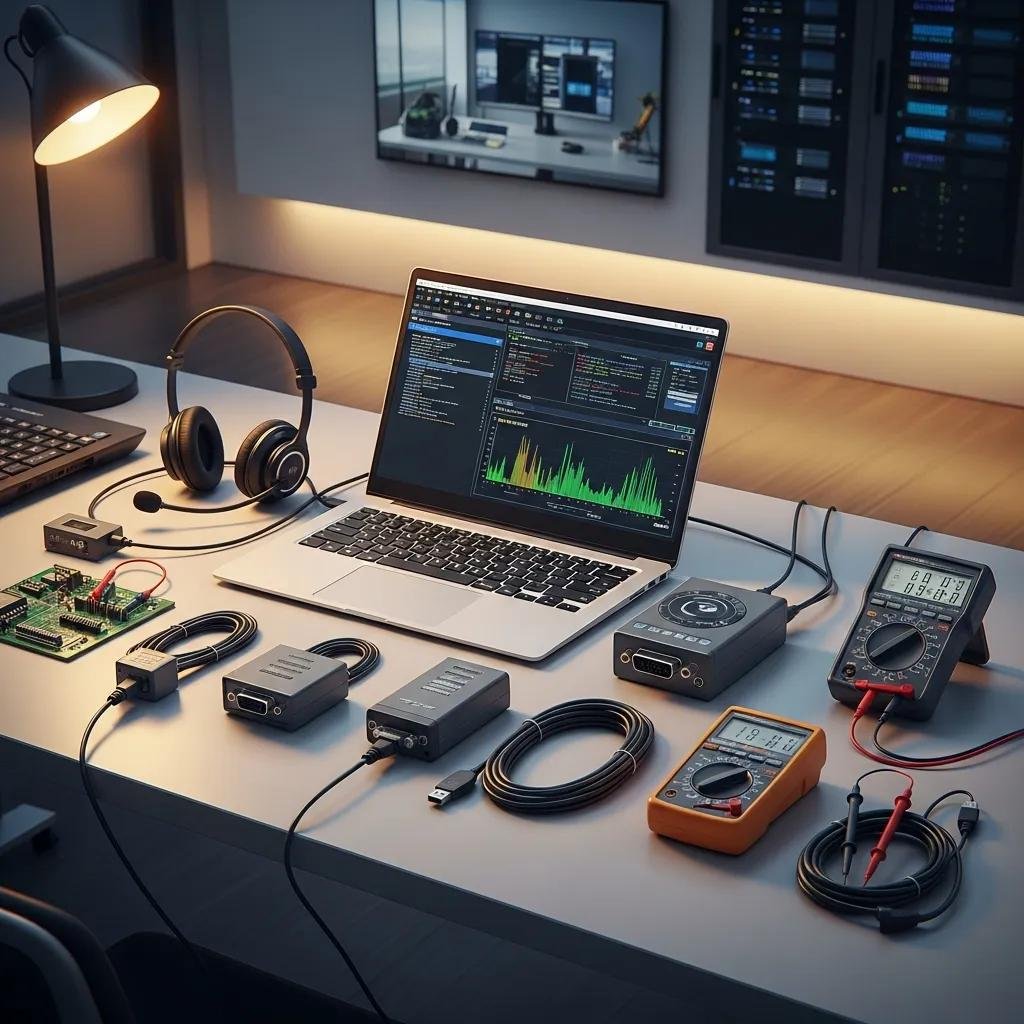
Several remote-capable tools provide the information needed for accurate diagnosis, and each tool outputs specific artifacts that map to driverVersion, hardwareID, or installationMethod for technicians to analyze. On Windows, Device Manager plus Windows Update, SFC, and DISM reveal driver status and corrupted system files; on macOS, System Settings, Console logs, and System Information provide similar telemetry. Third-party tools like Brigadier assist with Bootcamp driver retrieval, while proprietary remote diagnostic software can centrally collect logs and driver metadata across remote sessions. When requesting outputs, instruct users on safe export steps and maintain security by using read-only log collection where possible to minimize risk.
What Are Effective Remote Solutions to Fix Driver Problems on Windows?
Remote repairs on Windows follow a safe escalation path: verify signatures and current driverVersion, attempt an update from Windows Update or manufacturer, roll back if a recent update triggered failure, and reinstall using the certified package when necessary. Start with non-destructive actions—confirm driver signature and check Windows Update—then proceed to manufacturer downloads if Windows Update lacks the correct driver. If problems persist, use Device Manager to uninstall the device (choice to delete driver package) and then reinstall from a verified source; create a system restore point before uninstalling to preserve recovery options. For persistent corruption linked to system files, run SFC and DISM to repair underlying system components before reattempting driver install to avoid recurring failures.
Compare remote Windows fix methods:
| Method | Characteristic | Notes |
|---|---|---|
| Manual update via Device Manager | Low tooling risk, requires user interaction | Best for signed drivers available through Windows Update |
| Manufacturer download and install | Higher accuracy for hardware-specific drivers | Requires matching hardwareID and verifying driverVersion |
| Driver update tool (third-party) | Faster bulk updates, varied reliability | Use reputable tools and confirm signatures before install |
| Remote professional support | Full diagnostics with proprietary software | Technician can preserve restore points and manage reboots safely |
This table clarifies when each remote approach is appropriate and what prerequisites technicians should confirm.
How to Update, Roll Back, or Reinstall Drivers Remotely on Windows?
Updating, rolling back, or reinstalling drivers remotely requires precise steps to minimize remote session interruptions and ensure system recoverability. First, instruct the user to create a restore point and to back up critical data; then check Device Manager for the device, view driverVersion and driverDate, and attempt an update via Windows Update or “Update driver” in Device Manager. If a recent update caused failures, use the “Roll Back Driver” option to revert to the previous signed version; if the driver is missing or corrupted, uninstall the device (optionally delete driver package) and reinstall the correct package from the manufacturer’s site while verifying the driver signature. Maintain session persistence across reboots by arranging an attended reboot or a scheduled reconnect to avoid losing remote access.
How to Resolve Specific Windows Driver Errors Remotely?
Certain Windows errors map directly to targeted fixes and remote fixes should follow documented mappings between error codes, symptoms, and remedies to optimize first-pass success. For yellow exclamation marks, gather device manager details and try update or reinstall; for Remote Desktop driver errors like 0x104, ensure network adapter drivers and remote session drivers are current and signed; for BSODs referencing a driver file, capture the minidump and analyze the implicated driver to determine whether rolling back or replacing the driver with a vendor-supplied signed version is required. Escalate to SFC/DISM repairs when minidumps or system file checks suggest broader corruption, and schedule a full OS repair if driver replacement and system-file fixes do not resolve instability.
How to Troubleshoot and Repair Mac Driver Issues Remotely?
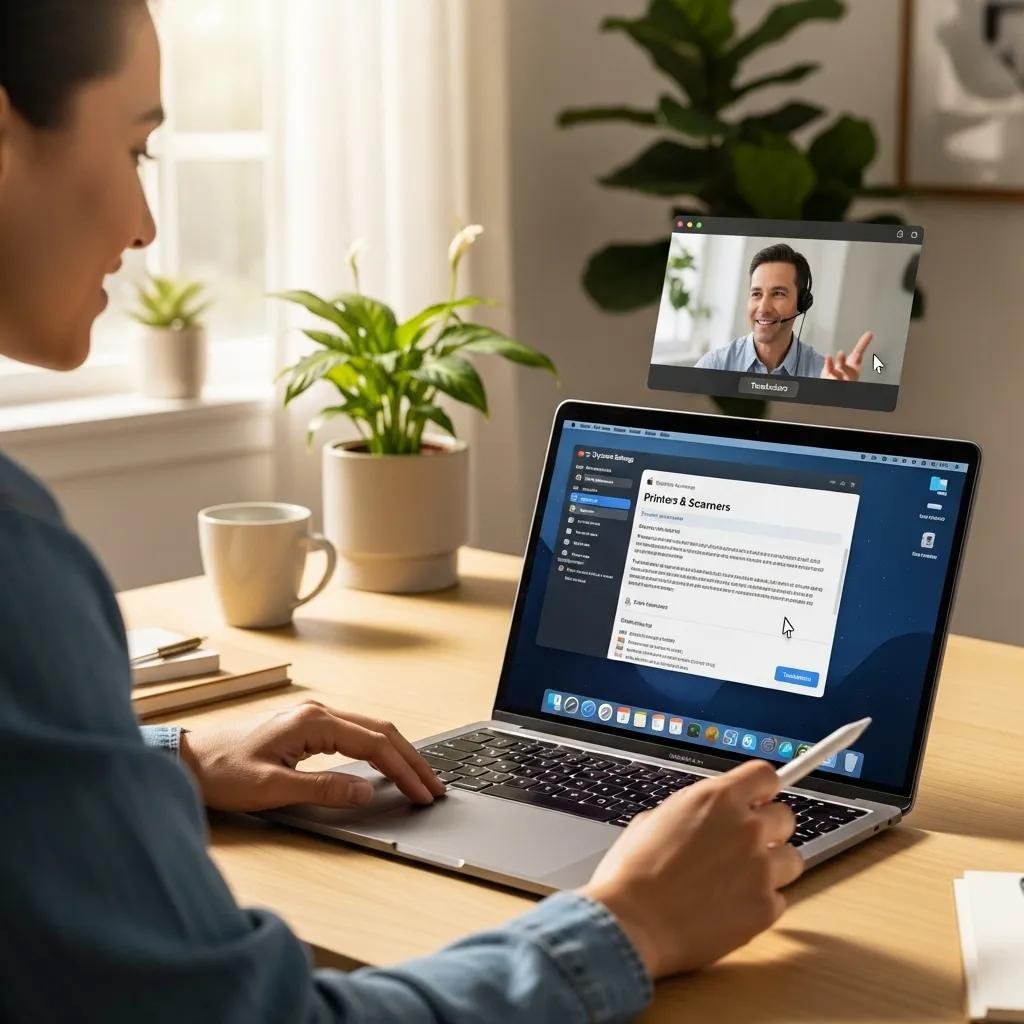
macOS manages drivers differently—many drivers are built into the kernel or delivered via system updates—so remote troubleshooting focuses on permissions, kernel extensions, and third-party vendor installers, and correcting these elements restores peripheral functionality. Begin by checking System Settings for hardware recognition and Security & Privacy for blocked kernel extensions or permission prompts; request Console logs and System Information output to identify failing kexts or USB device identifiers. For Bootcamp or Windows-on-Mac scenarios, obtain the Bootcamp hardware list and consider using Brigadier to fetch appropriate Windows drivers; when dealing with external peripherals, prioritize manufacturer-updated drivers or signed kernel extensions to ensure compatibility. These steps are generally safe when performed in sequence, starting with non-invasive checks and moving to vendor-supplied installers.
Compare Mac driver scenarios:
| Scenario | Compatibility | Remote Constraints |
|---|---|---|
| Native macOS drivers | High, delivered via system updates | Requires admin permissions to apply updates |
| External peripheral drivers | Varies by vendor | May need vendor installer and security approval |
| Bootcamp/Windows drivers | Depends on Brigadier or vendor packages | Remote install requires Windows tools and driverVersion matching |
This comparison helps remote technicians choose the correct path for macOS versus Bootcamp driver issues and to prepare users for permission prompts.
What Are the Steps to Update and Manage Mac Drivers Remotely?
Remote management on macOS emphasizes safe permission handling and vendor-signed updates, and technicians should guide users through System Settings and grant necessary access while documenting each change. Ask the user to open System Settings (or System Preferences), check for updates in Software Update, and review Security & Privacy for any blocked system software that needs explicit approval; collect Console logs to identify kext or driver failures. If a peripheral requires a vendor driver, download the signed installer and instruct the user through installation and any post-installation approval steps; on Apple Silicon, confirm whether the driver version supports the architecture and note that some legacy kernel extensions are unsupported, which may require vendor-supplied alternatives. These steps preserve system integrity while restoring hardware functionality.
How to Fix Remote Desktop and Bootcamp Driver Conflicts on Mac?
Remote Desktop and Bootcamp conflicts often stem from permission denials, missing kernel extensions, or mismatched Windows drivers, and resolving them requires a combination of privacy approvals and targeted driver installs. For Remote Desktop, verify screen-recording, accessibility, and remote-management permissions in Security & Privacy and confirm network adapter drivers are current; collect exact Remote Desktop error text to map to driver or network issues. For Bootcamp, use Brigadier to fetch the correct Windows driver package, match hardwareID values, and install in Windows with attention to driver signatures; if conflicts persist, roll back the Windows driver or reinstall Bootcamp support drivers while preserving user files via backup. Addressing permission prompts first reduces session interruptions and makes driver installs predictable.
When Should You Seek Professional Remote Support for Driver Issues?
Escalate to professional remote support when the issue risks data loss, requires advanced diagnostic tools, or when remote session complexity (multi-step reboots, persistent BSODs, kernel panics) exceeds safe DIY steps, and professionals can provide monitored changes with restore points and rollback planning. Use a simple decision checklist: if symptoms are minor and a recent update likely caused the issue, try the safe triage checklist; if the device is a work-critical machine, shows repeated crashes, or the user lacks backups, choose professional support. Professional remote technicians handle session persistence across reboots, collect and analyze minidumps, and apply vetted manufacturer drivers while minimizing downtime; this capability makes professional support preferable for high-risk or time-sensitive repairs.
Decision criteria for escalation:
- Severity: Frequent crashes, data at risk, or boot failures require professional intervention.
- Complexity: Issues needing minidump analysis, SFC/DISM, or kernel-level fixes are best handled by technicians.
- Time and criticality: If the device is essential for work and downtime is costly, professional remote repair reduces risk.
These criteria help users decide whether to attempt DIY fixes or engage expert remote support for faster, safer resolution.
What Are the Benefits of mcHelper.com's 24/7 Remote Driver Repair Service?
mcHelper.com provides 24/7 remote computer repair for Mac and Windows users and employs proprietary diagnostic software to identify and resolve driver-related problems remotely. The service includes a “No Fix – No Fee” guarantee, which means professional assistance is aligned with measurable outcomes, and mcHelper.com states it can address issues such as poor performance, system freezes, boot-up problems, instability, virus infections, and blue screen errors. Their round-the-clock availability suits urgent cases that require immediate troubleshooting or multi-reboot remediation, and proprietary tooling lets technicians collect driverVersion, hardwareID, and system logs efficiently during remote sessions. These factual service attributes help users who need reliable, outcome-focused remote support.
How to Prevent Future Driver Problems with Remote Monitoring?
Preventing recurrence relies on scheduled updates, proactive monitoring of driverVersion changes, and maintaining recent backups and restore points, and remote monitoring enables technicians to detect problematic driverDate changes before they cause failures. Implement a cadence for driver checks—monthly for critical devices and after major OS updates—and use remote diagnostic tools to flag unsigned drivers, mismatched hardwareID entries, and pending driver updates; maintain good security practices by only installing signed drivers from vendor sources. For users who want continuous oversight, mcHelper.com’s annual support package (priced around $199.99) is an example of a professional monitoring option that can include proactive driver checks and remote remediation to reduce future disruptions.
Regular maintenance steps to reduce driver issues:
- Keep a recent full backup and enable system restore or snapshots before major updates.
- Approve only signed drivers and verify vendor sources for peripheral drivers.
- Schedule periodic remote checks for driverVersion and system-file integrity to catch regressions early.
These preventive measures combined with optional professional monitoring lower the risk of repeat driver failures and improve overall system stability.