How to Fix 'Application Not Responding' on Mac: Effective Solutions for Unresponsive Mac Apps
An “Application Not Responding” message on macOS means an app has stopped processing events and won’t update its window or accept input, commonly shown as a frozen window or spinning beachball. This article explains why mac apps freeze, how resource pressure and compatibility problems create unresponsiveness, and which quick fixes you should try first — force quitting, checking Activity Monitor, and a restart. You will also get step-by-step methods for force quitting using keyboard shortcuts, the Dock, Activity Monitor, and Terminal commands, plus system-level troubleshooting like Safe Mode, PRAM/NVRAM/SMC actions, and Disk Utility First Aid. For persistent or risky cases we describe when to reinstall an app or macOS and how to back up before doing so. Throughout, keywords such as mac app frozen, force quit mac app, activity monitor mac unresponsive app, and fix unresponsive program are used to help you find the right diagnostic path and resolution quickly.
What Causes Mac Applications to Become Unresponsive?
Applications become unresponsive when system resources, corrupted files, or software mismatches prevent normal event handling. High memory pressure forces swapping to disk, which delays UI updates, while runaway CPU processes block the main thread and cause app freezes. Incompatible apps or outdated dependencies can trigger repeated hangs after an OS upgrade, and corrupted caches or disk errors may stop an app from launching or responding. Understanding likely causes narrows diagnostics and points to appropriate tools like Activity Monitor or Disk Utility.
Common root causes and quick checks:
- High memory or swap usage visible in Activity Monitor’s Memory tab.
- CPU spikes and stuck threads shown in Activity Monitor’s CPU tab.
- Storage full or nearly full indicated in About This Mac > Storage.
- App compatibility issues (Intel vs Apple Silicon / Rosetta 2) visible in app Info.
- Corrupted app files or caches revealed by crash logs and Console.
This comparison table helps map causes to diagnostic attributes for fast triage.
Different causes show distinct resource signatures and user-visible symptoms.
| Resource or Component | Diagnostic Attribute | Quick Indicator |
|---|---|---|
| RAM | Memory pressure / swap | High memory pressure graph and increased swap used |
| CPU | Usage spikes / main thread blocked | Sustained CPU at high % by a single process |
| Storage | Free space / filesystem errors | Low free space or First Aid errors in Disk Utility |
| App | Version / architecture | App marked Intel (x86) vs Apple Silicon (ARM) in Get Info |
| Files | Cache / preference corruption | Repeated crashes with similar stack traces in Console |
How Do Low RAM and High CPU Usage Affect Mac App Performance?
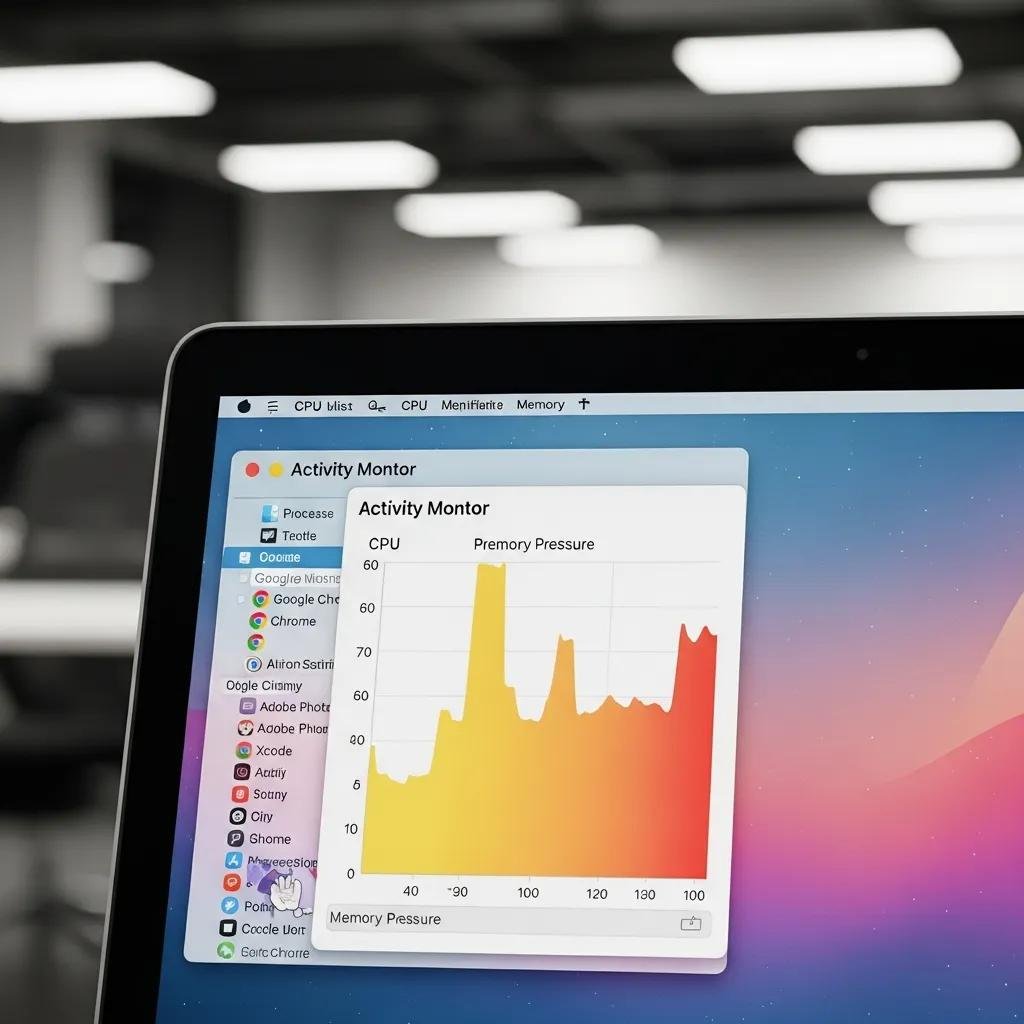
Low RAM and high CPU create bottlenecks that directly stall applications by delaying event processing and UI refreshes. Memory pressure forces macOS to swap inactive pages to disk, which slows response time and can produce the spinning beachball; high CPU usage by one process prevents the app’s main thread from handling input. For example, running many browser tabs with a video editor can exhaust available RAM and push the system into heavy swapping. Check Activity Monitor’s Memory Pressure graph and the CPU tab to find which process consumes the most resources.
Monitor results guide next steps such as quitting background apps, closing tabs, or restarting the problematic process to restore responsiveness.
What Role Do Software Bugs and Compatibility Issues Play in App Freezes?
Software bugs and compatibility mismatches interrupt normal app behavior by invoking deprecated APIs or failing under new system constraints. After macOS updates like Sonoma or Ventura, apps compiled for older SDKs or using kernel extensions might hang until updated. Apple Silicon machines rely on native ARM builds or Rosetta 2 translation for Intel apps; translation can introduce performance overhead or incompatibility. Updating the app, checking the developer notes for Apple Silicon support, and installing available patches often resolves these issues.
If an app still freezes after updates, consider reinstalling the app or checking crash logs for recurring patterns that indicate corruption rather than simple incompatibility.
How Can You Force Quit Unresponsive Apps on Mac?
A quick force quit is often the fastest way to restore control when a mac app is frozen, and the simplest approach should be tried first. Force quitting ends the app process so it can restart cleanly, which resolves many transient hangs caused by resource contention or blocked threads. Use the shortest, safest methods first and escalate to Activity Monitor or Terminal only if needed.
Quick methods to force quit:
- Press Command + Option + Escape, select the app, then click Force Quit.
- Right-click the app icon in the Dock and choose Force Quit from the contextual menu.
- From the Apple menu, choose Force Quit, select the app, and confirm closure.
Summary: start with Command+Option+Esc for speed, use the Dock or Apple menu if the keyboard shortcut fails, and move to Activity Monitor or Terminal for stubborn background processes.
This table compares force-quit methods and their best use case.
| Method | Characteristic | Best use case |
|---|---|---|
| Keyboard (Cmd+Opt+Esc) | Fast, GUI dialog | Single foreground app freeze |
| Dock / Apple menu | Visual, easy | When app icon responds to clicks |
| Activity Monitor | Precise process kill | Background or multiple processes |
| Terminal (kill/killall) | Advanced, scriptable | Remote sessions or scripting needs |
What Are the Keyboard Shortcuts and Menu Options for Force Quitting?
Command + Option + Escape opens the Force Quit Applications window and is the most direct keyboard shortcut to end an unresponsive app. From there, select the app name and click Force Quit to terminate it safely. If the Dock is responsive, right-click (or Control-click) the app icon and choose Force Quit; alternatively use the Apple menu and select Force Quit to open the same dialog. These GUI options are safest for most users and minimize the chance of terminating critical system processes.
If GUI methods fail, move on to Activity Monitor or Terminal to identify and target the correct process without guessing.
How to Use Activity Monitor and Terminal Commands to Close Frozen Apps?
Open Activity Monitor (Applications > Utilities) and sort by CPU or Memory to find the offending process, select it, then click the stop (X) button and choose Quit or Force Quit to terminate the process. For advanced users, use Terminal commands: list processes with , then send a signal with or escalate with . You can also use to target named processes. Exercise caution: killing system processes can destabilize the session, so confirm the process identity before issuing a kill.
These methods allow precise termination of background daemons or helper processes that the GUI Force Quit dialog cannot always address.
Which Advanced Troubleshooting Steps Help Resolve Persistent Mac App Freezes?

Advanced steps are appropriate when simple force quits and restarts do not fix recurring freezes, or when multiple apps are affected. Safe Mode, PRAM/NVRAM and SMC resets (on Intel Macs), and Disk Utility First Aid address different layers: Safe Mode isolates third-party extensions, PRAM/NVRAM clears certain low-level settings, SMC resets hardware-related managers, and First Aid repairs filesystem errors. Try these in sequence, backing up critical data before deeper resets or disk repairs.
When to escalate: attempt Safe Mode and First Aid first, then try PRAM/NVRAM and SMC resets for Intel Macs; if problems persist, consider reinstalling the app or macOS only after a verified backup.
Key advanced steps as a checklist:
- Boot Safe Mode to load minimal drivers and disable third-party extensions.
- Run Disk Utility First Aid on the system volume to find and repair disk errors.
- Reset PRAM/NVRAM (Intel Macs) to clear display, sound, and boot settings.
- Reset SMC (Intel Macs) to resolve power, thermal, and battery-related oddities.
These actions often remove stubborn causes of freezes and help determine whether the issue is software or hardware related.
When to seek professional help: If you must preserve data, face repeated First Aid failures, or if the system shows hardware symptoms (kernel panics, persistent I/O errors), consider remote professional repair. mcHelper.com offers 24/7 remote Mac and Windows support with a No Fix – No Fee promise and subscription plans that provide continuous remote assistance for less than a dollar a day. Their experts can connect remotely to diagnose complex problems, saving time and reducing data-risk when deeper repairs are needed.
How to Use Safe Mode, PRAM/NVRAM, and SMC Resets for Troubleshooting?
Safe Mode starts macOS with the minimum required kernel extensions and disables login items, helping reveal whether third-party software causes freezes. On Intel Macs, hold Shift during boot to enter Safe Mode; on Apple Silicon, hold the power button and choose Safe Mode from startup options. PRAM/NVRAM reset (Intel) uses Option+Command+P+R during boot to clear certain parameter settings, while SMC reset varies by Mac model but primarily addresses low-level hardware controllers. After each reset, check whether freezes persist and whether normal settings like display resolution need reconfiguration.
Always back up before resets that alter system settings to ensure you can restore a previous state if necessary.
When and How Should You Run Disk Utility First Aid on Your Mac?
Run Disk Utility First Aid when you observe repeated app crashes, corrupted files, or errors during file operations. Open Disk Utility, select the startup volume, and click First Aid to scan and attempt repairs; read the report to see whether repairs succeeded or failed. If First Aid reports irreparable errors, back up your data immediately and consider reinstalling macOS or seeking professional help. First Aid is low risk and often restores filesystem integrity that prevents apps from hanging due to corrupted resources.
If First Aid cannot repair the volume, prioritize a full backup and plan a reinstall or expert repair to avoid data loss.
When Should You Reinstall Apps or macOS to Fix Unresponsive Applications?
Reinstalling an app or macOS is a decisive step when corruption, repeated crashes, or widespread instability persist after other troubleshooting. Indicators for reinstall include consistent crash reports referencing app files, multiple users experiencing the same crash, or Console logs showing repeated file corruption errors. Reinstalling the app first is less invasive; if system files appear compromised or multiple apps fail, a clean macOS reinstall may be necessary following a verified backup.
Decision checklist before reinstall:
- Confirm repeated crashes via Console or Crash Reports.
- Backup user data with Time Machine or manual copy.
- Reinstall app and remove preferences (~/Library/Preferences) if issue persists.
- Prepare recovery options (Recovery Mode or bootable installer) for macOS reinstall.
This table maps indicators to recommended actions for clarity.
| Indicator | Recommended Action | Indicator Details |
|---|---|---|
| Single app crashes | Reinstall the app | Persistent crash logs for the app only |
| Multiple apps fail | Run First Aid, then consider macOS reinstall | System-level errors or disk issues in Console |
| Repeated disk errors | Backup immediately and seek repair | First Aid reports unrepaired errors |
| User data at risk | Contact remote professional support | Avoid DIY if backups are incomplete |
How to Identify Corrupted Application Files and Persistent Crashes?
Open Console and the Crash Reports folder to inspect recurring stack traces or error strings tied to a specific executable or library. Corrupted application data often shows repeated I/O errors, checksum failures, or identical exception types across launches. Use the app’s safe mode or a clean user account to determine whether preferences or user data cause the crash. Always copy important files to an external drive or Time Machine before attempting removal or reinstallation.
If logs point to corrupted files rather than compatibility, a targeted reinstall of the app and removal of its support files usually resolves the issue.
What Are the Steps for Reinstalling Apps or Performing a Clean macOS Installation?
To reinstall an app, quit it, remove the application bundle from , delete related preference and support files ( and ), then reinstall from the App Store or developer installer. For a clean macOS reinstall, back up with Time Machine, boot into Recovery Mode (hold Command+R on Intel or use recovery options on Apple Silicon), and reinstall macOS or erase the volume and install afresh. After reinstalling, restore user data selectively to avoid reintroducing corrupted files.
If you are uncomfortable performing a clean install or worry about data loss, consider professional remote support. mcHelper.com provides remote repair and guidance including safe backup and reinstall workflows; their service includes 24/7 assistance and a No Fix – No Fee guarantee for qualifying cases.
An extra note: always verify backups before erasing or reinstalling to ensure a reliable restore point.
For users who reach this stage, a cautious approach — backup, reinstall app first, then escalate to macOS reinstall — minimizes data risk and restores system stability. If these steps feel risky, remote professional assistance can handle backups and reinstalls safely.
macHelper.com offers continuous remote support via an annual subscription model described as less than a dollar a day; their remote sessions let experts connect to your Mac to diagnose and repair issues while preserving data integrity.
This final paragraph summarizes when to self-troubleshoot and when to contact remote assistance. If quick fixes like force quitting or Safe Mode restore normal behavior, continue self-monitoring and update apps. If freezes recur, First Aid fails, or you face data-risk during reinstallation, contact mcHelper.com for remote expert help available 24/7 with a No Fix – No Fee promise.