How to Create a System Restore Point in Windows for Effective PC Recovery
A System Restore Point is a snapshot of key Windows system components that lets you revert system files, registry settings, installed drivers, and program-related changes to an earlier working state. Creating restore points proactively provides a quick safety net when updates, drivers, or software installs cause instability, enabling you to recover PC settings without wiping personal files. This guide explains how System Protection works, how to enable system restore on Windows 10 and Windows 11, how to create a manual restore point, and how to use System Restore to recover your PC to an earlier date. You’ll learn exact steps to enable and create restore points, naming and management best practices, and troubleshooting steps when restore fails or no suitable points exist. Throughout the article, we use practical keywords like windows restore point, create restore point windows 10, enable system restore windows 11, and recover pc settings so you can follow hands-on instructions for system backup windows and fast recovery.
What Is a System Restore Point and Why Is It Important?
A System Restore Point is a system-level snapshot Windows creates to capture system files, the registry, installed program entries, and device drivers so you can roll back after problematic changes. This mechanism works by System Protection allocating disk space for restore data and logging changes to meronym components like system files and registry keys; the result is a reversible state that preserves system integrity without replacing personal documents. Restore points are most useful after driver updates, failed software installs, or problematic Windows updates because they restore system configuration quickly. Below is a quick set of use cases and a short comparison of what gets preserved versus what does not.
System Restore is not a full backup: it intentionally excludes user documents and many user-profile settings, so combine restore points with a separate file backup strategy to fully protect data.
System Restore assists recovery in these common scenarios:
- Reverting after a driver update that caused hardware malfunction.
- Undoing recent software installations that broke system stability.
- Returning to a stable state after a problematic Windows update.
This summary shows why restore points are an efficient first step in PC recovery and why you should pair them with longer-term backups to protect personal files.
What Does a System Restore Point Save and Not Save?
This section clarifies which components a typical Windows restore point includes and which it leaves out, to help you choose the right backup strategy.
| Component | Saved by Restore Point? | Notes |
|---|---|---|
| System files and core OS components | Yes | Includes files required for OS operation and system libraries. |
| Windows Registry and program registry entries | Yes | Captures registry keys modified by installs and settings changes. |
| Device drivers | Yes | Captures drivers present at snapshot time for rollback. |
| Personal documents, photos, and user files | No | Personal data is not included; use file history or separate backups. |
| Cloud-synced data and some app profile data | No | Items synced to cloud services or stored entirely in user profile may not be restored. |
This table highlights that restore points are focused on system recovery rather than file recovery, so plan a system backup plus file backup strategy when protecting important data.
How Does System Protection Enable Restore Points?
System Protection is the Windows feature that creates and manages restore points by monitoring changes to protected drives and allocating a portion of disk space for snapshots. When enabled for a drive, System Protection logs system file and registry changes and can create restore points automatically before major events such as Windows Update or driver installation. Windows purges older restore points when disk-space limits are reached, so configuring an appropriate disk-space allocation trades retention against available storage. Automatic triggers and occasional manual creation combine to keep a useful history of rollback points while System Protection enforces space usage policies.
Configuring System Protection properly ensures timely automatic restore creation, and understanding its disk-use behavior helps you keep restore points available when you need to recover PC settings.
How to Enable System Restore on Windows 10 and Windows 11
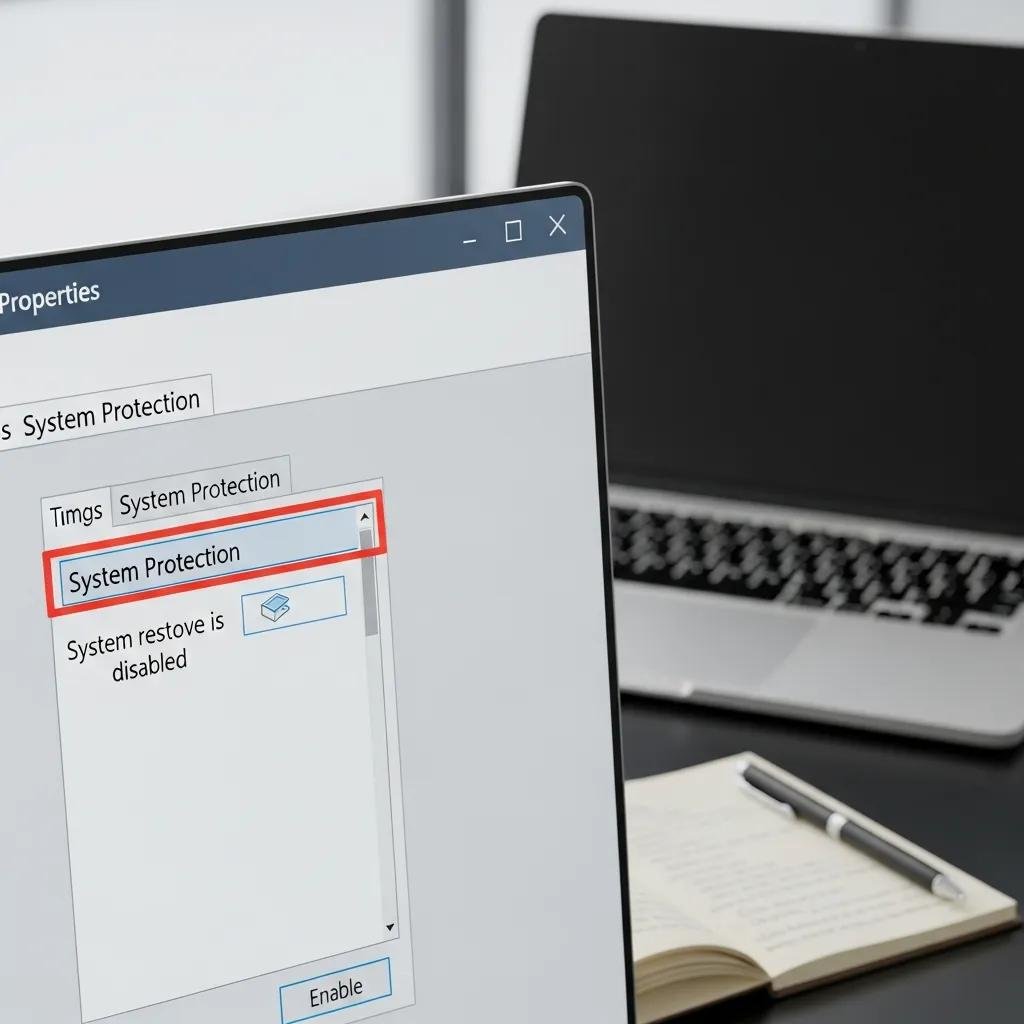
Enabling System Restore requires administrator rights and must be done before you can create manual restore points; turning it on configures System Protection for the system drive and reserves disk space for snapshots. The steps differ slightly between Windows 10 and Windows 11 due to UI placement, but both routes lead to the System Properties > System Protection tab where you enable protection and set disk-space usage. Recommended settings are to turn on protection for the system drive and allocate a modest percentage of disk space (5–10% on small SSDs, more on large drives) so restore points are retained for meaningful durations. The short lists below provide OS-specific quick steps to enable System Protection and create an initial point.
Follow these steps to enable System Protection on Windows 10:
- Open the Start menu, type “Create a restore point”, and select the matching Control Panel result.
- In System Properties, select the System Protection tab to view available drives.
- Choose the system drive (usually C:), click Configure, then select “Turn on system protection”.
- Set the Max Usage slider to reserve disk space and click Apply, then OK.
- Optionally click Create to make an initial manual restore point with a descriptive name.
These steps enable restore capability and create a baseline snapshot so you can recover pc settings after future changes.
Steps to Turn On System Protection in Windows 10
Enabling System Protection in Windows 10 is straightforward from the Control Panel and creates the infrastructure needed for restore points. Start by opening “Create a restore point” from the Start menu and switch to the System Protection tab where drives are listed; selecting the system drive and clicking Configure reveals the option to “Turn on system protection.” Set a disk-space quota to control how many restore points Windows will keep and then create an initial manual restore point to verify the feature works. After the initial point is created, Windows will also make automatic restore points before updates and certain installations, helping you recover pc settings without extensive troubleshooting.
This procedure readies your machine for both manual and automatic protection, which leads directly to the combined create/manage workflow described next.
Steps to Turn On System Protection in Windows 11
Windows 11 exposes System Protection through Settings or via the classic System Properties interface; the outcome is the same and enables create restore point windows 11 flows. Open Settings > System > About and select Advanced system settings, or search “Create a restore point” to jump directly to System Properties; on the System Protection tab choose the system drive, click Configure, and enable protection. Pick a disk-space limit appropriate for your storage and make an initial restore point to confirm functionality. Note that recent Windows versions may adjust retention policies, so verify the available restore points periodically to ensure they meet your recovery needs.
Completing these steps ensures you can create restore points on both Windows 10 and Windows 11, after which you should follow best practices for naming and management before making changes to the system.
If you encounter errors enabling System Protection or configuring restore points, mcHelper.com offers remote operating-system restoration and support services with 24/7/365 availability and a “No Fix – No Fee” guarantee to help complete setup or resolve configuration issues.
How to Create a Manual System Restore Point in Windows

Creating a manual restore point gives you control over when a snapshot is taken and is recommended before installing drivers, major applications, or system updates. The only prerequisites are that System Protection is enabled on the system drive and that you have administrative privileges; once those are met the Create workflow takes only a minute and stores a clear rollback option. Best practices include naming restore points with date and purpose, creating one immediately after enabling protection, and combining restore points with full system-image backups when performing high-risk changes. The short numbered steps below walk through the creation process and the following mini-table maps common actions to naming suggestions.
Follow these steps to create a manual restore point:
- Open “Create a restore point” from Start and select the system drive on the System Protection tab.
- Click Create, enter a descriptive name (date + reason), and confirm to begin snapshot creation.
- Wait for confirmation that the restore point was created and verify it appears in the list of restore points.
- Proceed with the change you intended (driver update, app install) knowing you can revert if needed.
Creating manual restore points before high-risk changes reduces downtime and simplifies recovery when you need to revert system changes.
Step-by-Step Guide to Creating a Restore Point
This concise guide walks you through creating a manual restore point in both Windows 10 and Windows 11 with a single, consistent flow. Open “Create a restore point” from the Start menu, choose the system drive in System Protection, and click Create; when prompted, enter a clear description such as “2025-12-15 — Before GPU driver install” and confirm. Windows will take a snapshot and report success; you can then view the restore point in the System Protection list to verify its presence. This immediate verification step ensures your rollback option is available before making changes that could affect system stability.
Verifying the restore point completes the create process and prepares you to safely update drivers or install system-level software.
How to Name and Manage Restore Points Effectively
Good naming and periodic cleanup keep restore points useful and storage-efficient; adopt a consistent format to make selection straightforward in a recovery scenario. Use the YYYY-MM-DD — reason format with a short purpose tag to identify context quickly, remove older or redundant restore points via System Protection or Disk Cleanup when space is low, and rely on a system image backup when you need file- and system-wide recovery beyond what restore points provide.
| Action | When/Why | Best Practice |
|---|---|---|
| Before driver install | Create a rollback point | Name: YYYY-MM-DD — Before [driver] install |
| Before major update | Preserve pre-update state | Name: YYYY-MM-DD — Pre-update |
| Periodic maintenance | Free disk space and remove old points | Use Disk Cleanup or configure smaller disk usage quota |
Consistent naming plus occasional housekeeping ensures restore points remain relevant and that disk-space policies do not remove the snapshots you need.
How to Use System Restore to Recover Your PC to an Earlier Date
Using System Restore re-applies a chosen snapshot to return system files, drivers, and registry settings to a previous state; the process is reversible in many cases and typically resolves software-induced instability within 15–60 minutes depending on system speed. Launch System Restore from the Start menu or from the Windows Recovery Environment if the OS will not boot; use “Scan for affected programs” to preview what will change and to decide which restore point is most appropriate. After applying a restore point, reboot and verify system behavior; you may need to reinstall some applications or updates that were removed by the rollback. The checklist below helps you choose the best restore point and provides steps to apply it safely.
Use this checklist to choose and apply the right restore point:
- Prefer the most recent manual restore point created before the known issue occurred.
- Use “Scan for affected programs” to see which apps or drivers will be removed or restored.
- Apply the restore, allow the system to reboot, and verify the issue is resolved before resuming normal use.
Following this checklist reduces guesswork when recovering PC settings and helps you pick the most targeted rollback option.
How to Choose and Apply a Restore Point
Selecting the right restore point depends on when the problem began and whether a manual point exists directly before that change; manual points typically offer the clearest rollback. Open System Restore, choose “Select a different restore point”, pick the most recent point created prior to the problem, and use “Scan for affected programs” to review likely changes; then confirm and let Windows apply the restore. After completion, Windows restarts and reports success or failure—if the problem persists, try an earlier restore point or run additional repair steps such as SFC/DISM.
This decision process helps you choose the highest-probability fix quickly and reduces unnecessary system churn during recovery.
| Restore Point | Age/Trigger | Likely Usefulness |
|---|---|---|
| manual (recent) | Created by user before change | High — best for targeted rollback |
| automatic (pre-update) | Created before Windows Update | Medium — useful for update-related issues |
| older automatic | Older system events | Low — only when more recent points fail |
What to Do If System Restore Fails or Is Unavailable
If System Restore cannot complete or suitable restore points are missing, begin escalation with safe-mode restores, running System File Checker (SFC) and DISM to repair system files, and trying System Restore from the Windows Recovery Environment (WinRE). When these local recovery steps do not resolve the issue, consider using a system image backup or the “Reset This PC” option for more invasive repair. For complex failures or when remote hands-on assistance is preferred, mcHelper.com provides remote repair and operating-system restoration services with 24/7/365 availability and a “No Fix – No Fee” guarantee, and they can assist in advanced recovery workflows or managed OS restoration.
These escalation steps provide a logical path from simple fixes to professional remote support when System Restore is insufficient or unavailable.