How Remote Computer Repair Works: Your Step-by-Step Guide to Secure Online Tech Support
Remote computer repair uses secure, encrypted remote access software to let a trained technician diagnose and fix software, configuration, and many system-level problems without visiting your location. This guide explains how remote support works, why it’s safe when done correctly, and which common issues can be resolved online versus those that need hands-on service. You will learn the typical remote support workflow, the security controls technicians use, practical preparation steps to speed resolution, and real examples of fixes like virus removal and performance optimization. The article maps the process from initial contact through secure connection, diagnosis, remediation, verification, and session close, and it also compares remote repairs to on-site options so you can choose the right path. Read on to understand virtual computer troubleshooting steps, remote access tools explained, and how to get remote IT help for both Windows and Mac systems.
What Is Remote Computer Repair and How Does It Work?
Remote computer repair is a service where a technician uses remote access software to securely connect to your PC or Mac, inspect system state, and apply fixes without physical presence. The mechanism relies on session-based screen sharing or remote-control tools that create an encrypted tunnel between devices, enabling real-time diagnostics and remediation while the user watches and consents. The primary benefit is fast resolution with minimal downtime because technicians can run diagnostic logs and apply patches immediately. This method is appropriate for software, malware, configuration, and performance issues, while physical hardware failures or internal component replacements still require on-site service. Understanding secure connection methods leads to how technicians establish those links and what controls users retain during sessions.
How Do Technicians Connect Securely to Your Computer?
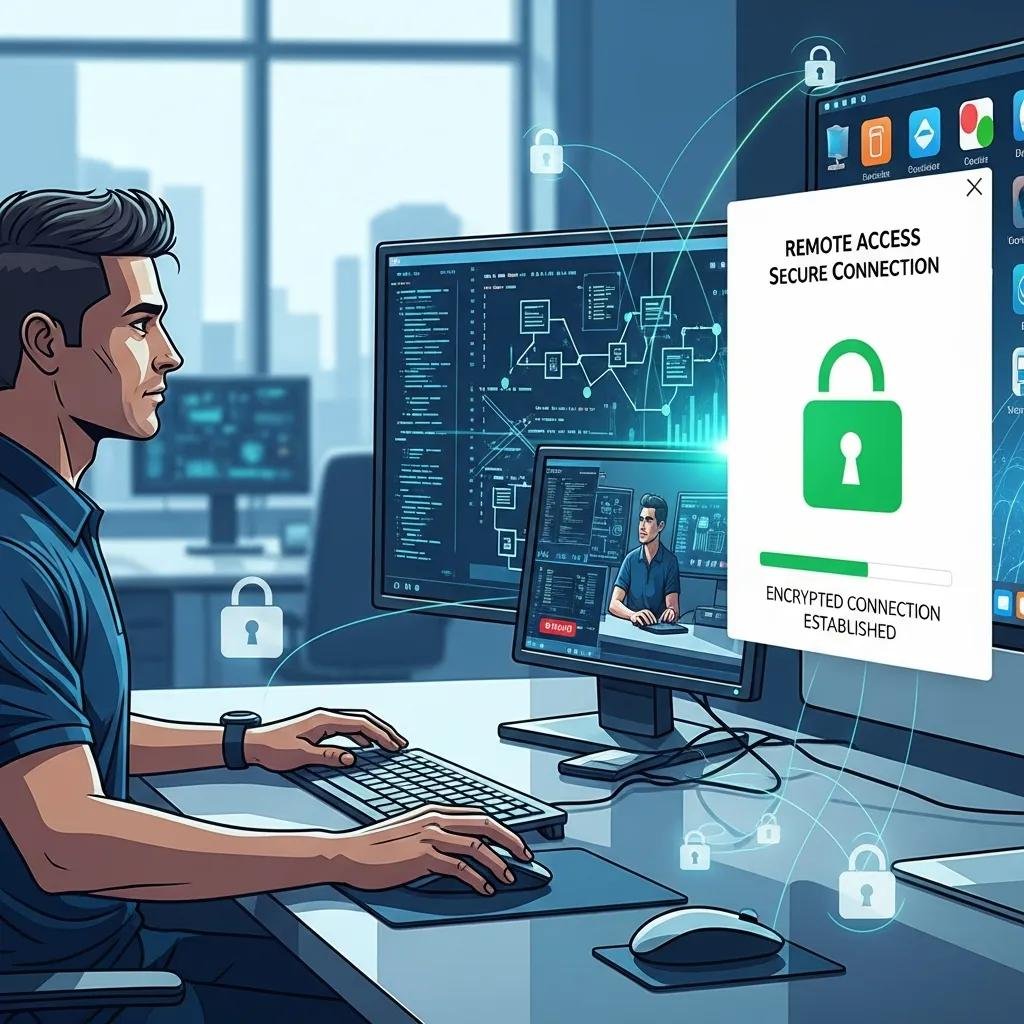
Technicians connect using reputable remote access tools that create encrypted sessions and require explicit user permission before control is granted. Session initiation usually uses a temporary session code or a one-time consent dialog where the user must allow screen sharing and, if needed, remote control; encryption (TLS or similar) protects the data in transit. Technicians restrict access to specific system areas and use diagnostic software to collect logs and system snapshots; users can watch activity and revoke access at any time. Verifying the technician’s identity through session codes and asking what actions will be performed helps ensure security and reduces risk.
What Are the Typical Steps in a Remote Repair Session?
A typical remote support session follows a consistent 5-step flow to diagnose and resolve issues efficiently. The numbered steps below summarize the remote support process and set expectations for what happens during a session.
- Intake and Authentication: The technician documents the problem, verifies account or session identity, and confirms consent to proceed.
- Secure Connection: The user grants remote access via an encrypted tool and receives a session code or prompt to allow screen sharing.
- Diagnosis: The technician collects diagnostic logs, runs scans, and isolates the root cause using diagnostic software and system checks.
- Remediation: The tech applies fixes such as malware removal, patching, configuration changes, or software updates while monitoring system impact.
- Verification and Close: The technician tests the fix with the user, documents actions, and ends the session; logs or receipts are provided if required.
Which Common Computer Problems Can Be Fixed Remotely?
Many frequent issues are well-suited to remote troubleshooting because they are software- or configuration-based and require only diagnostic tools and remediation commands. Remote access enables technicians to run malware scans, remove unwanted software, adjust configuration settings, update drivers or OS components, and recover lost files using remote data-recovery tools when possible. Problems that require physical replacement—like failing hard drives, cracked screens, or water damage—typically need on-site or drop-off service. The following quick list highlights common remotely-fixable problems and one-line notes on the usual approach.
- Virus and malware infections: Detected with signature and behavior scans, quarantined, and removed; follow-up cleanup and restores performed.
- Slow performance and software errors: Cleared by removing bloatware, updating drivers, and adjusting startup tasks or virtual memory.
- Connectivity and configuration issues: Resolved by changing network settings, DNS, or driver configuration; remote network diagnostics applied.
Below is a quick reference table mapping problems to typical remote fixes and common tools or time estimates.
| Problem | Typical Remote Fix | Time estimate / Tools used |
|---|---|---|
| Malware infection | Scan, quarantine, remove, restore | 30–90 min / antivirus + cleanup tools |
| Slow system performance | Cleanup, update drivers, optimize startup | 30–60 min / task manager, driver tools |
| Network/configuration errors | Reconfigure settings, restart services | 20–60 min / network diagnostics tools |
How Is Virus and Malware Removal Handled Online?
Remote malware removal begins with controlled scans to identify malicious files and behaviors, followed by quarantining and stepwise removal while preserving unaffected user data whenever possible. Technicians use signature and heuristic scanners, behavior monitors, and manual inspection to remove persistent threats, then run follow-up scans and system integrity checks to confirm cleanup. After removal, they often recommend account password resets, enable or verify security settings, and advise on backup restoration if needed; users should confirm which files were modified before closing the session. Secure handling and clear communication during this process reduce risk and help restore a clean system quickly.
What Solutions Are Available for Slow Performance and Software Errors?
Remote performance optimization targets common causes such as background processes, outdated drivers, insufficient updates, and unnecessary startup items, using cleanup and update tools to restore responsiveness. Technicians typically remove bloatware, apply OS and driver updates, adjust startup programs, and tune virtual memory or power settings to improve performance; for Macs, similar steps include managing launch agents and updating system software. If performance issues stem from failing hardware (e.g., deteriorating SSD/HDD), the technician will document diagnostic evidence and recommend on-site hardware replacement. These remote optimizations often deliver immediate improvement, and when hardware limits persist, next steps are clearly explained.
What Are the Benefits of Choosing Remote Computer Assistance?
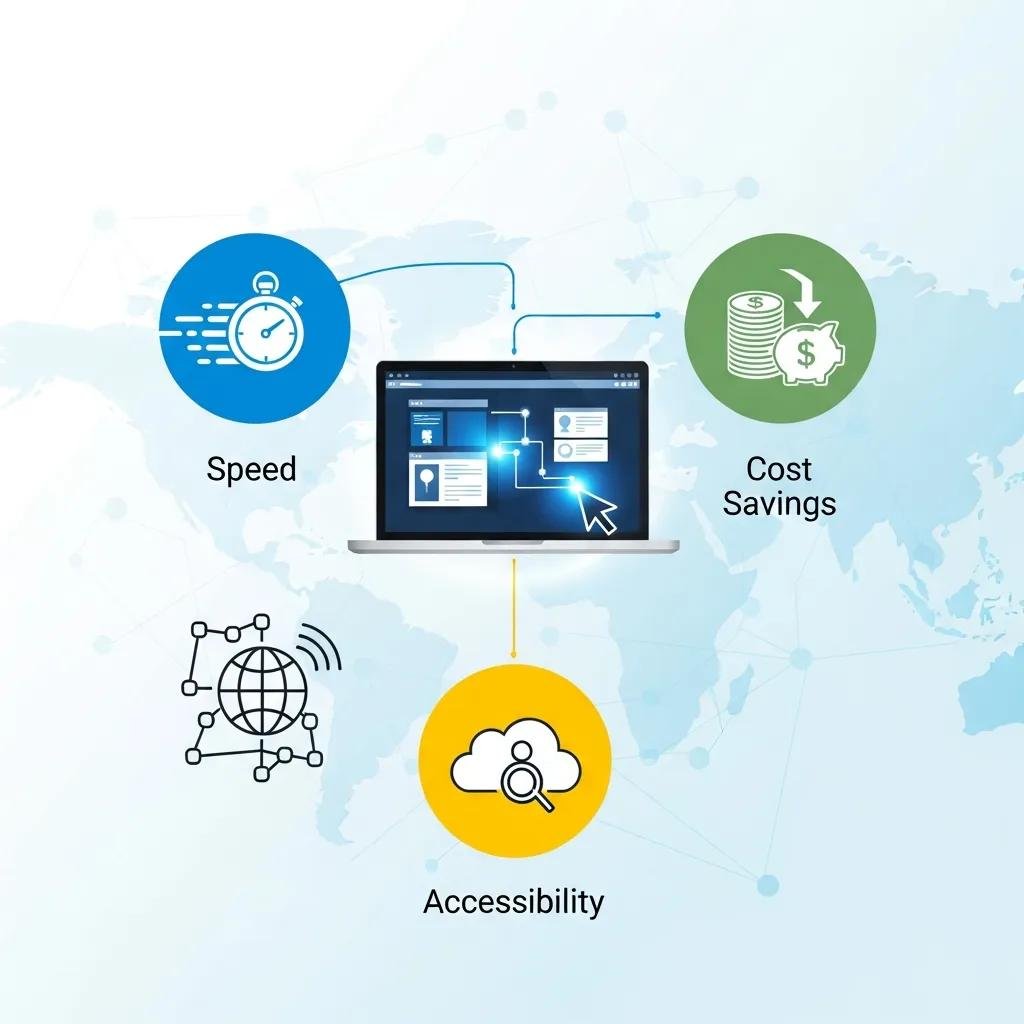
Remote assistance delivers clear advantages: faster time to resolution, lower cost compared with on-site visits, and the convenience of getting help without transporting devices. Because technicians can access diagnostic logs directly and apply fixes in real time, many issues are resolved in a single session, minimizing downtime. Remote support also enables broader availability across time zones and can be offered around the clock to handle urgent security incidents quickly, increasing continuity for remote work and business operations. The practical delivery and user impact of these benefits are summarized in the table below.
| Benefit | How it’s delivered remotely | User impact / example |
|---|---|---|
| Speed | Instant triage and diagnostics | Faster fixes, less downtime |
| Cost savings | No travel or on-site fees | Lower per-incident cost |
| Accessibility | 24/7 remote sessions possible | Support across time zones |
How Does Remote Support Save Time and Money?
Remote support reduces time-to-resolution by eliminating travel and allowing technicians to start diagnostics immediately, often resolving common software problems within a single session. Cost savings come from lower service rates, reduced need for physical labor, and subscription plans that spread support costs for frequent users. For businesses and busy households, recurring subscription models can be more economical than paying per-incident fees, especially when multiple small issues arise over a year. These efficiencies explain why remote support is increasingly preferred for routine IT maintenance and emergency troubleshooting.
Why Is 24/7 Availability Important for Online Tech Support?
Round-the-clock support matters when urgent issues strike outside standard business hours, such as ransomware alerts, remote-work connectivity failures, or critical software errors that block productivity. Immediate remote triage can isolate threats, apply containment measures, and restore core services faster than waiting for the next business-day appointment. For international teams or users in different time zones, 24/7 availability ensures consistent operational continuity and reduces the cascading impact of downtime. This availability becomes especially valuable when time-sensitive data recovery or security containment is required.
How Can You Prepare for a Remote Computer Repair Session?
Preparing proactively shortens session time and improves outcomes: back up important files, note exact error messages, close unneeded applications, and have any account credentials ready for verification. Be ready to grant screen-sharing or remote-control permission and ensure you remain at the device during the session to follow prompts and confirm actions. Also, create a restore point or backup if possible so the technician can act with lower risk of unintended changes. These steps make the diagnosis faster and lead naturally into what you should expect during an actual support interaction.
What Should You Expect During the Remote Support Process?
During a remote session expect an initial verification step where the technician confirms identity and documents the issue, followed by explicit permission prompts to allow screen sharing or control. Technicians typically explain planned actions, run diagnostic scans or log collectors, and communicate findings before applying fixes; they will pause to get consent for any significant changes like system restores. After remediation they will demonstrate the fix and provide advice for follow-up and prevention; session logs or receipts are often provided for your records. Knowing this flow helps you stay engaged and ensures you retain control throughout the repair.
How Is Your Data Privacy and Security Protected?
Data privacy is protected through encrypted session channels, temporary session identifiers, and strict permission controls that limit access duration and scope to the agreed tasks. Technicians follow least-privilege principles—requesting the minimum access needed—and sessions can be monitored live by the user with the ability to revoke control at any time. Best practices include closing sensitive documents before a session, using unique session codes, and ensuring any provider you choose documents actions taken; after the session, revoke any persistent remote-access permissions. These protections combine technical controls and user awareness to minimize exposure while enabling effective remote repair.
For ongoing remote support, providers that publish clear security practices and simple enrollment options can simplify repeat troubleshooting. If you prefer a provider that bundles continuous access, some services offer annual subscription plans and guarantees to reduce per-incident friction and cost. For immediate help or to explore subscription support, consider contacting a 24/7 remote repair provider that lists phone support as part of their service offering.
This article has outlined the remote computer repair process, typical fixes, security practices, preparation steps, and the practical benefits of secure online tech support. For many users, remote repair is an efficient and secure way to resolve software and configuration issues without transporting devices or waiting for in-person appointments. If you want continuous coverage and 24/7 access, some providers offer annual subscription plans alongside pay-per-incident options to fit different needs; one example cites a subscription price of around $199 per year and a “no fix – no fee” assurance, with 24/7 availability and phone support to coordinate sessions.