Fixing Windows Sound Not Working: Essential Troubleshooting for Audio Issues
Many Windows users encounter “no sound” problems that can mean anything from muted audio in a single app to complete system silence across speakers and USB audio devices. This guide focuses on Windows 10 and Windows 11 and shows how to diagnose root causes, fix driver and settings problems, and decide when remote professional support is the right next step. You will learn clear checks for output device selection, step-by-step driver repair via Device Manager, how to restart Windows Audio services, and how recent updates (including known USB audio regressions) can affect sound. The walkthrough includes quick decision lists, command-line options, vendor-specific tips for Realtek and Intel drivers, and two reference tables that compare driver issues and common Windows sound settings. Target keywords such as no sound windows, audio driver problems, and audio output device missing Windows are integrated naturally to match common search queries. Follow the troubleshooting order here to isolate whether the problem is hardware, driver, or system configuration and get audio working again without unnecessary escalation.
Why Is My Windows 10 or 11 Sound Not Working?
A lack of sound in Windows usually stems from a misconfigured output device, driver problems, disabled audio services, or hardware faults. The operating system routes audio through an output device selected in Settings or the Volume icon; if that device is missing or drivers are corrupted, sound will fail. This section gives a quick diagnostic overview you can run in minutes before deeper repairs. Start with quick checks (volume, output device, cables) and then run the Windows built-in troubleshooter to narrow the category of issue. If the troubleshooter reports driver or service errors, proceed to the driver and service-focused sections below.
This list shows the top causes to check first:
- Output device incorrect or muted: Ensure the correct speakers or headphones are selected and not muted.
- Driver problems: Outdated, corrupted, or incompatible audio drivers can remove playback.
- Windows updates or bugs: Recent updates can introduce regressions or break USB audio support.
Quick summary: start with output and volume checks, then identify whether the issue is system-wide or app-specific before attempting driver rollback or service restarts.
What Are Common Causes of No Sound on Windows PCs?
Common causes split into hardware and software categories that you can test quickly. Hardware issues include disconnected speakers, failed headphone jacks, or a malfunctioning USB DAC; check cables and try alternate headphones to rule these out. Software causes include corrupted or outdated audio drivers, incorrect default output selection in Settings > System > Sound, or per-app muting in the Volume Mixer. Another frequent problem is Bluetooth pairing that succeeds but isn’t set as the active playback device; verify both pairing and device selection. Finally, some Windows updates change driver compatibility or disable third-party audio enhancements, which is covered in the next subsection.
These diagnostic checks identify whether you need a hardware replacement, a driver reinstall, or a settings adjustment before deeper repair steps.
How Do Recent Windows Updates Affect Audio Functionality?
Windows updates can introduce driver incompatibilities or bugs that break sound output by replacing in-box drivers or changing USB audio stacks. For example, update-related USB audio regressions have been reported where external DACs or USB headphones stop enumerating correctly after a patch. To detect update-related issues, check Installed Updates and recent update dates, consult Windows Release Health for reported audio bugs, and test by uninstalling the most recent update if symptoms began immediately after patching. Rolling back a faulty update or installing the vendor’s signed driver from Device Manager often restores function. When update rollback isn’t feasible, a clean driver reinstall or a System Restore checkpoint can be effective.
If update rollback fixes the issue, monitor for replacement patches from Microsoft or OEM driver updates that explicitly address the regression.
How Can I Fix Audio Driver Problems on Windows?
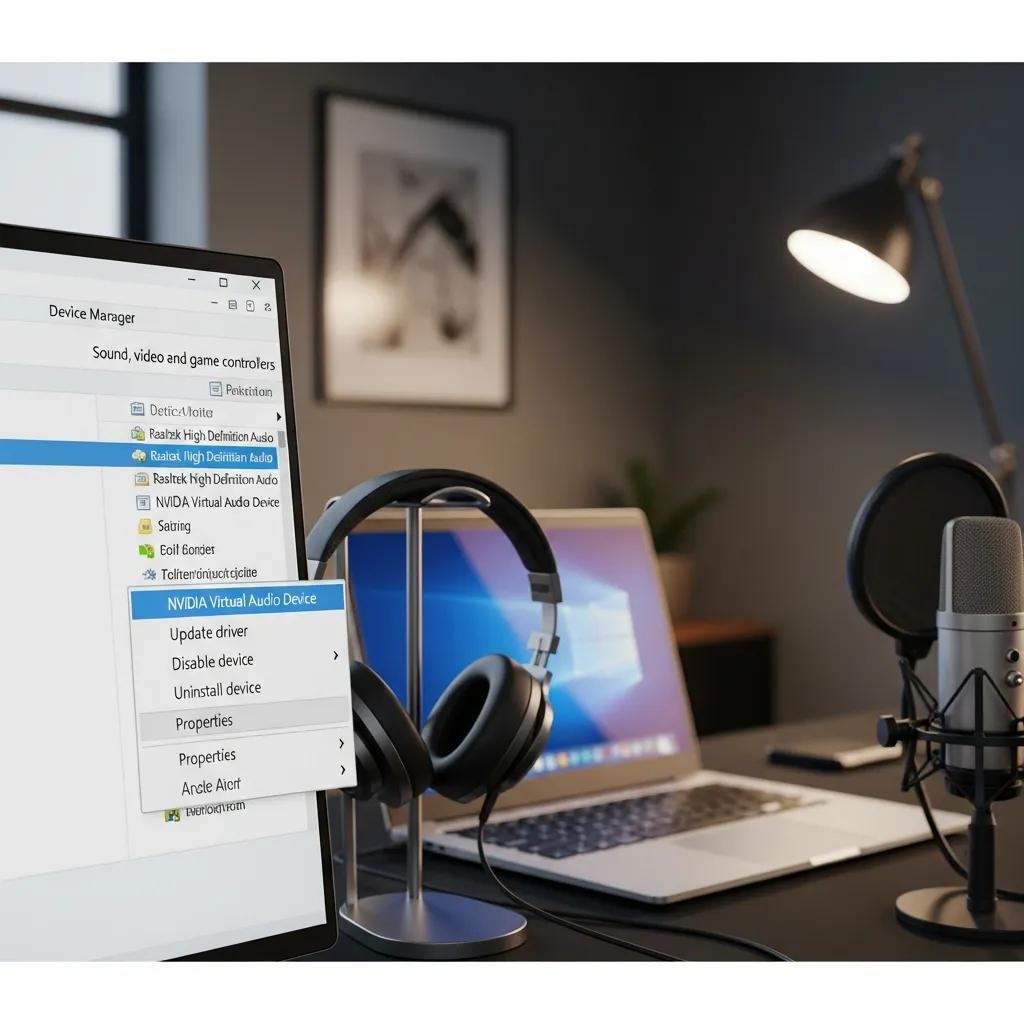
Audio driver faults are a frequent cause of no sound; resolving them usually involves updating, reinstalling, or rolling back to a known good driver. Device Manager is the primary tool: expand Sound, video and game controllers, then choose Update driver, Uninstall device, or Properties > Driver > Roll Back Driver when available. For USB DACs and third-party hardware, use OEM drivers from the device manufacturer rather than generic Windows drivers. If a driver is corrupted, uninstalling the device and rebooting lets Windows reinstall a fresh driver or allows you to install a downloaded package. Below is a comparison table to help decide the right action for common driver scenarios.
| Driver Type | Common Issue | Recommended Fix |
|---|---|---|
| Realtek HD Audio | Outdated or corrupted codec | Uninstall in Device Manager, reinstall vendor package |
| Intel Smart Sound | Incompatible with chipset update | Update chipset drivers then install Intel audio driver |
| Generic USB Audio | Device missing after update | Reinstall driver or use vendor-supplied driver for DAC |
This table helps choose update versus reinstall versus rollback; in most cases update first, uninstall/reinstall if corruption persists, and roll back only if a recent driver introduced the problem.
How Do I Update, Reinstall, or Roll Back Audio Drivers?
- Open Device Manager > Sound, video and game controllers; right-click the audio device and choose Update driver to search automatically.
- If update fails or yields no change, choose Uninstall device, check “Delete the driver software for this device” when present, then reboot to allow Windows to reinstall a driver.
- To roll back, open Device Properties > Driver tab > Roll Back Driver; use this if a recent update caused failure.
- For vendor drivers (Realtek, Intel, USB DAC makers), download the signed package from the manufacturer’s support site and install after uninstalling the problematic driver.
Summary: attempt Update first, then Uninstall+reboot, and use Roll Back only when the timing matches a recent change; prefer OEM installers for persistent issues.
What Are Specific Fixes for Realtek and Intel Audio Drivers?
Realtek and Intel audio stacks have specific behaviors that influence troubleshooting steps and vendor guidance. For Realtek, check the Realtek HD Audio Manager or the new Windows Sound settings to ensure the proper output and enhancements aren’t disabling playback; reinstalling the Realtek codec package from your motherboard or laptop OEM often restores missing functionality. Intel’s Smart Sound Technology drivers may depend on chipset and firmware compatibility; update the Intel chipset driver before updating the audio driver to avoid mismatches. For both vendors, prefer OEM downloads that match your device model to reduce incompatibility. If a USB DAC is affected, treat it as a separate device and use the DAC maker’s driver package or firmware updater when available.
These vendor-specific steps reduce the risk of installing an incompatible generic driver that can break audio routing or advanced features.
What Windows Settings Should I Check to Restore Sound?
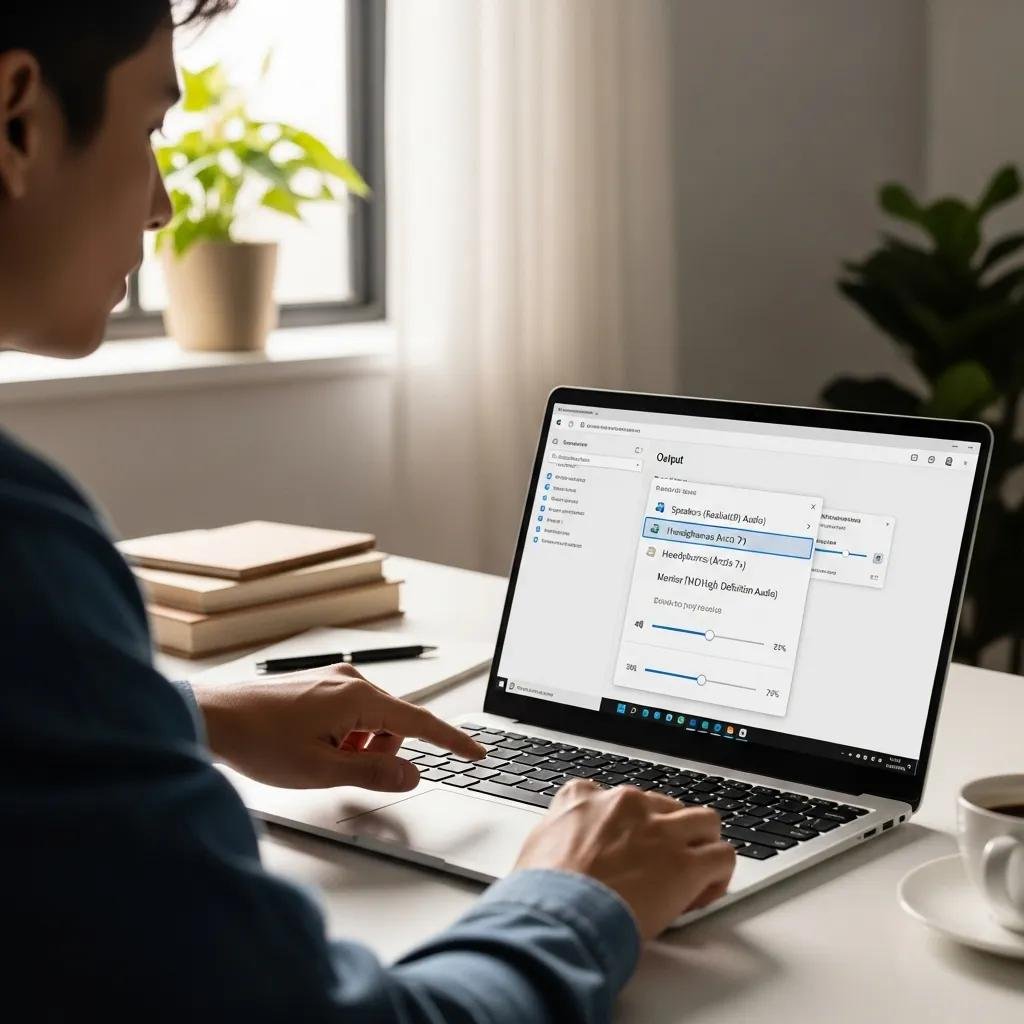
Before deep repairs, verify Windows sound settings to ensure the correct output device, levels, and enhancements are configured. Settings > System > Sound lists output devices and includes the test sound button, while the Volume Mixer controls per-app levels. Advanced device properties let you disable audio enhancements or change sample rates that sometimes block playback. Restarting Windows Audio services can clear service-level faults; Services.msc or net commands perform this action quickly. The short reference table below summarizes common settings and correct actions to restore sound.
Intro to table: use this quick reference to match setting names with the corrective action.
| Component | Setting | Correct Value / Action |
|---|---|---|
| Output device | Default device | Select correct speakers/headphones |
| Volume Mixer | App muted | Unmute or raise app volume |
| Enhancements | Audio enhancements enabled | Disable enhancements if playback fails |
| Advanced format | Sample rate mismatch | Try 44100 or 48000 Hz and apply |
After checking these entries, test audio again; if per-app audio works but system sound does not, revisit the driver and service sections.
How Do I Verify Volume, Output Devices, and Sound Settings?
- Open Settings → System → Sound and confirm the correct Output device is selected and not labeled “No audio devices.”
- Click App volume and device preferences (Volume Mixer) to verify per-app outputs and ensure apps aren’t muted.
- Use the Test button in Sound control panel for devices, and in Advanced device properties check Default Format sample rate if audio is distorted.
These steps eliminate common misconfiguration issues and often restore audio without driver changes; if the device is missing entirely, move to Device Manager for driver repair.
How Can Restarting Windows Audio Services Resolve Sound Issues?
Windows Audio and Windows Audio Endpoint Builder coordinate playback device enumeration and stream routing; restarting them can reset drivers and reinitialize hardware. Use Services.msc to locate Windows Audio and Windows Audio Endpoint Builder, right-click and Restart each service. Alternatively, run command prompt as administrator and use:
After restarting, replug USB devices or toggle Bluetooth to force re-enumeration. Restarting these services clears transient errors and lets Windows rebind drivers to devices without a full system reboot.
If service restart restores audio, the issue was likely a transient service failure rather than driver corruption.
When Should I Seek Professional Remote Support for Audio Issues?
If repeated driver reinstalls, service restarts, and settings checks don’t restore sound, escalation to remote professional support is appropriate. Signs include intermittent device detection, multiple devices failing at once, persistent errors after rollbacks, or OS corruption indicated by SFC/DISM failures. Remote technicians can perform deeper diagnostics, apply targeted driver packages, or identify update-related bugs requiring registry or system-level fixes. Below is a decision checklist to help you decide whether to call for remote assistance.
Decision checklist for escalation:
- Have you tried driver update, uninstall/reinstall, and rollback without success?
- Do hardware diagnostics (alternate headphones, USB ports) still show device disappearance?
- Do SFC /scannow or DISM reports indicate missing system files or corruption?
If you answered yes to one or more items above, remote support can save time and avoid risky manual changes.
What Are Signs That DIY Troubleshooting Isn’t Enough?
Concrete indicators that DIY steps have failed include repeated driver reinstall cycles with no detection, OS integrity tools (SFC/DISM) reporting unrecoverable errors, or symptoms matching known update regressions where local rollback did not resolve the issue. Another sign is when multiple audio devices stop working simultaneously, suggesting a systemic problem rather than a single-device failure. In these scenarios, professional tools and remote diagnostic access let technicians capture logs, apply vetted driver packages, and coordinate manufacturer firmware updates. Escalation prevents accidental data loss and reduces the time spent on iterative, uncertain fixes.
When DIY reaches these limits, a focused remote session is usually faster and safer than continued trial-and-error.
How Does mcHelper.com Provide Expert Remote Audio Repair?
mcHelper.com offers Computer Tech Support through certified remote technicians who diagnose and repair audio problems on Windows systems using secure remote sessions. Their service emphasizes 24/7 availability and a “no fix – no fee” guarantee, which helps reduce risk for users who have already attempted DIY troubleshooting. In practice, a remote session can include log collection, driver rollback or installation of OEM packages, restarting and repairing Windows Audio services, and testing with USB DACs and other devices; technicians will recommend hardware replacement only when diagnostics confirm failure. For unresolved issues after standard steps, mcHelper.com’s remote support is a practical next step to restore sound without shipping hardware.
This brief service description shows when and how a remote Computer Tech Support engagement can convert a stalled DIY effort into a resolved audio configuration.