Fixing Printer Not Printing Issues Remotely on Mac & Windows: Quick Solutions for Common Problems
Remote printing failures happen when a printer stops responding to commands sent from a remote desktop, VPN session, or a user working offsite, and they can halt work and waste time. This guide shows how to triage and fix the most frequent causes on both macOS and Windows, including stuck print queues, wireless connection problems, driver and firmware mismatches, and remote desktop redirection issues. You’ll get concise definitions, step-by-step actions for clearing print spoolers, checks to verify wireless network connectivity and signal, and configuration tips to make printer redirection reliable in RDP or remote clients. Each section contains quick checklists, exact Windows commands and macOS UI steps where applicable, plus EAV comparison tables that summarize required privileges and file paths for common fixes. Use the featured quick-check lists for fast resolution, and learn when to escalate to professional remote support if administrative access or complex network changes are required.
Why Is My Printer Not Responding on Mac or Windows Remotely?
A printer becomes unresponsive remotely when the client and printer cannot negotiate a transport, driver or session mapping, which prevents print jobs from reaching the device. This typically happens because of network mismatches, print spooler crashes, driver incompatibility, or permission and port restrictions imposed by firewalls or VPN routing. Identifying whether the issue is local (printer offline, paper jam) or network-related (IP change, SSID isolation, VPN split-tunnel) quickly narrows the fix path. The next paragraphs list common causes and explain how network and firewall rules specifically prevent remote access, then provide a triage checklist you can run immediately.
What Are the Common Causes of Printer Connection Failures Remotely?
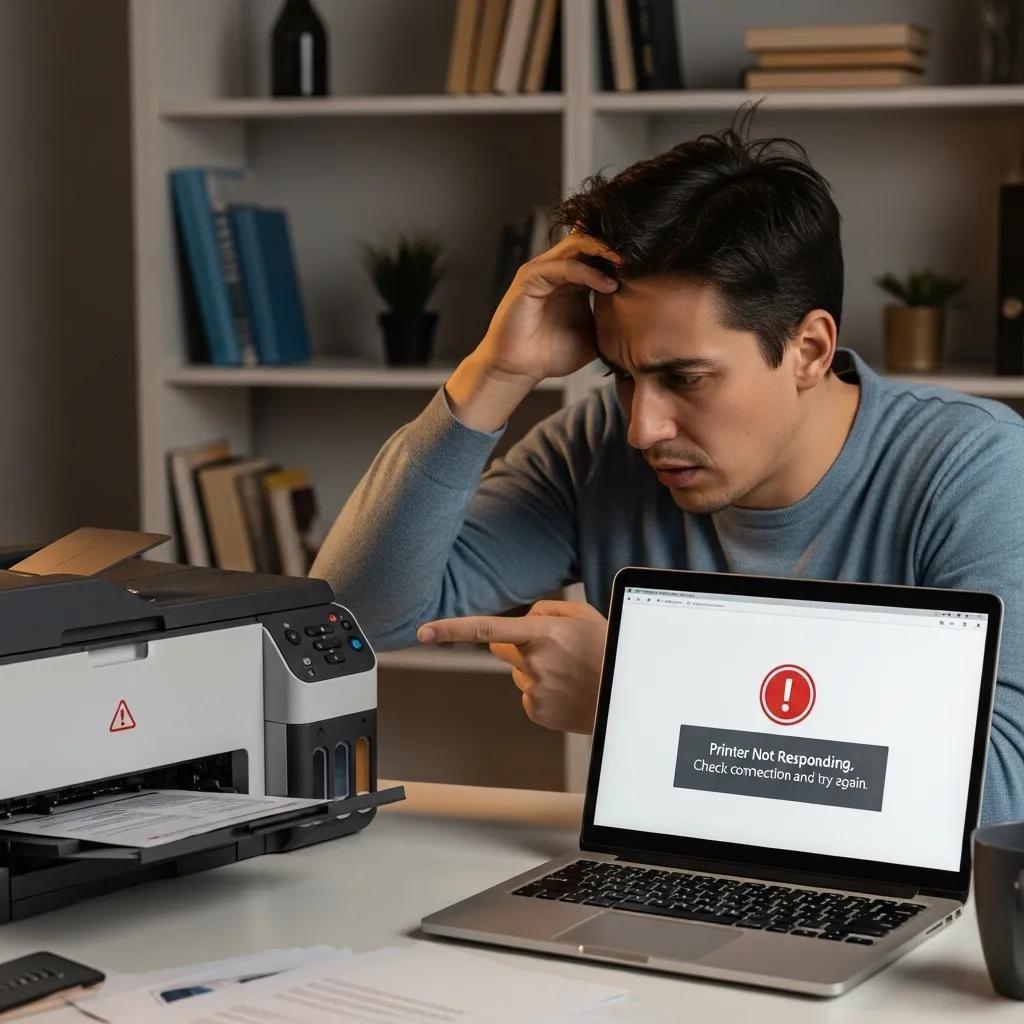
Corrupted or stalled print jobs often block the queue and stop subsequent jobs from printing; deleting the offending job or resetting the queue usually restores flow. Driver or firmware mismatches occur after OS updates or when the remote host supplies an incompatible driver, and updating or reinstalling the correct vendor driver resolves driver-level errors. Network issues like IP changes, SSID mismatches, or guest network isolation can make the printer unreachable; verifying printer IP and SSID and ensuring both client and printer share the same subnet is essential. Hardware errors, low supplies, or device sleep modes also stop printing and typically require local intervention.
How Do Network and Firewall Settings Affect Remote Printer Access?
Firewalls and NAT can block the ports and protocols printers use, such as raw TCP port 9100, LPR/LPD, and IPP, preventing remote job delivery until explicit exceptions are created. VPNs may route traffic away from the printer’s local subnet or enforce split-tunnel rules that block local discovery, which breaks Bonjour/mDNS and SMB name resolution used by many printers. Router features like AP/client isolation or guest network segmentation intentionally prevent device-to-device communication and must be disabled for printing to work across devices. If firewall or router rule changes are needed, document the port/protocol change and test connectivity with a ping and a raw TCP port check before concluding the fix.
The following quick triage checklist helps prioritize actions:
- Verify printer power and status lights indicate ready.
- Confirm both client and printer are on the same SSID and IP range.
- Check for stalled jobs in the queue and test a simple text print.
- Validate VPN or firewall rules aren’t blocking the printer ports.
This checklist identifies immediate steps to restore printing and leads into queue and spooler management if jobs remain blocked.
How Can I Clear and Manage a Stuck Print Queue Remotely on Mac and Windows?
Clearing a stuck print queue removes corrupted jobs and restarts the flow of documents to the printer; the mechanism differs by OS but the goal is the same: stop the spooler, remove pending job files, and restart the service or printing system. On macOS you can clear jobs from Printers & Scanners or reset the printing system; on Windows you typically stop the Print Spooler service, delete files in the PRINTERS folder, then restart the service. These operations require administrative privileges on the remote machine or assistance from the remote user, and careful execution avoids unintended loss of saved printers or settings.
What Steps Clear a Stuck Print Queue on Mac Remotely?
On macOS, open System Settings > Printers & Scanners, select the printer and click “Open Print Queue” to delete individual jobs; if problems persist, right-click the printer list and choose “Reset printing system” to remove all printers and queues. Using Terminal via SSH, you can list and remove jobs with the and commands. Resetting the printing system clears persistent issues but removes configured printers, so proceed only when you can re-add devices. If you cannot access the Mac remotely or lack SSH, guide the remote user through these UI steps.
How to Reset the Print Spooler Service on Windows Remotely?
Effective Windows spooler reset uses service control and file cleanup to remove stuck jobs and restart printing. Use remote PowerShell or an elevated command prompt and run the exact sequence:
- net stop spooler
- del %systemroot%\System32\spool\PRINTERS\* /Q
- net start spooler
These three steps clear corrupted jobs and restore the spooler; alternative methods include using Services MMC or PowerShell remoting with . If you don’t have admin rights or PowerShell remoting is disabled, a technician may need to perform these steps directly on the host.
Intro to the spooler comparison table: the table below summarizes the key actions, UI paths, commands, and privilege needs for macOS vs Windows spooler/queue management.
| Platform | Key Action | Command / UI Path |
|---|---|---|
| macOS | View and delete jobs | System Settings > Printers & Scanners > Open Print Queue; lpstat/cancel via SSH |
| macOS | Reset printing system | Right-click printer list → Reset printing system (removes saved printers) |
| Windows | Stop/start spooler & remove files | net stop spooler; del %systemroot%\System32\spool\PRINTERS\* /Q; net start spooler |
This comparison clarifies the exact paths and commands used to manage queues on each OS and highlights when admin access is required for remote fixes.
If you cannot complete a remote spooler reset because you lack admin access or PowerShell/SSH is blocked, remote technicians can perform these actions safely. mcHelper.com provides 24/7 remote support and can run spooler restarts, driver reinstalls, or network/firewall reconfiguration under a secure remote session with a “no fix – no fee” promise, making escalation straightforward when user-level steps aren’t possible.
How Do I Troubleshoot Wireless Printer Issues Remotely for Mac and Windows?
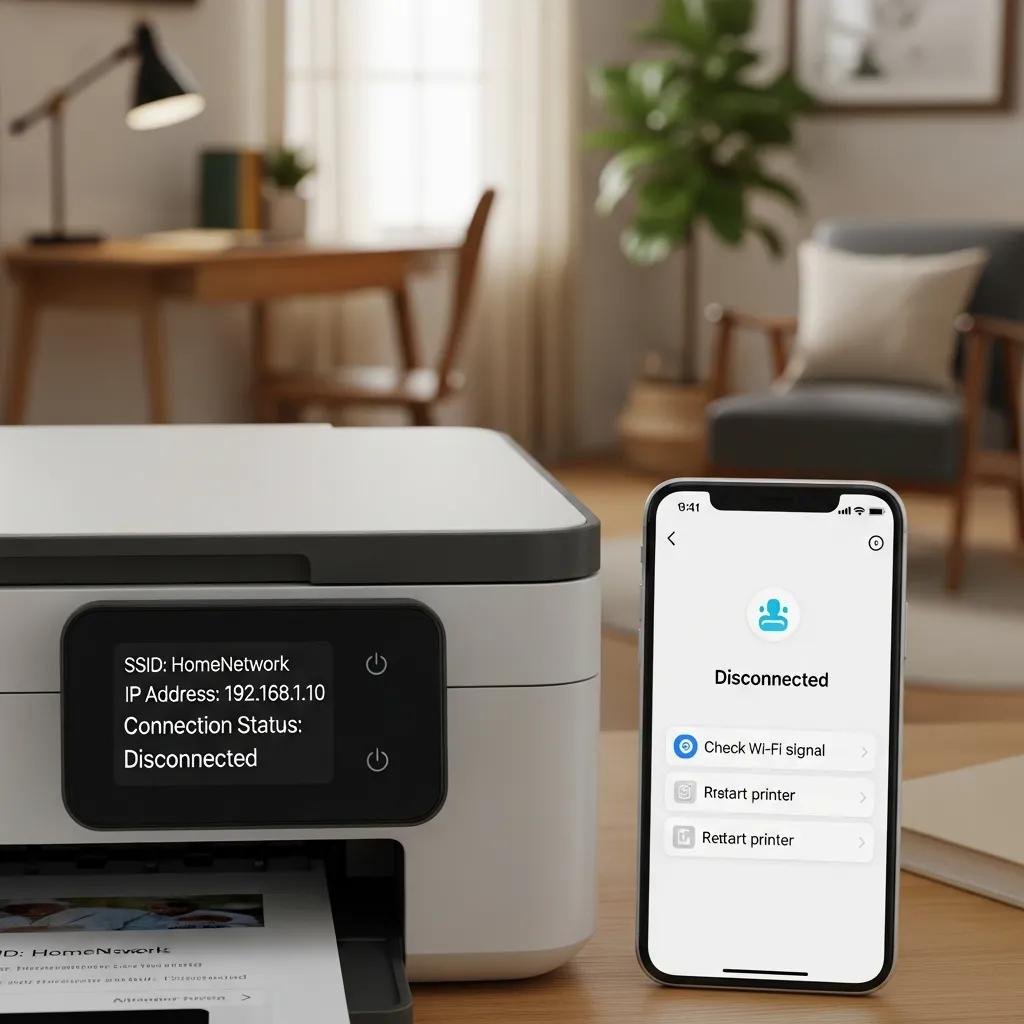
Wireless printer troubleshooting remotely focuses on confirming network identity, IP accessibility, and signal quality so the device reliably accepts jobs from remote clients. Begin by verifying the printer’s IP and SSID through the printer’s web interface or by asking the remote user to print a network configuration page; then use ping and traceroute from the client to validate connectivity and latency. Firmware and driver mismatches often manifest as discovery failures; check vendor firmware versions and driver compatibility notes and schedule updates in maintenance windows. The next subsections show how to verify connection and best practices for remote driver and firmware updates.
How to Verify Wireless Network Connection and Signal Strength Remotely?
To verify connection remotely, ask the user to print a network configuration page or log into the router admin panel to see attached devices and the printer’s IP and SSID. From a remote desktop or terminal, use and traceroute to check reachability and routing; consistent packet loss or high latency indicates signal or routing issues. Signal strength metrics on many printers appear in the web UI as RSSI or percent; values below about -70 dBm typically affect reliability and suggest moving the printer or adjusting the access point. These checks pinpoint whether the problem is local radio interference, AP isolation, or IP-level routing that needs addressing.
Intro to the wireless EAV table: the following table compares the checks to perform and thresholds to watch when diagnosing wireless printer connectivity remotely.
| Check | Attribute | Value / Action |
|---|---|---|
| SSID match | Network identity | Ensure client and printer use same SSID and VLAN |
| IP reachability | Test | Ping and traceroute to printer IP; expect <2% packet loss |
| Signal strength | Threshold | RSSI above -65 dBm preferred; relocate if weaker |
| Router features | Isolation | Disable AP/guest isolation to allow device-to-device traffic |
This table helps prioritize wireless checks and shows when to request local changes like moving the printer or adjusting AP settings.
What Are the Best Practices to Update Wireless Printer Drivers and Firmware Remotely?
Use official manufacturer downloads and avoid third-party driver packages to prevent compatibility problems; check the vendor’s support notes for known issues with current OS versions before updating. For remote updates, schedule a maintenance window so the user can remain present if a firmware update requires a power cycle or reconfiguration; ensure the printer has stable power and a wired connection if possible during firmware flashes. On macOS, prefer vendor-supplied drivers or AirPrint where available; on Windows, install the exact manufacturer driver package and then test with a sample print. Always record the previous firmware or driver version so you can roll back or reinstall if the update causes regressions.
What Are Effective Solutions for Remote Desktop Printer Issues on Mac and Windows?
Printer redirection in remote sessions maps a local device into a remote desktop session so applications can print locally; failures usually result from disabled redirection, missing drivers on the host, or session isolation policies. Enabling redirection on the client and confirming group policy settings on the server are the primary fixes, while installing appropriate drivers on the host resolves many mapping and format problems. Testing includes verifying the redirected printer appears in Devices and Printers on the remote host, printing a test page inside the session, and comparing driver types (v4 vs v3) for compatibility. The following subsections cover enabling redirection and troubleshooting persistent failures.
How to Enable and Configure Printer Redirection in Remote Desktop Sessions?
In Microsoft Remote Desktop, enable printer redirection in the client settings under Local Resources → Printers before connecting; ensure the remote host allows redirection via Group Policy and that “Do not allow client printer redirection” is disabled. On macOS remote clients, check similar redirection options in the client app’s preferences and verify the client shares local printers when starting the session. If redirection is enabled but printers do not appear, install matching drivers on the host to allow proper rendering and port mapping. Correct configuration on both client and host ensures the redirected device is available to applications inside the remote session.
How to Resolve Printer Not Printing Problems in Remote Desktop Environments?
When redirected printers appear but printing fails, check driver mismatches first: replace generic redirected drivers with vendor-specific drivers on the host to prevent rendering errors. Verify that the redirected printer is set as default if applications expect the default device, and run a test print inside and outside the session to compare behavior. For port mapping issues, ensure the redirected port (e.g., USB001 or redirected TCP) is correctly bound and that the host’s spooler recognizes the mapping; restarting the spooler inside the session can clear stale mappings. If driver or policy changes are required and you lack administrative rights, consider a secure remote support session.
If these remote desktop fixes do not restore printing, or if changes require elevated network or policy adjustments you cannot perform, mcHelper.com’s remote technicians are available 24/7 to troubleshoot redirection, install drivers, and reconfigure server policies under a secure session with a “no fix – no fee” assurance. Their subscription option can be useful for teams that need ongoing remote printer management and prompt escalation for complex configurations.