Fixing Corrupted User Profiles on Windows & Mac Remotely: Expert Remote Repair Solutions
A corrupted user profile is a damaged set of account settings and files that prevents normal login, hides desktop data, or causes temporary profiles that block access to personalized settings. This article explains how remote experts and advanced users diagnose and repair corrupted Windows and macOS profiles, restore data, and prevent recurrence using secure remote sessions. You will learn to recognize common symptoms such as “The User Profile Service failed the logon,” login loops, and missing home-folder files, and follow safe remote troubleshooting steps for both platforms. Each section outlines practical checks, command examples, and escalation points where professional remote repair is recommended. The guide covers Windows registry and ProfileList fixes, SFC/DISM and safe-mode workflows, macOS permissions and Keychain handling, and targeted procedures for temporary profiles. Throughout, related terms like , , /, and remote tools (RDP, AnyDesk) are used so you can follow diagnostics or hand them to a technician. If at any point data risk is high or steps exceed comfort, a secure remote technician can complete repairs without onsite visits.
How Can You Fix a Corrupted Windows User Profile Remotely?
A corrupted Windows user profile prevents loading personalized settings because key hive files or ProfileList registry entries are damaged, and remote repair restores the user hive, repairs system files, or migrates data to a clean account. Start by verifying whether Windows loads a temporary profile or shows explicit “The User Profile Service failed the logon” errors, then establish a secure remote session with the account owner present. Safe mode and offline NTFS checks reduce risk while SFC and DISM repair system components that underpin user profile loading. If registry edits are needed, back up the registry and before making changes to the ProfileList key. The steps below show a safe escalation path from diagnostics to data migration when repair is not possible.
What Are Common Causes and Symptoms of Windows Profile Corruption?
Profile corruption typically results from abrupt shutdowns, disk errors, failed updates, or malware that damages the user hive () or , and these causes prevent the profile from loading. Common symptoms include the error “The User Profile Service failed the logon,” receiving a temporary profile at sign-in, missing desktop and documents, or inconsistent file timestamps. Remote diagnostics use Event Viewer application and system logs to confirm SID mismatches and hive load failures, and a quick check of shows whether a temporary profile was created. Identifying the root cause guides whether to repair the hive, restore from shadow copies, or migrate data to a new account.
Which Remote Troubleshooting Steps Can You Perform for Windows Profiles?
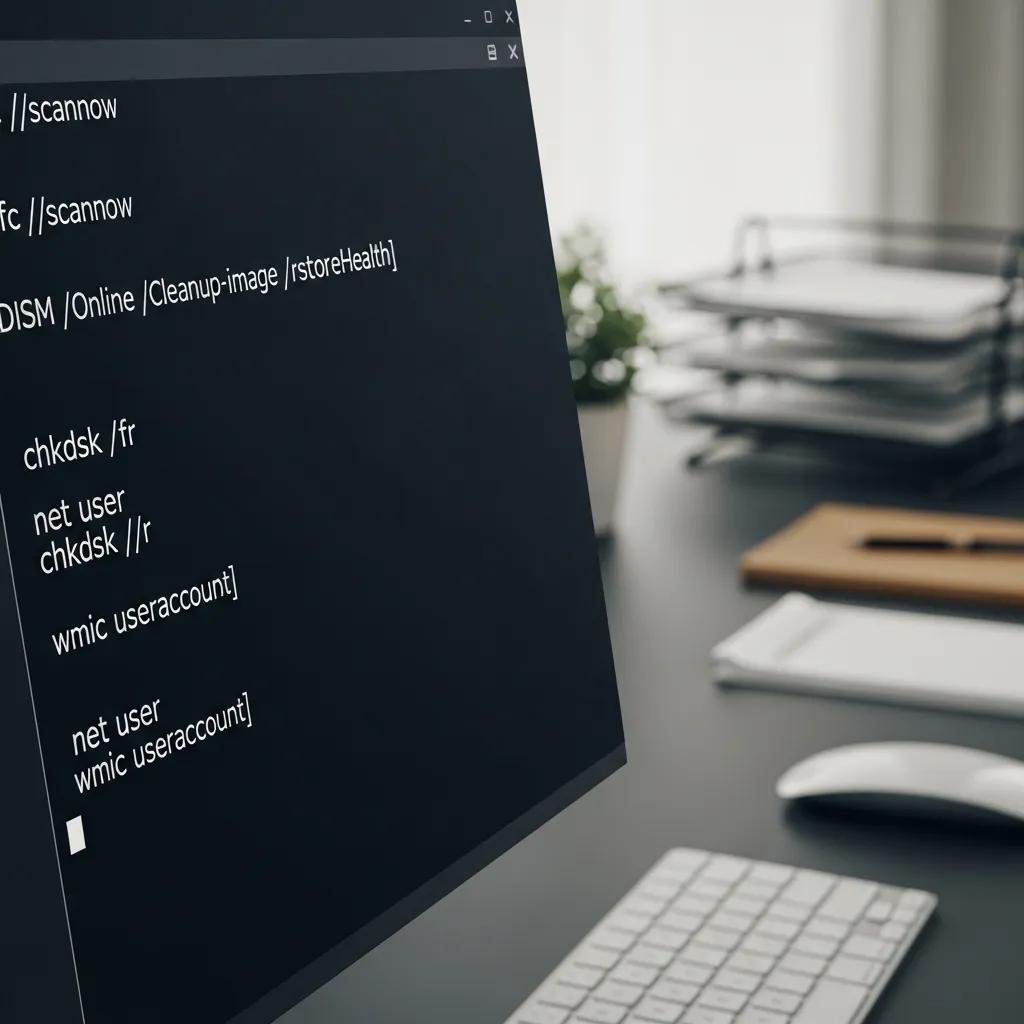
Begin remote troubleshooting with account verification and safe mode diagnostics to minimize damage and isolate the issue. Use the following ordered steps for a safe remote workflow:
- Verify account and Event Viewer logs: confirm “ProfileList” errors and note the SID entries.
- Boot into Safe Mode remotely: run sfc /scannow and DISM /Online /Cleanup-Image /RestoreHealth.
- Backup user hive files: copy NTUSER.DAT and UsrClass.dat to a secure folder before edits.
- Inspect and edit ProfileList: export affected ProfileList SID key, correct RefCount/ProfileImagePath if appropriate.
- Create new user and migrate data: if repair fails, create a new account and move Documents, Desktop, AppData carefully.
These steps use concise commands that technicians can run in elevated shells. If these actions do not restore a safe, complete profile or if data integrity is uncertain, professional remote intervention is recommended; mcHelper.com provides secure remote repair with a No Fix – No Fee guarantee in such cases.
| Repair Option | Characteristic | Risk / Skill Level |
|---|---|---|
| Create new user & migrate data | Fast recovery; preserves files | Low-to-medium |
| Registry edit (ProfileList) | Direct fix for SID issues | High; requires careful backup |
| Restore NTUSER.DAT from shadow copy | Restores prior state | Medium; depends on available snapshots |
This comparison helps choose a repair path based on risk and available backups. The next section covers macOS checks and repairs that parallel Windows strategies while using different tools.
What Are Effective Remote Solutions for Mac User Account Login Issues?
macOS user account corruption often manifests as a login loop or missing home-folder items when ownership or ACLs are incorrect, and remote solutions repair permissions, rebuild Keychain links, or migrate home data to a new account. Start with remote Console log inspection to confirm UserEventAgent or launchd errors and test Safe Boot to rule out kernel/extension problems. Common remote-safe fixes include resetting NVRAM/PRAM when applicable, repairing disk and permissions with , and fixing home-folder ownership with and . When Terminal commands are required, always export backups and operate under in a controlled session. If you prefer a secure expert to perform these advanced repairs, mcHelper.com’s technicians can execute the steps remotely under encrypted sessions and offer a No Fix – No Fee guarantee.
| macOS Fix Area | Tool / Command | Typical Use |
|---|---|---|
| Home folder ownership | sudo chown -R username:staff /Users/username | Restore correct owner and group |
| Permissions and ACL repair | sudo chmod -R 700 /Users/username && chmod +a “…” | Fix restrictive or broken ACLs |
| Disk verification | diskutil verifyVolume / && diskutil repairVolume / | Repair directory structures affecting profile load |
How to Identify Mac User Account Corruption and Login Loops?
A login loop on macOS occurs when the system accepts credentials but immediately returns to the login window, often caused by incorrect home-folder permissions, broken login hooks, or corrupted Keychain items that block session initialization. Remotely inspect and Console output for launchd, opendirectoryd, or loginwindow errors to pinpoint the failing subsystem. Use a remote Safe Boot to disable third-party kernel extensions and verify whether the issue persists; if Safe Boot allows login, the problem is likely in third-party software or launch agents. Confirming these signs helps determine whether to repair permissions, reset Keychain links, or migrate the home folder to a new account.
What Remote Repair Techniques Resolve Mac Profile and Permission Issues?
Remote repair techniques include fixing ownership and ACLs, rebuilding Keychain associations, and migrating data to a fresh account while preserving privacy and credentials. Typical commands are:
Start by backing up critical files and exporting Keychain items when possible, then apply ownership fixes and retest login. If Keychain corruption blocks access, create a new login and selectively import keychain entries after user verification. These techniques restore access while minimizing data loss, and when risks are significant, remote technicians can perform secure migrations for you.
How Does mcHelper.com Provide Remote Service for Corrupted Windows and Mac Profiles?
mcHelper.com offers 24/7 remote computer repair focused on fast, secure recovery of corrupted user profiles across Windows and macOS, backing work with a No Fix – No Fee guarantee and an optional annual support plan priced at $199.99. The remote repair process begins with diagnosis, proceeds to an agreed repair plan, executes fixes under an encrypted session while the user watches, and finishes with verification and recommendations to prevent recurrence. Security practices include vetted technicians, temporary elevated access only as needed, and session logging for accountability. For ongoing protection and priority response, the annual support package provides affordable coverage for repeated issues or proactive maintenance.
- Diagnosis and repair plan communicated before work begins
- Encrypted remote session with user authorization and session logging
- No Fix – No Fee guarantee; optional annual support: $199.99
This concise overview explains mcHelper.com’s process, guarantees, and the support option available for cross-platform remote assistance. The following section addresses the specific case of Windows temporary profiles and how to resolve them remotely.
How Can You Troubleshoot Windows Temporary Profile Issues Remotely?
A temporary Windows profile occurs when the system cannot load the user hive and instead creates a temporary profile; remote troubleshooting restores the original hive or moves data to a safe account. First, confirm Event Viewer entries under Application and System that reference ProfileList or load failures to establish cause. Use remote safe mode and disk checks to repair underlying file system errors, then back up the affected and export the ProfileList registry key before attempting fixes. If the original hive is corrupt beyond repair, create a new account and migrate Documents, Desktop, and AppData selectively, preserving user data integrity and avoiding malware carryover. The steps below map causes to fixes so technicians or advanced users can choose the safest path.
| Diagnostic Item | Likely Cause | Recommended Remote Fix |
|---|---|---|
| ProfileList SID mismatch | Corrupt or duplicated SID entries | Export and correct registry entries carefully |
| Missing or corrupt NTUSER.DAT | Disk errors or failed writes | Restore from shadow copy or migrate data |
| Event Viewer “temp profile” entries | Failed user hive load | Backup hives and recreate account; migrate files |
What Causes Temporary Profiles and How Do They Affect Login?
Temporary profiles arise when Windows cannot load the user’s registry hive () due to corruption, permission issues, or SID mismatches in the ProfileList, and they cause users to see default desktops, missing files, and inability to save settings. Remote detection relies on Event Viewer entries that show ProfileService warnings and on comparing ProfileImagePath values under . When a temporary profile is in use, changes are often lost at logoff, so immediate backups of visible files are critical. Identifying whether the hive is recoverable guides the decision to repair the registry, restore a previous snapshot, or migrate data to a new account.
Which Remote Registry Edits and Data Recovery Steps Fix Temporary Profiles?
Safe remote registry repair follows a strict sequence: back up the registry and user hives, export the affected ProfileList key, and only then modify RefCount or ProfileImagePath values; if the hive is corrupted, restore from shadow copies or migrate data. Use these numbered steps for a controlled repair:
- Backup: export HKLM\…\ProfileList\{SID} and copy NTUSER.DAT to a secure location.
- Inspect: verify ProfileImagePath and RefCount keys for consistency.
- Repair or restore: correct registry values or replace NTUSER.DAT from a snapshot.
- Migrate if needed: create a new user and move Documents, Desktop, and AppData items.
Always validate file permissions after migration to prevent recurring access issues. If you lack recent snapshots or encounter complex hive corruption, seek professional remote recovery to avoid data loss; trained technicians can restore or migrate files while maintaining security.