How to Diagnose and Fix Slow Computer Issues: A Remote Troubleshooting Guide
A “slow computer” shows up as laggy apps, long boot times, frequent freezes, or unresponsive input; remote troubleshooting can reliably identify many root causes without opening the case. In this guide you will learn how to recognize common symptoms, run platform-specific diagnostics on Windows and macOS, perform safe malware and optimization steps, and decide when to escalate to secure remote professional help. Remote diagnostics are practical because built-in tools — Task Manager, Activity Monitor, and disk utilities — expose CPU, RAM, disk, and network bottlenecks that point to targeted fixes. This article walks through the most common causes, step-by-step checks you can run now, immediate remediation actions to try, and clear red flags that mean a technician should take over. You’ll also find quick checklists, two comparison tables for fast decision-making, and concise guidance on what information to collect before a remote support session. Keywords covered include why is my computer slow, troubleshoot slow mac, identify pc slowdown, task manager cpu usage, activity monitor memory pressure, and virus removal slow pc.
What Are the Common Causes of a Slow Computer?
Slow computer performance typically stems from a small set of root causes: sustained high CPU load, insufficient RAM or memory pressure, storage bottlenecks (HDD vs SSD), malware or unwanted background processes, and excessive startup items. Each cause produces characteristic symptoms that help prioritize fixes, and many are diagnosable remotely via resource monitors and disk utilities. Understanding these causes lets you apply targeted remediation — for example, freeing disk space when swap activity is high, or removing a runaway process when CPU is pegged. Below is a concise list of the most frequent causes and a quick one-line sign to watch for.
Common root causes and quick indicators:
- High CPU usage: System feels hot, fan runs constantly, UI stutters during short bursts.
- Insufficient RAM: Slow app switching, repeated hard-drive activity due to swapping.
- Disk issues (full or failing HDD/SSD): Long file operations, slow boot, disk errors in logs.
- Malware or PUPs: Unexpected ads, redirects, unknown processes, sudden CPU spikes.
- Too many startup/background apps: Long boot times and immediate high disk/CPU use.
This table compares key components, how they commonly present, and the first diagnostic step to run.
| Component | Common Symptom | First Remote Check |
|---|---|---|
| CPU | Persistent high utilization, heat and fan noise | Sort processes by CPU in Task Manager / Activity Monitor |
| RAM | Sluggish switching, high disk I/O due to paging | Observe memory pressure / committed memory |
| Storage (HDD/SSD) | Slow file access, long boot, SMART warnings | Check free space and run disk health tools |
| Malware / PUPs | Popups, redirects, unusual network activity | Run an offline or safe-mode AV scan |
| Startup Apps | Lengthy boot, background CPU/disk use | Review startup list and disable nonessential items |
Recognizing which component maps to observed symptoms reduces guesswork and shortens repair time, leading naturally into platform-specific diagnostic steps.
How Does High CPU Usage Affect Computer Performance?
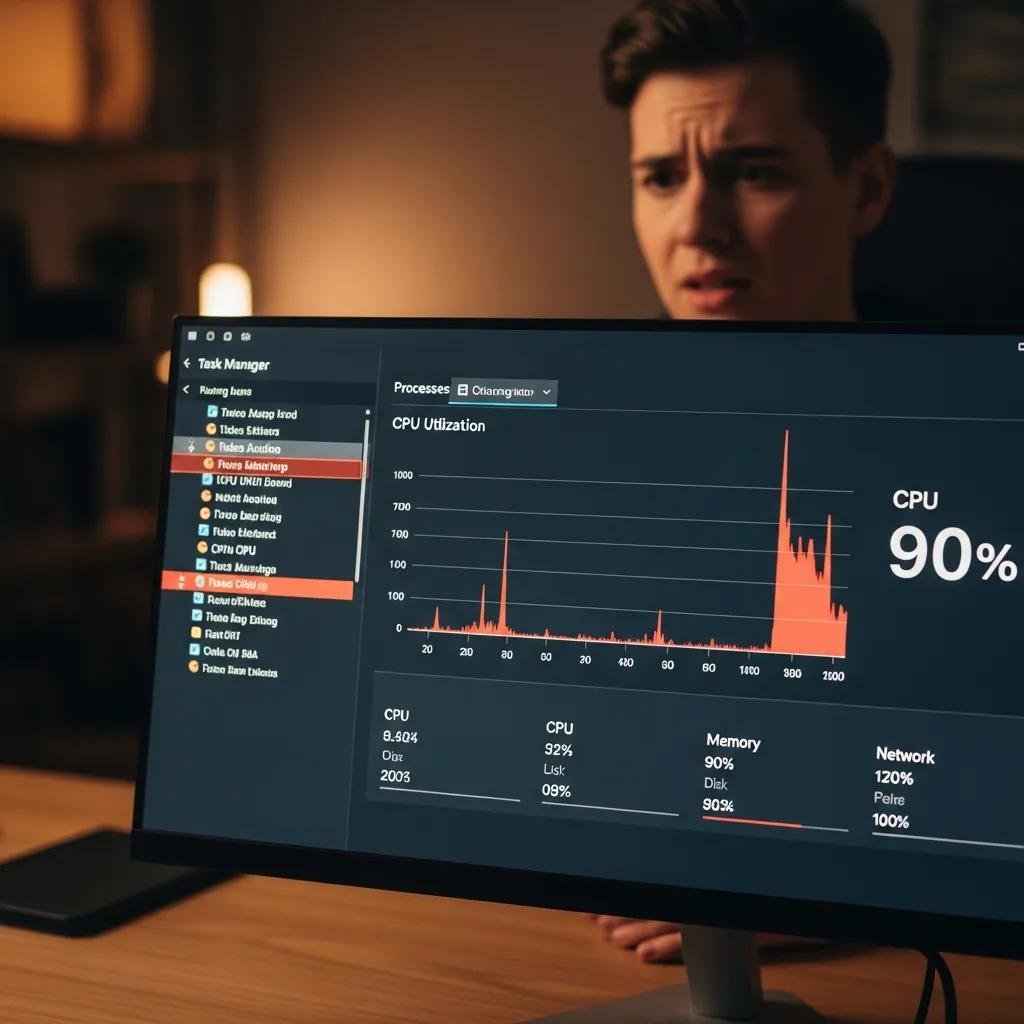
High CPU usage reduces responsiveness because the processor spends cycles on heavy or runaway tasks instead of user-facing operations; sustained load can trigger thermal throttling and slowdowns. Common CPU hogs include web browsers with many tabs, background indexing or update processes, and malicious miners or scanners running unnoticed. To diagnose, open Task Manager on Windows or Activity Monitor on macOS and sort by CPU to see offending processes and their child services. Safely end noncritical tasks and check whether usage drops; if a system process is consuming CPU, gathering logs or using Resource Monitor is the next step before forced termination. Understanding CPU as a shared resource clarifies why freeing cycles for foreground apps often restores responsiveness quickly.
What Role Does Insufficient RAM Play in Slowdowns?
Insufficient RAM forces the OS to use disk-based virtual memory, which is orders of magnitude slower than physical memory and causes visible lag during app switching or heavy multitasking. Memory pressure indicators — such as Activity Monitor’s Memory Pressure graph or high committed memory in Task Manager — show when paging is occurring. Short-term fixes include closing unused apps, quitting browser tabs, and adjusting virtual memory/pagefile settings; long-term solutions may require a RAM upgrade or choosing lighter software. Watch for consistent patterns: if high disk I/O coincides with low available memory, the system is swapping and a memory upgrade or process reduction will yield measurable speed gains.
How Can You Diagnose Slow Performance on Windows and Mac?
Diagnosing slow performance uses built-in tools to isolate CPU, memory, disk, and network issues in systematic steps that can be done remotely or recorded for a technician. Begin by capturing a short performance snapshot while reproducing the slowdown, then inspect CPU, memory, and disk metrics to narrow the cause. Record screenshots or small logs of Task Manager or Activity Monitor outputs to share with support if you escalate; these artifacts speed up remote troubleshooting. The checklist below outlines an ordered approach to collecting evidence and running basic checks on both platforms.
- Reproduce the slowdown and note time, app in use, and exact symptoms.
- Open the resource monitor (Task Manager on Windows, Activity Monitor on Mac) and sort by CPU, Memory, and Disk to spot top consumers.
- Check disk free space and health, then run a quick disk cleanup or diagnostic utility.
- Inspect network usage if internet-heavy apps are slow; test with and without Wi-Fi to isolate adapters.
- Record screenshots or export performance logs before making changes so you can revert if needed.
This ordered checklist helps you gather structured data for self-remediation and for remote technicians. When basic checks don’t pinpoint a safe fix, prepare to collect process names, error messages, and timestamps for a remote session.
How to Use Task Manager to Identify Resource Hogs on Windows?
Task Manager is the first line of diagnosis on Windows: open it with , expand details, and use the CPU, Memory, Disk, and Network columns to sort processes. Focus on processes with consistently high percentages over several seconds rather than momentary spikes; check the Startup tab to see apps that increase boot time and disable nonessential items safely. For deeper investigation, use Resource Monitor (accessible from Task Manager) to inspect per-handle disk usage, network connections, and services tied to problematic processes. Be cautious: avoid ending system-critical processes; when in doubt, note the process name and search documentation or capture the details for a technician.
How to Use Activity Monitor to Detect Performance Issues on Mac?
Activity Monitor provides CPU, Memory, Energy, Disk, and Network views; open Spotlight, search Activity Monitor, and sort the relevant column to identify culprits. The Memory Pressure graph is a concise indicator of memory health — green means ample RAM, yellow/red indicate swapping; in such cases close memory-hungry apps or consider a RAM upgrade on compatible models. Use the Disk view to watch bytes read/write and the Energy tab to find apps causing sustained power and performance drain. If a system service is problematic, note the process identifier and sample it for later analysis by support; collecting these samples aids remote troubleshooting without risky process termination.
What Steps Can You Take to Remove Malware and Optimize Your Computer?
When malware is suspected, prioritize safe scanning and containment, then follow with disk cleanup and startup management to restore normal performance. Start by backing up important files, then run reputable antivirus and antimalware tools in safe mode or with offline scanners to detect and quarantine threats. After remediation, reclaim disk space by uninstalling unused apps, running disk cleanup, deleting large temporary files, and reviewing cloud-sync settings that cause background activity. Below is an actionable optimization checklist to follow after you’ve ruled out or removed malware.
- Run a full antivirus/malware scan in safe mode and quarantine or remove flagged items.
- Back up important data before major removals or system restores to prevent accidental loss.
- Free disk space by emptying temp folders, uninstalling unused programs, and clearing large caches.
- Manage startup items to delay or disable nonessential apps that run at login.
- Update the OS and drivers to patch bugs that can cause high resource use.
This checklist targets the most effective immediate steps; if scans detect complex or persistent threats, seek professional removal. For cases that feel risky or where offline/manual cleaning is required, mcHelper.com offers remote malware removal and secure optimization sessions that can complete deep scans, quarantine persistent threats, and apply optimization settings safely. Their remote support model focuses on fast, secure remediation without physical visits, making it a practical option when self-remediation stalls.
How to Detect and Remove Malware Slowing Your Computer?
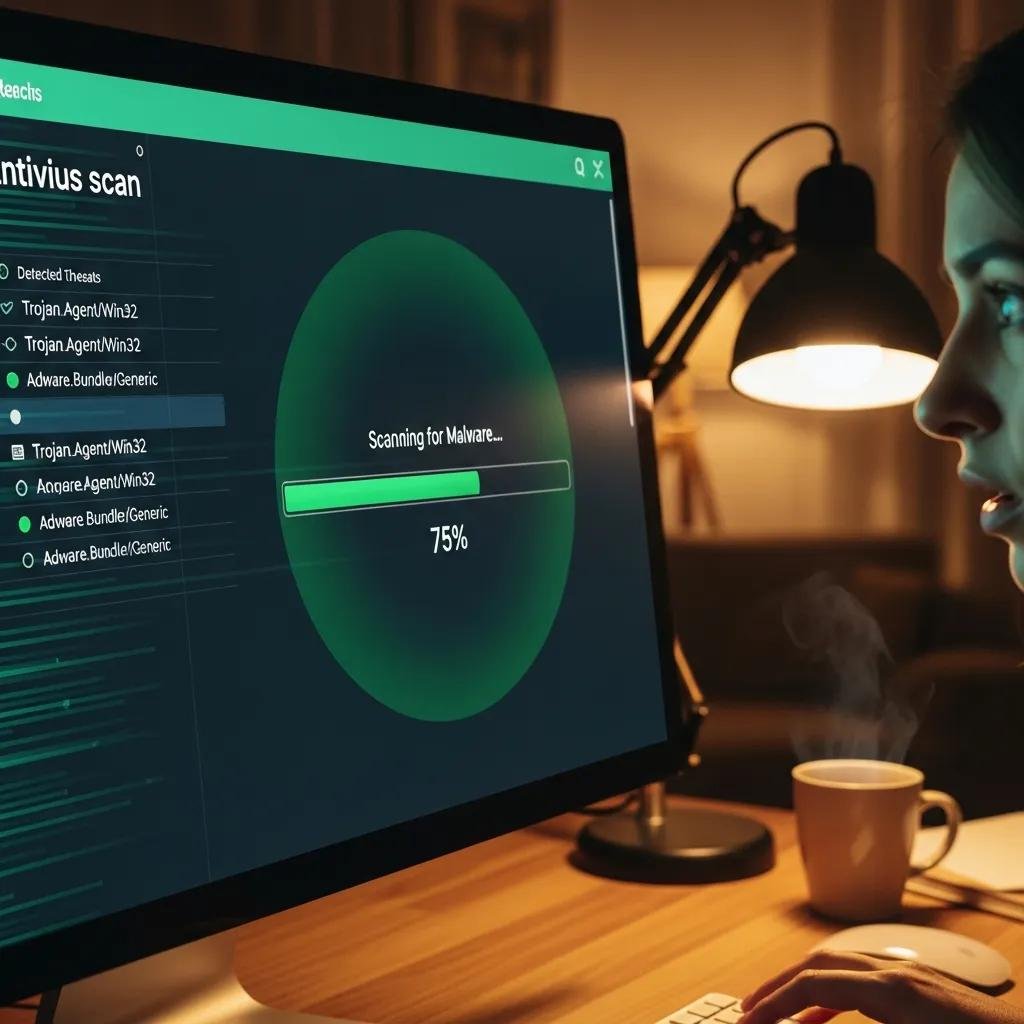
Malware indicators include unexpected browser redirects, frequent popups, unexplained CPU spikes, and persistent new toolbars or processes. Start remediation in safe mode and run a full offline scan with a reputable AV engine to detect rootkits and hard-to-remove threats; quarantine first and delete after verifying backups exist. Use a secondary on-demand scanner for confirmation and review browser extensions and proxy settings for signs of hijacking. If detection shows persistent or system-level infection, document process names and scan logs to hand to a remote technician for stepwise removal and system file repair.
Which Startup Programs and Background Processes Should You Manage?
Startup and background apps often include cloud sync tools, auto-updaters, messaging apps, and browser helpers — these are common culprits for slow boot and persistent background activity. Review the startup list (Task Manager > Startup on Windows; System Preferences > Users & Groups > Login Items on Mac) and disable or delay nonessential items such as updaters, launch-on-start cloud tools, and optional helper apps. Test changes by rebooting and monitoring performance for a session to confirm improvements, and keep a record of disabled items so you can re-enable if an app needs them. Prioritize disabling apps with high startup impact and low immediate value to your workflow.
When Should You Seek Remote Professional Help for Slow Computer Issues?
Seek secure remote professional help when symptoms indicate hardware failure, persistent or sophisticated malware, corrupted system files, or when multiple subsystems (CPU, RAM, disk) show simultaneous errors that you cannot safely resolve. Remote technicians can obtain diagnostic logs, run offline analysis, safely repair or replace system files, and recommend hardware upgrades such as SSD or RAM replacements when appropriate. Prepare for a remote session by collecting screenshots of Task Manager/Activity Monitor, noting error messages, and backing up critical files; this speeds diagnosis and minimizes session time. Below are red flags that justify professional intervention.
- Repeated file-system errors or SMART warnings from storage devices.
- Persistent high CPU/memory usage after safe-mode scans and cleanup.
- Inability to boot normally or repeated system crashes and corrupt system files.
- Detected malware that resists removal or reappears after cleanup.
These red flags show the limits of user-level fixes; a trained remote technician can run secure tools and escalate to hardware recommendations if needed.
What Are the Benefits of mcHelper.com's Remote Troubleshooting Services?
mcHelper.com provides 24/7 remote computer repair and tech support for Mac and Windows users, focusing on performance issues, virus and spyware removal, and resolving system freezes and instability. Their approach combines secure remote access with diagnostic-first workflows, offering a “No Fix – No Fee” promise that reduces risk for users who need professional intervention. Remote sessions can run deep offline scans, perform secure optimizations, and apply updates or repairs without an in-person visit, which is especially useful when time or location makes physical service impractical. For ongoing protection, mcHelper.com also offers an annual complete support package priced at $199.99 that covers regular maintenance and tune-ups to reduce future performance issues.
How Can an Annual Support Plan Prevent Future Performance Problems?
An annual support plan typically includes scheduled maintenance tasks such as periodic malware scans, OS and driver update checks, startup item reviews, and performance tune-ups that catch issues before they escalate. Regular remote checkups let a technician monitor disk health trends, recommend SSD or RAM upgrades early, and apply optimizations that reduce background load and extend usable hardware life. This proactive approach reduces emergency downtimes and the likelihood of prolonged slowdowns by addressing small problems during routine service. Investing in scheduled maintenance often delivers better long-term ROI through fewer critical repairs and steadier day-to-day performance.