Cross-Device Workflow: How to Seamlessly Sync Your Phone and Computer for Enhanced Productivity
Cross-device workflow is the coordinated movement of files, notifications, and tasks between a phone and a computer so work continues without interruption; this integrated workflow reduces context switching and speeds task completion. In this guide you will learn practical device synchronization techniques, the best apps and cloud strategies for real-time sync, how to troubleshoot common connection problems, and what security practices keep synced data safe. Many professionals struggle with fragmented files, missed notifications, and duplicate editing that slow productivity; a seamless tech experience restores continuity and creates a unified digital workspace across Android, iOS, Windows, and macOS. The article breaks down why synchronization matters, compares leading mobile-desktop integration tools, offers step-by-step troubleshooting, and maps secure syncing best practices you can apply immediately. Throughout, expect actionable tips on real-time sync applications, cloud file sync best practices, and how to choose the right cross-platform data synchronization approach for your workflow.
What Is Cross-Device Workflow and Why Is Device Synchronization Essential?
Cross-device workflow means your phone and computer share state, files, and notifications so work or media continues seamlessly across devices. This mechanism relies on sync agents, cloud storage backends, and authentication to maintain consistency and avoid version conflicts, delivering direct productivity gains through fewer manual transfers. Reliable device synchronization produces immediate benefits: faster task resumption, consistent backups, and improved collaboration when multiple devices access the same workspace. Understanding these fundamentals prepares you to select appropriate tools and secure settings tailored to your daily tasks and device mix.
How Does Cross-Device Data Transfer Improve Multi-Device Workflow Solutions?
Cross-device data transfer improves workflows by offering two core sync models: real-time synchronization for instant updates and scheduled synchronization for bandwidth-sensitive tasks. Real-time sync uses persistent connections or push notifications to mirror edits across devices, while scheduled sync batches changes to reduce battery and data usage; each model fits different user needs. For example, a remote worker using messaging and document editing benefits from real-time sync to avoid conflicting copies, whereas a photographer may prefer scheduled photo uploads to preserve battery during shoots. These scenarios show how choosing the correct sync mode directly impacts continuity and efficiency.
What Are the Key Benefits of Seamless Device Connectivity?
Seamless device connectivity delivers measurable productivity and resilience advantages that scale across personal and team workflows. It reduces repetitive file transfers, ensures immediate access to the latest document versions, and supports quicker recovery by maintaining continuous backups in the cloud. For teams, unified workspaces enable smoother collaboration with fewer merge conflicts and clearer version histories. Below are the primary benefits summarized for quick reference.
- Faster Task Resumption: Continue work on any device without manual handoffs.
- Consistent Backups: Cloud sync reduces data loss risk and simplifies recovery.
- Improved Collaboration: Shared files and real-time updates minimize version conflicts.
These benefits form the rationale for adopting device continuity features explained in later sections.
Which Device Synchronization Software Offers the Best Phone and PC Integration?
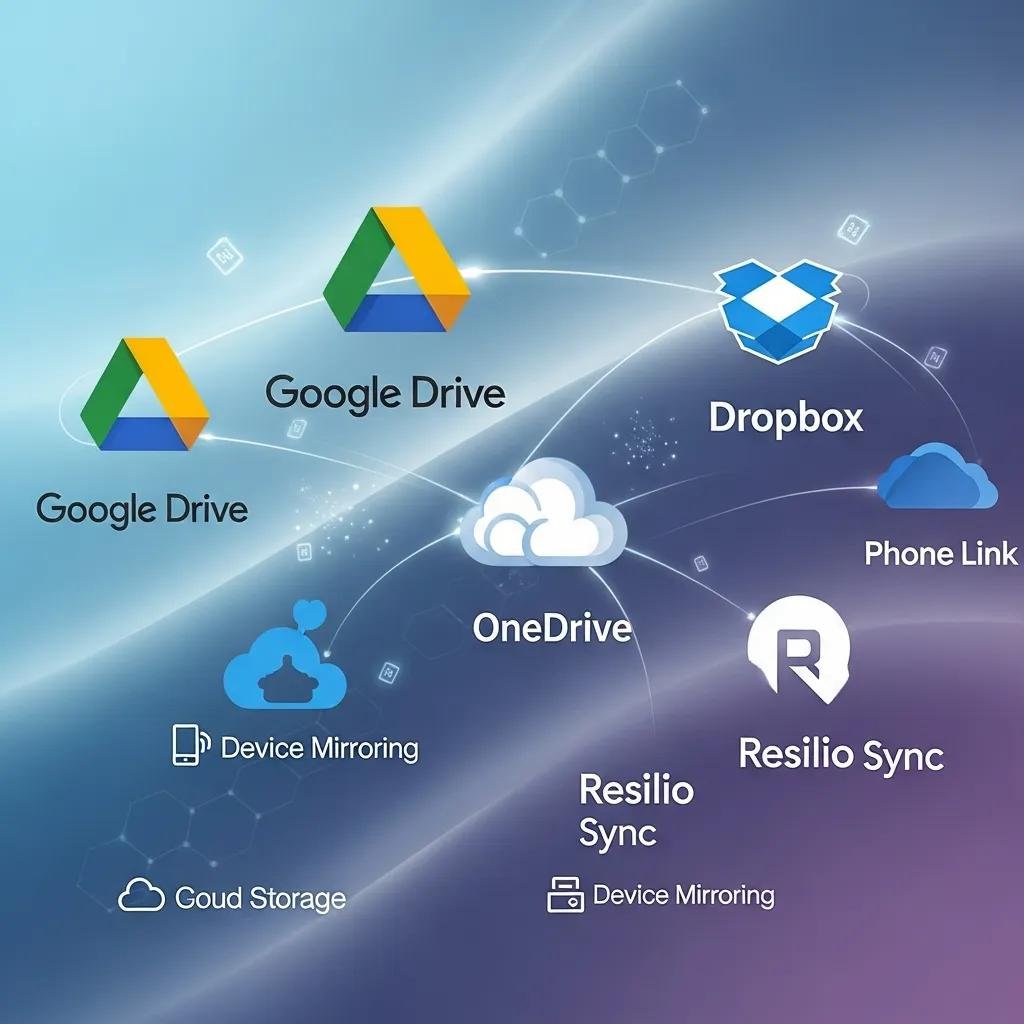
Choosing synchronization software depends on your OS pairing and the scope of sync you need (files, photos, notifications, clipboard). Apps and services vary by compatibility and feature focus; matching the right tool to your device pair—Android⇄Windows, iPhone⇄Mac, or cross-platform cloud—yields the best integrated workflow. The table below compares common solutions across OS compatibility, sync scope, and pricing to help you decide quickly.
Intro: The table compares representative apps and services for phone-to-PC integration, highlighting which platform pairs they serve best and their core capabilities.
| App / Service | OS Compatibility | Sync Scope & Notes |
|---|---|---|
| Google Drive | Android, iOS, Windows, macOS | File sync, version history, selective sync; free tier with paid storage |
| Dropbox | Android, iOS, Windows, macOS | File sync, sharing, file-on-demand; strong versioning for collaboration |
| Microsoft Phone Link / OneDrive | Windows + Android / cross-platform | Notification mirroring, clipboard sync, file access via OneDrive |
Summary: Use Google Drive or Dropbox for universal file synchronization and version control; platform-specific tools like Phone Link optimize notification and clipboard continuity for Windows-Android pairs.
What Are the Top Apps for Seamless Phone and Computer Syncing?
Top apps focus on complementary aspects of a unified digital workspace: file access, notification mirroring, and device continuity utilities. Google Drive and Dropbox excel at cross-platform file synchronization and versioning, making them ideal for shared document workflows and backups. Microsoft Phone Link and Samsung Flow provide deep device-continuity features—notification and clipboard mirroring—especially useful when you want your phone’s context available on a desktop. Choose based on whether your priority is cloud file sync best practices or real-time device continuity.
- Google Drive: Universally compatible file sync and selective offline access.
- Dropbox: Robust sharing and file versioning for collaborative workflows.
- Samsung Flow / Microsoft Phone Link: Best for notification mirroring and clipboard continuity on compatible devices.
These options cover mobile desktop integration tools across most cross-platform data synchronization needs.
How Do Cloud Services Like Google Drive and Dropbox Enable Cross-Device Data Transfer?
Cloud services use a client-sync agent that watches local folders, uploads changes to a cloud backend, and propagates updates to connected devices, resolving conflicts by timestamp or version history. Features such as selective sync and file-on-demand reduce local storage use while preserving accessibility, and version history lets you roll back unwanted changes. To improve reliability, enable offline access for critical folders and configure selective sync to prioritize frequently used files; these small settings reduce sync errors and speed up cross-device workflows.
- Tip: Enable selective sync for large media folders and keep high-priority documents available offline for uninterrupted access.
How Can You Troubleshoot Common Issues in Cross-Device Workflow Syncing?
When synchronization fails, a methodical checklist resolves most problems quickly: confirm network connectivity, verify credentials, update apps, and check permission settings. These steps address the majority of common sync errors and reduce unnecessary escalation. If problems persist—such as repeated authentication errors or persistent file conflicts—knowing when to escalate to remote support saves time and preserves data integrity. Below is an ordered troubleshooting checklist you can follow when sync interruptions arise.
- Check network connectivity and switch to a trusted network if possible.
- Re-authenticate the sync account and verify multi-factor authentication prompts.
- Update sync clients and the device OS to the latest supported versions.
- Verify app permissions (storage, background data) and clear cache if necessary.
After following this checklist, most sync issues will be resolved; if errors continue, consider contacting remote technical support for deeper diagnostics.
What Are Frequent Device Connection Login Errors and Their Solutions?
Authentication failures often stem from expired tokens, 2FA interruptions, or account mismatches between devices; resolving them usually requires re-authentication and confirming the same account is signed in on both ends. Another common issue is app-level permissions—storage or background sync disabled prevents real-time transfer—so review app permission settings and enable background data where needed. Clearing the app cache or reinstalling the sync client can remove corrupted state and restore normal operation. If two-factor authentication blocks automated sync, create an app-specific password or follow service guidance to authorize the device.
How Does mcHelper.com Provide Remote Support for Syncing Problems?
mcHelper.com offers 24/7 remote computer repair and tech support tailored to cross-device connectivity issues, providing certified technicians who can perform remote diagnosis and configuration for Mac and Windows users. Their services include troubleshooting sync agent settings, resolving login and permission errors, and conducting security checks to ensure safe cross-platform data transfer. If you prefer hands-off assistance, mcHelper.com can walk you through configuring cloud clients, adjusting selective sync, or repairing persistent conflicts remotely. Contact mcHelper.com for fast, secure remote help when local troubleshooting steps do not resolve syncing problems.
What Security Measures Ensure Safe Cross-Device Data Transfer and Privacy?

Securing cross-device data requires layered measures: transport encryption (TLS), storage encryption at rest, strong account protections like 2FA, and cautious use of public networks with VPNs. These controls mitigate threats such as interception, account takeover, and unauthorized device access, forming a comprehensive defense for your unified digital workspace. Implementing these measures reduces risk while preserving the usability of cloud file sync and real-time sync applications; the table below summarizes common security options, the threats they mitigate, and implementation notes.
Intro: The following table outlines security measures, the primary threats they address, and concise implementation tips for each.
| Security Measure | Threat Mitigated | Implementation Notes |
|---|---|---|
| Transport Encryption (TLS) | Eavesdropping on data in transit | Use official clients and ensure HTTPS/TLS is enabled |
| At-Rest Encryption | Data theft from cloud storage | Choose providers with server-side encryption and optional client-side encryption |
| Two-Factor Authentication | Account takeover via stolen passwords | Enable 2FA for all sync accounts and use an authenticator app |
Summary: Combine TLS, at-rest encryption, and 2FA to significantly reduce common threats to cross-device workflows; these measures balance security with accessibility.
How Do Encryption and VPNs Protect Your Synced Data?
Encryption protects synced data in two ways: TLS secures data during transfer, preventing interception, and at-rest encryption protects files stored in cloud repositories from unauthorized access. A reputable VPN adds privacy on untrusted networks by tunneling traffic and masking local network vulnerabilities, but it does not replace end-to-end encryption provided by the sync service. For best results, use official sync clients that enforce TLS, enable provider-side encryption, and only rely on VPNs when using public Wi-Fi or untrusted networks.
What Are Best Practices for Secure Multi-Device Workflow Solutions?
Secure multi-device workflows depend on consistent account hygiene, device hardening, and conservative sharing practices to limit exposure and maintain data integrity. Keep sync clients and OS builds up to date, use least-privilege sharing permissions, enable device encryption, and store recovery keys and credentials in a secure password manager. Regular backups and periodic audits of connected devices reduce long-term risk and simplify incident response. Implementing these best practices preserves both productivity and privacy across all your synchronized devices.