How to Connect Your Phone to PC and Transfer Files Securely
Connecting your phone to a PC to move photos, documents, or backups should be fast, reliable, and private. This guide explains the main methods—USB direct transfer, wireless options, and cloud sync—so you can choose the right approach for speed, file size, and security. You will learn step-by-step USB and wireless procedures, how to back up iPhone data wirelessly to Mac and Windows, common connection problems and fixes, and practical sync workflows for photos, contacts, and documents. The instructions emphasize secure transfers and include quick troubleshooting checks you can do at home before escalating. If a transfer fails, or you suspect corrupted or missing files after multiple attempts, remote technical support and data recovery are available from mcHelper.com as a fallback to recover lost data and diagnose persistent connectivity faults.
What Are the Best Methods to Transfer Files from Android to PC?
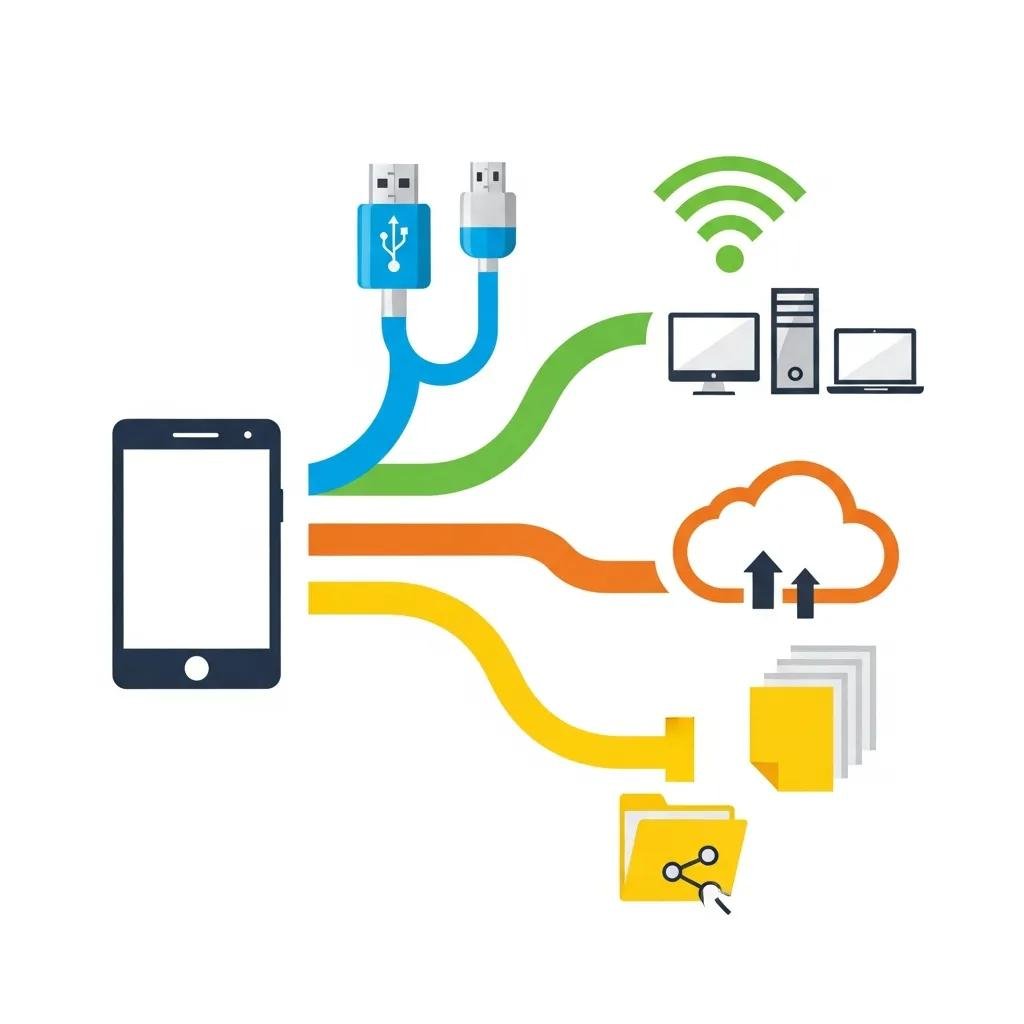
This section compares practical Android→PC transfer methods by speed, reliability, and best use cases so you can pick the right one for your needs. Each method works differently: USB (fast and direct), Wi-Fi apps or FTP (convenient for large batches without cables), Bluetooth (simple for tiny files), ADB (advanced power-user option), and cloud sync (ongoing backup and cross-device access). The table below summarizes these options with clear attributes to aid an immediate decision. After the table, concise one- or two-line recommendations explain when to choose each method.
| Method | Characteristic | Best use case |
|---|---|---|
| USB (MTP / File Transfer) | Direct wired connection; high speed | Large media folders, one-off full-folder sync |
| Wi-Fi transfer / FTP apps | Wireless local transfer; medium-high speed | Moving many files without cables on same network |
| Cloud sync (Google Drive, OneDrive) | Continuous backup; accessible everywhere | Ongoing backup and cross-device access |
| Bluetooth | Low speed; built-in on most devices | Small files, single photos or contact vCards |
USB is best for speed and bulk file moves; Wi-Fi apps suit cableless large transfers on a trusted network; cloud is ideal for continuous backup and multi-device access. Decide by file size, privacy needs, and whether you require repeat syncs.
How to Use USB Cable for Android to PC File Transfer
USB transfer uses the Media Transfer Protocol (MTP) or File Transfer mode to move files directly between devices, delivering fast, private transfers without internet dependence. To start, use a data-capable USB cable and plug your phone into a reliable USB port on the PC. On the phone accept the prompt to switch from “Charging” to “File transfer / MTP” mode, then open File Explorer (Windows) or Android File Transfer (Mac) to browse and copy files. If the phone doesn’t appear, try a different USB cable or port, unlock the phone screen, and install or update MTP drivers on the PC; these steps typically restore visibility. Following these checks ensures the connection is recognized and secure before transferring sensitive files.
What Are the Steps for Wireless Data Transfer from Android to PC?
Wireless transfers remove cables and use Bluetooth, Wi-Fi direct, FTP apps, or cloud sync to move files; each method trades speed for convenience and accessibility.
For Bluetooth, pair devices in Settings, select the file and choose “Share → Bluetooth,” then accept the transfer on the PC; this works for small files only. For Wi-Fi FTP or transfer apps, install a trusted app on the phone, connect both devices to the same local network, start the transfer server on the phone, and access it via a browser or FTP client on the PC; this handles large files without cables. For cloud sync, upload to Google Drive or OneDrive from your phone and download on the PC; this is safest for continuous backup but depends on internet speed and storage limits.
How Can You Backup Your iPhone to Computer Wirelessly?
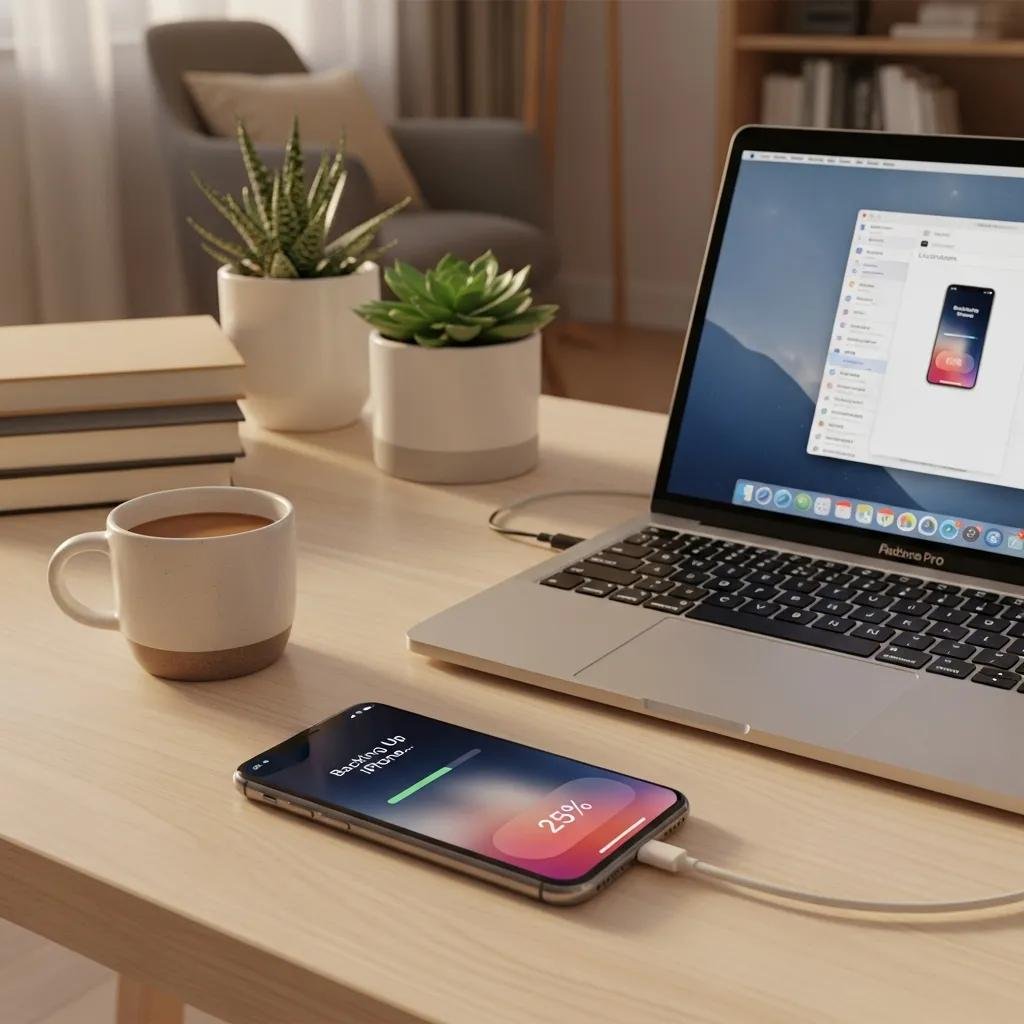
Backing up an iPhone wirelessly typically uses iCloud for cloud backups or Wi-Fi sync to a Mac via Finder/iTunes when both devices share a trusted network; Windows requires third-party tools for local wireless sync. Wireless backups let you keep an up-to-date copy without plugging in, but they require sufficient iCloud storage or a reliable local network. Enable iCloud Backup in Settings for automatic cloud backups, or set up Wi-Fi sync in Finder by connecting once via cable, checking “Show this iPhone when on Wi-Fi,” and then initiating backups over the same network. If wireless backups fail or report incomplete archives, mcHelper.com can remotely diagnose sync errors and assist with recovering data from partial or corrupted backups.
What Are the Options for iPhone Wireless Backup to Mac and Windows?
Options include iCloud for cloud-based backups, Finder/iTunes Wi-Fi sync for Mac users, and trusted third-party tools for Windows that offer local wireless backup features; prerequisites are the same Wi-Fi network and enough storage. iCloud handles full-device backups automatically but requires adequate iCloud storage or a paid plan. macOS users can enable Wi-Fi sync via Finder and perform encrypted local backups over a trusted network once pairing is established. Windows users can rely on secure third-party utilities that support wireless or local-network backups, always choosing reputable apps and confirming encryption before storing backups.
How to Ensure Secure and Complete iPhone Data Backup Wirelessly?
Secure wireless backups require encryption, verification of backup integrity, and multiple copies to prevent data loss from corruption or account issues. Always enable encrypted backups where available so passwords, health data, and saved credentials are protected during storage and transfer. After a backup completes, verify the timestamp and size of the backup and perform a test restore of a small data set or check restored files in a safe environment to confirm integrity. Maintain at least two backup locations—cloud plus local encrypted copy—to guard against account lockouts or cloud service issues and reduce recovery time if problems arise.
What Are Common Issues When Connecting Phones to PCs and How to Troubleshoot Them?
Connection problems usually stem from physical cables, incorrect USB modes, outdated drivers, or network and permission settings; addressing these quickly restores transfers in most cases. A short diagnostic checklist below helps you identify the root cause and apply the correct quick fix. If repeated attempts yield corrupted or missing files, or if hardware faults are suspected, escalate to professional remote support or data recovery to avoid permanent loss.
| Issue | Common cause | Quick fix / When to call a technician |
|---|---|---|
| Phone not detected | Charging-only USB mode or faulty cable | Switch to File Transfer mode; try a data cable; call tech if ports appear damaged |
| MTP driver errors | Outdated or missing PC drivers | Update/reinstall MTP drivers; call tech for persistent driver conflicts |
| Transfers fail mid-way | Unstable Wi-Fi or power interruptions | Use wired transfer or retry on stable network; call data recovery if files are corrupted |
| Corrupted backup | Interrupted backup or storage errors | Verify storage health and run restore tests; call mcHelper.com for recovery if files unreadable |
Quick fixes often include swapping cables, restarting devices, toggling USB options, and updating drivers; these steps resolve the majority of issues before professional escalation.
When persistent MTP errors, repeated corrupted backups, or suspected storage failure occur, remote technicians can perform deeper diagnostics and, when necessary, attempt secure data recovery.
Why Is My Phone Not Connecting to PC for File Transfer?
Phones commonly fail to appear on PCs when the device is in charging-only USB mode, is locked, or when PC drivers are outdated; physical cable faults are also frequent culprits. First, unlock the phone and look for the USB mode prompt—switch to “File transfer / MTP” or equivalent. Next, try a known-good data cable and a different USB port on the PC; some USB ports provide power but not data. If the PC still doesn’t list the device, update or reinstall MTP/ADB drivers and ensure the phone is authorized; these steps typically restore connectivity without further intervention.
How to Fix USB Connection and Bluetooth Pairing Problems?
Fixing USB and Bluetooth issues follows a tiered approach: check hardware, reset pairings, update drivers, and test with alternate devices to isolate the fault. For USB problems, replace the cable, try another port, and confirm the phone’s USB mode; on the PC, reinstall USB controllers in Device Manager if necessary. For Bluetooth pairing, remove the device from both phone and PC, restart Bluetooth on both ends, and re-pair while keeping devices close together; ensure drivers and OS Bluetooth stacks are updated. If hardware faults are suspected or repeated failures persist, professional remote diagnostics can determine whether repairs or data recovery are needed.
How to Sync Mobile Data with Desktop for Photos, Contacts, and Documents?
Ongoing sync requires choosing tools that preserve file quality and metadata while matching your workflow for photos, contacts, and documents; options include native photo apps, cloud drives, and vendor link utilities. Photos benefit from dedicated sync services that preserve EXIF metadata and full resolution, while contacts sync via Google Contacts or iCloud and can be exported as vCard/CSV for one-time migrations. Documents sync using OneDrive, Google Drive, or Dropbox with selective folder sync to mirror desktop and mobile directories. Below is a compact comparison to help pick the right tool for each data type.
| Data type | Recommended approach | Key benefit |
|---|---|---|
| Photos | Google Photos / iCloud / direct USB export | Preservation of metadata and resolution |
| Contacts | Google Contacts / iCloud / vCard export | Easy import/export and deduplication |
| Documents | OneDrive / Google Drive / Dropbox | Automatic folder sync and versioning |
- Photos: Use dedicated photo sync to keep originals and metadata intact.
- Contacts: Export as vCard or use cloud contact sync for ongoing consistency.
- Documents: Keep a cloud-synced folder mirrored to your desktop for seamless access.
These workflows reduce duplication, preserve metadata, and enable quick recovery if a device is lost.
For users who need hands-on help configuring cross-platform sync or recovering files after a failed transfer, mcHelper.com provides remote assistance and data recovery services to ensure your mobile data remains accessible and intact.