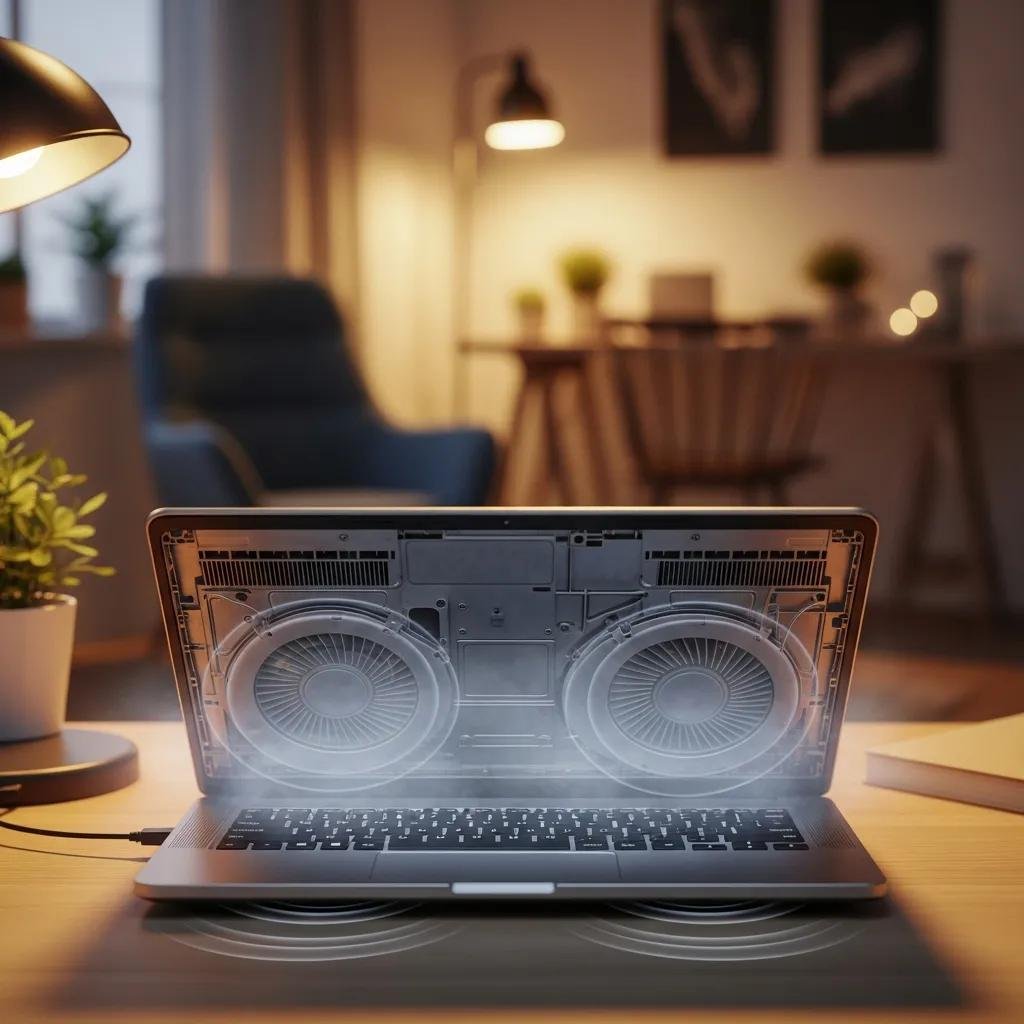
Computer Overheating Solutions: Causes, Symptoms, and Remote Repair Options
Computer overheating occurs when internal components—most often the CPU and GPU—run hotter than intended, reducing performance, causing instability, and risking hardware damage. This guide explains why overheating happens, how to recognize key symptoms like loud fans and thermal throttling, and which monitoring tools and safe DIY steps you can use to triage the issue. You will learn practical checks for dust, airflow, and runaway processes, plus when to escalate to secure remote diagnostics. The article also outlines remote repair workflows and what to expect from a certified remote support provider that offers 24/7 service and a NO FIX – NO FEE promise. Read on to find cause-to-effect diagnostics, short how-to monitoring steps, and clear criteria for seeking professional remote solutions.
What Are the Common Causes of Computer Overheating?
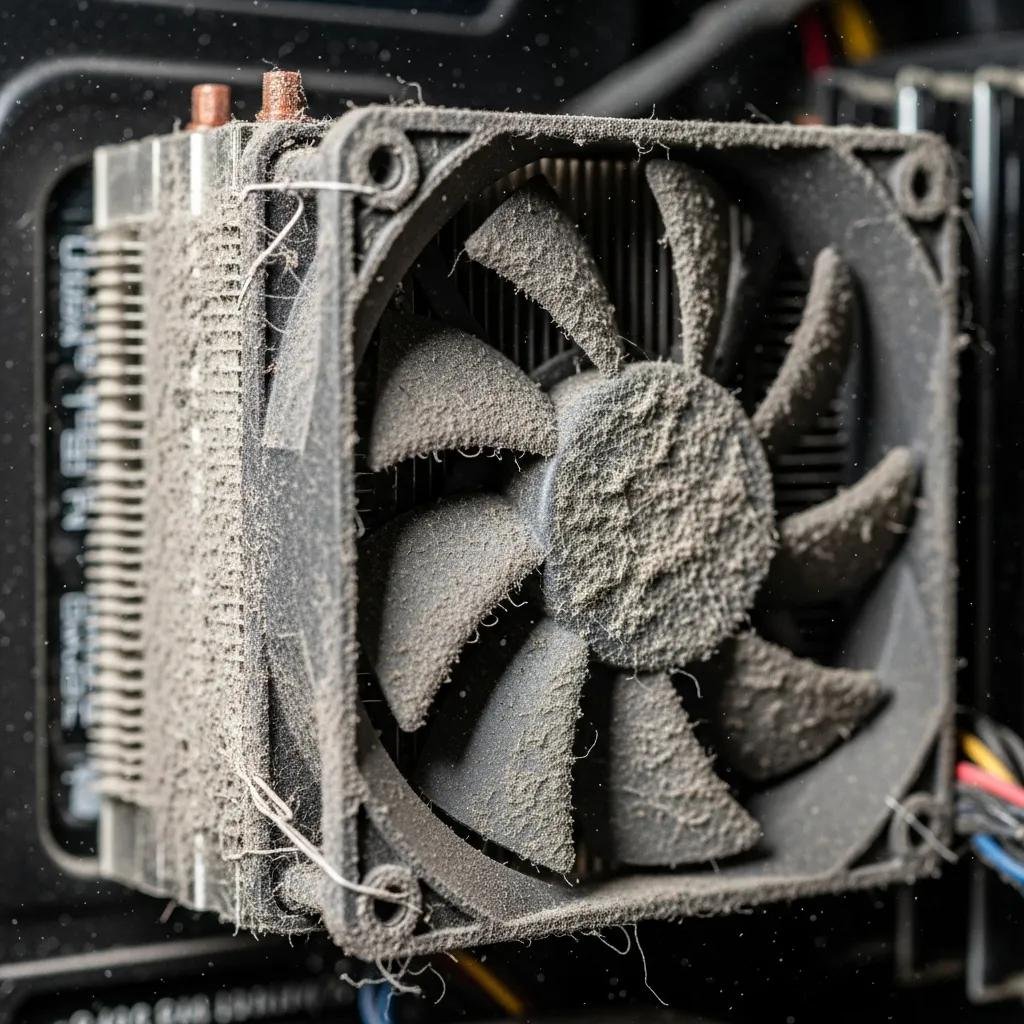
Common causes of computer overheating include blocked airflow, failing fans or heatsinks, degraded thermal paste, sustained high CPU/GPU load, and environmental factors like high room temperature. Each cause directly increases thermal resistance, power draw, or both, which raises component temperatures and forces cooling systems to work harder. Understanding these root causes helps prioritize quick DIY checks and targeted fixes before more invasive repairs are needed. The next subsection explains how dust and airflow specifically create thermal barriers that trap heat.
How Does Dust Buildup and Poor Airflow Lead to Overheating?
Dust builds up on fans, heatsinks, and vents, creating an insulating layer that reduces heat transfer and disrupts designed airflow paths. When airflow is reduced, fans must spin faster and longer, which increases noise and still fails to keep core temperatures within safe limits. A simple diagnostic is to inspect intake and exhaust vents visually and feel for warm exhaust air while the system is under light load, taking care to power down before cleaning. Regular external cleaning and ensuring unobstructed vents restore proper convection and will be discussed in DIY fixes below.
Can High CPU and GPU Usage or Malware Cause Excess Heat?
Sustained high CPU or GPU utilization—such as video rendering, gaming, or background cryptomining—raises power consumption and heatsink demand, often leading to chronic overheating. Malware and runaway processes can mimic legitimate heavy workloads but without user intent, so checking Task Manager or Activity Monitor for unexpected processes is essential. Identifying the difference allows you to terminate malicious tasks or throttle legitimate workloads through power profiles and application settings. After checking for abnormal processes, the next section covers observable symptoms that indicate heat is already affecting system behavior.
- Common causes at a glance:
- Dust and blocked vents: Insulates components and reduces airflow.
- Failing fans or heatsinks: Mechanical failure lowers cooling capacity.
- High sustained loads or malware: Increases power draw and heat generation.
This list helps prioritize immediate checks before moving into symptom recognition and monitoring.
| Cause | How it causes heat | Immediate DIY check |
|---|---|---|
| Dust buildup | Insulates heatsinks and obstructs airflow | Visual vent inspection and airflow test with fan running |
| Fan/heatsink failure | Reduced mechanical cooling efficiency | Listen for irregular fan noise and check fan RPMs in BIOS or UEFI firmware |
| Degraded thermal paste | Poor thermal conduction between CPU/GPU and heatsink | High idle temps compared to expected ranges |
What Are the Key Symptoms Indicating Your Computer Is Overheating?
Overheating shows up as loud or constantly spinning fans, performance drops from thermal throttling, unexpected shutdowns, a hot chassis, and frequent application crashes or BSODs. Each symptom signals a different severity level: fan noise often precedes throttling, while shutdowns indicate protective failsafes triggered at high temperatures. Recognizing these signs quickly lets you take protective actions—like saving work and running brief temperature checks—before hardware damage occurs. The following subsections offer practical steps to interpret and respond to each symptom.
How to Recognize Loud Fans, Performance Drops, and Unexpected Shutdowns?
Loud or constantly spinning fans usually mean the cooling system is compensating for elevated component temperatures or poor airflow. Performance drops often indicate thermal throttling, where the CPU or GPU reduces clock speeds to lower heat output; running a quick benchmark or checking clock rates during load can reveal this. Unexpected shutdowns are protective responses to critical temperatures and require immediate shutdown and inspection to prevent damage. Start by saving work, monitoring temps for a short stress test, and minimizing background workloads while you plan cleaning or diagnostics.
What Does Thermal Throttling and System Freezing Reveal About Heat Issues?
Thermal throttling is a deliberate reduction of processor clock speed to lower junction temperatures, which preserves hardware at the cost of performance. System freezing or stuttering during sustained loads often accompanies throttling and indicates cooling is insufficient for the workload or that a component is degrading. Detect throttling by comparing expected benchmark scores to current results and watching temperature profiles under load to see if clocks drop as temps rise. Understanding throttling helps decide between software mitigations and hardware interventions.
- Quick symptoms checklist:
- Loud fans: Check vents and running processes.
- Performance drops: Run a short benchmark and monitor temps.
- Unexpected shutdowns: Power down immediately and inspect vents.
This checklist prepares you for the monitoring tools and DIY fixes described next.
How Can You Monitor and Fix Overheating Issues on Your Computer?
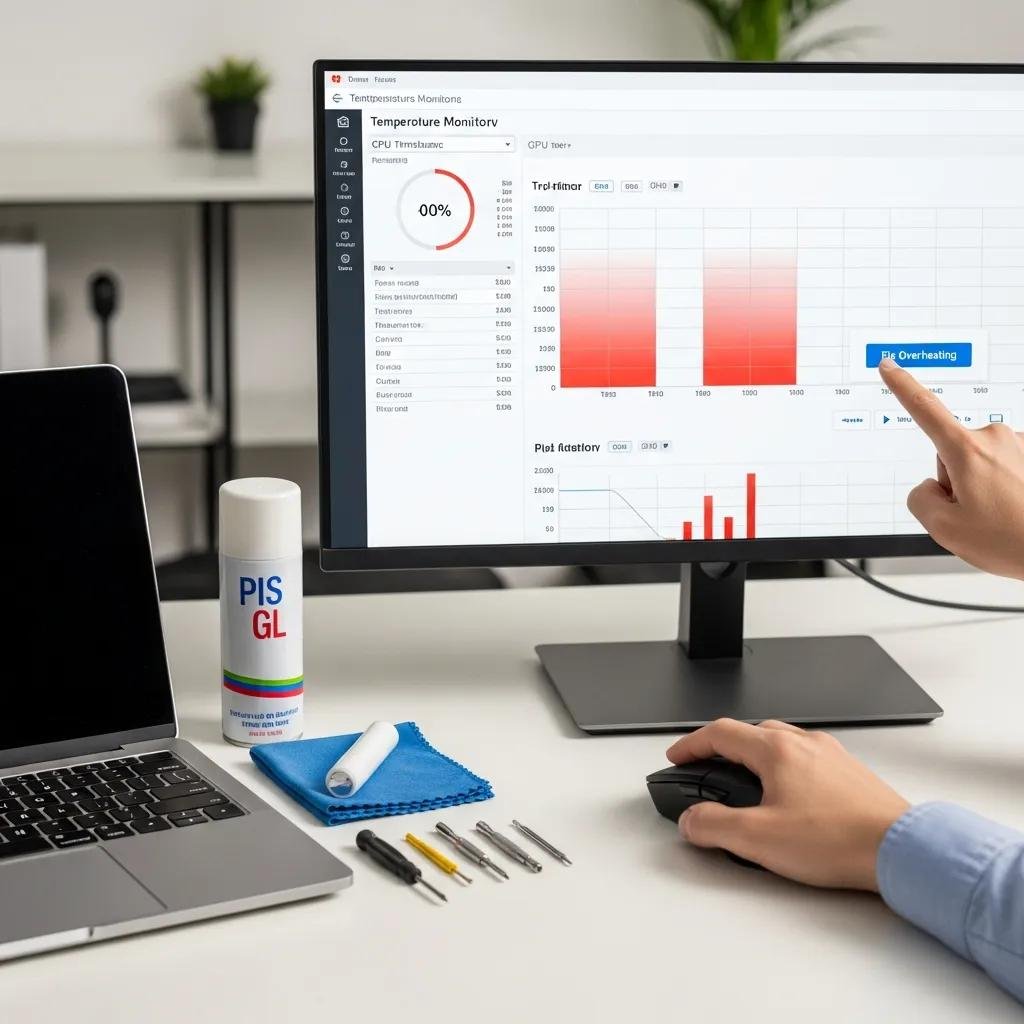
Monitoring combines lightweight software and careful observation to determine whether the issue is software-related or hardware. Use temperature monitoring tools to log CPU and GPU temps, close or limit high-usage apps, and perform safe external cleaning; power-plan adjustments and driver updates often reduce heat without hardware work. If monitoring shows persistent high idle temperatures or erratic fan behavior, professional diagnostics are the next step. The following subsections compare tools and outline safe DIY actions to restore cooling performance.
Which Tools Help Monitor CPU Temperature Effectively?
A small set of tools covers most monitoring needs: platform-native utilities like Task Manager or Activity Monitor for process-level insights, and third-party monitors for precise sensor readings. These tools let you track CPU and GPU temperature trends, fan speeds, and power draw so you can correlate load with heat. Choose a tool appropriate for your OS and comfort level, and run quick baseline checks—idle and light-load temperatures—before making changes. The table below helps compare tool attributes for practicality and OS support.
Tools comparison for temperature monitoring:
| Tool | OS | Ease-of-use | Typical use-case / Note |
|---|---|---|---|
| Task Manager / Activity Monitor | Windows / macOS | High | Quick process-level checks and simple heat indicators |
| HWMonitor / Core Temp | Windows | Medium | Detailed sensor readouts and logging for CPU/GPU temps |
| Speccy | Windows | High | User-friendly overview of temps, voltages, and fan speeds |
What DIY Fixes Can Reduce Overheating and Fix Noisy PC Fans?
Safe DIY steps include powering down, using compressed air to blow dust from vents and fan intakes, elevating a laptop for better airflow, and adjusting fan curves or power profiles in software to reduce sustained fan operation. Re-seating RAM or expansion cards can improve airflow paths in desktops, while driver and firmware updates sometimes resolve fan control issues. Avoid disassembling sealed laptops unless you are confident and follow manufacturer guidance; reapplying thermal paste is effective but typically a job for advanced DIYers or professionals. After basic fixes, persistent high temps signal the need for deeper diagnostics or remote professional help.
- DIY action list:
- Inspect and clean vents: Power down, then remove loose dust with compressed air.
- Limit background workloads: Close unnecessary apps and check for malware.
- Adjust power and fan settings: Use balanced power profiles and fan-control utilities.
These DIY steps often reduce temperatures quickly; if they don’t, remote diagnostics can help pinpoint hardware-level causes.
When Should You Seek Professional Remote Solutions for Overheating?
If overheating persists after cleaning, monitoring shows high idle temps, or the problem involves hardware replacement or delicate procedures, remote professional diagnostics are appropriate. Remote specialists can securely collect temperature logs, process lists, firmware versions, and fan control data to determine whether the issue is software, firmware, or indicative of failing hardware. Remote assessment is also suitable for users who prefer a secure, guided approach rather than riskier DIY disassembly. The following table clarifies scenarios where remote help is useful and what actions you can expect.
| Problem Scenario | Why remote help is useful | Expected remote actions |
|---|---|---|
| Persistent overheating after cleaning | Identifies hidden software or firmware causes | Remote logs, process analysis, driver and BIOS guidance |
| Suspected malware/miners | Removes malicious high-usage processes securely | Remote malware scans and process remediation |
| Complex hardware diagnostics | Determines component-level failure without onsite guesswork | Sensor data collection and replacement recommendations |
What Are the Benefits of mcHelper.com's Remote Computer Repair Services?
mcHelper.com provides 24/7 remote computer repair and tech support for both Mac and Windows users, combining secure remote diagnostics with certified technicians to resolve overheating problems efficiently. Their NO FIX – NO FEE promise reduces financial risk for users seeking professional help, and an optional annual support package is available at the stated price of $199.99 for ongoing coverage. Typical remote benefits include remote desktop diagnostics, guided cleanings, malware removal, driver and firmware updates, and clear recommendations for parts or in-person service when necessary. For readers who need expert remote assistance, a certified technician can often identify root causes and recommend the next steps quickly and securely.
How Does Professional Thermal Paste Replacement and Fan Repair Work Remotely?
Remote technicians can diagnose whether thermal paste degradation or failing fans are likely causes by analyzing temperature deltas, fan speed behavior, and system logs collected during remote sessions. While thermal paste replacement and fan swaps require physical access, remote service can validate the need for those repairs, provide step-by-step guidance for experienced users, or coordinate recommended local service if replacement is required. The remote workflow typically ends with a clear repair plan and verification steps so you understand whether a physical intervention is necessary and what it should involve. If a hardware fix is recommended, remote guidance reduces guesswork and helps ensure the correct parts and procedures are used.
- When to call a pro:
- Already cleaned but still hot: Remote diagnostics can identify firmware or process causes.
- Erratic fan behavior: Techs can read RPMs and suggest replacement or calibration.
- User unsure about disassembly: Remote guidance or referral to local repair avoids accidental damage.
These criteria help you decide whether to pursue remote professional support after attempting safe DIY measures.