How to Clean Up Temporary Files on Windows and Mac for Faster Computer Speed
Temporary files are short-lived system or application data created to support tasks like installations, browser sessions, and updates; when left unchecked they consume disk space and increase input/output (I/O) operations, potentially slowing your system. This guide explains what temporary files are, how they accumulate on Windows and macOS, and practical, safe steps to delete them to optimize storage and improve responsiveness. You will learn quick built-in methods for Windows 10/11 and macOS, manual Finder and Terminal commands, and automated approaches that reduce future buildup. The article also compares manual cleanup, automated tools, and professional remote optimization so you can choose the right approach for your comfort and skill level. Throughout, target tasks such as system junk cleanup, delete temp files, clear temporary files Windows 10, clear cache Mac, and optimize storage are addressed with clear steps and safety notes to preserve your data while reclaiming performance.
Why Does Cleaning Temporary Files Improve Computer Speed?
Cleaning temporary files improves computer speed by freeing disk space and reducing unnecessary read/write operations, which lowers I/O contention and speeds up boot times and application launches. Temporary files—cache, logs, update installers, and prefetch data—occupy storage and can fragment the filesystem, causing longer seek times and increased swapping when memory is constrained. Removing stale or corrupted temp files restores free space used for OS caches and virtual memory, which directly reduces latency for disk-bound tasks. Regular cleanup also reduces the chance of conflicts from corrupted caches that can slow browsers and apps, making the system more responsive and stable.
What Are Temporary Files and How Do They Affect Performance?
Temporary files include browser cache, installer leftovers, application caches, system logs, and update caches; each type affects performance differently depending on size and corruption. Browser cache speeds page loads when healthy but can slow browsing if corrupted or excessively large; system update caches and installer files waste disk space long after completion. Logs and crash dumps accumulate over time and increase disk usage, which reduces available space for virtual memory and caching, indirectly impacting responsiveness. Cleaning these files reclaims storage and prevents corrupted temporary data from causing slowdowns or application errors.
How Do Temporary Files Accumulate on Windows and Mac?
Temporary files accumulate through normal app usage, software updates, browser activity, and background processes that create transient data to speed tasks or log events. On Windows, installers, Windows Update, and background services write to and ; on macOS, applications and the system populate and . Frequent web browsing, large downloads, and repeated installations increase buildup frequency, while periodic system updates can leave substantial caches behind. Understanding these accumulation vectors helps prioritize which folders to clear and how often to run maintenance to prevent recurring performance degradation.
How to Delete Temporary Files Manually on Windows 10 and Windows 11
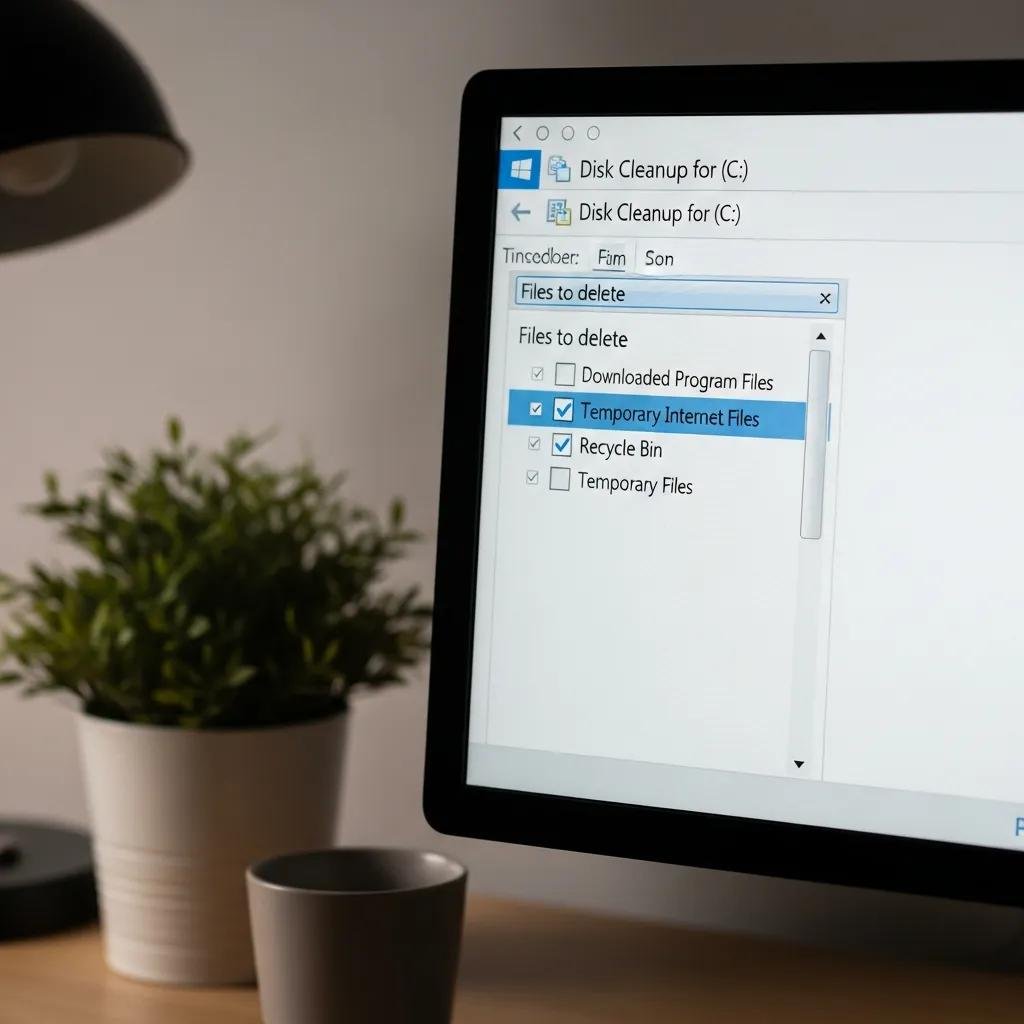
Windows offers built-in tools and folder paths for safe manual cleanup that balance ease and control, letting you remove temp files without third-party utilities. Use Disk Cleanup to remove system update leftovers and temporary installer files, enable Storage Sense to automate regular cleanup, and inspect and for manual removal after closing apps. Before manual deletion, close active programs, back up any files you suspect are important, and sort by date to avoid removing in-use data.
Intro to Windows temp locations and how to remove them safely; run these steps only after closing applications and verifying file ages to avoid deleting active files.
| Temp Location | How to Access | Removal Steps |
|---|---|---|
| %TEMP% (user temp) | Press Windows+R, type %TEMP%, Enter | Close apps, select files older than 7 days, delete or move to Recycle Bin |
| C:\Windows\Temp | Open File Explorer as admin and navigate | Require admin rights; delete non-system files and empty Recycle Bin |
| Windows Update Cache | C:\Windows\SoftwareDistribution\Download | Stop Windows Update service, delete contents, restart service |
Summary: These locations hold the most common Windows temporary files; use Disk Cleanup for system-level cleanup and manual folder inspection for targeted removals to reclaim space and reduce I/O load.
Using Disk Cleanup and Storage Sense for Windows Optimization
Disk Cleanup and Storage Sense remove temporary files with minimal risk when configured correctly and are ideal for regular maintenance. Run Disk Cleanup as administrator, choose the drive, and select “Clean up system files” to remove update caches, previous Windows installations, and temporary installer files. Storage Sense can be enabled to run automatically with settings for frequency and file age thresholds; configure it to delete files in Recycle Bin older than 30 days and remove temporary files not in use. Use these tools together: Disk Cleanup for occasional deep cleaning and Storage Sense for routine automation that prevents large future buildups.
Locating and Removing Temporary Files via Windows File Explorer and Run Commands
Manual removal via File Explorer and Run commands gives precise control but requires caution to avoid deleting active system files. Use Run commands like and to jump to user and system temp folders, sort files by date to identify stale items, and delete only files not in use; empty the Recycle Bin afterward. For advanced cleanup, check the prefetch folder for obsolete entries and clear browser cache from within each browser’s settings. Always create a restore point or backup critical data before extensive manual deletions to protect against accidental removal of needed files.
How to Clear Cache and Temporary Files on Mac for Optimal Speed
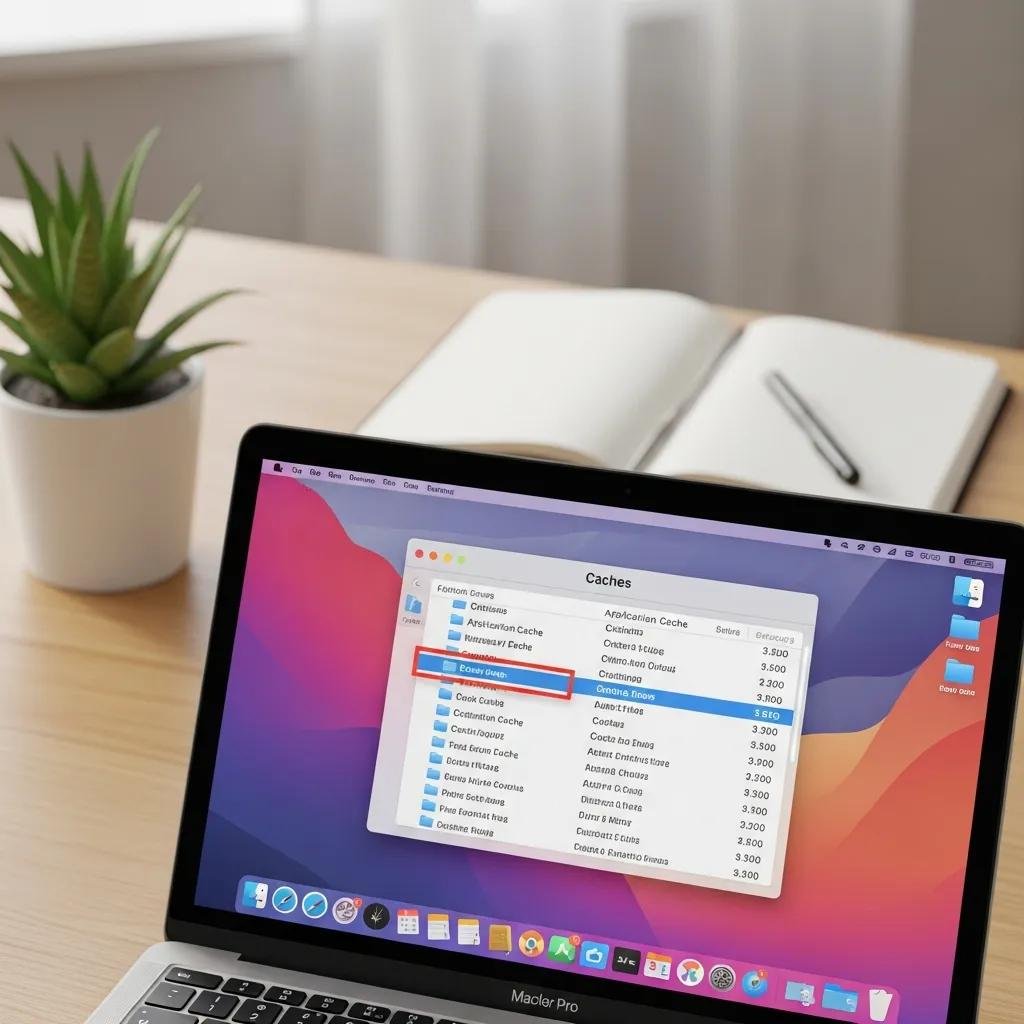
macOS provides Finder and Terminal methods for cache removal plus Storage Management recommendations to safely free space and improve application responsiveness. Manual cache clearing targets and , where app and system caches accumulate, while Terminal commands allow advanced users to remove specific caches with greater precision. Storage Management offers Optimize Storage, Empty Trash Automatically, and Reduce Clutter features to identify large or redundant files and automate cleanup. The table below maps common macOS cache locations to commands and safety notes to help you choose the right removal approach.
| Cache Location | Command / Path | Safety Notes |
|---|---|---|
| ~/Library/Caches | Finder > Go > Go to Folder > ~/Library/Caches | Safe to clear app caches; avoid deleting unknown folders tied to running apps |
| /private/var/folders | sudo rm -rf /private/var/folders/* (advanced) | Use caution; only for advanced users after backups |
| System logs | /var/log | Review before deleting; log rotation may already manage files |
Summary: macOS caches can be cleared safely via Finder for app-level caches and Storage Management for guided cleanup; reserve Terminal commands for users who understand command-line risks and always keep backups.
Manual Cache Clearing Using Finder and Terminal Commands
Manually clearing caches on macOS starts with Finder navigation to the user Library and systematic removal of app-specific cache folders while apps are closed. In Finder, choose Go > Go to Folder and enter , then move large, clearly named app caches to Trash and reboot; this often restores app speed without risking system files. Terminal provides commands like and for targeted removals but must be used carefully to avoid deleting essential system data. After manual clearing, test applications and system stability; if issues appear, restore from backup or reverse the changes.
Using macOS Storage Management Tools to Optimize Space
Storage Management centralizes recommendations like Optimize Storage, Empty Trash Automatically, and Reduce Clutter to make routine maintenance straightforward and low-risk. Access Storage Management from About This Mac > Storage > Manage, then enable options to offload rarely used files to iCloud, automatically empty Trash, and review large files for deletion. Set a cadence—monthly checks and enabling automatic options—so caches and temporary downloads don’t accumulate unchecked. Using these built-in features reduces manual intervention and keeps disk usage optimized without needing extra utilities.
What Are the Best Practices and Tools to Prevent Temporary File Buildup?
Preventing temp file buildup combines scheduled manual checks, built-in automation, selective third-party utilities, and professional help when problems persist; adopt a maintenance rhythm that fits your usage. Best practices include monthly cleanups for heavy users, enabling Storage Sense or macOS automatic options, clearing browser caches regularly, and avoiding unnecessary installer clutter. Use third-party utilities only from trusted vendors and understand their scope and permissions before running deep scans. The table below compares methods and suggests who benefits most from each approach to help you choose a practical, low-risk maintenance plan.
| Method | Pros / Cons | Recommended Frequency / Ideal User |
|---|---|---|
| Manual Cleanup | Pros: control and precision. Cons: time-consuming | Monthly / Power users who prefer hands-on control |
| Built-in Automation (Storage Sense/macOS) | Pros: low-risk, automatic. Cons: less granular | Ongoing / Most users seeking set-and-forget maintenance |
| Third-party Utilities | Pros: deep cleaning features. Cons: permission risk | Quarterly / Advanced users who vet software carefully |
| Remote Professional Service | Pros: hands-off, expert tuning. Cons: paid service | As needed / Users who prefer certified technician support |
Summary: Combine automation for routine prevention and manual checks for targeted cleanup; escalate to third-party tools or professional services when storage issues persist or when you prefer expert support.
Comparing Manual Cleanup, Automated Tools, and Professional Services
Manual cleanup gives precise control and is cost-free but requires time and knowledge to avoid removing needed files, while automated tools like Storage Sense and macOS recommendations offer safe, continuous maintenance with minimal user effort. Third-party utilities provide deeper scans and specialized features but carry permission and privacy risks if not vetted carefully. Professional services offer hands-off expertise, troubleshooting for complex issues, and can complement DIY methods when performance problems persist; choose based on comfort level, technical skill, and how critical system uptime is for your workflow.
How mcHelper.com’s Remote Optimization Service Enhances Computer Speed
For users who prefer a professional, hands-off option, mcHelper.com provides 24/7 remote computer repair and technical support with a specific “Speed-Up and Optimize your Computer” service designed to improve performance. The service emphasizes convenience through remote access, offers certified technicians, and follows a “no fix – no fee” promise to align outcomes with cost; solutions are described as fast, secure, and reliable. Choosing a remote optimization service can be appropriate if you want expert tuning, automated maintenance set up for you, or if manual and automated methods don’t resolve persistent slowdowns.