Basic Fixes for Peripherals Not Working: How to Troubleshoot and Resolve Common Issues
Peripherals not working means an input device such as a mouse or keyboard fails to respond, is not detected by the operating system, or behaves unpredictably. Common root causes include a bad physical connection (damaged USB cable or port), depleted batteries or pairing errors in wireless devices, corrupted or missing drivers, and software conflicts such as accessibility settings or background utilities. This guide gives clear, ordered fixes you can try now to resolve keyboard unresponsive or mouse not detected problems on Windows and macOS systems. You will learn quick physical checks, how to update or reinstall drivers using Device Manager and system settings, and which software checks clear common conflicts. If DIY steps don’t work, mcHelper.com offers remote diagnosis and repair for both Mac and Windows users as an available next step. Read on for step-by-step checklists, short Device Manager commands, symptom-to-fix tables, and concise decision rules so you can isolate whether this is a simple usb device fix or a case needing expert help.
How do I check and fix physical connection issues for mouse and keyboard?
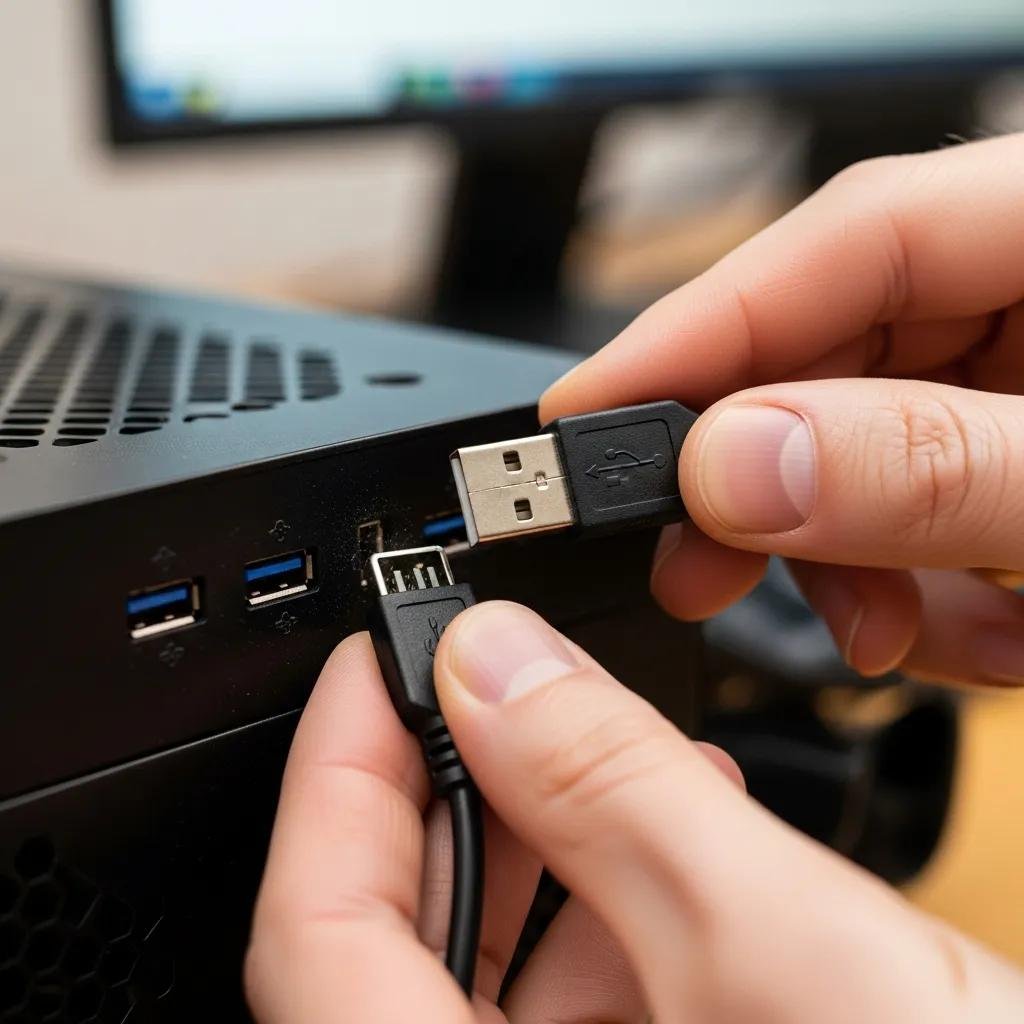
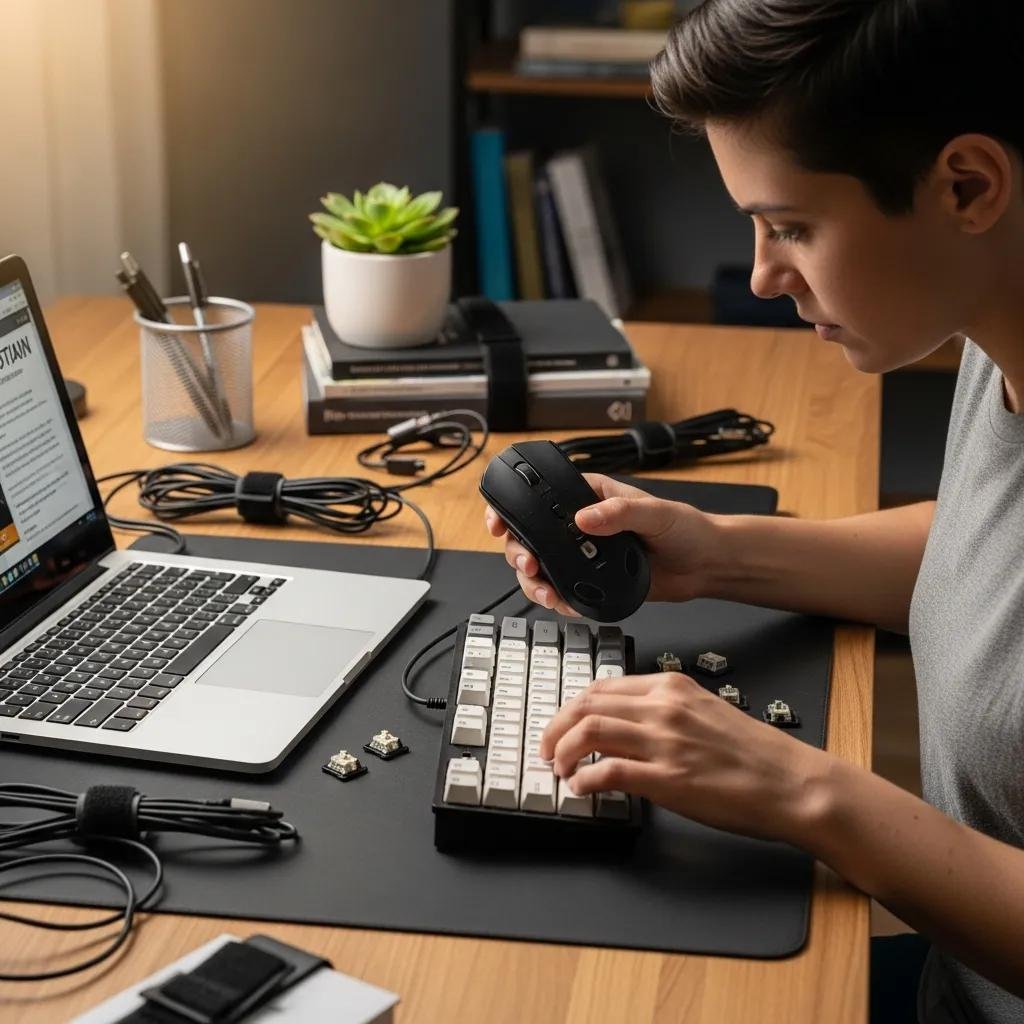
Physical connection problems are the most common cause of peripherals failing: a loose USB cable, dirty port, dead battery, or unseated wireless receiver prevents the device from powering or being recognized. Inspect connectors and ports visually, reseat cables, and try alternate ports to confirm whether the issue is the peripheral, the cable, or the computer. These checks establish whether this is a wired mouse/keyboard cable fault or a wireless pairing/power issue. Follow the checklist below to cover the highest-yield physical fixes before moving to drivers or software.
Quick physical checklist for immediate testing:
- Visual inspection: Look for bent pins, frayed cable, or debris in USB ports.
- Reseat and swap ports: Unplug and plug into a different USB port or a known-good computer.
- Try a known-good cable or device: Rule out the cable by substituting a working cable or peripheral.
Summary: These steps isolate whether the problem is with the device components (USB cable, battery, receiver) or the host port, and they prepare you to proceed to driver or software fixes if the hardware appears sound.
Intro to comparison table: The table below helps compare the checks you should perform for wired versus wireless peripherals so you can focus tests efficiently.
| Peripheral Type | Primary Physical Checks | Quick Result |
|---|---|---|
| Wired mouse/keyboard | Inspect cable for cuts, test alternate USB ports, try a known-good cable | Confirms cable/port vs device failure |
| Wireless (USB dongle) | Check dongle seating, try alternative USB port, re-pair device | Identifies dongle vs pairing issues |
| Bluetooth device | Verify Bluetooth is enabled, check range, remove interference sources | Confirms radio/pairing vs device battery |
| Laptop built-in keyboard | Check for debris, perform power cycle, test in BIOS/UEFI | Distinguishes hardware from OS driver issues |
Summary: Use these targeted checks to narrow the fault domain (cable, port, dongle, or radio), which guides whether to proceed to driver updates or further diagnostics.
What steps ensure USB ports and cables are properly connected?
Start with a close visual check of the USB port and cable ends for bent pins, corrosion, or lint; small debris can block a proper connection and cause intermittent detection. After inspection, power down the peripheral (if it has a switch), unplug and wait 10 seconds, then plug into a different USB port on the same machine; if available, try a port directly on the computer rather than a hub to rule out hub faults. Test the same cable with another known-good device or use a known-good cable with your peripheral to identify whether the cable or device is at fault. Consider USB type differences: older USB 2.0 ports may power some devices differently than USB 3.0 or USB-C, so testing across port types can reveal power-delivery problems.
These steps isolate physical layer faults and set up the next action: if the device still fails on multiple ports and cables, proceed to driver and system-level troubleshooting described below.
How to verify wireless receivers and batteries for peripheral power?
For wireless mice and keyboards, start by replacing or recharging batteries and confirming the device’s power switch is on; low battery levels often produce intermittent response or slow pointer movement. Check the USB wireless receiver (dongle) is fully seated in the port and not loose; if the receiver is tiny, try an extension or front port to improve reception. Re-pair the device by following the manufacturer pairing sequence or use the operating system’s Bluetooth add-device flow for Bluetooth keyboards, and eliminate nearby radio interference (Wi-Fi routers, other wireless dongles). If the device works close to the receiver but not at normal range, you likely have a radio or antenna problem rather than an OS or driver issue.
Summary: Power and pairing checks resolve most wireless mouse not responding or Bluetooth keyboard not connecting cases; if problems persist after these steps, move on to driver and OS checks.
How can I update or reinstall drivers to fix mouse and keyboard problems?
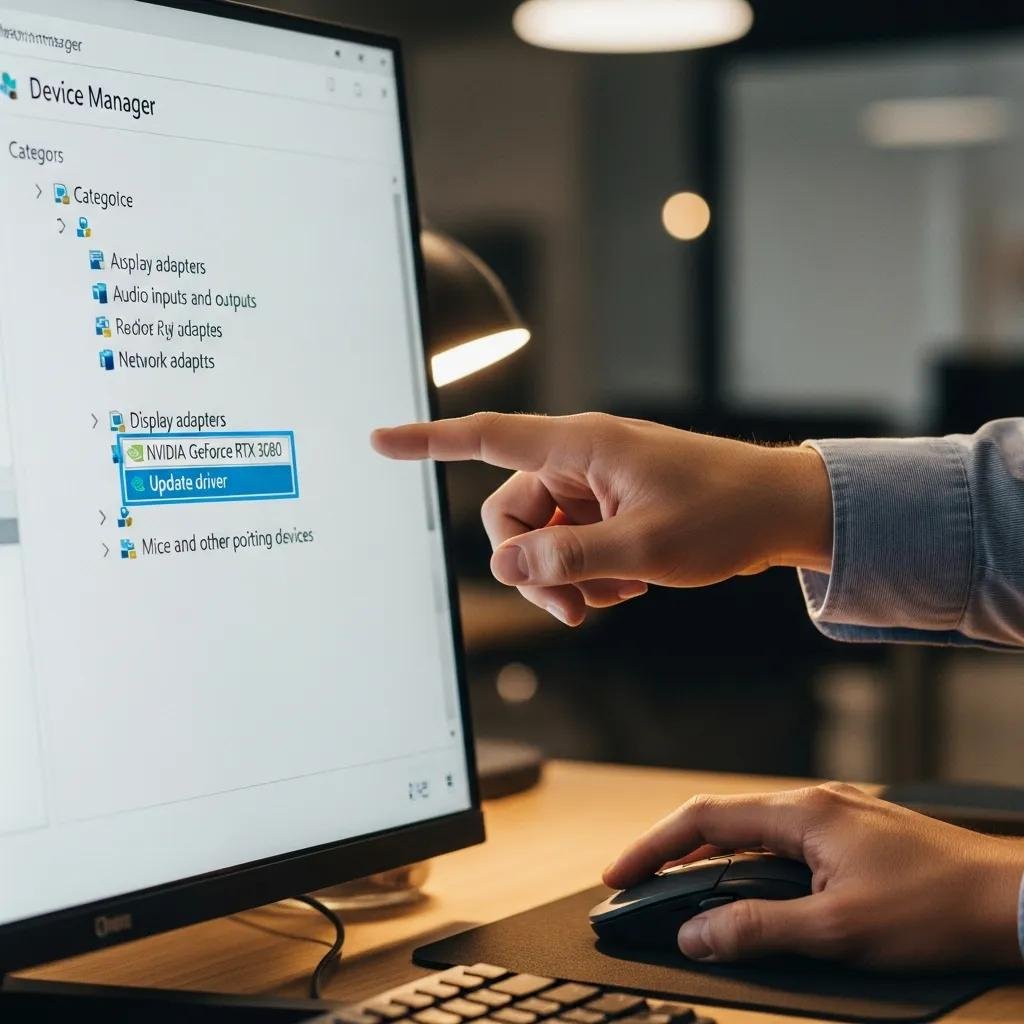
Driver issues can cause the OS to report “USB device not recognized” or show an unknown device in Device Manager, so updating, uninstalling, or rolling back drivers often resolves detection and input problems. On Windows, Device Manager exposes Human Interface Devices, Keyboards, and Mice entries where you can update drivers, uninstall problematic entries, or use “Scan for hardware changes” after reconnecting hardware. macOS typically handles device drivers automatically, but resetting Bluetooth modules or NVRAM and checking System Settings for input device entries helps; for both platforms, ensure the OS is up to date so bundled drivers and controller firmware are current.
Use the step checklist below for driver actions and include the Device Manager table for exact actions.
Driver update checklist (quick Device Manager steps):
- Open Device Manager: Right-click Start → Device Manager, or use Windows search.
- Locate the device: Expand Keyboards, Mice and other pointing devices, or Universal Serial Bus controllers.
- Update or uninstall: Right-click device → Update driver; if issues persist, choose Uninstall device and reboot.
- Scan for hardware changes: In Device Manager, select Action → Scan for hardware changes after reconnecting the device.
Intro to action table: The table below maps common driver entries to the appropriate Device Manager action so you can follow precise remediation steps.
| Driver Entry | OS Area | Action / Command |
|---|---|---|
| HID-compliant mouse | Windows → Mice and other pointing devices | Right-click → Update driver; if failing, Uninstall device → reboot |
| Standard PS/2 keyboard | Windows → Keyboards | Update driver or disable and re-enable; test in BIOS to check hardware |
| USB Root Hub / USB Controller | Windows → Universal Serial Bus controllers | Right-click → Update driver; disable USB selective suspend in power settings if needed |
| Bluetooth Peripheral | Windows/macOS → Bluetooth settings | Remove/pair device; reset Bluetooth adapter or module |
Summary: These Device Manager actions provide exact remediation paths; use uninstall + reboot as a clean reinstall method and only roll back drivers if a recent update caused the issue.
How to use Device Manager to update or reinstall peripheral drivers?
Device Manager is the primary Windows tool for driver-level fixes: open it, expand the relevant category (Keyboards, Mice and other pointing devices, or Universal Serial Bus controllers), then inspect device status for error icons. Use Update driver to search automatically or manually install a driver; if the device shows errors, choose Uninstall device, disconnect the peripheral, reboot the computer, and reconnect so Windows performs a fresh detection and reinstall. After reinstall, use Action → Scan for hardware changes to force re-detection. On macOS, check System Settings for Bluetooth and USB devices, try unpairing and re-pairing Bluetooth keyboards, and restart the system to allow macOS to reload device interfaces.
These steps address common “update keyboard driver” and “mouse not detected Windows” scenarios and prepare the system for software-level checks if the hardware is still unresponsive.
What operating system settings affect driver functionality and peripheral detection?
Power management and USB selective suspend can cause the OS to turn off ports and make devices appear disconnected; disable USB power saving for ports hosting input devices. Bluetooth permissions, privacy settings, and paired device lists can block keyboards or mice from connecting, so confirm system-level Bluetooth is enabled and the device is trusted. Accessibility features like Filter Keys, Sticky Keys, or Mouse Keys can change input behavior and create the illusion of a malfunctioning keyboard or mouse. Finally, pending OS updates sometimes include driver packages, so complete system updates before escalating to reinstalling drivers or remote support.
After checking these OS settings, perform a reboot and retest the peripheral to see if detection and input return to normal.
What are common software and system checks to troubleshoot unresponsive peripherals?
Software conflicts, background utilities, or system-level accessibility toggles often produce symptoms such as a frozen cursor, keys not typing, or intermittent detection; isolating these requires a sequence of system checks and controlled restarts. Start by power-cycling the peripheral, then reboot the computer and reconnect only the problematic device to see whether the issue returns. Test the device in Safe Mode (Windows) or Safe Boot (macOS) to determine if third-party software or drivers interfere. Also review running background apps—antivirus, keyboard remappers, virtualization tools, or gaming overlays can capture or remap input.
Key software/system checks list:
- Check for running keyboard/mouse utilities and temporarily disable them.
- Boot into Safe Mode / Safe Boot to test with minimal drivers and services.
- Temporarily disable antivirus or overlays that may capture input during testing.
Intro to symptom table: The following table maps common symptoms to quick fixes so you can apply the right action immediately.
| Symptom | Likely Cause | Quick Fix |
|---|---|---|
| Cursor frozen | Software capture or driver hang | Restart PC, test in Safe Mode, update driver |
| Keys not typing | Accessibility toggle or remapper | Disable Sticky/Filter Keys, close remapping apps |
| Intermittent detection | Power management or faulty USB hub | Try direct port, disable USB selective suspend |
| Delay or lag | Low battery or radio interference | Replace batteries, move receiver closer |
Summary: These software checks quickly separate application-level capture or accessibility issues from true hardware faults and guide whether a deeper driver reinstall or expert diagnosis is needed.
How to restart devices and computers to resolve temporary conflicts?
A structured restart sequence clears many transient problems: first power-cycle the peripheral (turn off, remove batteries or unplug, wait 10 seconds, then power on). Next reboot the computer and, after the OS is up, plug the device directly into a mainboard port and test. If the problem persists, boot into Safe Mode to see if the device works with minimal drivers; successful operation in Safe Mode indicates a third-party conflict. After these steps, re-enable services one at a time or use clean-boot troubleshooting to identify the conflicting application.
These restart and isolation steps help determine whether you’re facing a temporary conflict that a reboot resolves, or a persistent issue needing driver reinstall or professional support.
Which accessibility features or software conflicts can cause keyboard or mouse issues?
Accessibility features such as Sticky Keys, Filter Keys, and Mouse Keys alter how input is interpreted and can make a keyboard unresponsive or cause unexpected repeated keystrokes. Third-party keyboard remappers, macro utilities, overlay software, and some virtualization or remote-control tools can intercept input before the OS receives it. To test, disable these accessibility toggles and close suspected apps, then retest the device; if functionality returns, re-enable components selectively to find the culprit. Documenting which software changed recently helps identify the source more quickly.
If disabling accessibility settings and third-party utilities doesn’t restore input, proceed to the escalation checklist below.
When should I seek professional remote support for persistent mouse and keyboard issues?
Escalate to professional remote support when the problem persists after physical checks, driver reinstalls, and software conflict isolation, or when symptoms suggest deeper system-level or hardware faults that need expert tools. Situations warranting remote diagnosis include intermittent detection across multiple ports, system-level errors or logs that point to USB controller or BIOS/firmware problems, and cases where peripherals work in firmware/BIOS but fail under the OS—signs of complex driver or OS conflicts. Remote experts can access diagnostic logs, run targeted driver/package reinstalls, and advise on hardware replacement decisions.
Checklist: When to escalate
- Device fails on multiple known-good ports and cables.
- Errors persist after driver uninstall/reinstall and OS updates.
- System logs or BIOS-level behavior indicate controller or firmware faults.
What scenarios indicate hardware damage or complex problems needing expert help?
Hardware damage signs include exposed wires, burning smell, device overheating, or physical port damage; stop using the device immediately to avoid further harm. Intermittent detection across ports, persistent device error codes in the OS, or failure after clean OS installs suggest deeper USB controller, firmware, or motherboard-level trouble. In such cases, expert remote diagnostics can examine logs, run firmware checks, and recommend hardware repair or replacement when necessary.
How does mcHelper.com’s remote repair service assist with unresolved peripheral problems?
mcHelper.com offers 24/7 remote computer repair and tech support for Mac and Windows users, focused on remote diagnosis and resolution of driver, OS, and configuration issues that prevent input devices from working. Their remote technicians can run targeted diagnostic routines, perform driver rollbacks and clean reinstalls, examine system logs for USB controller or firmware errors, and attempt configuration fixes that are difficult to perform without expert access. mcHelper.com operates under a “No Fix – No Fee” promise and also offers an affordable annual support package for ongoing coverage, making remote repair a practical next step when DIY steps fail.