

General Computer Maintenance Tips: Essential Checklist to Speed Up, Secure, and Extend Your PC or Mac
Computer maintenance means routine physical care, software upkeep, security checks, and backup practices that together keep a PC or Mac running reliably, fast, and secure. Regular device maintenance improves performance, reduces downtime, and extends hardware life by preventing overheating, data loss, and malware-driven degradation. This guide gives a concise, practical checklist and step-by-step advice on physical cleaning, software optimization, security and virus removal, and long-term hardware care so you can perform basic PC tune-up steps at home. Readers will find prioritized actions, simple tools to use, and when to escalate to professional help for internal cleaning or persistent infections. The article covers the key maintenance checklist, effective speed-up tactics, malware identification and removal, plus battery and overheating prevention — all organized so you can act on each item immediately while understanding why it matters.
What Are the Key Steps in a Computer Maintenance Checklist?
A reliable computer maintenance checklist groups tasks by frequency and impact so you can prevent common problems like slow performance, security breaches, and hardware wear. Start with daily habits (safe browsing, backups), move to weekly routines (temporary file cleanup), and schedule monthly or quarterly tasks (disk health checks, physical cleaning). Proper sequencing reduces risk: good backups let you remove malware or restore after major cleanups, and physical cleaning supports thermal performance that software tuning cannot replace. Below is a compact checklist of essential tasks you can follow quickly to keep both Windows PCs and Macs in healthy condition.
The top ten maintenance steps to follow regularly:
- Update your operating system and critical apps.
- Run a reputable antivirus scan and review alerts.
- Back up important files to an external drive or cloud.
- Remove unused applications and browser extensions.
- Clean temporary files and free disk space.
- Review startup programs and disable nonessential items.
- Wipe dust from vents, keyboard, and external ports.
- Check battery health and charging habits for laptops.
- Verify disk SMART/health and run error-check tools.
- Document passwords and enable multi-factor authentication.
This checklist prioritizes quick wins — updates, backups, and scans — before deeper maintenance like internal cleaning or hardware upgrades to ensure safety and reduce risk of data loss.
Different maintenance tasks are best scheduled at predictable intervals to make upkeep painless.
| Task | Frequency | Recommended Timing |
|---|---|---|
| Operating system updates | Weekly or as released | Apply critical patches immediately; check weekly for optional updates |
| Disk cleanup & temp file removal | Weekly | Run built-in utilities or storage managers every 7 days |
| Physical cleaning (externals) | Monthly | Dust vents, keyboard, and ports monthly; internal cleaning yearly or as needed |
| Antivirus full scan | Weekly to monthly | Full scans weekly; real-time protection always on |
| Backups (incremental) | Daily | Configure automated daily backups or continuous sync for critical files |
These scheduled tasks form a predictable routine that lowers the chance of performance degradation and data loss.
How to Perform Regular Physical Cleaning for Hardware Care
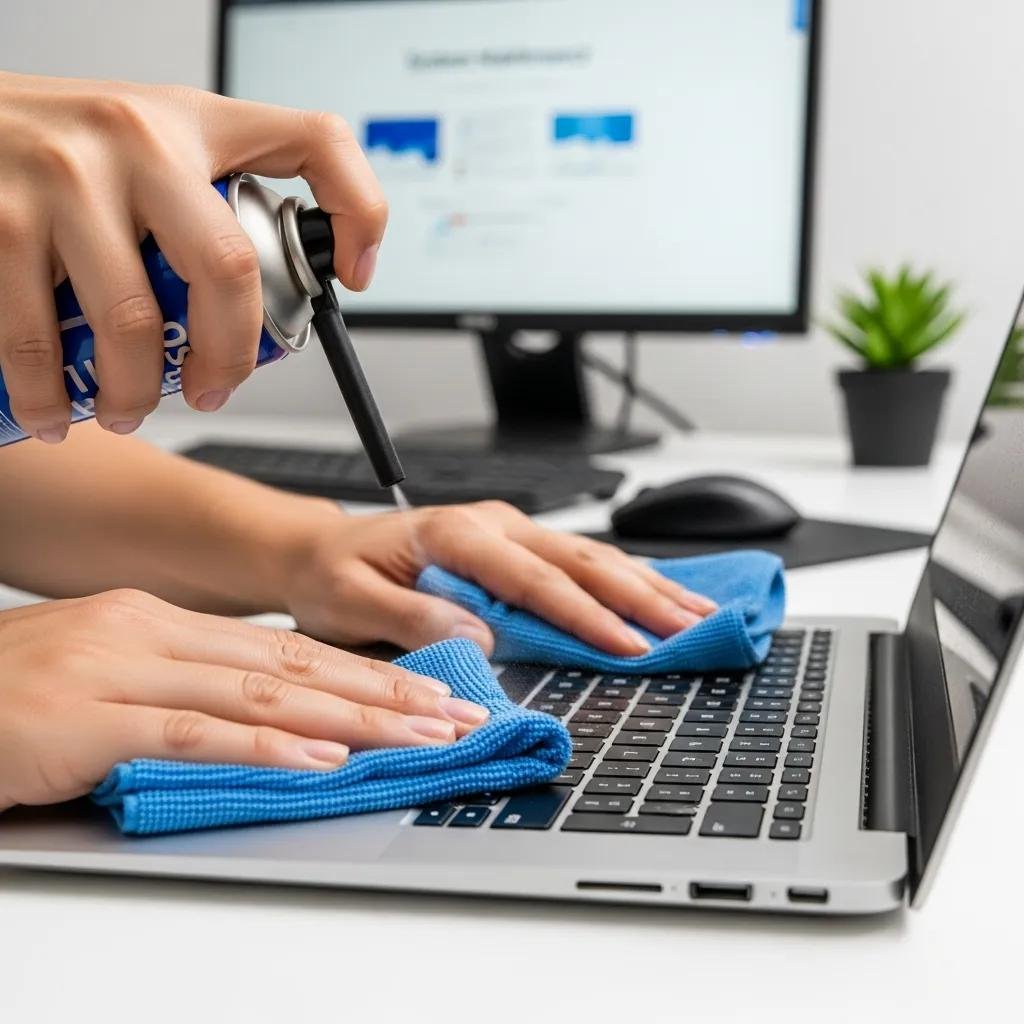
Safe physical cleaning protects components like the CPU fan, heat sink, air vents, keyboard, and trackpad from dust buildup that reduces airflow and increases temperatures. Begin by shutting down and unplugging the device, using a soft microfiber cloth, canned/compressed air in short bursts, and isopropyl alcohol on stubborn spots; avoid liquid contact with ports and internal components. For laptops, exterior cleaning plus vent and fan dust removal reduces overheating risk; internal cleaning and thermal paste reapplication are best left to a technician if you’re uncomfortable opening the chassis. Regular external care prolongs component life and prepares the device for software optimization and thermal management steps described next.
Use these simple supplies and techniques to minimize risk while maintaining airflow.
- Microfiber cloth for screens and surfaces.
- Compressed air for vents and keyboard.
- 70%+ isopropyl alcohol on cotton swabs for residue.
- Small precision screwdriver set if you plan internal cleaning.
Performing external cleaning monthly and seeking professional internal service every 1–2 years helps prevent heat-related hardware failures.
Which Software Optimization Techniques Improve Performance?
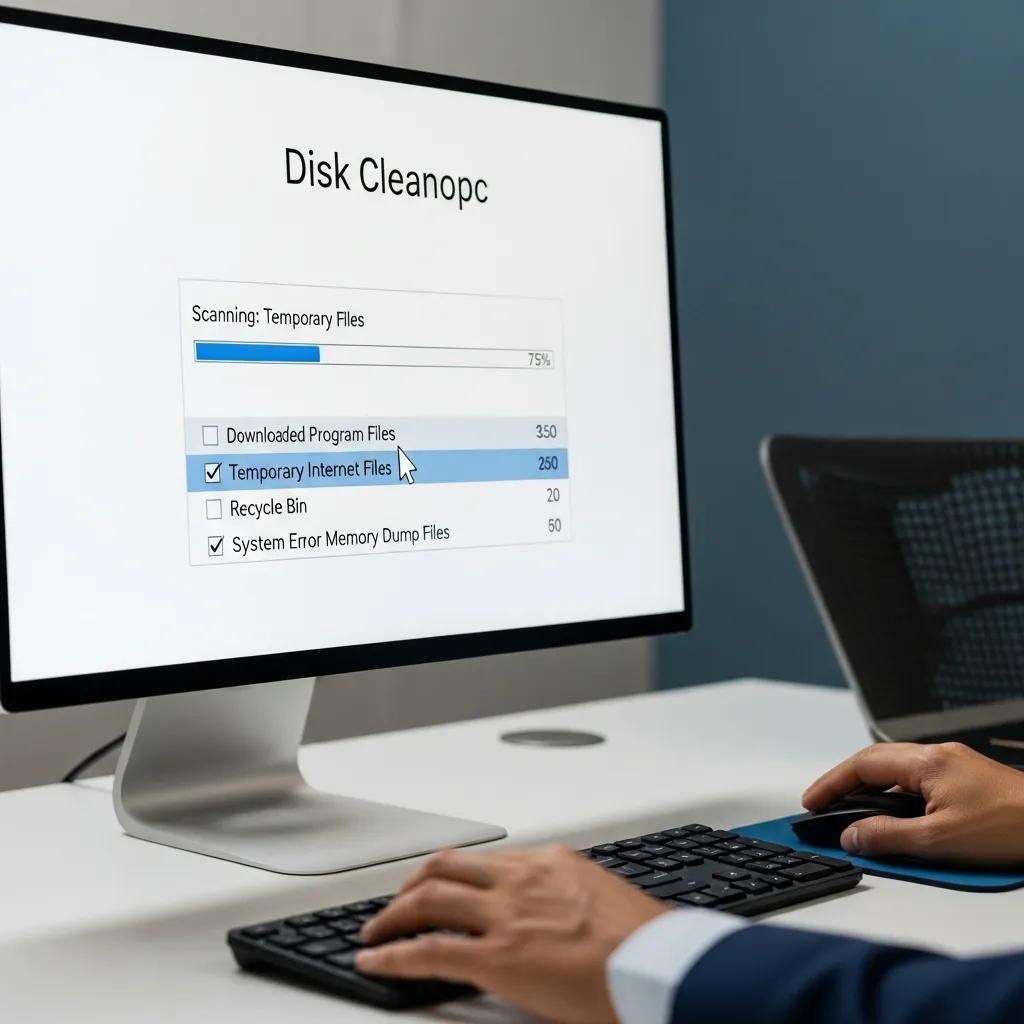
Software optimization combines updates, disk management, and startup control to restore responsiveness and free resources consumed by background processes. Apply operating system and driver updates regularly because patches fix performance and security issues; remove unused programs and clear temporary files to reclaim storage and reduce indexing overhead. Use built-in utilities like Task Manager on Windows or Activity Monitor on macOS to identify high-CPU or RAM processes, and schedule periodic maintenance such as disk defragmentation on older HDDs or TRIM on SSDs. These software measures complement physical care and create an environment where hardware upgrades, if needed, deliver visible benefits.
Recommended items to include in monthly software upkeep:
- Update OS and drivers.
- Run disk cleanup/storage optimization.
- Audit and uninstall unused apps and browser extensions.
A steady cadence of updates and cleanup reduces software bloat and keeps system responsiveness high so you rarely need emergency fixes.
How Can You Speed Up Your Computer Effectively?
Speeding up a computer means targeting startup load, disk throughput, memory use, and background processes while weighing hardware upgrades as a last resort. Start with managing startup programs and disabling unnecessary services, then run disk cleanup and defragmentation (HDD) or ensure SSD health tools and TRIM are active. If performance remains constrained, consider upgrading RAM or migrating to an SSD for large speed gains; these hardware steps are highest-impact but require planning and compatibility checks. Follow these prioritized steps to get quick wins first and reserve advanced actions for persistent bottlenecks.
Common quick-win actions and their recommended complexity levels:
| Action/Tool | Impact | Skill Level |
|---|---|---|
| Disable startup apps | Medium | Beginner-friendly |
| Disk Cleanup / Storage Management | Medium | Beginner-friendly |
| Update drivers / firmware | Medium-High | Intermediate |
| Add RAM / Install SSD | High | Advanced (hardware) |
Start with low-risk software actions and progress to hardware changes if needed to ensure time and money are invested where they deliver the most performance improvement.
What Are the Best Practices for Managing Startup Programs and Disk Cleanup?
Managing startup items reduces boot time and frees resources for active tasks; on Windows, use Task Manager > Startup to identify and disable nonessential items, while on macOS, review Login Items in System Settings to remove automatic launchers. Be cautious not to disable security software or critical drivers; prioritize user-installed apps and updaters for removal from startup lists. For disk cleanup, use built-in utilities: Disk Cleanup and Storage Sense on Windows, and Storage Management on macOS to remove temporary files, large unused files, and redundant local data. Regular startup audits and scheduled disk cleanup preserve responsiveness and avoid gradual slowdown from accumulating background tasks.
A simple three-step approach works well:
- Identify heavy startup processes.
- Disable nonessential launchers.
- Run disk cleanup and verify free space afterward.
These steps prepare your system for normal daily use and make higher-level optimizations more effective.
How to Uninstall Unused Software and Update Operating Systems?
Safely uninstall unused applications by using official OS removal tools: on Windows use Settings > Apps > Uninstall; on macOS drag apps from Applications to Trash and empty securely, or use vendor uninstallers for more complex suites. After removal, run system file cleanup and check for orphaned background services that may still run. Keep your operating system and vendor drivers up to date; enable automatic security updates and manually check for optional driver patches for graphics, storage controllers, and network adapters. A practice of monthly update checks plus removal of unneeded software keeps resource usage low and reduces attack surface for malware.
Best cadence recommendation: uninstall clutter monthly and verify updates weekly to stay ahead of performance and security issues.
What Are the Best Virus Removal and Security Practices?
Effective security combines detection, isolation, removal, and prevention to stop malware from spreading and to protect data. Recognize signs of infection early — sudden slowdowns, browser redirects, unexpected pop-ups, or unknown startup items — then isolate the device by disconnecting from networks and pausing backups to avoid contaminating other systems. Run reputable scanners (built-in tools like Windows Defender or dedicated tools) to detect and quarantine threats, then restore clean files from backups when necessary. Preventive measures such as automatic updates, strong unique passwords, multi-factor authentication, and regular backups reduce the chance and impact of infections.
Common malware indicators and immediate steps to take:
- Unexpected browser redirects or new toolbars.
- Repeated pop-ups asking for updates or scanning.
- Unexplained CPU spikes and network activity.
Detecting these signs early enables effective scanning and containment, reducing recovery effort and potential data loss.
mcHelper.com provides 24/7 remote virus and spyware removal, system security enhancements, and fast secure remote support that can be a practical option when infections persist or if you prefer professional remediation. Their services include remote malware removal and monitoring and come with a “No Fix – No Fee” guarantee and subscription support packages for ongoing protection across Mac and Windows systems. Consider professional remote removal when scans fail to clean deeply embedded threats or when rootkit-level access may be present.
How to Identify and Remove Malware Safely?
Identification begins with observable behavior: new toolbars, homepage changes, persistent pop-ups, unauthorized account activity, and dramatic slowdowns often indicate infection. Start by isolating the device from networks, then run a full scan with a trusted scanner; reputable options include built-in protections and well-known third-party tools that specialize in removal and quarantine. Follow a sequence: backup crucial files offline if possible, run scans, quarantine and remove threats, then reboot into safe mode and re-scan to ensure eradication. If a rootkit or persistent reinfection occurs, seek professional remote removal to avoid data loss and repeated compromise.
When removal is complete, restore missing files from verified backups and change passwords on affected accounts to prevent re-infection via credential reuse.
Which Security Measures Protect Your Computer from Threats?
Layered security reduces risk by combining automatic updates, reputable antivirus, a firewall, and good account hygiene to prevent compromise and limit damage. Enable automatic OS and app updates, ensure a firewall is active, run real-time antivirus protection, and use strong unique passwords with multi-factor authentication for critical accounts. Practice safe browsing and avoid downloading attachments from unknown sources; maintain regular backups to recover quickly from ransomware or destructive malware. Prioritize patching and backups as the highest-impact preventive actions before adding extra security tools.
Implement these measures in order of priority:
- Keep software up to date and enable automatic updates.
- Use reputable antivirus with real-time protection and a firewall.
- Enforce strong passwords and multi-factor authentication.
Consistent application of these practices prevents many common attacks and simplifies recovery if a breach occurs.
How Do You Extend Your Computer's Lifespan Through Maintenance?
Extending hardware life depends on battery care, thermal management, and preventing wear through gentle handling and timely maintenance. Battery-preserving habits, controlled operating temperatures, and cleaning to maintain airflow directly reduce stress on key components like the CPU, heat sink, fans, and storage drives. Regular backups protect data if hardware does fail, and scheduled checkups let you catch storage degradation or failing fans before they cause catastrophic damage. Combining small daily habits with annual professional inspections creates a maintenance rhythm that extends the usable life of both laptops and desktops.
| Component | Do / Don’t | Effect on Lifespan |
|---|---|---|
| Battery | Do: Avoid full discharges; store at partial charge | Improves longevity and capacity retention |
| Fans & Vents | Do: Clean regularly; Don’t block airflow | Prevents overheating that shortens component life |
| Storage Drives (HDD/SSD) | Do: Monitor SMART and avoid full disks | Reduces failure risk and preserves performance |
| Thermal interface (paste) | Don’t neglect when temps rise; consider reapplying professionally | Maintains heat transfer and prevents CPU throttling |
Regular checks and adherence to these do/don’t practices minimize wear and maintain optimal operating conditions.
mcHelper.com also offers subscription-based proactive maintenance and remote monitoring/optimization services that can automate health checks and deliver scheduled tune-ups for both Mac and Windows systems. For users who prefer ongoing support, those packages provide continuous remote assistance and performance optimizations to catch issues early and keep systems running smoothly.
What Are the Tips for Laptop Battery Care and Optimization?
Battery longevity improves when you maintain moderate charge levels, avoid high temperatures, and use battery health features built into modern operating systems. Aim to keep laptop charge between roughly 20–80% for regular use, enable built-in battery optimization settings, and avoid leaving devices in hot cars or on heat-generating surfaces. If storing a laptop for extended periods, store it at a partial charge in a cool, dry place to reduce capacity loss. Regularly check battery health indicators provided by the OS to determine when replacement becomes advisable rather than letting a failing battery stress other components.
These habits reduce charge cycle stress and help the battery retain usable capacity longer, supporting overall device lifespan.
How Does Regular Maintenance Prevent Overheating and Hardware Damage?
Dust, clogged vents, and degraded thermal paste reduce heat dissipation, forcing fans to run harder and components to operate at higher temperatures that accelerate wear and failure. Regular cleaning of air vents and fans improves airflow, while professional thermal paste reapplication can restore thermal transfer for older devices showing high idle temperatures. Watch for red flags: frequent thermal throttling, unexpected shutdowns, and unusually loud fan noise indicate compromised cooling. Addressing these issues early prevents CPU/GPU overheating that can damage motherboards, storage drives, and other sensitive parts.
Maintaining clean airflow and stable operating temperatures is one of the most cost-effective ways to extend component life and avoid expensive repairs.






