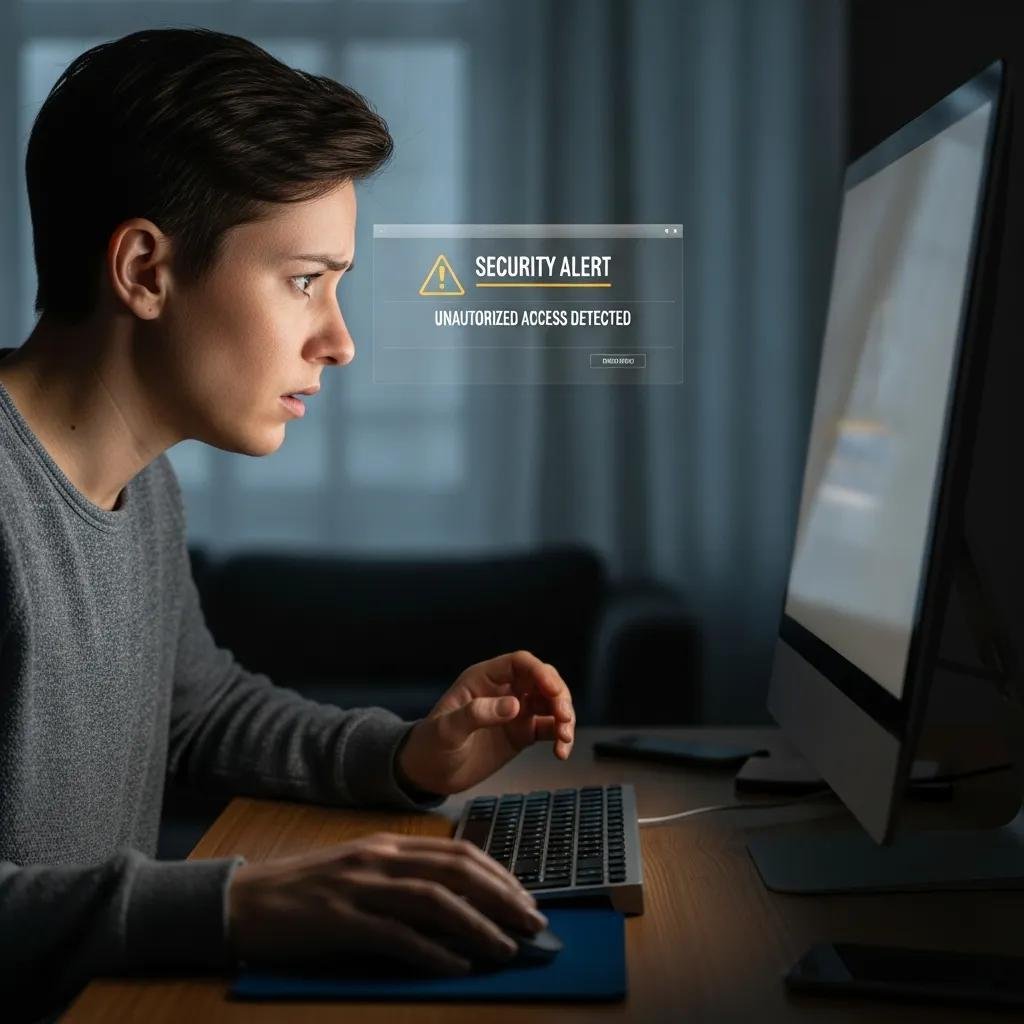
How to Remove Fake Antivirus Software & Scareware: Expert Scareware Removal Guide
Fake antivirus software and scareware are deceptive programs that pose as legitimate security tools to trick users into paying for fake cleanup or to install additional malware. This guide explains how fake security alerts operate, how to spot a rogue antivirus, and step-by-step scareware fixes you can perform on Windows and macOS. You will learn immediate safety actions, a manual removal workflow including Safe Mode and browser cleanup, and which trusted antivirus tools help automate rogue antivirus removal. The article also covers when to escalate to professional, remote tech support and what to expect from a remote remediation service. Throughout, keywords like fake security alert, rogue antivirus removal, remove scareware, and scareware fix are used to match real-world search intent and help you act quickly and safely.
What Is Fake Antivirus Software and Scareware?
Fake antivirus software (scareware) is malware that impersonates legitimate antivirus programs to coerce users into paying, installing more malware, or surrendering credentials. The mechanism uses alarming UI, fake scans, and pop-up threats to create urgency and social-engineer victims into acting, often via pop-up virus cleaner prompts or fake security alert banners. These rogue security software tactics aim to defraud users financially, steal data, or gain persistence on systems. Recognizing common symptoms quickly enables an effective scareware fix and reduces the chance of paying scammers or further infection.
How Do Fake Antivirus and Rogue Security Software Work?
Fake antivirus and rogue security software typically begin with an infection vector such as a drive-by download, malicious ad (malvertising), or a fake update prompt that executes a payload. Once installed, the malware spawns a fake alert UI and simulated scans while registering a malicious process and adding startup entries to survive reboots. The social-engineering component pressures users with phony scan results and payment screens that resemble legitimate vendors, which is how trojan antivirus scams commonly extract payments. Understanding these methods clarifies why isolating the machine and avoiding interaction with dialogs is the first defensive step toward removal.
What Are the Common Symptoms of Scareware Infection?
Scareware reveals itself through persistent pop-ups claiming infections, sudden redirects to alarming pages, and unexpected system slowdowns caused by malicious processes. You may also find unknown programs in Control Panel or Settings, browser extensions you didn’t install, or disabled system security features like real-time protection. These symptoms differ slightly by OS and browser: Windows users often see startup entries and Services changes, while Mac users may notice new browser profiles or helper tools. Spotting these indicators early helps prioritize actions like booting into Safe Mode and running trusted scans to remove scareware.
How Can You Manually Remove Fake Antivirus and Scareware?

Manual removal starts with containment: do not click pop-ups, disconnect nonessential network connections if payments or credential entry is requested, and avoid running unfamiliar installers. The recommended workflow is to boot into a safe environment, identify and stop malicious processes, uninstall suspicious applications, and reset browsers to remove hijackers and fake alert permissions. After these steps, run a full system scan with reliable antivirus tools and monitor the system for recurring persistence mechanisms such as scheduled tasks or startup entries. If the scareware alters system files or you can’t remove startup entries, professional remote remediation may be required.
The table below summarizes common manual remediation steps and quick actions to expect.
Different manual steps, their purpose, and concise actions to follow:
| Step / Tool | Purpose | Quick Action |
|---|---|---|
| Safe Mode boot | Prevent scareware processes from launching | Restart into Safe Mode then run removal steps |
| Task Manager / Activity Monitor | Identify running malicious processes | End suspicious processes before uninstalling |
| Control Panel / Applications | Remove installed rogue programs | Uninstall unknown apps and check install dates |
| Browser settings | Remove hijackers and fake alerts | Remove extensions, reset permissions, clear site data |
| System Restore / Backup | Recover a clean state if available | Restore to a pre-infection point after verifying backups |
These steps combine containment and cleanup to restore system integrity; if persistence remains, proceed to automated scanning tools or professional help.
How to Boot into Safe Mode for Malware Removal
Safe Mode prevents most third-party drivers and scareware components from starting, making it possible to uninstall malware and run cleanup tools safely. On Windows 10/11, use Settings → Recovery → Restart now (Advanced startup), choose Troubleshoot → Advanced options → Startup Settings → Restart, then select Safe Mode with Networking; older systems can use F8 at boot. On macOS, hold Shift during startup for Safe Boot or use recovery options for newer Apple silicon models to boot into a minimal environment. Operating in Safe Mode allows you to run Task Manager/Activity Monitor and trusted scanners without interference from the rogue antivirus UI.
What Are the Steps to Uninstall Rogue Programs and Clear Browser Data?
Begin by checking Control Panel (Windows) or Applications (macOS) for recently installed, unknown programs and uninstall them; then inspect startup entries and scheduled tasks for persistence. In browsers, remove suspicious extensions, revoke site notification permissions, and clear cookies and cached data to eliminate pop-up virus cleaner triggers and fake security alert scripts. After uninstalling, reboot normally and verify that the fake alerts no longer appear; if they persist, run an automated scan and repeat checks in Safe Mode. Persistent browser-based scareware may require a full browser reset or creating a new user profile to ensure the hijacker is removed.
Which Trusted Antivirus Tools Help Automate Scareware Removal?

Automated antivirus and anti-malware tools detect and remove many forms of scareware more reliably than manual steps alone, particularly when definitions are current and scans are run in full-system mode. Use a reputable scanner to update virus definitions, run a full scan, quarantine or remove detected items, and follow the vendor’s remediation guidance. If a tool offers a rescue environment or bootable scanner, that option can remove infections that run before the OS loads. Below are recommended products with brief rationales and a comparison table to guide selection.
Recommended tools and why they help:
- Bitdefender: Comprehensive detection and strong remediation engines for complex infections.
- AVG: Lightweight scanner with solid malware signature coverage and easy quarantine options.
- Norton: Broad protection suite that includes cleanup tools and customer support for remediation.
These vendor choices balance detection strength and usability for a scareware fix; if vendor tools cannot remove threats, consider professional remote support.
| Product | Scan type / Strengths | Use case |
|---|---|---|
| Bitdefender | Full-system and boot-time scans | Complex persistence and rootkit detection |
| AVG | Real-time and manual quick/full scans | Lightweight cleanup and quarantine |
| Norton | Comprehensive scans plus cleanup tools | User-friendly remediation and support |
This comparison helps you pick a scanner suited to your threat and system constraints; always update definitions before scanning.
What Antivirus Software Is Recommended for Malware Cleanup?
Choose tools that offer both on-demand scanning and boot-time rescue options, since scareware often uses persistence to evade standard scans. Bitdefender and Norton are strong for deep remediation, while AVG provides efficient on-demand scanning for quicker checks. Free vendor tools can be effective for initial cleanup, but paid or full-suite versions may include extra remediation utilities and rescue environments. After choosing a tool, update signatures, run a full scan, quarantine or remove detections, and then reboot to confirm the system is clean.
How to Run a Full System Scan to Detect Hidden Threats?
Before scanning, update the scanner’s malware signatures and disable nonessential network shares to prevent reinfection during cleanup. Initiate a full-system or boot-time scan and allow the tool to quarantine or remove detections; expect scans to take from 30 minutes to several hours depending on disk size and system speed. After remediation, reboot the system and run a secondary scan with a second reputable tool to confirm no residual threats remain. If automated scans repeatedly detect the same items or system files are altered, document findings and escalate to professional remote remediation.
When Should You Seek Professional Help for Scareware Removal?
If DIY containment, Safe Mode uninstalls, and trusted scanner cleanup do not stop pop-ups, redirects, or recurring malicious processes, it’s time to consider professional remote support. Escalation is also warranted when the scareware affects critical files, encrypts data, or the user must quickly secure financial or login credentials. Remote technicians can perform deeper diagnostics, use advanced remediation tools, and remove persistence that typical end-user tools miss. For users needing prompt remote assistance, mcHelper.com offers remote computer repair and tech support services that focus on Virus & Spyware Removal and Computer & Internet Security across Windows and Mac systems.
Key signs you should call a remote technician:
- Recurrent fake security alert pop-ups after manual removal attempts.
- Inability to remove startup entries, services, or scheduled tasks.
- Evidence of credential theft or unauthorized payments connected to the infection.
These criteria indicate that an infection has gained persistence or caused system integrity issues beyond routine scareware fixes, and specialist intervention can restore operational security.
What Are the Benefits of mcHelper.com's Remote Virus Removal Service?
mcHelper.com provides remote computer repair and tech support focused on virus and spyware removal for both Mac and Windows systems, enabling technicians to diagnose and remediate issues without an in-person visit. The service emphasizes 24/7 availability so users can access help at any time and benefits from remote convenience where technicians resolve issues remotely during a secure session. mcHelper.com also offers a ‘No Fix – No Fee’ guarantee, a clear trust signal for customers uncertain about pay-for-results arrangements. These service aspects reduce downtime and relieve users from complex manual removal steps that often fail against sophisticated scareware.
How Does the 'No Fix - No Fee' Guarantee Work?
The ‘No Fix – No Fee’ guarantee is presented as a trust signal indicating the provider stands behind its remediation service; specific terms, eligibility, and conditions should be confirmed directly with the provider before purchase. This guarantee can give users confidence to try remote remediation without upfront financial risk, especially when DIY steps have failed to eliminate rogue antivirus software. When considering any guarantee, document the problem, ask about scope and exclusions, and retain records of technician actions. If you decide to engage remote support, mcHelper.com’s stated guarantee and remote workflow are designed to make escalation predictable and low-risk for affected users.