How to Fix a Slow Windows PC: Expert Remote PC Optimization Service Guide
A slow Windows PC interrupts work and drains productivity, often because software, configuration, or malware interfere with normal operation. This guide explains why Windows 10 and Windows 11 systems slow down, how remote optimization addresses those causes, and practical steps you can take immediately to restore responsiveness. You will learn to identify common culprits such as startup programs, low disk space, outdated drivers, and malware, and follow a clear remote tune-up workflow: diagnose, remediate, verify, and maintain. The article maps those steps to concrete tools and checks—Task Manager, Disk Cleanup, antivirus scans, and driver updates—so you can triage issues or engage professional remote help when needed. Read on for step-by-step diagnostics, optimization techniques, and guidance on when remote professional support is the right choice for persistent or risky problems.
What Are the Common Causes of a Slow Windows PC?
A slow Windows PC is usually the result of resource contention, storage problems, outdated software, or malicious activity that consumes CPU, RAM, or I/O bandwidth. These mechanisms translate into symptoms like long boot times, sluggish app launches, and high disk use, and each has a targeted remediation path that can often be performed remotely. Understanding the root cause narrows remediation and prevents wasted effort; for example, low available disk space typically responds to cleanup, while malware requires focused scanning and removal. Below is a concise list of the top causes with brief explanations to help you spot the most likely problems fast.
Common causes to check first:
- Startup programs and background apps: Auto-launching apps increase boot time and consume RAM.
- Low disk space or fragmentation: Full drives degrade I/O performance, especially on HDDs.
- Outdated drivers or OS updates missing: Compatibility or efficiency bugs slow system processes.
- Malware or unwanted software: Hidden processes can use CPU, network, or disk resources.
- Insufficient RAM or CPU bottlenecks: Hardware limits become apparent under modern workloads.
These checks quickly separate configuration issues from hardware or security problems and lead into specific diagnostic steps.
Introduction to diagnostic mappings:
| Component | Symptom | Likely Fix |
|---|---|---|
| Startup programs | Slow boot, high idle RAM | Disable nonessential startup entries via Task Manager; uninstall if not needed |
| Disk space | Slow reads/writes, low free space | Run Disk Cleanup, remove large unused files, consider moving data to external/SSD |
| Malware processes | High unexpected CPU/network activity | Run full antivirus and dedicated malware removal tools; isolate system if needed |
This table highlights common diagnostic pairs to guide either a DIY check or an informed remote session, and the next section explains how startup programs specifically affect speed.
How Do Startup Programs and Background Apps Affect PC Speed?
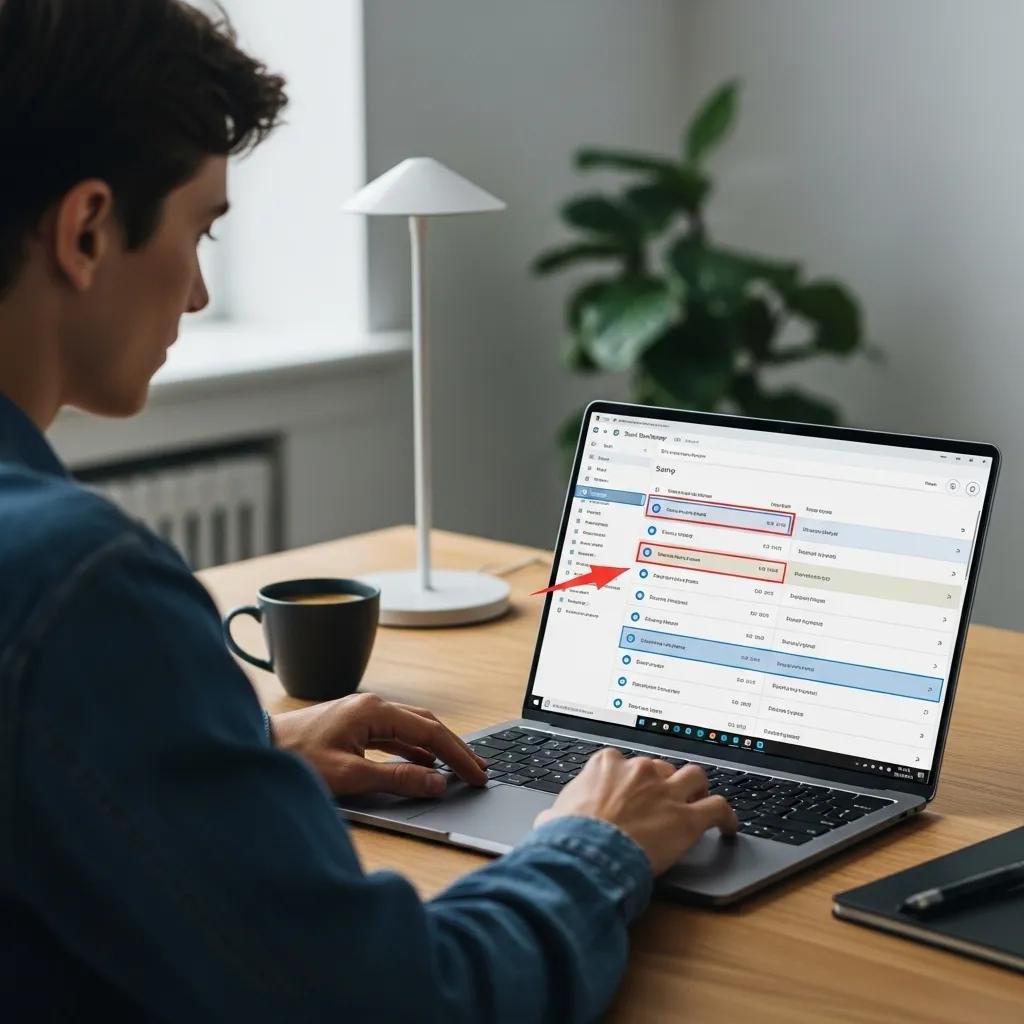
Startup programs and background services automatically load with Windows and immediately consume CPU cycles and RAM, which increases boot time and reduces available memory for foreground tasks. You can inspect and manage these entries using Task Manager’s Startup tab, which shows an “impact” rating that helps prioritize what to disable safely. Disabling unneeded cloud sync clients, messaging apps, or updaters typically yields noticeable improvements in boot time and responsiveness, while uninstalling seldom-used programs frees space and reduces background I/O. Always leave essential security and driver-related services enabled; learn to distinguish safe items from optional helpers to avoid disabling critical components.
Task Manager inspection leads naturally into checking for malicious processes, which is the next diagnostic priority.
Can Malware and Viruses Cause Windows Performance Issues?
Malware often degrades performance by running background tasks, using network and disk resources, or installing cryptominers that saturate CPU cores, and these behaviors directly manifest as high CPU, unexplained network traffic, or constant disk activity. A quick triage begins with a full antivirus scan, then a specialized anti-malware scan in safe mode for stubborn infections; signs like sudden ads, browser redirects, or unknown processes are red flags. If detection tools find threats, quarantine and removal steps follow, and complex infections may require professional remote malware removal to ensure persistence mechanisms and registry changes are fully addressed. Proper malware handling restores performance and prevents re-infection, which is critical before pursuing other optimization steps.
How Can Remote PC Optimization Speed Up Windows 10 and 11?
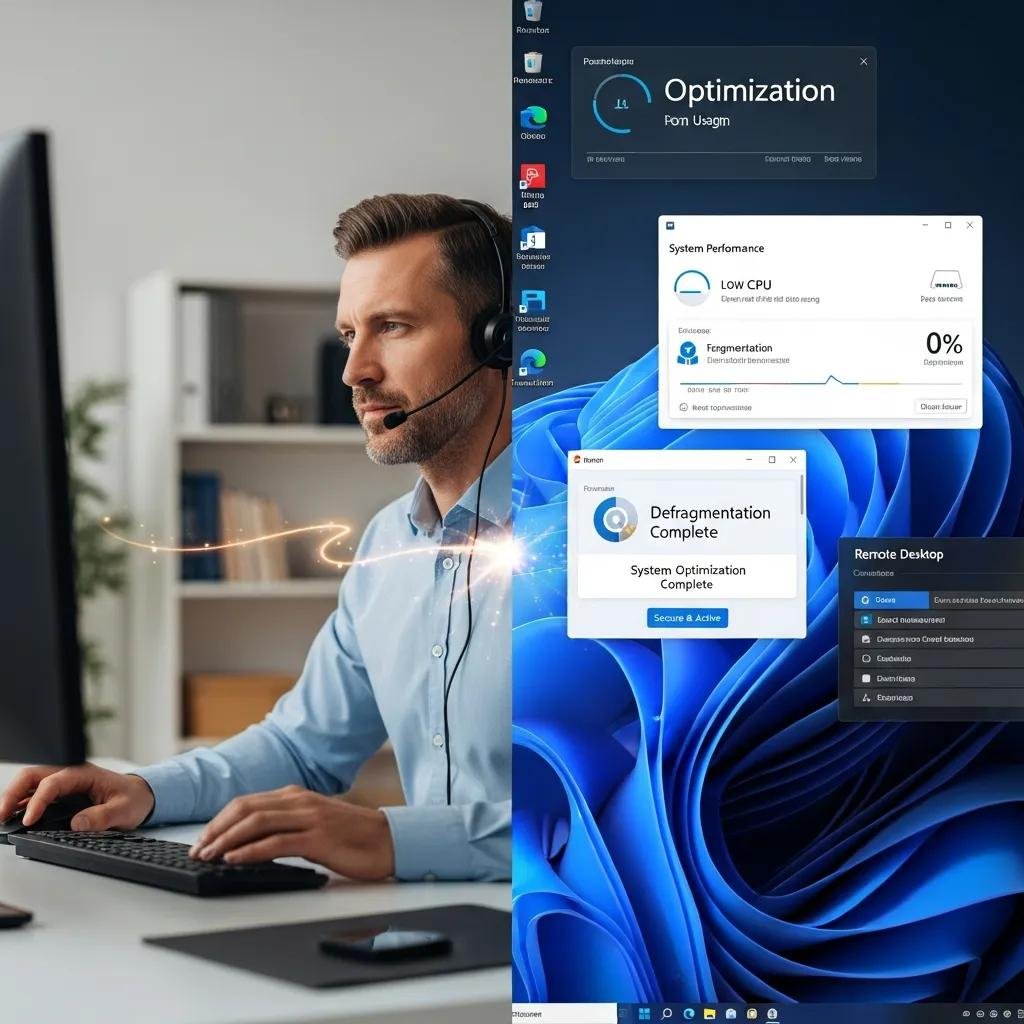
Remote PC optimization speeds up Windows 10 and 11 by combining automated diagnostics, targeted cleanup, and secure remediation that change system state without requiring in-person service. Remote tools collect performance metrics, identify high-impact startup items, clear temporary files, update drivers, and run malware scans, producing measurable improvements in boot and application response times. For Windows 11, additional tuning of visual effects and background app permissions can reduce CPU and GPU overhead, while Windows 10 benefits from disk cleanup and disabling legacy services that no longer contribute to performance. The net result is faster boot, snappier apps, and more stable operation achieved through a coordinated remote workflow that verifies changes and documents improvements.
Advantages of remote work introduce practical benefits:
- Convenience and speed: technicians can begin diagnostics immediately without travel delays.
- Access to specialists and advanced tools: remote agents use proprietary utilities to accelerate resolution.
- Reduced risk: secure, consent-based sessions allow you to watch changes in real time.
A brief note on secure service options: mcHelper.com offers 24/7 remote diagnosis and a “Speed-Up and Optimize your Computer” service, operating under a “no fix – no fee” policy and providing an annual subscription option for ongoing support at $199.99; these service elements are available as pragmatic choices after you evaluate the technical needs identified above.
What Are the Advantages of Remote Computer Repair Services?
Remote computer repair eliminates travel time and gets expert diagnostics started immediately, often resolving straightforward issues in a single session. Remote technicians use centralized tools to gather logs, run scripts, and apply fixes under user consent, shortening mean time to resolution compared with scheduling in-person visits. This approach also provides access to specialists who maintain up-to-date procedures and proprietary software that speeds detection and remediation while maintaining session encryption and user oversight. Faster turnaround and continuous availability make remote repair especially valuable for business users or anyone who needs minimal downtime.
These advantages set expectations for the standard remote tune-up workflow discussed next.
How Does mcHelper.com Ensure Secure and Effective Remote Optimization?
mcHelper.com emphasizes secure remote sessions that require user consent, use encrypted connections, and allow the user to view and terminate sessions at any time, ensuring transparency during optimization. Technicians deploy proprietary diagnostic agents to collect performance metrics securely and apply vetted remediation steps such as cleanup, driver updates, and targeted malware removal; the proprietary tools help streamline repetitive tasks and improve diagnostic accuracy. The service model includes a “no fix – no fee” guarantee for qualifying issues and an optional annual subscription for unlimited remote support at $199.99, providing a practical safeguard and predictable cost for users who prefer professional assistance. These guarantees and tools combine to reduce risk and speed recovery for complex performance problems.
What Are the Key Steps in a Remote Windows PC Performance Tune-Up?
A remote Windows tune-up follows a repeatable sequence: initial diagnostics to identify root causes, targeted remediation to address those causes, verification to confirm improvement, and maintenance recommendations to prevent recurrence. This structured process ensures technicians do not chase symptoms and delivers measurable outcomes like reduced boot time and lower baseline CPU usage. Remote sessions typically start with permissioned data collection, proceed with prioritized fixes (cleanup, driver updates, malware removal), and end with a report and recommended follow-up tasks or upgrades if hardware limits persist. Understanding the stepwise approach helps you follow along during a remote session and recognize when escalation to professional tools is warranted.
Steps to expect during a remote tune-up:
- Diagnose: Gather CPU/RAM/disk/process data and identify high-impact issues.
- Remediate: Execute cleanup, disable or remove startup programs, update drivers, and remove malware.
- Verify: Re-run diagnostics to confirm improvements and benchmark boot/app times.
- Maintain: Apply scheduled maintenance tasks and suggest hardware upgrades if needed.
Below is an example metrics table technicians use to show before-and-after results.
| Metric | Description | Target / After |
|---|---|---|
| Boot time | Time from power on to sign-in readiness | Reduced by 30–60% for typical cleanup |
| Memory pressure | Percent of RAM used under normal load | Lowered to stable operating range (<70%) |
| Disk I/O wait | Time waiting for disk operations | Improved by freeing space or using TRIM/defrag |
This metrics table clarifies expected outcomes and demonstrates how verification quantifies success before concluding the session.
How Is Diagnostic Scanning Used to Identify Performance Issues?
Diagnostic scanning collects telemetry like CPU spikes, memory leaks, disk queue lengths, and process lists to pinpoint systemic bottlenecks rather than guessing at fixes. Key indicators include sustained high disk usage (often caused by background indexing or faulty drivers), processes consuming unexpected CPU, and memory pressure that causes paging; each signature maps to a remediation strategy. Remote diagnostic tools report these metrics back to the technician who interprets them within the context of installed applications and user workflows, enabling targeted fixes that minimize disruption. Proper interpretation prevents unnecessary changes and leads directly to precise actions such as disabling a misbehaving service or updating a problematic driver.
Diagnostic clarity naturally leads to concrete optimization techniques for startup and disk performance.
Which Optimization Techniques Improve Startup and Disk Performance?
Improving startup and disk performance combines disabling nonessential startup entries, clearing temporary files, and applying storage-specific actions like defragmentation for HDDs or TRIM for SSDs. For HDDs, defragmentation consolidates files to reduce seek time, while SSDs benefit from TRIM and avoiding unnecessary defrag operations; enabling Storage Sense or scheduled cleanup routines prevents space from filling. Practical UI paths include Task Manager for startup management, Settings → Storage for cleanup, and Windows Update or manufacturer tools for driver updates. After these techniques are applied, verification through boot-time and disk I/O metrics confirms the effectiveness and informs any further hardware recommendations.
When Should You Choose Professional Remote PC Optimization Over DIY Fixes?
Choose professional remote optimization when symptoms are severe, recurring, or suggest malware or data risk that you cannot safely remediate yourself. Professionals provide advanced diagnostics, secure malware removal procedures, and access to proprietary tools that can resolve persistence issues and driver conflicts faster than most DIY attempts. If you lack time, confidence, or see signs like repeated crashes, encryption warnings, or failing disk SMART values, remote professionals reduce trial-and-error and protect your data. For readers deciding between DIY and professional options, the table below helps triage common issues and clarifies when escalation is beneficial.
| Issue | DIY Feasibility | Professional Advantage |
|---|---|---|
| Simple disk cleanup | High | Professional can automate and verify freespace safely |
| Persistent malware | Low | Advanced removal and registry cleanup with guarantees |
| Hardware bottleneck | Medium | Accurate diagnostics and upgrade guidance remotely |
| Data recovery need | Low | Remote experts minimize further data loss risk |
This triage table helps you choose efficiently and prepares you for the next section on DIY methods.
What Are Simple DIY Methods to Speed Up Your Windows PC?
You can try several safe DIY steps before seeking help: run Disk Cleanup, uninstall unused apps, disable nonessential startup programs via Task Manager, apply Windows Update, and run a full antivirus scan. Each step targets a known cause—cleanup frees space, uninstalling reduces background services, and updates fix driver or OS-related inefficiencies—and together they often restore usable performance without external tools. Avoid risky actions like registry editing unless you fully understand the changes, and always back up important data before major operations. If these steps yield limited improvement, professional remote support may be the next practical choice.
These simple methods naturally contrast with the broader capabilities of professional support discussed next.
How Does Professional Remote Support Provide Comprehensive Solutions?
Professional remote support combines diagnostics, remediation, follow-up verification, and preventive maintenance into a single coordinated workflow that reduces repeat visits and improves reliability. Technicians use advanced tools to identify root causes, apply precise fixes, and produce a verification report, and they can recommend hardware upgrades or ongoing maintenance plans when appropriate. For users who prefer predictable costs and ongoing coverage, mcHelper.com offers an annual subscription at $199.99 for unlimited remote support and stands by a “no fix – no fee” policy for qualifying cases, making professional escalation a pragmatic option for recurring or complex issues. This professional approach ensures sustained performance and reduces the likelihood of future slowdowns.