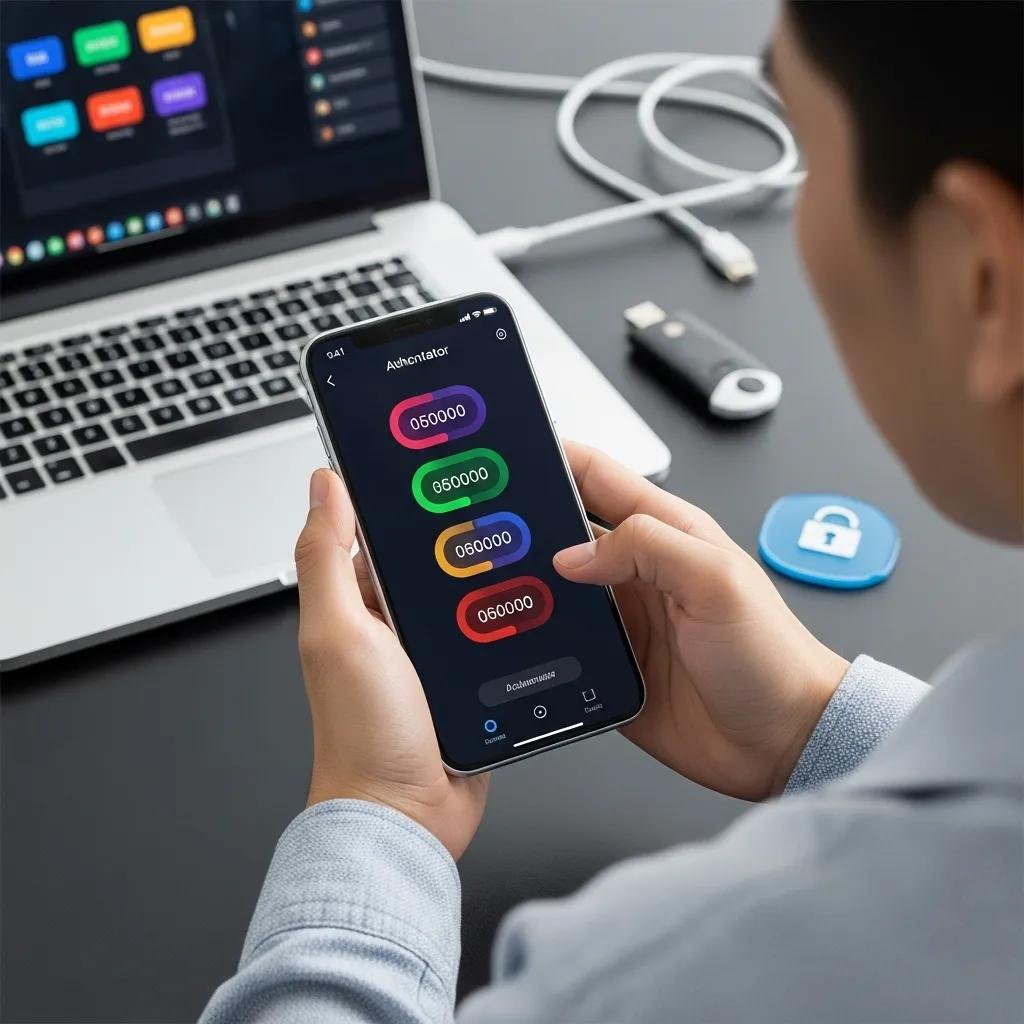
Multi-Factor Authentication Guide: How to Use MFA for Enhanced Security
Multi-factor authentication (MFA) adds extra verification steps beyond a password to strengthen access controls and reduce account compromise. This guide explains what MFA is, how it works, and why adding possession or inherence factors dramatically lowers the risk of unauthorized access for secure online accounts. You will learn a concise definition, a practical 3–5 step setup framework for common platforms, recommended authenticator apps and hardware tokens, and focused troubleshooting for setup and recovery. The article covers differences between two-factor authentication (2FA) and broader MFA approaches, plus the security benefits—especially phishing-resistant options like hardware-backed keys and passkeys. Each section includes clear examples, short how-to steps, lists of best practices, and comparison tables so you can choose and deploy MFA confidently for personal or small business needs. Throughout, related terms such as authenticator apps, hardware tokens, OTPs, and biometric MFA are used to clarify options and guide implementation.
What Is Multi-Factor Authentication and Why Is It Essential?
Multi-factor authentication (MFA) is an identity and access management approach that requires two or more independent authentication factors—knowledge, possession, or inherence—to verify a user’s identity and prevent unauthorized logins. MFA works by requiring an attacker to compromise multiple factors (for example, both a password and a physical token), which raises the difficulty and cost of account takeover and reduces successful credential-stuffing attacks. Enabling MFA significantly lowers the chance of breaches caused by password reuse or phishing, providing measurable protection for online account verification and sensitive services.
The following bullets summarize why MFA matters now.
- Strongly reduces account takeover risk by requiring more than a stolen password.
- Mitigates credential-stuffing and automated attacks against reused passwords.
- Enables layered security for high-value accounts like email, banking, and admin consoles.
This foundation leads directly into how MFA accomplishes these protections in practice.
How Does MFA Strengthen Online Account Security?
MFA strengthens online account security by creating sequential verification steps that an attacker must bypass after obtaining credentials, effectively reducing the attack surface and stopping many automated and human-led intrusions. When a user logs in with a password (knowledge factor) and then proves possession of a registered device or token, attackers who hold only the password are blocked from access, which prevents lateral movement and reduces breach impact. Recent security guidance shows organizations adopting MFA see a dramatic drop in account compromises when compared to password-only defenses. Understanding common factor types helps select the right combination of usability and protection for each account.
What Are the Three Authentication Factors in MFA?
Authentication factors fall into three meronomic categories: knowledge (something you know), possession (something you have), and inherence (something you are). Knowledge examples include passwords or PINs, which are simple but vulnerable to phishing and reuse; possession examples include authenticator apps or hardware tokens that generate OTPs or perform cryptographic challenges, offering stronger resistance; inherence examples include biometric traits like fingerprint or facial recognition, which add convenience but require privacy and false-match considerations. Choosing a mix of these factors—preferably possession plus inherence or cryptographic tokens—creates a robust, layered defense for online account verification.
How to Enable MFA: Step-by-Step Setup for Popular Accounts
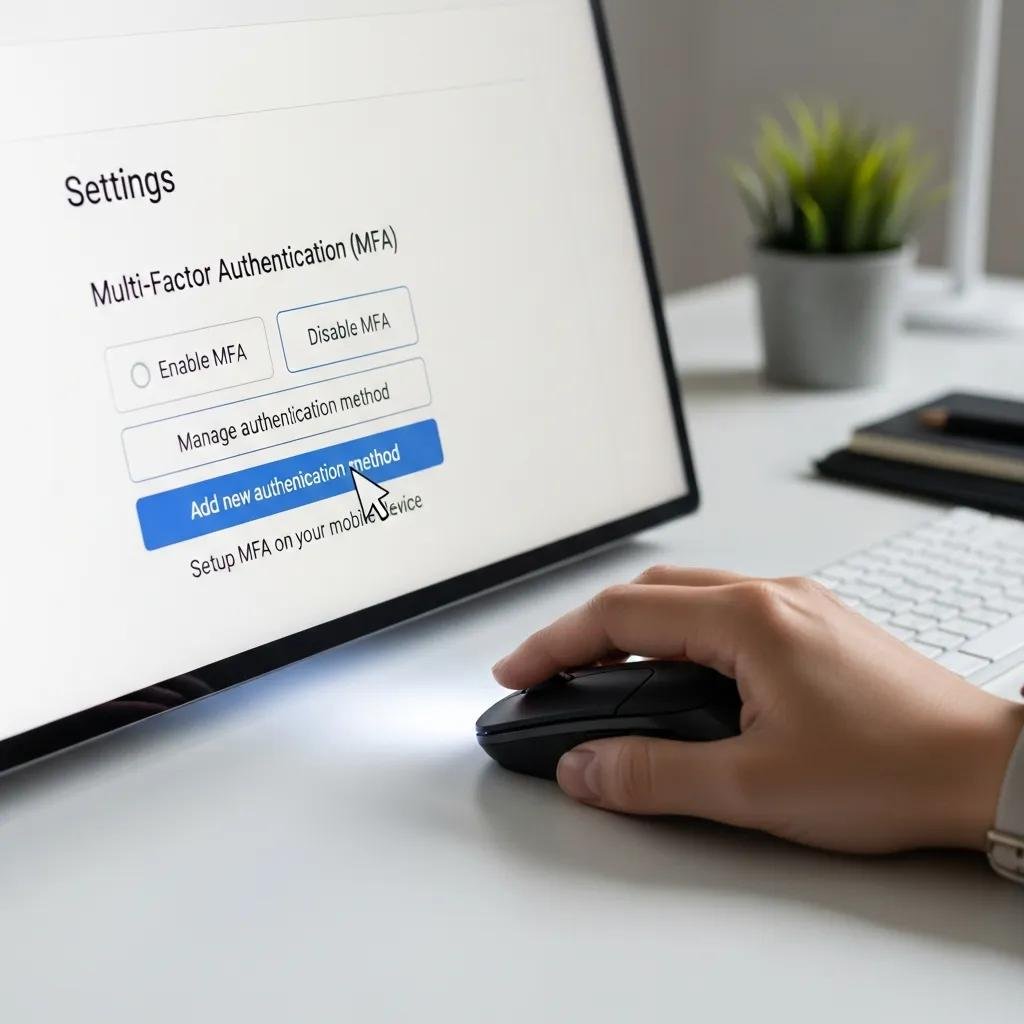
Enabling MFA follows a consistent pattern across most providers: prepare account recovery, register a primary second factor, and confirm backups. The generic setup sequence below maps to major platforms and helps you prepare for common provider screens while minimizing lockout risks. Follow the steps and then review the platform-specific notes that follow to adapt to Google, Microsoft, Apple, social platforms, and banking services.
- Prepare recovery: record backup codes and confirm account recovery email or phone are up to date.
- Register a primary second factor: install and link an authenticator app or enroll a hardware token under account security settings.
- Verify and test: sign out and sign back in to confirm the new factor works and that OTPs or push approvals succeed.
- Add redundancy: enable a secondary device or save backup codes in a secure password manager.
These steps apply broadly; platform-specific variations are often limited to where the “Security” or “Two-step verification” links appear in account settings, and whether the provider supports passkeys or hardware-backed FIDO2 tokens. If setup becomes confusing or recovery steps are required after a lost device, consider seeking remote technical help to complete enrollment and verify recovery options.
For users who prefer guided assistance, mcHelper.com provides remote computer repair and tech support for Mac and Windows and can assist with MFA setup, account recovery, and internet security configuration. Their remote support focuses on practical troubleshooting and secure device configuration while preserving user privacy and access continuity. If you encounter complex recovery flows or prefer a technician to validate device registration, a remote session with experienced support can save time and reduce the risk of being locked out. After setup, the next section compares available authenticator apps and hardware tokens to help you choose the right tool.
Which Are the Best MFA Apps and Hardware Tokens to Use?
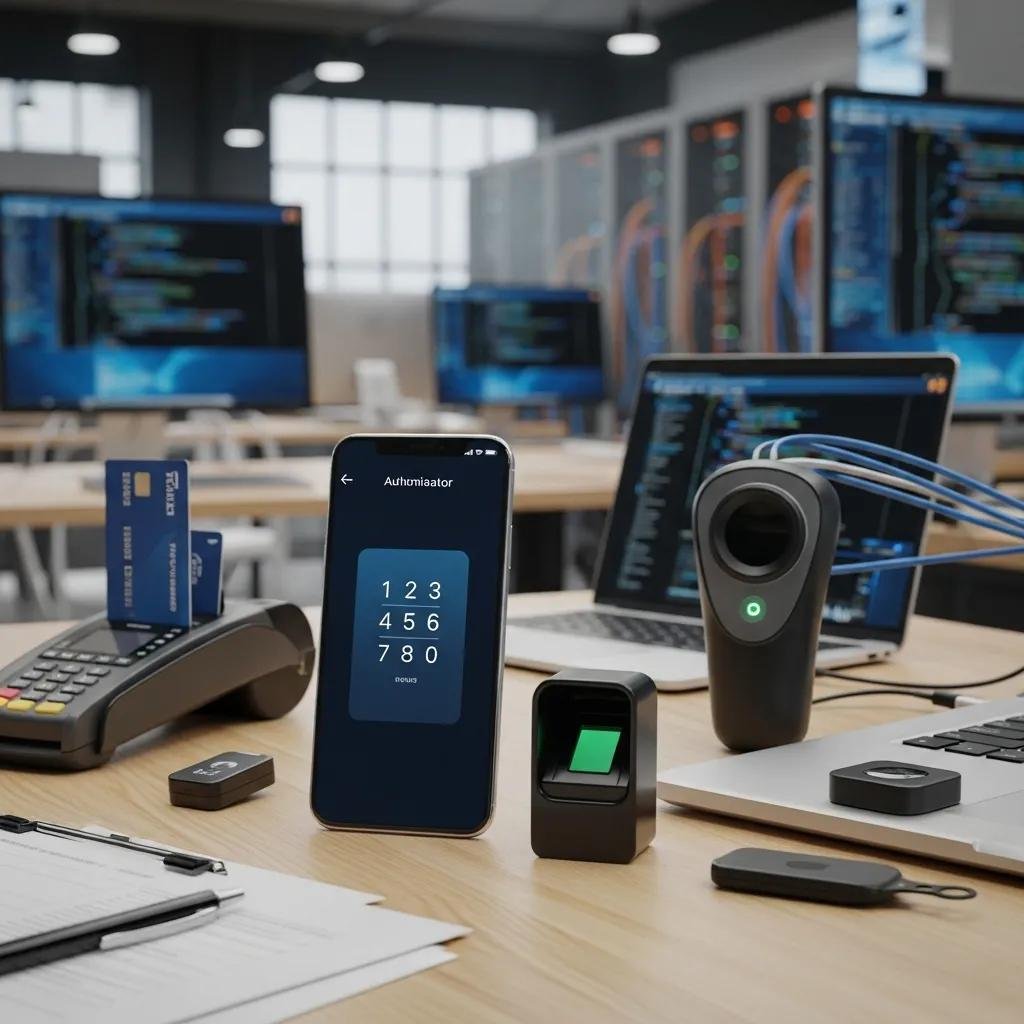
Choosing an MFA method depends on your threat model and convenience needs: authenticator apps are convenient and widely supported, hardware tokens offer the strongest phishing resistance, and passkeys or biometric-backed approaches provide seamless logins on compatible devices. For most users, an authenticator app paired with backup codes balances usability and security; for administrators and high-value accounts, a hardware token provides added protection against AiTM and SIM-jacking attacks. The list below shows recommended categories and when to pick them.
- Authenticator apps: convenient OTP generation and device-based push approvals for everyday use.
- Hardware tokens: phishing-resistant cryptographic devices best for high-value or admin accounts.
- Passkeys/biometric MFA: seamless and phishing-resistant on supported devices for user-friendly security.
Authenticator apps and tokens differ in portability, phishing resistance, and recovery complexity; the table below compares common options to clarify trade-offs.
Authenticator tools comparison:
| Tool | Type | Pros/Cons |
|---|---|---|
| Authenticator app | Software (OTP/push) | Pros: easy setup and broad support. Cons: susceptible to device compromise if not secured. |
| Hardware token | USB/NFC (FIDO2) | Pros: excellent phishing resistance. Cons: requires physical possession and safe storage. |
| Passkeys / Biometric MFA | Platform-backed | Pros: user-friendly and phishing-resistant. Cons: device-dependent and requires platform support. |
This comparison helps pair account value with the appropriate MFA method and prepares you for setup and recovery procedures detailed next.
What Are Common Issues When Setting Up MFA and How to Troubleshoot Them?
Common setup issues include time-sync errors with OTP apps, lost or replaced devices, and misconfigured recovery contacts that block account recovery. To fix time-sync mismatches, open the authenticator app’s time correction option or rescan the QR code after ensuring device clock accuracy. For lost devices, use previously saved backup codes or the provider’s recovery process and register a new possession factor as soon as possible to prevent lockout. If troubleshooting becomes technical—such as recovering a collapsed MFA enrollment or handling device sync errors—mcHelper.com’s remote support can assist with authenticator-app resynchronization, recovery-code use, and secure re-enrollment without exposing credentials.
What Are the Security Benefits of Using MFA?
MFA materially reduces successful account takeovers by adding layered verification that attackers must defeat beyond stolen passwords, cutting the probability of compromise and limiting breach scope. Implementing MFA mitigates common threats like credential stuffing, brute-force attacks, and many phishing campaigns, which often rely on password-only access. For high-risk scenarios, adopting phishing-resistant second factors such as hardware tokens or passkeys prevents AiTM and SIM-jacking bypasses, preserving account integrity for critical systems.
The bullets below outline key benefits in concise form.
- Reduces account takeover incidents by requiring multiple independent factors for verification.
- Limits impact of password reuse across services and defends against credential-stuffing attacks.
- Enhances phishing resistance and prevents many modern attacker workflows that rely on single-factor compromise.
To make these trade-offs explicit across methods, the table below compares common MFA approaches by resistance to phishing and typical use cases.
MFA methods comparison:
| Method | Resistance to Phishing | Typical Use Case |
|---|---|---|
| Authenticator app (OTP/push) | Medium | Personal email, social accounts, general services |
| SMS codes | Low | Legacy support where stronger options unavailable (avoid if possible) |
| Hardware tokens (FIDO2/YubiKey) | High | Admin consoles, financial accounts, enterprise access |
This comparison clarifies why organizations and security-conscious users prefer hardware-backed or passkey approaches for high-value resources. For practical implementation and broader internet security hardening, mcHelper.com’s Computer and Internet Security capabilities can support secure configuration and remote troubleshooting.
How Does MFA Prevent Unauthorized Access and Data Breaches?
MFA prevents unauthorized access by ensuring possession or inherence verification is required after a password is entered, so attackers with only credentials cannot complete authentication flows. This multi-layer verification stops credential-stuffing attempts that exploit reused passwords and reduces the effectiveness of automated brute-force tools. Additionally, when MFA uses asymmetric cryptography (hardware tokens or FIDO2), even intercepted tokens or one-time codes cannot be replayed across sessions, limiting lateral movement and data exfiltration following a partial compromise. The next subsection explains why phishing-resistant options are increasingly important for modern threat models.
Why Is Phishing-Resistant MFA Important for Enhanced Protection?
Phishing-resistant MFA, including hardware-backed keys and passkeys, blocks advanced bypass techniques like man-in-the-middle and AiTM attacks that steal session-level credentials or intercept SMS codes. Attacks such as SIM-jacking exploit possession factors tied to phone numbers, and SMS-based MFA is increasingly seen as insufficient for sensitive accounts. In contrast, FIDO2 and hardware tokens perform cryptographic challenges bound to the legitimate origin, so fraudulent authentication pages cannot replay or proxy the required proofs. For critical accounts—financial, administrative, or high-access enterprise systems—prioritizing phishing-resistant MFA minimizes the attack surface and preserves long-term account integrity.
| Authentication Method | Attribute | Value |
|---|---|---|
| Authenticator App | Resistance | Medium (vulnerable to device compromise) |
| SMS Code | Resistance | Low (susceptible to SIM-jacking and interception) |
| Hardware Token / FIDO2 | Resistance | High (cryptographic origin-bound authentication) |
This table highlights why selecting the right factor matters for protection against modern bypass techniques.
What Is the Difference Between 2FA and MFA?
Two-factor authentication (2FA) is a specific subset of multi-factor authentication that requires exactly two different factor types, whereas MFA refers to any system that requires two or more independent factors to verify identity. 2FA often appears as password plus a single additional factor like SMS or an authenticator app; MFA can extend that model by adding biometrics, multiple possession factors, or adaptive authentication signals. Choosing 2FA versus stronger MFA depends on account value, threat model, and usability trade-offs.
| Approach | Number of Factors | Typical Methods |
|---|---|---|
| 2FA | Two | Password + SMS or Password + Authenticator App |
| MFA | Two or more | Password + Hardware Token + Biometric or Adaptive Signals |
| Recommendation | Use-case | 2FA for low-risk, MFA (phishing-resistant) for high-value accounts |
When deciding which to adopt, consider whether account compromise would cause financial loss, data exposure, or privilege escalation; higher risk justifies stronger, phishing-resistant MFA.
How Does Two-Factor Authentication Compare to Multi-Factor Authentication?
2FA is functionally a form of MFA confined to two factors, commonly pairing knowledge (password) with possession (SMS or app) to boost security quickly and widely. MFA extends this by allowing additional or alternative factors—such as biometrics or hardware tokens—that increase resilience against sophisticated attacks and support adaptive authentication workflows. For many users, starting with 2FA is a significant improvement over passwords alone, but organizations managing sensitive data should move toward MFA models that include phishing-resistant or biometric elements for greater assurance.
When Should You Choose MFA Over 2FA for Your Security Needs?
Choose broader MFA—especially phishing-resistant factors—when accounts protect financial assets, administrative controls, or sensitive customer data, or when regulatory requirements demand stronger authentication. For routine consumer accounts, 2FA with an authenticator app often provides a solid balance between usability and protection, but migrating high-risk roles and privileged users to hardware-backed MFA reduces attack vectors substantially. Consider recovery and usability: ensure backup codes and secure recovery paths are in place so stronger MFA does not inadvertently create lockout scenarios.