How to Manage Startup Programs to Speed Up Your Mac or Windows PC
Startup programs are applications and background processes that launch automatically when your computer boots or you sign in, and managing them directly reduces boot time and improves responsiveness. This guide shows how startup items affect boot behavior, how to disable or tune them on Windows and macOS, and when remote expert help makes sense for persistent issues. You will learn how to use the Task Manager startup tab, Settings > Apps > Startup, macOS Login Items (System Settings > General > Login Items), and Activity Monitor to identify resource-hungry processes and safely remove or hide nonessential apps. The article covers practical, step-by-step instructions for Windows 11/10 and macOS Ventura/Sonoma, plus safety checklists and comparison tables to guide decisions. Follow these platform-specific actions to manage background processes, speed up boot time, and improve overall system performance.
What Are Startup Programs and How Do They Affect Your Computer's Boot Time?
Startup programs are software entries and services configured to run automatically when your system starts or when a user signs in; they affect boot time by consuming CPU, RAM, disk I/O, and network resources during the critical startup window. When many programs initialize at once, the operating system must schedule CPU time and read/write data from storage, which slows the time to desktop and initial responsiveness. Identifying and managing these startup entries is a core part of system optimization and Windows startup optimization or macOS login items tuning. Below is a concise reference table showing common startup item types, typical resource impact, and recommended actions to improve boot performance.
Different startup item types have predictable impacts and straightforward recommended actions:
| Startup Item Type | Typical Resource Impact | Recommended Action |
|---|---|---|
| Updaters (app auto-updates) | Moderate CPU spikes, periodic disk I/O | Disable at startup; run manually or schedule updates |
| Cloud sync clients (file sync) | High disk I/O and network use at login | Delay startup or sign in after boot; disable auto-start |
| Messaging & helper apps | Constant background RAM usage | Disable or set to open on demand |
| Drivers/services (hardware) | Low CPU but required for devices | Leave enabled; investigate only if problematic |
This table clarifies which categories usually cause the worst slowdowns and which are safe to postpone. Understanding these categories makes it easier to decide which background processes to disable and how that choice will improve boot time.
Why Do Startup Programs Slow Down Mac and Windows PCs?
Startup programs slow systems by creating simultaneous demands for processing, memory, and disk access during the boot sequence, which forces the OS to queue operations and delays user-ready time. Many startup tasks run before the UI finishes loading, creating a bottleneck like people crowding a doorway; synchronous tasks (those that must finish before login continues) amplify delays compared with asynchronous background tasks. On HDD systems, disk thrashing from many startup reads/writes is especially damaging, while SSDs reduce but do not eliminate contention because CPU and RAM still matter. Recognizing synchronous vs asynchronous startup items helps you prioritize what to disable first to improve boot performance.
Which Background Apps Commonly Run at Startup on Mac and Windows?
Common startup categories include updaters, cloud sync tools, messaging apps, accessory helpers (printer, graphics control), and antivirus or driver services; each has a different impact and necessity level. The quick rule-of-thumb is to disable nonessential utilities (messengers, auto-updaters, helper apps) and leave security and hardware drivers enabled. The list below shows common examples and a short recommended action for each category to help you decide what to disable or investigate.
Common startup categories to review:
- Updaters (e.g., app auto-update services): schedule updates rather than auto-start.
- Cloud sync clients (file sync / backup): delay until after login or disable auto-start.
- Messaging & conferencing apps: start on demand unless critical for instant notifications.
- Device helpers and drivers: generally keep enabled; investigate only if errors occur.
These simple categories and rules help you manage background processes safely and improve boot speed with minimal risk.
How Can You Disable or Manage Startup Programs on Windows PCs?
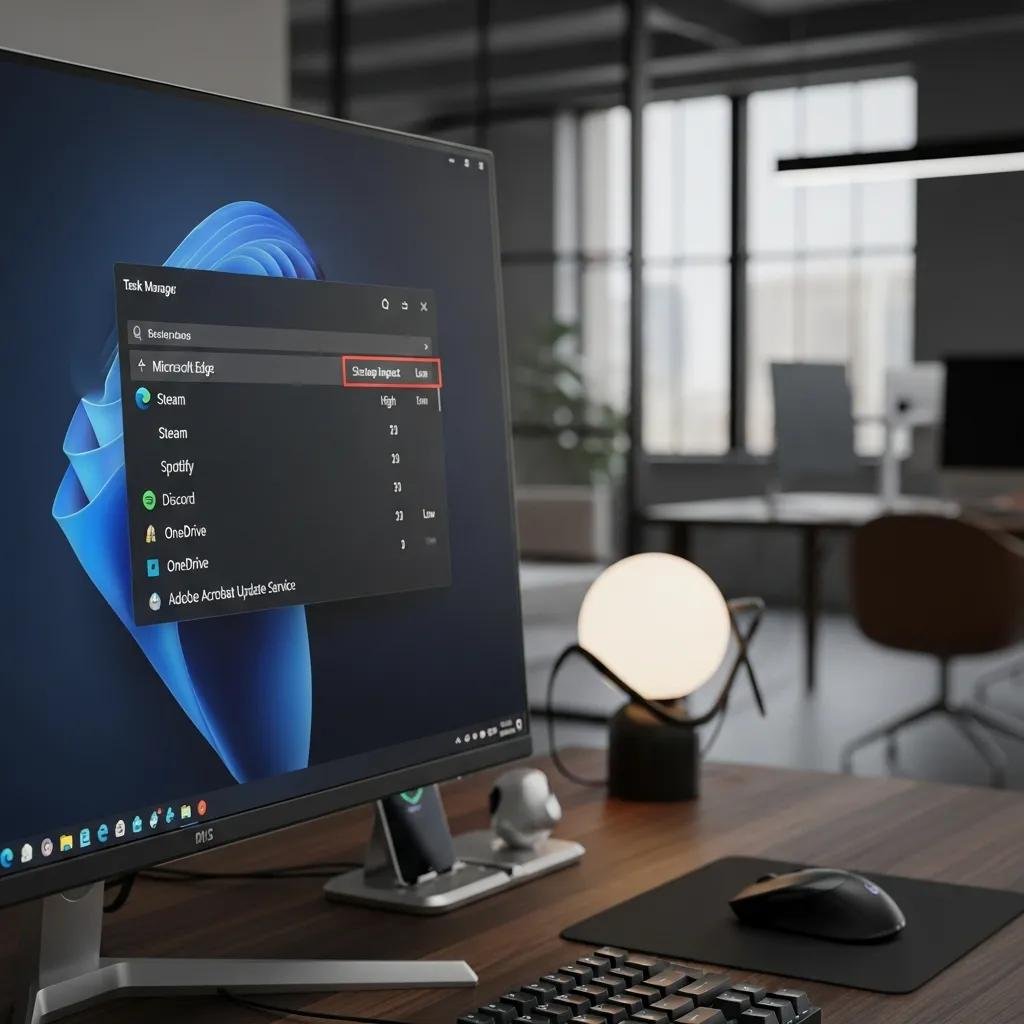
Managing startup programs on Windows centers on the Task Manager startup tab, Settings > Apps > Startup, and MSConfig for advanced configuration; each method offers different visibility and control. Task Manager provides quick enable/disable toggles and a “Startup impact” column that helps prioritize items, while Settings > Apps lists toggles alongside per-app startup behavior. MSConfig (System Configuration) is useful for deeper troubleshooting but should be used cautiously. The numbered steps below show a featured-snippet-friendly method to disable startup programs in Windows 11 and 10, followed by a compact comparison table outlining the methods and when to use them.
Follow these steps to disable startup programs in Windows 11 or 10:
- Press Ctrl+Shift+Esc to open Task Manager and click the Startup tab.
- Sort by “Startup impact” to see which apps affect boot time most.
- Select a nonessential app and click Disable to prevent it from starting automatically.
- Use Settings > Apps > Startup to review toggles and adjust per app preferences.
- Reboot and observe boot time; re-enable items if a program is required.
This concise workflow uses Task Manager for fast wins and Settings for per-app control; MSConfig is reserved for advanced or legacy troubleshooting.
Intro to comparison table for Windows methods:
| Method | Access | Safe-to-Disable Guidance | OS Coverage |
|---|---|---|---|
| Task Manager startup tab | Ctrl+Shift+Esc → Startup | Good for nonessential apps and quick toggles | Windows 10/11 |
| Settings > Apps > Startup | Start → Settings → Apps → Startup | Use for modern UWP and desktop apps | Windows 11/10 |
| MSConfig (System Configuration) | Run msconfig | Advanced users only; safe with caution | Legacy and advanced troubleshooting |
This table helps you pick the right tool for Windows startup optimization depending on visibility and risk. Use Task Manager for most cases and MSConfig only when necessary.
How to Use Task Manager to Disable Startup Programs in Windows 11 and 10
Task Manager is the fastest way to manage startup programs and interpret startup impact metrics to speed up boot time and improve early responsiveness. Open Task Manager with Ctrl+Shift+Esc, switch to the Startup tab, and review columns like Name, Publisher, Status, and Startup impact to identify candidates to disable. Right-click an item and choose Disable, then restart to test whether boot time and initial performance improve; remember you can re-enable items if they are needed. If a program re-enables itself, check its preferences or an associated service for persistent auto-start settings.
After disabling a few nonessential entries, reboot and confirm improvements; this trial-and-observe approach is low risk and often yields the best balance between functionality and speed. If disabling causes a necessary app to fail, re-enable it and consider delaying startup instead of removal.
What Are Safe Startup Programs to Disable on Windows?
Safe-to-disable startup programs typically include nonessential third-party utilities such as messaging apps, cloud sync clients, and auto-updaters that don’t provide critical security or hardware functionality. Never disable antivirus, essential driver services, or core OS processes; those are necessary for system stability and protection. Before disabling anything, create a restore point, note the exact program name, and test by restarting — these precautions let you reverse changes quickly if needed.
Common safe-to-disable examples:
- Messaging and chat clients that are not required at login.
- Cloud storage/sync clients if you can manually start them.
- Auto-updaters for apps where scheduled updates suffice.
A short safety checklist: create a restore point, document disabled entries, reboot to test, and re-enable any item that causes functionality loss.
How Can You Manage Login Items and Background Apps on Your Mac?
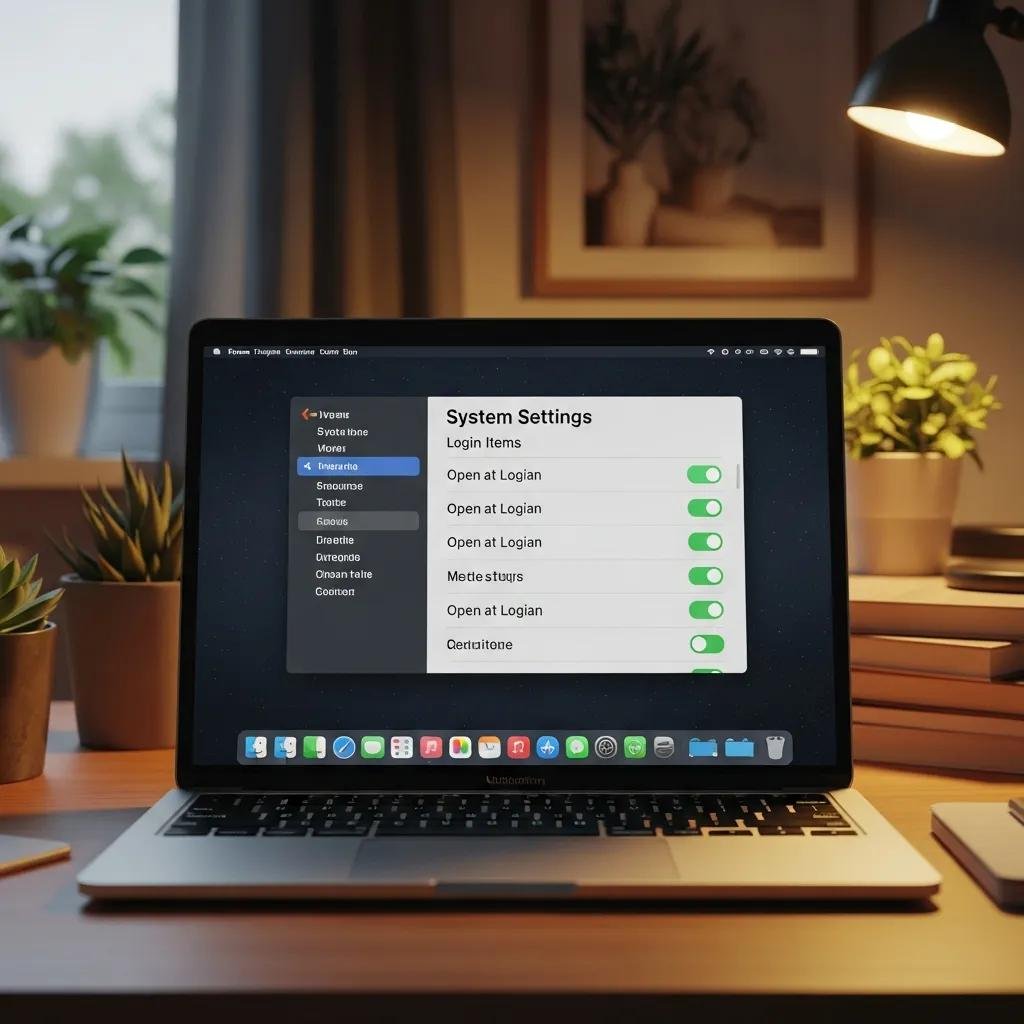
On macOS, login items and background processes are controlled through System Settings (General > Login Items), older Users & Groups panels, and Activity Monitor for runtime process inspection; managing these items reduces login delay and ongoing background load. System Settings in Ventura and Sonoma provides simple toggles to remove or hide apps at login, while Activity Monitor reveals CPU, memory, and disk usage so you can identify resource-hungry processes. Use Login Items to remove nonessential apps and Activity Monitor to inspect third-party agents that may be impacting responsiveness, and always test changes by logging out and back in.
Below is a compact comparison table showing these macOS methods and recommended actions:
| Method | macOS Version | Visibility | Recommended Action |
|---|---|---|---|
| System Settings > General > Login Items | Ventura, Sonoma | Lists startup apps and hidden items | Remove or hide nonessential apps |
| Users & Groups (older macOS) | Older versions | Per-user login items | Use if System Settings unavailable |
| Activity Monitor | All versions | Live CPU/Memory/Disk metrics | Identify and quit resource-heavy processes |
How to Manage Login Items in macOS Ventura and Sonoma
macOS Ventura and Sonoma place login items in System Settings under General > Login Items; use this path to remove, hide, or add applications that open at login to improve boot responsiveness. Open System Settings, go to General → Login Items, select an app in the list, and click the remove (–) button or toggle “Open at Login” off; you can also mark apps to “Open in the background” or hide them on launch. Changes typically take effect after you log out or restart, so test by signing out and back in to verify reduced login time. For older macOS versions, Users & Groups remains the equivalent control panel.
Testing after changes ensures you maintain needed functionality while trimming items that delay the desktop becoming usable.
Using Activity Monitor to Identify and Stop Background Processes on Mac
Activity Monitor reveals real-time process metrics so you can spot high CPU, memory, or disk usage and take targeted action to manage background processes safely. Open Activity Monitor, sort by CPU or Memory to find top consumers, select the process, and use Quit or Force Quit when the process is clearly third-party and safe to stop; avoid killing system or kernel-related processes. If a third-party agent restarts automatically, check its launch agents or login items for persistent auto-start settings and remove them properly.
After terminating or removing a problematic item, observe boot and runtime performance and use the Login Items panel to prevent the process from relaunching at login.
When Should You Seek Professional Help to Optimize Your Computer's Startup?
Seek professional help when slow boot time persists after basic cleanup, when repeated crashes or system instability occur, or when you cannot identify which background process causes poor performance; experts can safely diagnose and resolve issues that risk system integrity. Incorrect changes—such as disabling drivers or security software—can create vulnerabilities or hardware problems, so caution is warranted for complex cases. Use a checklist to decide when to escalate: persistent slow boots after disabling obvious culprits, repeated errors or kernel panics, or when you need a comprehensive optimization without experimenting yourself.
For readers who prefer expert support, the next subsection explains a remote optimization option that aligns with these needs and respects safety and convenience.
How mcHelper.com’s Remote Computer Optimization Service Can Speed Up Your PC
mcHelper.com offers remote computer repair and tech support for Mac and Windows users, including Remote Computer Repair, Computer Speed-up and Optimization, and Technical Support for slow or inconsistent boot-up and poor performance. Their remote optimization service uses certified technicians who perform diagnostics and tune startup programs and background processes from your location, avoiding an in-person visit. The service emphasizes convenience and availability — mcHelper.com provides 24/7 access and a ‘NO FIX – NO FEE’ guarantee for eligible issues, which gives reassurance when handing over control for deeper troubleshooting. This option is appropriate when DIY steps don’t resolve slow boots or when you prefer a trusted technician to handle safe changes remotely.
What to Expect from Expert Startup Program Management Support
When you engage expert startup optimization, expect a structured workflow: an initial remote diagnostic scan to identify startup items and services, a prioritized set of recommended actions focused on safe disablement or delays, remote execution of agreed fixes, followed by verification and testing of boot time improvements. Typical steps include logging system metrics before and after changes, checking for unintended side effects, and advising on follow-up maintenance or hardware upgrades if needed. Outcomes should include measurable reductions in boot time, fewer unnecessary background processes at login, and documented changes so you can reverse or revisit decisions.
- Diagnostic scan: Identify resource-heavy startup items and services.
- Recommended actions: Prioritized list of safe changes and reasons.
- Remote execution: Technician applies changes and configures settings.
- Verification: Reboot testing and performance validation.