How to Recover Lost Photos from Your Computer or SD Card: Effective Photo Recovery Solutions
Losing irreplaceable photos can be alarming, but recovering deleted images is often possible if you act quickly and follow safe procedures. This guide explains what photo recovery means, why deleted files remain recoverable for a limited time, and which steps let you restore camera photos or recover deleted photos from SD card and internal drives. You will get practical DIY steps for accidental deletion, guidance for formatted or corrupted media, and clear criteria for when professional remote data recovery makes sense. The article covers common causes of photo loss, how file systems mark and retain data, recommended features in photo recovery software, stepwise recovery for formatted drives and corrupted SD cards, and decision criteria for escalation to professionals. Throughout, I use terms like SD card photo recovery, jpeg recovery tool, raw image recovery, and recover photos from formatted drive so you can quickly find the techniques and tools that match your situation.
What Are the Common Causes of Lost Photos on Computers and SD Cards?
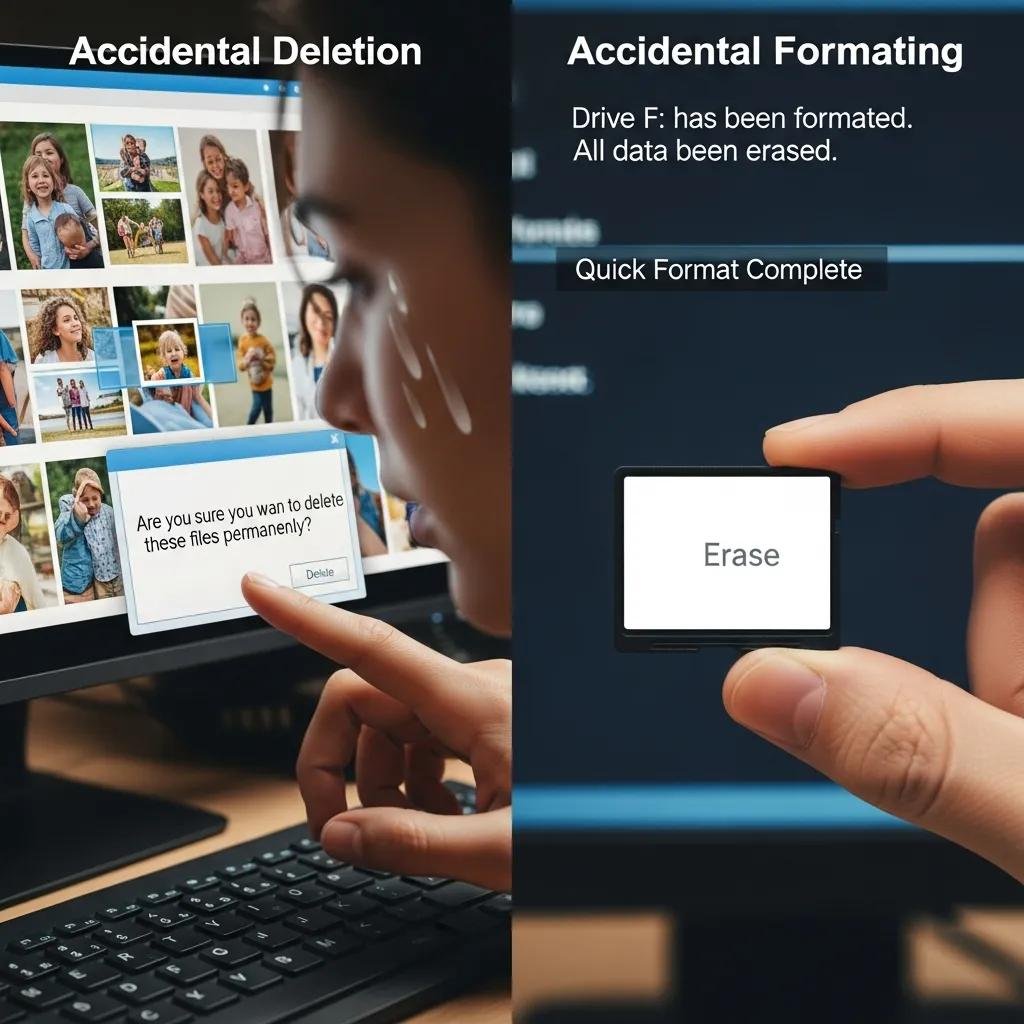
Photo loss happens for a few predictable technical reasons that determine recoverability and the right recovery approach. File deletion typically marks file table entries as free while the image data remains until overwritten, so prompt action increases success for deleted photo recovery. Formatting—especially quick formats—removes pointers to files and can leave data intact until new writes occur, whereas full formats and repartitioning make recovery harder by altering allocation structures. Corruption from sudden power loss, malware, or bad sectors can scramble headers or the file system, reducing automatic recognition by recovery tools; physical damage to SD cards or drives often requires professional intervention. The most important immediate step in all scenarios is to stop using the device to avoid overwriting the very sectors that contain your lost images.
This list summarizes the main causes and a short remedy for each.
- Accidental deletion: Stop writing to the device immediately and run a read-only recovery scan to attempt restore of the marked-but-not-overwritten files.
- Formatting (quick or full): Create a sector image and run signature-based recovery tools that detect JPEG/RAW file headers rather than relying on file tables.
- File system corruption: Use read-only tools or low-level imaging to extract intact file signatures before attempting repair or restore.
- Physical damage or bad sectors: Avoid powering the device repeatedly and consider professional recovery specialists who can handle hardware issues.
- Malware or encryption: Isolate the device and escalate to expert help if files are encrypted or software-based corruption is suspected.
These causes lead into how accidental deletion specifically affects the recovery window and techniques for minimizing overwrite risk.
How Does Accidental Deletion Affect Photo Recovery?
Accidental deletion usually affects recoverability by changing metadata rather than erasing the image bits, which creates a window where recovery tools can restore files. When you delete a photo on a computer or camera, the file system removes or flags the directory entry and marks space as available; the data remains until the system writes new files that reuse that space. Immediate steps—stopping use, removing the card, and using a separate machine to run read-only recovery—preserve that window and raise your chance of restoring JPEGs or RAW files. For example, deleting from a camera often leaves a better recovery chance than continuing to shoot, and emptying the Recycle Bin or Trash on a computer shortens that window. Understanding this mechanism explains why time and minimal device activity matter more than which specific tool you use.
What Impact Do Formatting and Corruption Have on Photo Loss?
Formatting and corruption affect photo recovery by removing or corrupting the pointers that tell the operating system where images live, but the underlying bytes can persist on disk or card. A quick format typically rebuilds metadata tables while leaving file contents intact, so signature-based or deep-scan recovery tools can often locate and restore photos. Corruption—caused by interrupted writes, failing flash memory, or malware—can scramble headers or partition tables and may require imaging and specialized recovery to reconstruct file structures. Reformatting multiple times or attempting repairs that write to the device risks permanent overwrite, so imaging to a read-only file and working from that image is the safest first step. This reasoning leads naturally to selecting software tools that support deep scans, RAW formats, and imaged-drive workflows.
Which Photo Recovery Software Tools Are Best for Recovering Deleted Images?

Photo recovery software varies, but the best choices share core capabilities that increase success rates for deleted photo recovery and raw image recovery. Good tools perform both quick and deep (sector-level) scans, preview recoverable images before restoring, support common photo formats including JPEG and RAW variants, and allow recovery to a different physical drive to avoid overwrite. When evaluating software, prioritize tools with a clean reputation, cross-platform support for Mac and Windows, and transparent recoverability notes so you understand limits before running scans. If you prefer to try software but are uncomfortable or unsuccessful, a professional remote data recovery service offers escalation that avoids shipping hardware and may use advanced tools unavailable to consumer software.
Important features to consider are summarized below.
- File format support: Ensure the tool recognizes JPEG, PNG, and common RAW formats (CR2, NEF, ARW) for effective photo recovery.
- Scan depth: Select software offering both fast indexing scans and deep sector-level scans that identify files by signatures.
- Preview and selective restore: Preview thumbnails and recover only verified files to save time and storage.
- Safe recovery destination: Always recover to a separate physical drive to prevent overwriting remaining data.
This comparison table shows typical capabilities you’ll find across reputable recovery tools and helps match tool choice to your OS and file types.
| Tool Example | Supported OS | Supported Formats | Scan Types | Free vs Paid | Recoverability Notes |
|---|---|---|---|---|---|
| Consumer Recovery Tool | Windows, Mac | JPEG, PNG, common RAW | Quick + Deep | Free trial / Paid | Good for accidental deletes and quick formats |
| Photo-focused Utility | Windows, Mac | JPEG, RAW (CR2/NEF/ARW) | Signature deep-scan | Paid | Better RAW recovery and preview support |
| Forensic-style Scanner | Windows | JPEG, RAW, other file types | Sector-level imaging + deep | Paid | Higher success on corrupted or partially overwritten media |
What Features Should You Look for in Photo Recovery Software?
When selecting photo recovery software, seek features that directly influence recoverable photo integrity and user safety during recovery. Core must-have features include deep sector-level scanning for signature-based raw image recovery, robust support for JPEG and popular RAW formats, preview capability to confirm image quality before restoring, and the ability to recover to a different physical drive to avoid overwriting. Nice-to-have features include built-in drive imaging, selective file filtering by date or type, and cross-platform installers for both Mac and Windows users. Prioritizing these features reduces time spent on false positives and increases the success rate for restoring intact camera photos from formatted or corrupted media.
These feature priorities shape the generic workflow described next for using popular recovery tools safely.
How to Use Popular Photo Recovery Tools for Computers and SD Cards?
A consistent workflow across major recovery tools minimizes risk and improves outcomes when attempting deleted photo recovery or SD card photo recovery. First, stop using the affected device and connect the media via a reliable card reader or attach the drive as a secondary disk; do not install or run recovery tools on the target drive. Second, create a disk image if the software supports imaging, or run a quick scan to identify recently deleted files and preview recoverable images. Third, run a full deep scan (signature-based) if the quick scan finds nothing or incomplete results; review thumbnails to verify integrity. Fourth, recover selected files to a separate physical drive or external storage and validate files with your camera or image viewer. These steps maintain a read-only approach to the damaged media and reduce the chance of overwriting the sectors that contain your lost photos.
How Can You Recover Photos from Formatted or Corrupted Drives and Memory Cards?
Recovering photos from formatted or corrupted media requires a cautious, stepwise approach that preserves data and maximizes the chance of successful jpeg recovery tools or raw image recovery methods finding intact files. The general process emphasizes imaging the device first, using read-only tools, running deep signature scans to identify file headers, previewing recovered images, and restoring to a different physical drive. For corrupted SD cards, trying a different reader or port can rule out reader-level faults before imaging; for formatted drives, signature-based recovery often succeeds if the underlying sectors were not overwritten. If repeated scans yield only partial results or the media shows physical failure signs, professional intervention provides additional tools and expertise that consumer software cannot replicate.
The table below maps common failure scenarios to recommended approaches so you can decide the right next step based on your situation.
| Scenario | Typical Cause | Recommended Recovery Approach |
|---|---|---|
| Quick-formatted SD card | Metadata pointers removed | Create image, run signature-based deep scan, recover JPEG/RAW to separate drive |
| Full format or repartition | Allocation tables rebuilt | Image device if possible and use forensic scanner; lower success if overwritten |
| Logical corruption (file system errors) | Interrupted writes, OS errors | Use read-only tools to recover files by signature; avoid repair utilities that write |
| Intermittent accessibility | Card reader or connector faults | Try different reader and USB port, then image the card before scans |
| Physical flash failure | Wear or hardware faults | Minimize power cycles and consider professional recovery services |
What Are the Steps to Recover Photos from a Formatted Drive?
Follow a disciplined sequence to recover photos from a formatted drive: stop using the drive, create a sector-level image, run signature-based deep scans, preview recovered images, and restore to a separate drive. Begin by connecting the device to a separate computer and using imaging tools or the recovery software’s imaging function to copy the raw sectors to an image file; imaging avoids further writes to the original media. Next, use a recovery tool that supports file signatures (JPEG/RAW) to scan the image file rather than the physical drive, then review thumbnails to select intact photos. Finally, recover those photos to a different physical drive and verify file integrity in an image viewer. These steps reduce overwrite risk and maximize chances of restoring usable images.
How to Handle Corrupted SD Cards for Photo Recovery?
Handling corrupted SD cards starts with basic troubleshooting—try a different card reader and USB port to rule out I/O faults—then proceed to image the card and run deep scans if the card is still readable. If the card intermittently connects, create an image immediately while access exists; use read-only options and avoid any repair utilities that may write to the card. When scans locate recoverable JPEGs or RAW files, preview them and recover selectively to a separate drive. If the card is physically damaged, repeated attempts can worsen the condition, so escalate to professional recovery if imaging fails or if critical files remain inaccessible.
When Should You Choose Professional Remote Photo Recovery Services?
Professional remote photo recovery is appropriate when DIY methods pose significant risk or have already failed, and when the value or irreplaceability of images justifies expert intervention. Choose professional help in cases of physical damage, repeated failed deep scans, encrypted or severely corrupted file systems, or when recovery attempts risk overwriting remaining data. Remote services can provide faster diagnosis without shipping, access to advanced tools and certified technicians, and support for both Mac and Windows environments—factors that often outweigh DIY efforts for complex cases. Evaluate providers by guarantee terms, availability for urgent cases, and their ability to work on imaged data rather than the live device to avoid additional risk.
The following table contrasts DIY limits against the typical strengths of professional remote services so you can weigh options quickly.
| Condition | DIY Limitations | Professional Remote Service Value |
|---|---|---|
| Physical damage | Cannot repair hardware; risk of worsening | Remote diagnosis and advice to avoid further damage; may recommend lab repair if needed |
| Deep corruption | Consumer tools may not reconstruct file systems | Advanced tools and expertise to analyze images and reconstruct files |
| Overwrite risk | Users may inadvertently write data | Professionals emphasize imaging and read-only workflows to preserve data |
| Time sensitivity | DIY scans can be slow and uncertain | 24/7 availability and faster triage for urgent recoveries |
What Are the Advantages of mcHelper.com's Remote Data Recovery Service?
When DIY recovery is unsuccessful or you prefer expert handling, mcHelper.com’s Remote Data Recovery Service can be a practical option because it offers fast, secure remote support and specialized technicians who work across Mac and Windows systems. Their remote approach avoids shipping hardware, which reduces turnaround time and exposure of devices to additional handling; certified technicians can run advanced analysis tools on images or work with your machine directly while preserving read-only workflows. mcHelper.com also emphasizes 24/7 availability for urgent cases and a ‘No Fix – No Fee’ guarantee that lowers financial risk when recovering critical images. These service attributes make a professional remote path attractive for complex or time-sensitive recoveries.
How to Decide Between DIY Software and Professional Recovery?
Deciding between a DIY recovery attempt and hiring professionals depends on severity, device condition, your comfort level, and time sensitivity; use the checklist below to guide the choice. Try quick scans and imaging for simple accidental deletions or single quick formats if you are comfortable following read-only procedures. Escalate to professionals for suspected physical damage, multiple failed deep scans, encryption, or when images are legally or emotionally critical and you cannot risk further data loss. Consider availability and guarantees—such as a ‘No Fix – No Fee’ policy—and 24/7 remote assistance when rapid turnaround or reduced financial risk matters for your decision.
- Severity: If the media shows physical signs of failure, choose professional service.
- Previous attempts: If multiple deep scans failed, escalate to experts.
- Value of images: Prioritize professionals for irreplaceable photos or legal evidence.
- Time and comfort: If you lack time or technical confidence, professional remote recovery may be faster and safer.
These criteria link back to the safe DIY procedures and help you decide the right path for recovering your photos.