Mac Won't Boot Up? Remote Troubleshooting & Repair Guide for Macbook Pro and More
If your Mac won’t boot up, you face a range of possible failures from simple power issues to serious disk or firmware faults that stop macOS from starting. This guide explains the most common Mac boot-up issues, how to triage them remotely, and which recovery tools you can use to repair a startup disk or reinstall macOS while minimizing data loss. You will learn practical initial steps like power-cycling, disconnecting peripherals, and resetting SMC/NVRAM on Intel Macs, followed by how to access Safe Mode and macOS Recovery on both Apple Silicon and Intel systems. The article then walks through Disk Utility First Aid, non-destructive reinstall options, and clear criteria for when to escalate to professional remote repair. Throughout, keywords such as mac startup issues, fix mac boot loop, macbook pro not starting, and macOS recovery mode appear in context so you can follow targeted troubleshooting and decide if remote support is the right next step.
What Are the Common Mac Boot-Up Issues and Their Symptoms?
Common Mac boot failures present as distinct symptoms that point to power, firmware, disk, or OS problems. Identifying the symptom pattern quickly narrows whether the root cause is display-related, startup-disk corruption, kernel-level crashes, or hardware failure. Understanding these signals helps prioritize non-destructive steps that preserve data and avoid unnecessary reinstall attempts. The following list summarizes frequent startup symptoms and one-line triage actions to try first.
- Black screen with no fan/chime: Check power and chargers, then try a power cycle to rule out power/SMC issues.
- Apple logo stuck or progress bar slow: Indicates OS or disk checks; try Safe Mode or Recovery to run First Aid.
- Flashing question mark folder: Startup disk not found or corrupted; boot to Recovery to check Startup Disk selection and run Disk Utility.
- Kernel panic and reboot loop: Low-level crash often from incompatible kernel extensions or hardware faults; boot Safe Mode and note panic logs.
These symptom-action mappings let you prioritize immediate checks and prepare details a remote technician will need, such as whether the machine shows any lights, sounds, or progress-bar activity before moving to deeper recovery steps.
How to Identify Black Screen, Apple Logo Stuck, and Boot Loop Problems?
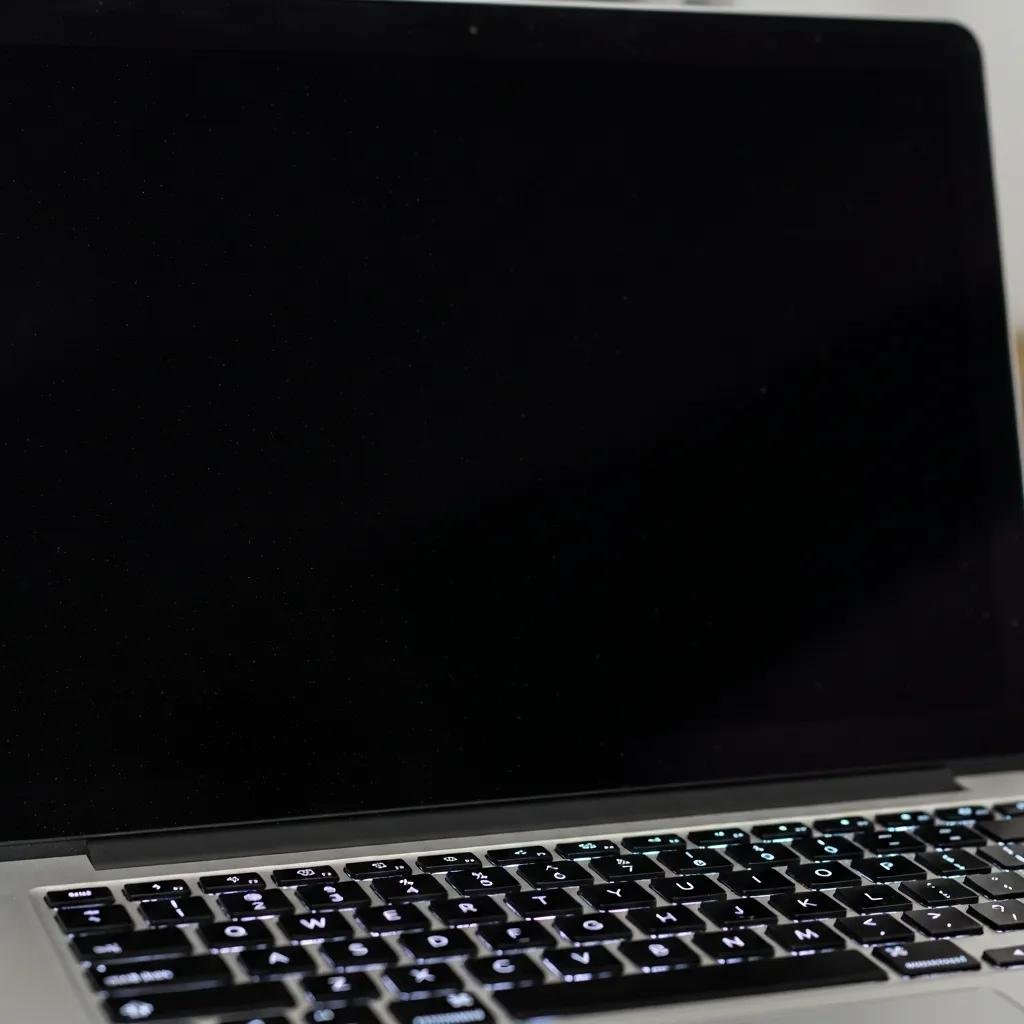
A black screen can be either a display failure or a system that never handed off to the graphics/display driver during boot. Verify simple indicators first: does the keyboard light up, fans spin, or is there a startup chime? If hardware appears active but the screen stays black, try an external display or brightness keys; if nothing changes, the problem is likely at the OS/firmware layer. Conversely, an Apple logo that appears with a stalled progress bar usually means macOS is performing a disk check or encountering OS-level errors. Boot loops — where the Mac repeatedly restarts — often indicate failing system files, corrupted kernel extensions, or failing storage. Collecting these signs helps a remote technician decide whether to attempt Safe Mode, Recovery, or require physical diagnostics.
What Do Question Mark Folder and Kernel Panic Indicate on Your Mac?
A flashing question mark folder is a clear indicator that the Mac cannot locate a valid startup disk; this may result from a disconnected or failed drive, corrupted startup volume, or incorrect firmware settings. Immediate non-destructive steps include booting to Recovery, checking Startup Disk, and running Disk Utility First Aid to mount and repair the volume. Kernel panics are sudden low-level crashes that produce a panic log and often force an automatic reboot; repeated kernel panics suggest hardware issues (RAM, SSD) or problematic third-party kernel extensions. When kernel panics occur, booting in Safe Mode to disable third-party extensions and checking panic logs will indicate whether to continue remote repair or recommend in-person hardware service.
Which Initial Remote Troubleshooting Steps Can Fix Mac Startup Issues?
Initial remote troubleshooting focuses on easy, high-impact actions: confirm power delivery, eliminate external interference, and reset low-level controllers on Intel Macs when applicable. These steps are designed for remote sessions where a technician guides you through checks and observes responses to isolate whether the issue is a simple configuration or a deeper disk/firmware problem. Start with power and peripheral checks, then proceed to force restart sequences and controller resets if the Mac is an Intel model. Below is a concise, ordered how-to you can follow or report when working with remote support.
- Check power and connections: Confirm the charger, cable, and outlet are working and that the MagSafe/USB-C connector is seated.
- Disconnect all peripherals: Remove USB hubs, external drives, and adapters that can block normal startup.
- Force restart/power cycle: Hold the power button for 10 seconds, release, then press again; observe any fan or LED activity.
- Reset SMC/NVRAM on Intel Macs: If device powers on but behaves oddly, follow SMC and NVRAM reset sequences for the specific model.
- Boot to Safe Mode or Recovery: Use key combinations to start Safe Mode or Recovery for disk checks and reinstall options.
These ordered steps collect diagnostic signals that a remote technician uses to decide the next non-invasive recovery attempt. If these steps do not restore boot, the comparison table below helps weigh which initial actions are likely to work remotely.
Intro to the table: This table compares common initial actions, the symptom types they address, and the relative likelihood of remote success so you can prioritize what to try during a remote diagnostic session.
| Action | Symptom Applicability | Likelihood of Remote Success |
|---|---|---|
| Power & Cable Check | No power, black screen without activity | High |
| Disconnect Peripherals | Boot stalls or external device conflicts | High |
| Force Restart / Power Cycle | System hung or unresponsive | Medium-High |
| SMC Reset (Intel) | Power, fan, battery charging anomalies | Medium |
| NVRAM Reset (Intel) | Boot device selection, display or volume settings | Medium |
Summary paragraph: Use this comparison to start with the highest-impact, low-risk steps: power checks and removing peripherals often fix transient startup problems and are straightforward for remote guidance. If those fail, documented results from SMC/NVRAM resets and force restarts inform whether Recovery-mode repair is the next correct step.
How to Perform Power Cycle and Disconnect Peripherals for Macbook Pro Not Turning On?
Power-cycling and removing external devices are the safest first actions and often resolve conflicts that prevent macOS from loading. Begin by unplugging the charger, disconnecting all USB/Thunderbolt devices, and waiting 10–20 seconds before holding the power button for ten seconds; then reconnect power and attempt a normal boot. For MacBook Pros, note any LED indicators, fan spin, or login chime because these details help a remote technician narrow down failures. Common culprits include faulty external drives or USB hubs that hijack the boot process; disconnecting them isolates the internal boot sequence. Report observed changes—such as fan activity or progress bar appearance—so a remote technician can recommend the next step.
What Are the Steps to Reset SMC and NVRAM on Intel Macs?
SMC and NVRAM resets address power-management and firmware-level configuration issues on Intel-based Macs and should only be attempted on Intel models since Apple Silicon handles these functions differently. For NVRAM, power on while holding Option+Command+P+R for about 20 seconds until the system restarts twice; this clears display, volume, and startup-disk selections. SMC reset procedures vary by model but typically involve powering down, pressing specific key combos (Shift+Control+Option plus power on certain MacBooks) or disconnecting power for desktops. After resets, check whether the Mac reaches the login screen or shows different boot behavior; these changes guide whether to proceed to Safe Mode or Recovery.
How to Use macOS Recovery Mode and Safe Mode for Advanced Mac Boot Loop Fixes?
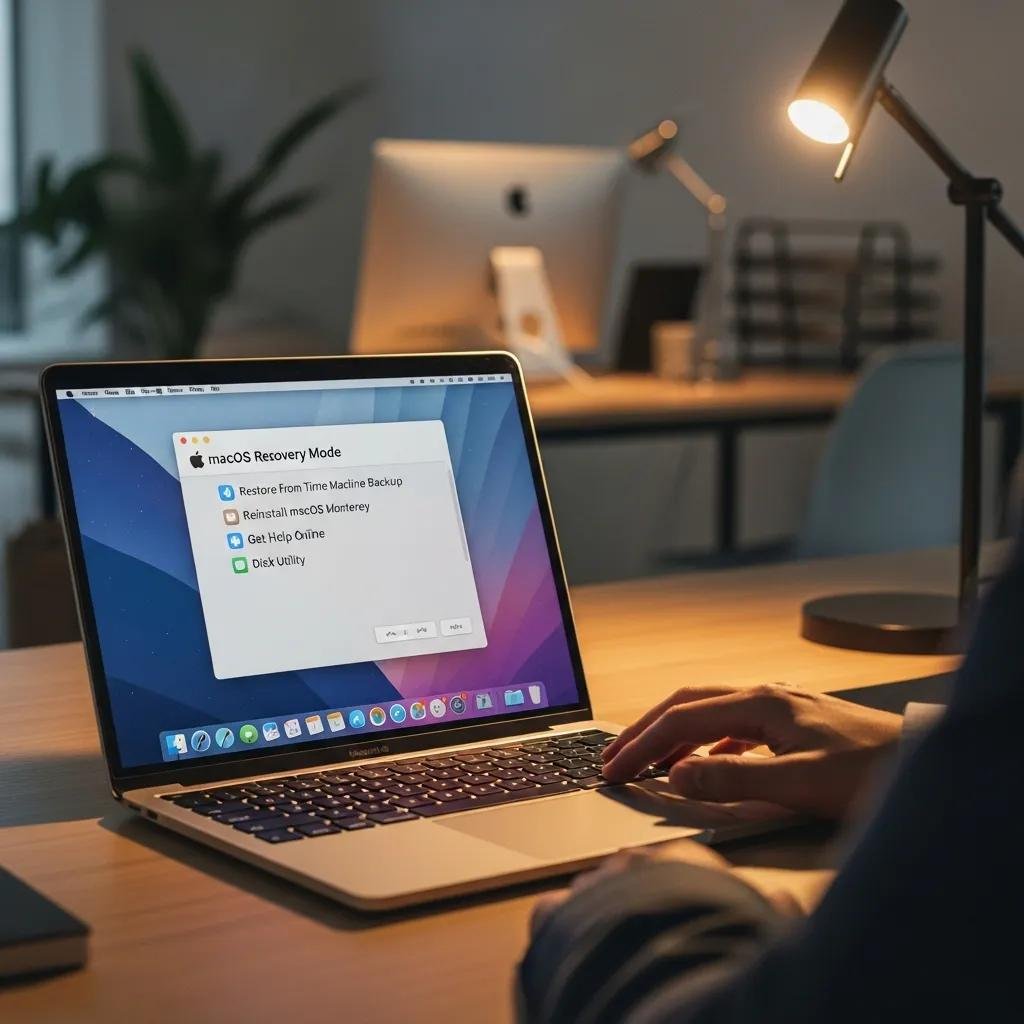
macOS Recovery and Safe Mode are built-in tools for repairing disks, removing problematic extensions, and reinstalling macOS without erasing user data when possible. Recovery Mode provides Disk Utility First Aid, reinstall options, and access to Terminal for advanced diagnostics, while Safe Mode disables third-party drivers and performs a basic filesystem check on boot. Knowing how to enter the correct recovery sequence for your architecture and what to try first reduces unnecessary OS reinstalls and preserves data. The short procedural list below shows how to access these modes and what outcomes to expect.
- Apple Silicon: Press and hold the power button until startup options appear, then choose Options > Continue to enter Recovery.
- Intel Macs: Use Command+R to enter local Recovery; use Option+Command+R for Internet Recovery to reinstall the latest compatible macOS.
- Safe Mode (both): Hold Shift during startup on Intel; on Apple Silicon, choose Safe Boot from startup options after entering options.
Intro to table: The following table compares Recovery tools—Disk Utility, Reinstall macOS, and Internet Recovery—showing when to use each and the relative risk of data loss so you can pick the least-destructive option first.
| Recovery Tool | When to Use | Data-Loss Risk |
|---|---|---|
| Disk Utility First Aid | Disk mounts but shows errors or slow boot | Low |
| Reinstall macOS (Recovery) | System files corrupted but volume mounts | Low-Medium |
| Internet Recovery | Local Recovery missing or for firmware updates | Medium |
Summary paragraph: Begin with Disk Utility First Aid for mounted volumes because it repairs common directory and metadata issues with minimal risk; if First Aid fails and the volume mounts, a reinstall that preserves user data is the next step. Internet Recovery is useful when local recovery is unavailable but requires a reliable network connection and careful selection of reinstall options to avoid accidental erasure.
How to Access macOS Recovery Mode on Apple Silicon and Intel Macs?
Accessing Recovery differs by architecture but follows a predictable sequence that remote technicians can guide in real time. On Apple Silicon, shut down, then press and hold the power button until the startup options appear; choose Options to enter Recovery. On Intel Macs, power on while holding Command+R for local Recovery or Option+Command+R for Internet Recovery; network access may be required for the latter. If Recovery does not appear, check for firmware password locks or network issues that block Internet Recovery; collecting this info before a remote session expedites diagnostics. Have Wi-Fi credentials and admin passwords ready for the technician, as they are commonly required to run First Aid or reinstall macOS without data loss.
How to Repair Startup Disk with Disk Utility and Reinstall macOS Without Data Loss?
Disk Utility First Aid scans and repairs filesystem structures and should be run before any reinstall attempt when the startup disk is visible in Recovery. Select the startup volume, run First Aid, and review reported errors; if repairs are successful, attempt a normal boot. If First Aid cannot repair the volume but files remain intact, use a non-destructive reinstall of macOS from Recovery to replace system files while leaving user data untouched. Always avoid “Erase” unless you have verified backups, and if data integrity is uncertain, prioritize mounting the disk for a remote or specialist data-recovery assessment. Preparing a Time Machine backup or external clone before destructive steps is the safest course.
When Should You Seek Professional Remote Mac Repair Services?
Escalate to professional remote repair when initial non-destructive troubleshooting fails, when data is at substantial risk, or when firmware and hardware-level diagnostics are required. Professional remote technicians can run advanced remote diagnostics, use proprietary remote-access tools to collect logs, and recommend whether a non-destructive reinstall or specialized data recovery is necessary. If your Mac shows persistent boot loops, a flashing question-mark folder, or repeated kernel panics after basic steps, contacting a remote service is justified to avoid accidental data loss. The checklist below helps decide when to call a technician versus continuing DIY attempts.
- Persistent boot failure after power/peripheral checks: Call a technician.
- Flashing question mark folder or unmountable startup disk: Call a technician for remote recovery guidance.
- Repeated kernel panics or hardware-sounding failures: Call a technician to assess for hardware repair.
Intro to table: The table below compares issue severity against recommended actions—DIY, remote technician, or local hardware repair—and notes typical policy considerations like cost or guarantees for remote services.
| Issue Severity | Recommended Action | Service Notes / Guarantees |
|---|---|---|
| Transient boot issue (no hardware signs) | DIY steps then remote technician if unresolved | Remote sessions suitable; low cost |
| Startup disk not found / corrupt | Remote technician + non-destructive recovery | May escalate to specialized recovery |
| Repeated kernel panic / hardware fault | Local hardware diagnostics | Remote attempt possible; physical repair likely |
Summary paragraph: Use this matrix to match symptoms to the right escalation path: begin with safe DIY steps, then use remote technicians for logical recovery and log analysis, and reserve local hardware services when diagnostics point to failing components.
What Are the Benefits of mcHelper.com's Remote Troubleshooting and Repair?
mcHelper.com offers 24/7 remote technical support with certified technicians who can guide or perform non-destructive repairs for Mac startup issues using remote diagnostic tools and proprietary software for faster resolution. Their service model emphasizes remote convenience and a “No Fix – No Fee” promise to reduce risk to the user, and they advertise a Complete Support Package for only $199.99. This remote-first approach is ideal for situations where the startup disk mounts or when reproducing kernel panics remotely is possible, because technicians can collect logs and run repairs without shipping hardware. For many users, the combination of round-the-clock availability, remote access tooling, and transparent pricing shortens time-to-resolution while preserving data through conservative recovery steps.
How Does mcHelper.com Handle Data Recovery for Critical Boot Failures?
mcHelper.com follows a data-first triage: technicians begin with non-destructive diagnostics, prioritize disk imaging or read-only mounts if data appears vulnerable, and escalate to specialized recovery only when logical methods fail. Remote technicians will instruct clients on how to provide disk access safely and will recommend an in-person specialist when physical intervention is required for hardware failures. Their service approach couples fast remote diagnosis with clear consent for any actions that risk data alteration, and their advertised guarantees aim to align cost and expected outcomes for clients deciding between remote recovery and specialized recovery services. This workflow supports preserving user data while minimizing unnecessary destructive steps.