Remote Windows Boot Repair: How to Fix Your PC Not Starting with Expert Online Troubleshooting
When a Windows PC will not start, the boot process has failed at a low level—either firmware, boot records, drivers, or core system files are preventing the operating system from loading. This article explains why a PC not starting happens, how to diagnose and fix common startup issues like boot loops and black screens, and when remote troubleshooting is a safe, effective alternative to in-person repair. You will learn practical remote-first diagnostic steps (WinRE access, disk checks, SFC/DISM, BCD/MBR repair), understand the limits of DIY attempts, and see how ongoing remote maintenance reduces future failures. The guide blends technical explanation with clear action lists and EAV-style tables to help you triage symptoms quickly and decide whether to proceed with self-help or contact a remote expert. Throughout, targeted phrases such as pc not starting, fix windows boot loop, remote Windows boot repair, and remote diagnostic for windows startup problems are used so you can find the right steps for Windows 10 and Windows 11 startup issues.
What Are the Common Causes of Windows Boot Failures?
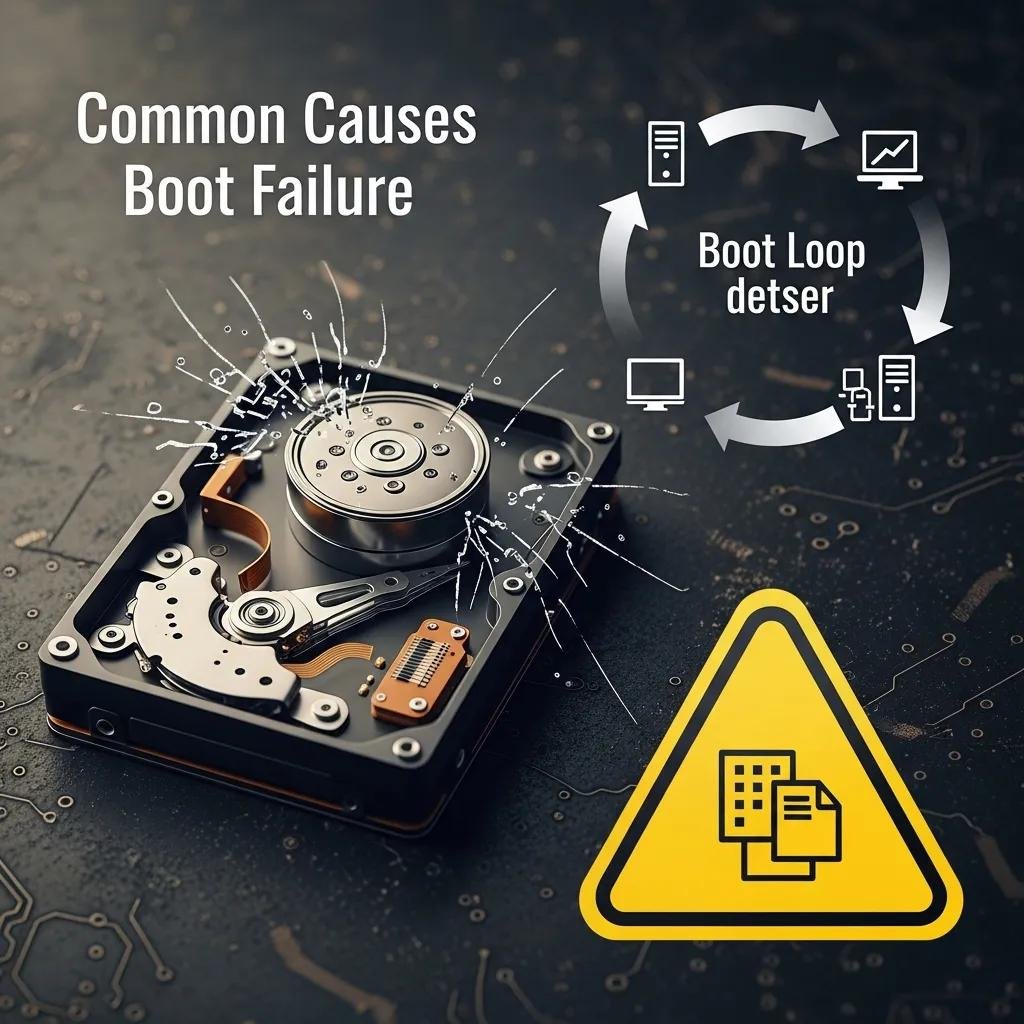
A Windows boot failure occurs when one or more critical startup components—firmware settings, Master Boot Record (MBR), Boot Configuration Data (BCD), system files, or drivers—become corrupted, missing, or incompatible. Typical outcomes include boot loops, black screens, automatic repair loops, or the system halting at a manufacturer logo; each symptom points to different likely causes that determine the remote diagnostic approach. Understanding the cause helps select remote tools such as WinRE access, CHKDSK, SFC/DISM, and targeted BCD/MBR repair so repairs avoid unnecessary risk. After outlining these causes, the table below maps symptoms to likely causes and common remote remediation actions that technicians use when a PC won’t boot.
Common startup causes include:
- Corrupted boot records (MBR/BCD) that stop Windows from finding the OS partition.
- Damaged or missing system files caused by failed updates or disk errors.
- Driver conflicts or bad device firmware that prevent kernel initialization.
- Hardware faults such as failing disks, bad RAM, or incorrect BIOS/UEFI settings.
This short list highlights the most frequent root issues and leads into specific diagnostic approaches technicians use to isolate them.
The table below summarizes symptoms, likely causes, and remote remediation actions technicians commonly attempt.
| Symptom | Likely Cause | Remote Remediation |
|---|---|---|
| Boot loop / Automatic repair loop | Corrupted boot files, failed update | Attempt WinRE access, rebuild BCD, roll back updates |
| Black screen on startup | Driver conflict, GPU/firmware issue | Boot to Safe Mode, disable suspect drivers remotely |
| “No OS found” / MBR errors | Damaged MBR/BCD or partition table | Remote MBR repair or BCD rebuild using WinRE tools |
| Slow boot then halt | Disk errors, file-system corruption | Run CHKDSK, SFC/DISM via remote console; check SMART |
This mapping clarifies which remote-first actions address specific symptoms and sets expectations for when physical intervention may be needed. The next section explains how remote troubleshooting is performed and what you can expect from a remote repair service.
How Do Boot Loops and Black Screens Affect Windows Startup?
A boot loop happens when Windows repeatedly restarts without reaching the desktop because the boot sequence encounters an unresolvable error and auto-reboots. Black screens on boot often indicate display driver failure, GPU initialization problems, or firmware/UEFI misconfiguration that prevents the graphical subsystem from starting. Remote diagnosis first checks whether WinRE is reachable and whether Safe Mode can load; these access points let a technician run log analysis, enable driver rollback, or trigger offline repairs without local hardware access. If WinRE is inaccessible, technicians pivot to offline partition checks and BCD/MBR inspections, and the results determine whether a remote BCD rebuild or a recommendation for local hardware diagnostics follows.
What Role Do Corrupted System Files and Driver Conflicts Play?
Corrupted system files disrupt kernel and service initialization, making SFC (System File Checker) and DISM (Deployment Image Servicing and Management) primary remote remediation tools to repair OS files and recovery images. Driver conflicts—often introduced by recent updates or new hardware—can prevent kernel-mode drivers from loading correctly, triggering Safe Mode diagnosis and driver rollback or uninstallation remotely. Remote sessions allow a technician to run log analysis, identify the faulty driver or file, and apply SFC/DISM or targeted driver replacement when feasible. When corruption is severe or disk hardware is failing, remote repair may stabilize the system enough to recover data, but physical disk replacement and local repair could be required for a full resolution.
How Does mcHelper.com Provide Remote Troubleshooting for Windows Boot Issues?
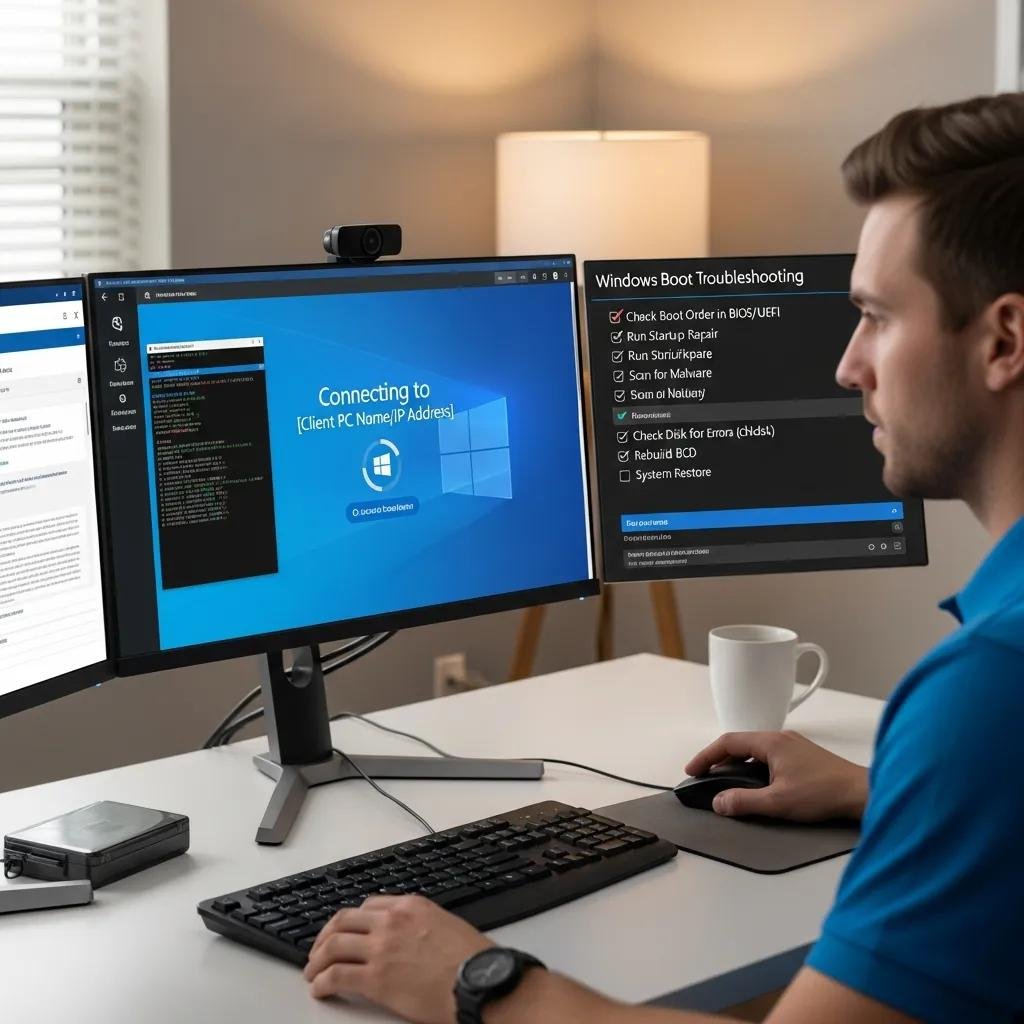
mcHelper.com offers remote Windows boot repair services that begin with symptom intake and proceed through secure remote connection, diagnosis, repair, and verification. The remote workflow emphasizes secure access and privacy while allowing certified technicians to run WinRE tools, perform BCD/MBR repairs, apply SFC/DISM, and handle driver rollbacks or registry fixes where appropriate. Service features include 24/7 availability and a ‘no fix – no fee’ promise that reduces financial risk for customers seeking remote help for time-sensitive boot failures. Below is a concise “how it works” checklist and a small EAV-style table mapping process steps to time and security attributes for clarity.
How the remote process typically works:
- Initial contact and symptom triage to capture error messages and Windows version.
- Secure remote session setup with explicit permission and limited access.
- Remote diagnostics (WinRE access, log review, disk and driver checks).
- Targeted repairs (BCD/MBR rebuild, SFC/DISM, driver fixes) and verification.
This numbered list explains the expected flow for remote Windows boot repair and prepares you for what a technician will request during the session.
The following table compares each remote step with typical time estimates and security measures so you can understand benefits.
| Step | Time Estimate | Security Measure |
|---|---|---|
| Contact & Triage | 10–20 minutes | Information gathered securely over call or chat |
| Secure Connection Setup | 5–15 minutes | Encrypted remote access, limited permissions |
| Diagnosis | 15–45 minutes | Technician reads logs; no unattended access |
| Repair & Verification | 20–60 minutes | Actions logged; customer approves changes |
This comparison shows the balance between speed and safety that remote troubleshooting delivers and underscores why a secure connection and clear verification step matter. The next subsection breaks the remote repair process into step-by-step expectations.
What Is the Step-by-Step Remote Repair Process?
A typical remote repair session begins with the customer describing symptoms and providing OS version and recent changes so the technician can prepare appropriate diagnostics. Next, the technician requests permission to start a secure remote session and explains what tools will be used and what permissions are required, which protects both privacy and data. During diagnosis the technician attempts WinRE entry, examines boot logs, checks disk integrity, and isolates whether the issue is software or hardware-related using SFC/DISM and CHKDSK when possible. If repairable remotely, actions like BCD rebuilds, driver rollbacks, or system restores are performed; the technician then verifies that Windows boots successfully and guides the user through post-repair steps.
How Is Secure Remote Access Ensured During Repair?
Secure remote access is ensured by using encrypted remote access tools with explicit customer consent and limited permission scopes so technicians can perform necessary actions without unrestricted data access. Certified technicians follow best practices such as performing actions only after explaining them, creating restore points where possible, and logging changes so customers know exactly what was modified. Customers are encouraged to back up critical data before any major repair to reduce exposure; remote sessions typically focus on non-destructive diagnostics first and escalate to file-level changes only with consent. This combination of secure tooling, technician standards, and customer verification helps protect privacy while enabling effective remote repairs.
When Should You Choose Professional Remote Repair Over DIY Solutions?
Knowing when to stop DIY troubleshooting and call a professional saves time and reduces the risk of data loss or worsening the boot configuration. If you are time-pressed, rely on the device for work, suspect hardware failure, or cannot access WinRE or Safe Mode after basic steps, professional remote repair is the safer choice. Likewise, if prior DIY attempts removed restore points, changed BCD entries incorrectly, or produced persistent errors, a technician with remote diagnostic tools can reverse or stabilize those changes. Below is a short decision checklist to help you decide whether to continue DIY or contact a remote expert.
Use this checklist to decide:
- DIY if the issue is simple (power cycle, disconnect peripherals, boot to Safe Mode).
- Call a pro if data is critical, WinRE is inaccessible, or hardware faults are suspected.
- Call a pro if previous DIY attempts failed or worsened the problem.
This direct checklist clarifies thresholds for escalation and introduces when mcHelper.com’s risk-mitigating policies make sense for users.
What Are the Limitations of Self-Troubleshooting Windows Boot Problems?
Non-expert troubleshooting risks data loss, accidental overwriting of boot records, or making the BCD/MBR worse through incorrect commands, which can complicate recovery. Home users lack access to centralized remote diagnostic logging and certified toolsets that let professionals analyze boot-time events safely, increasing the chance of incomplete fixes. Safe, low-risk first steps include power-cycling, disconnecting non-essential peripherals, and attempting Safe Mode entry; if these fail, stop and seek professional help to avoid irreversible changes. Recognizing these limitations early preserves recovery options and reduces downtime, which is why escalation criteria matter.
How Does mcHelper.com's No Fix - No Fee Policy Benefit You?
mcHelper.com’s ‘no fix – no fee’ policy reduces financial risk by ensuring customers pay only when a remote repair successfully resolves the stated startup problem. This policy serves as a trust signal for users weighing the cost of professional help against the risk of further DIY attempts, especially for time-sensitive or data-critical situations. While the policy does not guarantee outcomes when hardware replacement is required, it does lower the barrier to trying remote diagnostics and non-destructive repairs first. For customers who prefer ongoing protection, mcHelper.com also offers an annual support package for a flat fee to help prevent and rapidly address future startup issues.
How Can You Prevent Future Windows Boot Problems with Remote Maintenance?
Preventing boot failures relies on regular maintenance steps: keep Windows and drivers updated in a controlled way, perform periodic system health checks, and maintain reliable backups and restore points. Scheduled remote health checks can catch early disk or file-system errors before they become startup failures, and selective update strategies reduce the chance that a problematic driver or cumulative update will break boot. Below is a compact bullet list of practical preventative measures you can implement immediately and maintain remotely or locally.
- Regularly create system restore points and maintain automated backups of critical data.
- Run periodic CHKDSK and SFC/DISM scans to detect and repair filesystem or image corruption.
- Apply driver updates selectively and maintain a driver rollback plan for recent changes.
These steps reduce the probability of encountering boot failures and make recovery faster if issues arise. The following subsection lists preventative services available from mcHelper.com to support ongoing protection.
What Preventative Services Does mcHelper.com Offer?
mcHelper.com provides preventative maintenance options, including scheduled system health checks, update and driver monitoring, and an annual support package for a flat fee that offers ongoing remote assistance. These services are designed to identify early signs of disk degradation, file-system errors, or risky updates and to apply non-invasive fixes before they lead to boot failures. Customers who opt for an annual package gain prioritized remote diagnostics and routine maintenance so problems can be mitigated quickly. Choosing preventative remote maintenance complements local backups and reduces the likelihood of emergency repair sessions.
How Do Regular Updates and System Health Checks Help?
Regular updates patch known bugs and compatibility issues that can break startup sequences, while health checks monitor disk SMART status and file-system integrity to reveal problems early. Running SFC/DISM scans on a schedule and checking driver health prevents minor faults from escalating into boot failures and simplifies recovery. Two practical tips are to automate backups to an external location and to schedule quarterly health checks that include CHKDSK and driver inventory reviews. These proactive measures preserve data and minimize downtime, making both DIY and remote professional interventions more effective when needed.