Troubleshooting RAM Issues: Identify Symptoms and Perform Remote Diagnostics
Random Access Memory (RAM) is the short-term working memory your computer uses to run applications and manage system processes, and faults in RAM often cause crashes, data corruption, and prolonged instability that interrupt work and risk file integrity. This article explains why RAM faults matter, how to recognize common signs such as Blue Screen of Death (BSOD) codes and unexplained slowdowns, and how to run remote diagnostics and fixes that don’t require a trip to a repair shop. You will learn practical remote-compatible tests, step-by-step guidance for using Windows Memory Diagnostic and MemTest86, decision criteria for when to reseat or replace modules, and upgrade considerations including DDR5 compatibility. The guide integrates actionable checklists, EAV-style comparison tables, and concise troubleshooting lists to make remote RAM diagnosis repeatable and safe. Read on to identify bad RAM symptoms, interpret memory test output, and take measured remote actions that reduce downtime while preserving data integrity.
mcHelper.com offers 24/7 remote computer repair and technical support for both Mac and Windows systems and can perform secure remote diagnostics when you prefer expert help. Their service focuses on fast, secure remote troubleshooting for performance issues, system freezes, and boot failures, and it includes a “no fix – no fee” guarantee to reassure users that professional intervention is low-risk. If you are uncomfortable with performing memory tests or BIOS changes yourself, mcHelper.com’s technicians can run diagnostics and guide safe remedial steps remotely while protecting your data and privacy. This article keeps technical instructions first and notes where remote assistance from mcHelper.com can streamline testing and interpretation.
What Are the Common Symptoms of RAM Failure?
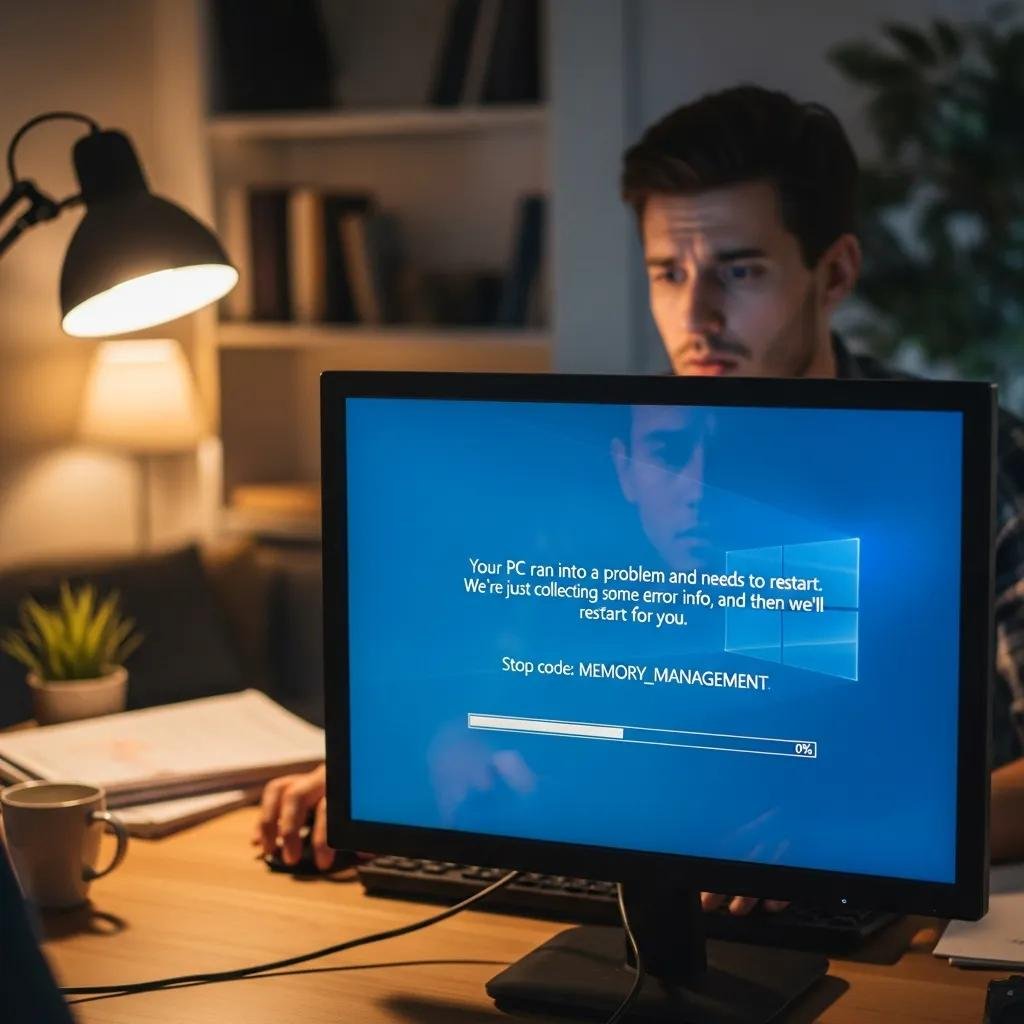
RAM failure usually reveals itself through reproducible application crashes, system-wide freezes, corrupted files, and specific memory-related BSOD error codes that point to hardware or memory manager faults. Diagnosing whether memory is the root cause requires observing patterns: persistent crashes under similar workloads suggest hardware faults, while progressive slowdowns tied to a single process suggest software memory leaks. Remote checks that reveal likely RAM faults include Event Viewer error counts, repeated PAGE_FAULT_IN_NONPAGED_AREA or BAD_POOL_CALLER entries, and unexplained increases in committed memory or page file thrashing. The following list summarizes the most common, high-priority symptoms to watch for and report during a remote session.
Common RAM failure symptoms include:
- Blue Screens with memory error codes: Crashes showing MEMORY_MANAGEMENT or PAGE_FAULT_IN_NONPAGED_AREA.
- Repeated application crashes: Programs terminate without clear software cause.
- Corrupted files or failed saves: Data becomes unreadable after normal writes.
- Boot failures or POST memory errors: System cannot complete startup or beeps on power-up.
These symptoms point to either persistent physical memory faults or systemic memory-management problems, and gathering logs and runtime patterns is the first remote step toward isolating the cause.
Intro to symptom mapping table: the table below maps each common symptom to likely causes and immediate remote checks a technician can request from the user. It helps prioritize remote testing and guides whether to run software diagnostics or arrange physical inspection.
| Symptom | Likely Cause | Immediate Remote Check |
|---|---|---|
| BSOD with MEMORY_MANAGEMENT | Faulty DIMM or controller | Collect minidump and record error code |
| Application crash without trace | Memory corruption or leak | Check Event Viewer and process memory usage |
| Corrupted saved files | Intermittent write errors | Verify disk SMART and temp file behavior |
| Boot failure / POST errors | Faulty RAM seating or BIOS settings | Request BIOS POST log and memory count |
This mapping helps triage remotely by linking observable symptoms to focused tests and reduces unnecessary physical interventions by directing the next remote action.
How to Recognize Blue Screen of Death and Memory Errors
BSODs that implicate memory typically include specific codes such as MEMORY_MANAGEMENT, KERNEL_DATA_INPAGE_ERROR, or PAGE_FAULT_IN_NONPAGED_AREA, which suggest problems in RAM, memory controller, or paging I/O. When a BSOD occurs, capture a screenshot and collect the minidump file through a remote session or by guiding the user to locate ; these artifacts let a technician correlate crash offsets to drivers or RAM addresses. A remote technician will ask for patterns — whether crashes happen under heavy load, after sleep/resume, or during specific apps — to help distinguish hardware faults from driver or disk issues. If initial logs point to memory, the next step is to run targeted memory tests remotely and interpret returned error counts to determine severity.
What Performance Slowdowns and System Freezes Indicate RAM Problems
Performance slowdowns caused by RAM issues often present as excessive paging, high committed memory values, and frequent spikes in working set sizes for particular processes, and these metrics are visible via Task Manager, Activity Monitor, or remote perfmon sessions. Memory leaks from applications increase committed size over time without returning memory, while hardware faults usually cause immediate access errors or repeated exceptions; remote monitoring can reveal whether memory usage trends are linear (leak) or erratic (possible hardware fault). A remote checklist includes collecting Task Manager snapshots, running Performance Monitor counters for and , and correlating slowdowns with uptime or recent driver updates. Differentiating these patterns guides whether to pursue driver updates, virtual memory tuning, or hardware testing next.
How Can You Diagnose RAM Problems Using Remote Memory Test Software?

Remote memory diagnosis relies on tools that create reproducible memory-test coverage or that can be launched in a remote session and reported back with logs; Windows Memory Diagnostic and MemTest86 are the two primary tools technicians use for different situations. Preparation for remote testing includes ensuring the user can reboot to BIOS/UEFI, create a bootable USB if required, and provide remote access or screenshots of test progress; these steps are essential so the technician can interpret results without physical presence. The comparison table below summarizes how each tool behaves in a remote workflow and what to expect in terms of depth and interpretation. After tests complete, error counts, failing test passes, and error addresses determine whether a reseat, BIOS tweak, or replacement is recommended.
When running Windows Memory Diagnostic and MemTest86 remotely, follow these distilled steps:
- Windows Memory Diagnostic: Ask the user to schedule the test at next reboot, have them save any work, and collect the post-test log from Event Viewer for technician review.
- MemTest86: If more thorough testing is needed, guide the user to create a bootable USB, boot from it, and either watch the test via screen share or capture photos; technicians will interpret failing passes and error counts.
- Interpretation: A small number of sporadic single-bit errors may suggest marginal contact or heat; repeated multi-address errors indicate failing modules or memory controller issues.
Intro to tool comparison table: the table below compares remote ease-of-use, depth of test, and how technicians interpret outputs to help choose the right tool for the scenario.
| Tool | Ease of Remote Use | Test Depth / Output |
|---|---|---|
| Windows Memory Diagnostic | High; runs from OS and logs to Event Viewer | Basic coverage; good first pass for quick checks |
| MemTest86 | Moderate; requires bootable USB and reboot | Deep coverage; detailed error counts and addresses |
| BIOS Memory Test | Low; requires POST access or vendor tools | Limited coverage; quick hardware presence check |
How to Use Windows Memory Diagnostic and MemTest86 Remotely
Windows Memory Diagnostic is accessible from or the Windows Recovery options and can be started remotely by guiding the user to schedule a restart; it logs results in Event Viewer under System, which a technician can review to determine if any memory issues were detected. For MemTest86, the remote workflow requires creating a bootable USB image on another machine or guiding the user through a small utility; the user must boot from the USB while the technician watches screen-shared progress or receives photos of errors. Technicians interpret MemTest86 by examining the number of failing bits, the specific test pattern that fails, and whether errors repeat at the same addresses — repeated, consistent errors strongly indicate defective modules. After test completion, technicians advise on reseating, swapping slots, or replacing specific DIMMs, depending on error locality and count.
What Remote Monitoring Tools Detect Memory Leaks and Errors
OS-native tools like Task Manager (Windows) and Activity Monitor (macOS) provide immediate visibility into per-process memory usage, while Performance Monitor and remote APM solutions allow collection of long-term counters for metrics such as Available MBytes, Committed Bytes, and Page Faults/sec. Remote monitoring setup includes enabling perfmon collection or lightweight agents for a 24–72 hour window to watch trends and capture spikes that reveal leaks or transient faults. Memory leaks often show a steady climb in Private Bytes for a single process, whereas hardware faults produce sudden exceptions and application crashes; correlating monitoring data with crash events helps isolate the cause. Technicians use these logs to recommend software updates or deeper hardware tests depending on whether the pattern points to a leak or to physical RAM instability.
What Are Effective Remote Fixes for Common RAM Issues?
Many RAM-related problems can be addressed remotely when they stem from configuration, drivers, or user-assisted hardware checks; common remote fixes include updating memory-related drivers, adjusting virtual memory/page file settings, running disk checks to rule out I/O-induced corruption, and guiding a user through safe reseating procedures. When a hardware fault is suspected based on test results, remote guidance can still narrow the issue by instructing the user to swap DIMM slots or test modules one at a time while the technician observes system behavior. If BIOS updates are necessary, technicians can advise on vendor firmware prerequisites and supervise the update during a remote session to mitigate risk. mcHelper.com’s remote technicians can execute these steps securely, and their “no fix – no fee” policy provides further reassurance when a remote fix attempt precedes any hardware replacement recommendation.
Try-this-first troubleshooting checklist (remote-friendly):
- Boot into safe mode and run Windows Memory Diagnostic.
- Collect Event Viewer and perfmon snapshots for analysis.
- Update memory/controller drivers and verify page file settings.
- If tests show errors, reseat modules or swap slots under guidance.
These steps often resolve issues caused by seating problems, outdated drivers, or misconfigured virtual memory; if errors persist after these remote actions, the decision typically moves toward module replacement or onsite repair.
How to Reseat RAM and Update BIOS Remotely
Reseating RAM remotely requires a user-assisted approach where the technician provides clear, safety-focused instructions: power down and unplug the system, ground yourself, open access panels, release DIMM clips, and reseat modules firmly until clips click, then verify BIOS/UEFI reports the expected total memory. The technician will ask the user to check BIOS memory counts and to boot to the OS to run quick memory tests again; these verification steps confirm correct seating and detect intermittent contact faults.
For BIOS updates, remote guidance is more cautious: ensure backups, confirm firmware version compatibility, and have a recovery plan in case of interruptions; technicians may schedule the update during a supervised remote session to handle prompts and confirm success. These combined user-assisted hardware checks and firmware updates can resolve recognition and stability issues without physical technician presence.
How to Optimize Virtual Memory and Drivers via Remote Assistance
Optimizing virtual memory remotely involves checking current page file settings, ensuring system-managed sizing is appropriate for the workload, and temporarily increasing page file size to reduce thrashing while diagnosing persistent memory pressure. Technicians will also audit drivers related to storage, chipset, and virtualization, applying verified vendor driver updates and rolling back recent suspect updates when necessary to restore stability. After driver and virtual memory changes, remote verification includes monitoring process memory growth, page fault rates, and system responsiveness across typical workloads for several hours. If stability improves, the configuration changes can be retained; if not, further hardware testing or replacement is recommended.
When Should You Upgrade or Replace RAM and How to Prevent Future Issues?
Deciding to upgrade or replace RAM depends on test results, age of modules, compatibility constraints, and workload requirements: persistent test failures, repeated multi-address errors, or incompatibility with required DDR generation (for example, a DDR5-only motherboard) are clear indicators for replacement. Upgrades are appropriate when workloads exceed current capacity — evidenced by frequent paging or sustained high committed memory — and when the system supports higher density or faster modules; compatibility checks for CPU, motherboard, and BIOS are essential before recommending purchases. Preventive measures include enabling ECC where supported, keeping BIOS and chipset drivers current, and instituting periodic remote monitoring for memory error counts or temperature spikes that can precede failure. The table below compares RAM types and upgrade considerations to guide purchase and compatibility decisions.
Intro to RAM comparison table: this table outlines practical differences between common RAM types and the key compatibility and performance attributes technicians check before recommending an upgrade.
| RAM Type | Compatibility Consideration | Upgrade Benefit |
|---|---|---|
| DDR4 | Widely compatible with older motherboards; check slot type | Cost-effective capacity increases |
| DDR5 | Requires DDR5-capable motherboard and CPU, BIOS support | Higher bandwidth and future-proofing |
| SO-DIMM (laptops) | Laptop form-factor; must match voltage and pinout | Enables portable system upgrades |
What Are DDR5 RAM Compatibility and Upgrade Considerations
DDR5 upgrades demand a holistic compatibility check: confirm motherboard socket and chipset support, verify CPU memory controller support, and ensure BIOS/UEFI firmware is at a level that recognizes DDR5 modules and their default timing. Remote checks prior to purchase include requesting system model and BIOS version, reviewing vendor compatibility lists, and ensuring power and thermal headroom for higher-density modules where applicable. DDR5 can deliver higher bandwidth and improved efficiency, but early-platform quirks or vendor-specific memory training issues sometimes require BIOS tuning; technicians will recommend validated module models and may suggest staged testing after installation. Performing these verifications before purchase reduces return cycles and ensures a smoother remote-assisted upgrade process.
How Can Proactive Remote Monitoring Prevent RAM Failures
Proactive remote monitoring catches early indicators of RAM degradation such as rising corrected error counts, sporadic single-bit ECC events, or unusual memory controller logs before total failure occurs, and it allows technicians to intervene with configuration changes or scheduling replacement at convenient times. Recommended monitoring includes collecting error counters, available memory trends, and thermal telemetry on a weekly cadence with a 30–90 day retention window to observe slow-developing trends. When alerts flag anomalies, remote teams can prioritize run-time diagnostics, instruct safe reseating, or plan replacement windows that minimize downtime. If you prefer professional oversight, mcHelper.com’s remote monitoring and diagnostic services can be configured to watch these metrics and escalate when thresholds indicate emerging hardware problems, helping reduce surprise failures and planned maintenance disruptions.