Understanding Firewall Protection for Your Home Network & PC: Essential Guide for Beginners
A firewall is a security system that monitors and controls incoming and outgoing network traffic based on an applied rule set, and it acts as a core defense for your home network and PC by blocking unauthorized access while permitting legitimate communication. This guide explains what a firewall is, how packet filtering and stateful inspection work, and why both router-level and device-level protection matter for everyday home users protecting PCs, smartphones, and IoT devices. Many homeowners struggle with confusing router settings, blocked apps, or unclear firewall alerts; this article promises clear steps to set up, test, and troubleshoot common firewall scenarios so you can secure your network without guesswork. You will learn the fundamentals of how firewalls filter packets, the main types of firewalls available for home use, step-by-step configuration advice for routers and Windows/macOS firewalls, and practical troubleshooting tips including when remote expert help makes sense. Throughout, keywords like protect home wifi, home firewall setup, router firewall settings, and firewall troubleshooting are integrated into actionable explanations to improve your network security posture.
What Is a Firewall and How Does It Protect Your Home Network?
A firewall is a security device or software that enforces network security policies by examining packets, tracking connection states, and applying rules to allow or deny traffic, which prevents unauthorized access and reduces the attack surface of your home network. Firewalls operate using packet filtering and stateful inspection: packet filters evaluate headers like IP addresses and ports, while stateful inspection maintains a connection state table to distinguish legitimate replies from unsolicited attempts. For home users, the practical benefit is simple: inbound threats are blocked by default and outbound controls can prevent compromised devices from contacting malicious servers, protecting both privacy and device integrity. Understanding these core mechanisms makes it easier to choose between router-based protection and per-device software firewalls when planning your home network defenses.
How Does a Firewall Filter Network Traffic to Block Threats?

Packet filtering inspects each packet’s header fields—source/destination IPs, protocol, and ports—and compares them to a ruleset to make allow-or-deny decisions, which blocks common unsolicited inbound attempts such as scanning or remote-access exploits. Stateful inspection extends this by recording active sessions in a state table and allowing return traffic only if it matches an established session, which prevents many spoofing and session-hijack attempts. Rule sets reference ports (TCP/UDP), IP addresses, and sometimes higher-layer attributes; for example, a default rule might block inbound connections to port 3389 (remote desktop) while allowing established outbound web traffic. This packet-evaluation flow—inspect header → check ruleset → consult state table → permit or drop—illustrates how firewalls dynamically protect a home network from unwanted connections and laterally spreading malware.
What Are the Main Types of Firewalls for Home Use?
Home firewall choices include router-integrated hardware firewalls, dedicated hardware appliances, software firewalls on individual PCs, and consumer-focused next-generation firewall (NGFW) features such as app control and basic intrusion detection. Each type has trade-offs: router firewalls protect all connected devices by default and are low-maintenance, while software firewalls allow per-application rules and granular outbound control on a single PC. NGFW features can help with IoT segmentation and application-layer policies but add complexity and sometimes cost; dedicated hardware is useful for homes with many devices or advanced needs like VPN termination. Choosing the right combination depends on device count, technical comfort, and whether you need centralized policy management versus per-device control.
Different firewall types compared for home decisions:
| Firewall Type | Coverage | Typical Use Case |
|---|---|---|
| Router-integrated (hardware) | Network-level protection for all devices | Default protection for most home networks |
| Software firewall (PC) | Per-device, per-application control | Protects laptops, desktops, and specific apps |
| Dedicated hardware appliance | Advanced network policies and higher throughput | Power users with many devices or homelabs |
| Next-generation features (NGFW) | App control, IDS/IPS, URL filtering | Homes needing app-level rules and intrusion detection |
This comparison helps you decide whether router settings suffice or if you should layer per-device software and NGFW features for stronger protection.
How to Set Up and Configure Your Home Firewall for Optimal Security
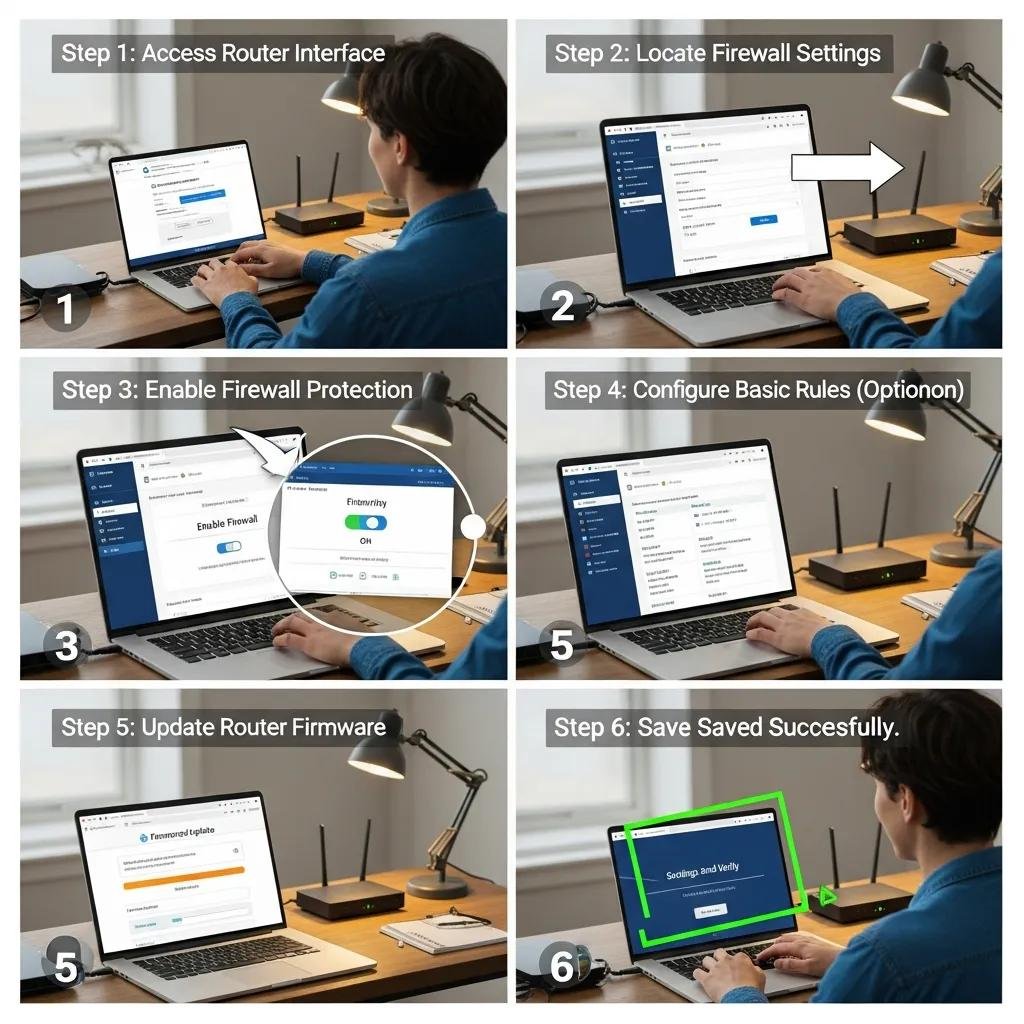
A practical home firewall setup starts with securing the router control plane, enabling the built-in firewall and NAT, updating firmware, and then configuring OS-level firewalls on individual PCs to enforce a defense-in-depth approach. Begin by backing up router settings, logging into the admin interface using a secure device, and verifying the firewall is enabled and NAT is functioning; then apply a default-deny stance for inbound rules and only open specific ports with documented reasons. For PCs, ensure Windows Firewall or macOS built-in firewall is active, create explicit allow rules for trusted apps, and keep endpoint OS and security software updated to reduce exploit windows. After configuration, test with simple port scans or online shield tests and monitor logs for unexpected drops, which leads naturally into a short checklist for concrete setup steps.
Follow these numbered steps to configure router and PC firewalls:
- Backup and update: Export router config and apply firmware updates before changes.
- Enable and verify firewall/NAT: Confirm router firewall is on and NAT is active for basic protection.
- Set default-deny inbound rules: Close all unnecessary inbound ports; allow only required services.
- Configure OS firewall rules: On each PC enable the system firewall and add app-specific allowances.
- Test and monitor: Run controlled scans and review logs to confirm expected traffic flows.
This sequence keeps configuration focused and repeatable so you can validate protection and adjust rules safely.
Practical configuration reference for common environments:
| Device/Platform | Typical Firewall Setting Location | Recommended Action |
|---|---|---|
| Consumer Router | Admin > Security/Firewall | Ensure firewall enabled; disable UPnP if not needed |
| Windows PC | Windows Defender Firewall > Advanced Settings | Use default profile rules; create inbound exceptions only when required |
| macOS | System Settings > Network > Firewall | Enable firewall and block incoming connections for non-essential apps |
What Are the Steps to Configure Router and PC Firewalls?
Start by backing up current configurations, update router firmware and PC OS, then enable the router firewall, confirm NAT, and disable unnecessary services (like remote admin from WAN). Next, on Windows enable the built-in firewall, set profiles (private/public) correctly, and add precise allow rules for trusted applications only; on macOS enable the application firewall and limit inbound connections for non-essential services. After rule creation, perform a controlled verification—use local tools or a trusted port scan to check only expected services are reachable—and monitor logs for blocked attempts to refine rules. These steps reduce exposure while preserving necessary functionality for home services and devices.
When Should You Seek Expert Remote Support for Firewall Setup?
Consider expert remote help when your home network includes multiple subnets, VLANs, VPN integration, or when port forwarding and NAT settings conflict with applications, because these scenarios often require coordinated router and endpoint changes that benefit from experienced diagnostics. Persistent connectivity problems after standard configuration, repeated false positives that disrupt media or gaming apps, or unclear router admin interfaces are all valid reasons to escalate to remote support rather than guessing at rule changes. mcHelper.com offers remote firewall setup and configuration services with certified technicians who provide guided configuration, and they operate 24/7 with a No Fix – No Fee guarantee for applicable services, which can be a practical option when time or expertise is limited. If you prefer to attempt fixes first, document current settings and create backups so a technician can restore your baseline during a remote session.
What Are the Benefits of Using a Firewall for Your Home Network and PC?
Firewalls deliver several concrete benefits for home users: they block unauthorized inbound access, limit outbound attempts by compromised devices, and allow you to control which applications can communicate externally, which together enhance security, privacy, and network stability. By reducing the attack surface, firewalls make it harder for automated scans and opportunistic threats to reach vulnerable services; by monitoring and controlling outbound traffic, they can stop data exfiltration or command-and-control connections from infected devices. For families with IoT devices, a firewall combined with segmentation ensures a compromised camera or thermostat cannot access sensitive PCs or cloud services, improving both operational stability and privacy. The table below maps firewall mechanisms to direct user benefits to clarify the protection each function provides.
| Function | What It Does | User Benefit |
|---|---|---|
| Packet filtering | Blocks unsolicited inbound packets | Prevents remote exploits and port scans |
| Stateful inspection | Allows only legitimate return traffic | Reduces spoofing and session attacks |
| Application rules | Controls per-app network access | Limits data leakage and unwanted telemetry |
| NAT | Hides internal IPs behind router IP | Provides basic inbound protection for all devices |
Benefits summarized as a short list:
- Reduced Attack Surface: Blocks unsolicited inbound access to home services.
- Containment of Compromises: Prevents infected devices from communicating with attackers.
- Controlled App Access: Allows only trusted applications to reach the internet.
How Does a Firewall Prevent Malware and Unauthorized Access?
Firewalls prevent many malware infections by blocking unsolicited inbound traffic and restricting outbound connections to known or necessary services so that command-and-control channels are less likely to succeed. When combined with antivirus and endpoint protection, firewalls act as a network-level control that complements detection; for example, if an exploit attempts to open an inbound connection, the router firewall can drop the packet before the endpoint processes it. Outbound rules also matter: blocking suspicious ports and unknown remote hosts can stop data exfiltration or remote control attempts even if a device is compromised. For best results, pair firewall rules with regular updates and endpoint scans to create layered defenses that address both network and host vectors.
Why Is Firewall Protection Crucial for Network Stability and Privacy?
Beyond security, firewalls contribute to predictable network behavior by preventing compromised devices from generating excessive traffic that can congest the home network, and by limiting unsolicited telemetry that can leak personal data. An example is an IoT camera that becomes noisy after compromise; a properly configured firewall or segmented network can isolate that device so other devices remain usable. Firewalls also help preserve privacy by limiting which services devices can contact, which reduces unnecessary data sharing with cloud providers and third parties. Ensuring firewall policies are sensible and monitored helps maintain both stable connectivity and baseline privacy for household devices.
How to Troubleshoot Common Firewall Issues on Your Home Network
Troubleshooting begins with distinguishing whether an issue is connectivity-related (e.g., service unreachable) or security-related (e.g., app blocked by firewall), because the fix path differs: connectivity issues often need NAT or port adjustments, while security blocks require safe rule changes or exceptions. Start diagnostics by temporarily testing connectivity with the firewall disabled in a controlled way, check logs for specific deny entries, and revert changes if tests indicate regression; always document rule changes and maintain backups. Common fixes include allowing specific app traffic, optimizing logging to reduce CPU load, and isolating conflicting rules that cause false positives; if problems persist, escalate to remote support for deeper log analysis and rule reconciliation. Below is a practical checklist for common troubleshooting steps you can follow before calling for help.
Troubleshooting checklist:
- Identify symptom: Is the problem a blocked app or loss of internet?
- Check logs: Look for denied entries tied to the app, IP, or port.
- Temporarily test: Disable a specific rule or firewall briefly to isolate cause.
- Reapply safe rule: Create minimal, explicit exceptions and monitor results.
What Are Frequent Firewall Problems and Their Solutions?
Frequent issues include legitimate apps being blocked by overly strict inbound rules, dropped connections due to incorrect NAT or UPnP behavior, and performance problems from excessive logging or rule bloat. Solutions typically involve creating minimal allow rules scoped to specific ports and IPs rather than broad allowances, verifying NAT loopback settings for internal access to hosted services, and pruning unused rules to improve throughput and logging clarity. If false positives occur, isolate the offending rule by disabling it temporarily and reintroducing it with narrower matching criteria to preserve security while restoring functionality. These targeted remediation steps reduce downtime while maintaining a secure default posture.
How Can Remote Technical Support Help Resolve Firewall Configuration Errors?
Remote support can perform safe, reversible diagnostics such as reviewing firewall logs, analyzing rulesets for conflicts, testing connectivity from multiple endpoints, and applying precise rule changes while documenting rollbacks to protect your baseline configuration. Technicians can also handle complex scenarios like VPN integration, multi-subnet routing, and persistent false positives that often require coordinated changes across router and endpoint firewalls, which are difficult to do without experience. mcHelper.com provides remote firewall troubleshooting and support with certified technicians available 24/7 and a No Fix – No Fee guarantee for qualifying services, offering a practical escalation path when in-home troubleshooting reaches its limits. If you opt for remote assistance, provide backups and current logs to the technician to accelerate diagnosis and minimize disruption.
For direct help with firewall setup or troubleshooting, mcHelper.com’s remote services for Computer & Internet Security and Home Wireless Network support are available to assist with configuration, testing, and verification.