How to Free Up Disk Space on Mac & Windows for Better Performance
A full or nearly full disk reduces responsiveness, increases swap usage, and makes both macOS and Windows feel sluggish; freeing disk space restores headroom for virtual memory and I/O, improving boot times and application performance. This guide shows how to identify the main causes of disk-bloat, use built-in storage tools, and apply safe manual and third-party cleanup methods to clean up hard drive space on both Mac and Windows systems. You will learn practical steps to remove junk files, clear caches, manage backups and restore points, and decide when to offload media to cloud or external storage for longer-term space management. The article covers root causes, macOS-specific procedures including Optimize Storage and Time Machine snapshots, Windows techniques using Disk Cleanup and Storage Sense, and why reclaiming space speeds systems—plus post-cleanup optimization tips. Throughout, target phrases like disk space optimization, remove junk files, clear cache Mac, and Windows storage sense guide are used naturally so you can follow procedures and understand the mechanism behind each action. If you prefer hands-off help, the article also points to remote support options for Mac and Windows users in key sections after the platform walkthroughs.
What Are the Main Causes of Disk Space Issues on Mac and Windows?
Disk space issues usually stem from transient system artifacts and accumulated user data: temporary files, caches, large media collections, and old backups fill storage over time. The mechanism is simple — systems and apps write temporary or cached files to speed operations, while user downloads and backups grow until they exceed available free space, causing higher paging and slower I/O. Reclaiming space addresses the root cause by removing nonessential meronyms like cache files and temp files, and by relocating large hyponyms such as video libraries to off-device storage. Below is a quick list of the common causes and one-line actions you can take immediately to start cleaning your drive.
- Temporary and cache files: Clear app and browser caches to remove transient data.
- Large media files: Move videos and photo libraries to external or cloud storage.
- Old backups and restore points: Delete or prune system restore points and Time Machine snapshots safely.
- Duplicate files and installers: Run a duplicate finder and remove unused installers.
- Log files and downloads: Empty Downloads and clear large log files created by apps.
This list highlights primary action types: clear, move, prune — each reduces swap and speeds I/O, which leads into specific file-type impacts quantified below.
Which File Types Commonly Consume Disk Space?
Temporary files and caches frequently occupy tens to hundreds of megabytes per app, and can total multiple gigabytes across browsers and system caches. Large media—video projects, high-resolution photos, and game assets—often occupy gigabytes per item and are the top contributors to long-term storage bloat; these are best moved to external or cloud storage solutions. Downloads folders and old installers typically range from a few megabytes to several gigabytes and are safe to remove once verified; duplicate files can multiply storage usage and benefit from a targeted duplicate file remover. Quantifying these meronyms helps prioritize cleanup: temporary files (MB–GB) → clear; large media (GB+) → offload; backups (GB+) → prune after verifying alternatives.
| File Type | Typical Size Impact | Recommended Action |
|---|---|---|
| Temporary / Cache files | MB to multiple GB | Clear app/browser caches and use built-in cleaners |
| Large media (videos/photos) | GB per file | Move to external drive or cloud storage |
| Old backups / snapshots | GB to tens of GB | Prune restore points; manage Time Machine snapshots |
| Duplicate files | MB to GB | Use a duplicate finder and remove confirmed duplicates |
| Downloads / installers | MB to GB | Review and delete unnecessary installers and archives |
This table shows where to target effort first: caches for immediate gains, media and backups for large gains. Understanding these file types transitions naturally to how restore points and backups in each OS affect storage.
How Do System Restore Points and Old Backups Affect Storage?
System restore points and local backups can consume large contiguous blocks of disk, sometimes dozens of gigabytes, because they retain historical system state and file versions. On Windows, System Restore and archived update files are stored in the System Volume Information and Windows Update Cleanup areas; on macOS, Time Machine local snapshots and retained backups appear as local space used even when an external backup drive is present. Always verify you have a reliable external or cloud backup before deleting snapshots or restore points; then prune system restore points on Windows via Disk Cleanup (clean system files) or adjust Time Machine snapshot retention on Mac using . Managing these backups safely recovers substantial space while preserving your ability to restore if needed, and leads into platform-specific cleanup tools described next.
How Can You Free Up Disk Space on Mac Effectively?
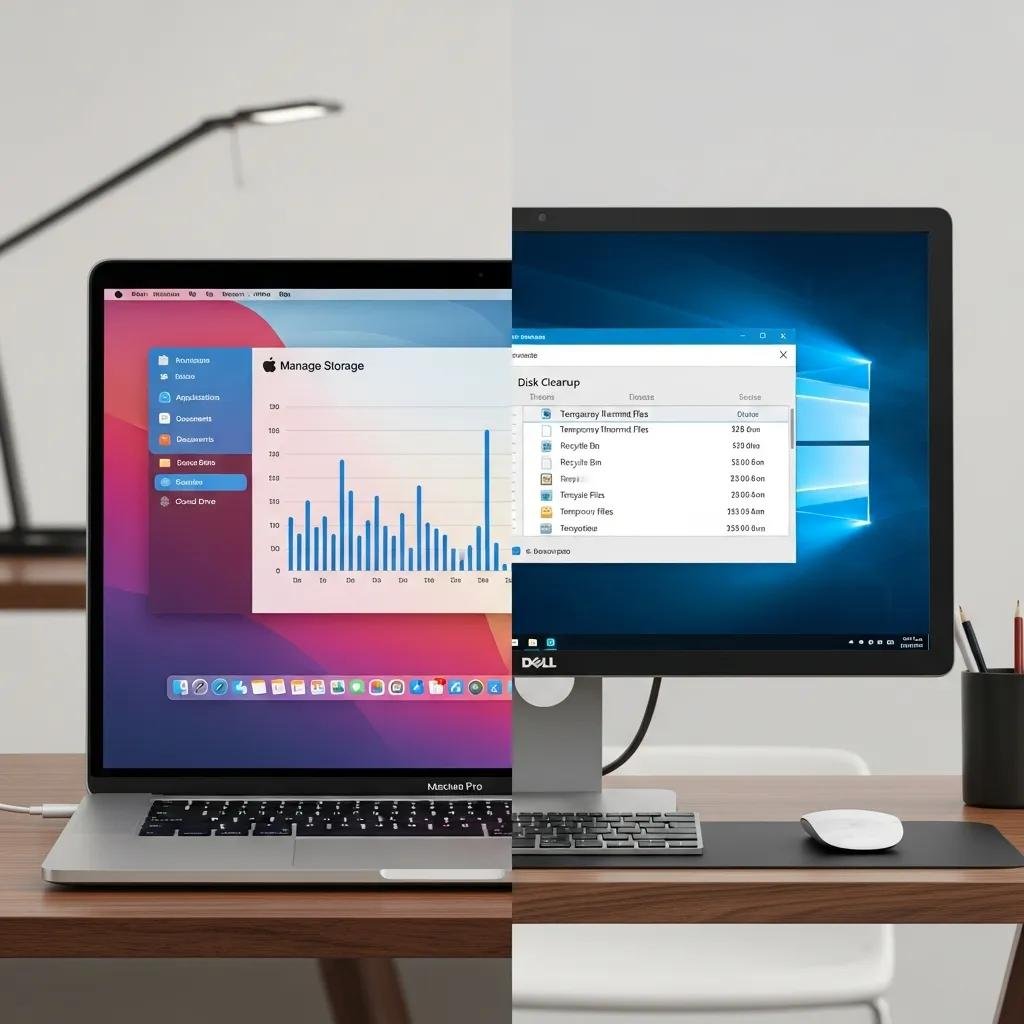
Freeing up disk space on macOS begins with the built-in Manage Storage interface and Optimize Storage features, which surface large files, unused apps, and cloud offload options. The mechanism: macOS identifies large and old files and offers to store older documents and photos in iCloud while keeping recent files local; Empty Trash Automatically and Reduce Clutter are toggles that safely remove redundant data. Start with About This Mac > Storage > Manage to review recommendations, then clear user caches and remove large files identified by the storage viewer. The approach balances local cleanup with offloading to iCloud or external drives, and it preserves essential system files while removing user-level junk.
Quick wins for macOS cleanup:
- Open About This Mac > Storage > Manage: follow recommendations like Store in iCloud and Optimize Storage.
- Empty Trash Automatically: remove trash after 30 days.
- Delete large downloads and unused apps: uninstall via drag-to-trash or an app cleaner.
These steps are safe for most users and set the stage for more manual cleanup tools and vetted third-party options described below.
For a compact comparison of macOS built-in features and trustworthy third-party utilities, see the table below which compares purpose, safety, and when to use each option.
| Tool / Feature | Purpose | Notes / When to Use |
|---|---|---|
| Optimize Storage (macOS) | Offload unused files to iCloud, remove TV movies | Use when you have iCloud and want automatic offload |
| Manage Storage recommendations | Identify large files and unused apps | First step for targeted cleanup; safe and user-facing |
| manual cache clearing | Remove browser and app caches | Use cautiously; avoid deleting system caches without backup |
What Built-in Tools Help Manage Storage on macOS?
macOS provides a centralized Manage Storage view (About This Mac > Storage > Manage) that lists recommendations like Store in iCloud, Optimize Storage, and Reduce Clutter, each designed to reclaim space with minimal user risk. The mechanism ties into iCloud to offload older files and uses system heuristics to identify large media and unused apps, making it a first-line tool for disk space optimization on Mac. Use the Empty Trash Automatically toggle for predictable reclamation and review the Documents and Mail sections to delete large attachments and installers. These built-in tools are safe for most users and should be applied before resorting to manual deletion or third-party cleaners.
Which Third-Party Disk Cleaners Are Recommended for Mac?
Third-party disk cleaners can locate duplicate files, large hidden folders, and leftover app data more aggressively than built-in tools, but they vary in transparency and safety; always back up before running a deep cleaner. Preferred features include large-file scanning, duplicate detection, and an ability to preview deletions; avoid utilities that promise aggressive system-level cleans or registry-style edits (macOS doesn’t use the Windows registry). Use reputable utilities that clearly describe which files they delete and offer undo or quarantine options to reduce risk. Running a reputable cleaner after built-in steps often recovers additional gigabytes and prepares the Mac for better performance, which may be a good transition point to seek professional remote assistance if you’re uncomfortable doing deep cleanup yourself.
mcHelper.com offers 24/7 remote Mac support with certified technicians who can perform safe disk cleanup and optimization remotely; their subscription service provides ongoing maintenance backed by a “no fix – no fee” guarantee for users who prefer professional assistance rather than manual cleanup. If you encounter risky cleanup situations—like pruning Time Machine local snapshots or removing system-level caches—remote services can implement recommended steps and verify system stability afterward.
How Can You Free Up Disk Space on Windows Efficiently?
Windows disk space reclamation centers on Disk Cleanup for system-level files and Storage Sense for ongoing automated cleanup; both tools remove temporary files, Windows Update residuals, and recycle bin contents. Disk Cleanup (run as administrator) can remove old Windows Update files and system restore data, while Storage Sense (Settings > System > Storage) can automate deletion of temporary files and manage local cloud content. The mechanism is to free space used by system artifacts and user-level junk while allowing controlled retention of restore points and backups. Begin with Disk Cleanup to remove large system files, then configure Storage Sense to maintain free space automatically.
Essential Windows cleanup checklist:
- Run Disk Cleanup as admin: select Clean up system files to remove update residuals.
- Enable and configure Storage Sense: set frequency and file age thresholds.
- Uninstall unused apps and delete large files in Downloads: use Apps & Features and File Explorer.
This sequence reduces both transient and persistent storage bloat, and the next table compares Disk Cleanup, Storage Sense, and common third-party cleaners to guide tool choice.
| Tool | Ease | Safety / Space Freed |
|---|---|---|
| Disk Cleanup (Windows) | Medium | High safety; removes system files when run as admin |
| Storage Sense | Easy | Safe for routine cleanup; automated policies |
| Reputable third-party cleaners | Varies | Can free additional space; vet for transparency |
How to Use Disk Cleanup and Storage Sense on Windows 10 and 11?
To run Disk Cleanup as an administrator, search Disk Cleanup, right-click and choose Run as administrator, then select system files to remove Windows Update cleanup and old restore points; this reclaims significant space left by updates. Storage Sense is configured in Settings > System > Storage where you can enable automatic temporary file deletion, set the Recycle Bin retention period, and choose cloud content handling; use a weekly cadence for Storage Sense if disk pressure is frequent. These tools work together: Disk Cleanup removes large accumulated system files, while Storage Sense maintains free space automatically. After these steps, check Apps & Features to uninstall infrequently used programs and use File Explorer to locate and move large media.
What Are the Best Third-Party Disk Cleaners for Windows?
When built-in tools are not enough, choose third-party cleaners with transparent actions, clear previews of deleted files, and a strong reputation; avoid registry cleaners and aggressive “one-click” optimizers that make broad changes without clear undo options. Preferred utilities focus on file-based cleanup, duplicate finding, and large-file indexing rather than registry edits, and they usually offer free scans with paid options for automated safe deletion. Always create a system restore point or full backup before running powerful cleaners to ensure you can revert changes. These safety-first practices reduce risk and preserve system stability while maximizing reclaimed space.
mcHelper.com also provides Windows-focused remote technical support for stubborn or risky cleanup tasks; their certified technicians can safely manage system restore pruning, remove large update leftovers, and perform follow-up monitoring, making them an option for users who need managed assistance.
How Does Freeing Up Disk Space Improve Computer Performance?

Free disk space reduces paging and swap usage, decreases I/O contention, and restores SSD/TRIM efficiency; the mechanism connects storage headroom directly to virtual memory behavior, so reclaiming space improves responsiveness across the system. When a drive is near capacity, operating systems spend more time managing free blocks and swapping data, which slows boot times, app launches, and multitasking; freeing space alleviates these bottlenecks and reduces the frequency of disk thrashing. Practically, improved disk space leads to faster boot times, more responsive applications, and fewer freezes or hangs during memory-intensive tasks. Below are three concise benefits and immediate next steps to take after cleaning up your drive.
Benefits of reclaimed disk space:
- Faster boot and app launch times: reduced I/O queueing speeds load operations.
- Reduced swapping and smoother multitasking: more room for virtual memory.
- Improved SSD performance and longevity: more free blocks aid TRIM and wear-leveling.
These benefits explain why cleanup is often the first step in broader optimization, and they naturally lead to post-cleanup actions to sustain performance gains.
Why Does a Full Hard Drive Slow Down Mac and Windows Systems?
A near-full drive increases virtual memory pressure because systems use disk-based swap or pagefiles when RAM is insufficient; as free disk space falls, creating and expanding swap files becomes slower and more fragmented, directly impacting performance. On HDDs, fragmentation increases seek times for files scattered across the platter, while on SSDs, low free space reduces overprovisioning and can degrade TRIM efficiency, leading to slower write throughput. In semantic triple form: low free space → increases swap usage → slows application responsiveness. Understanding these mechanisms clarifies why disk space optimization is a fundamental aspect of system maintenance.
What Additional Steps Optimize Performance After Cleaning Disk Space?
After reclaiming space, review startup items, reduce background apps, and run antivirus/malware scans to ensure nothing is consuming resources unexpectedly; these steps complement disk cleanup by addressing CPU and memory sources of slowness. Check RAM usage and consider adding physical memory or upgrading to an SSD if persistent swapping continues, since hardware upgrades directly increase headroom for multitasking. Finally, keep the OS and drivers updated and schedule periodic storage maintenance tasks to maintain free space; if these steps feel complex, consider managed support for safe implementation and follow-up monitoring.
mcHelper.com’s Speed-Up and Optimize your Computer service offers a managed implementation of these steps with follow-up monitoring and a “no fix – no fee” guarantee, providing an option for users who prefer a professional to apply recommended optimizations and verify sustained performance improvements.