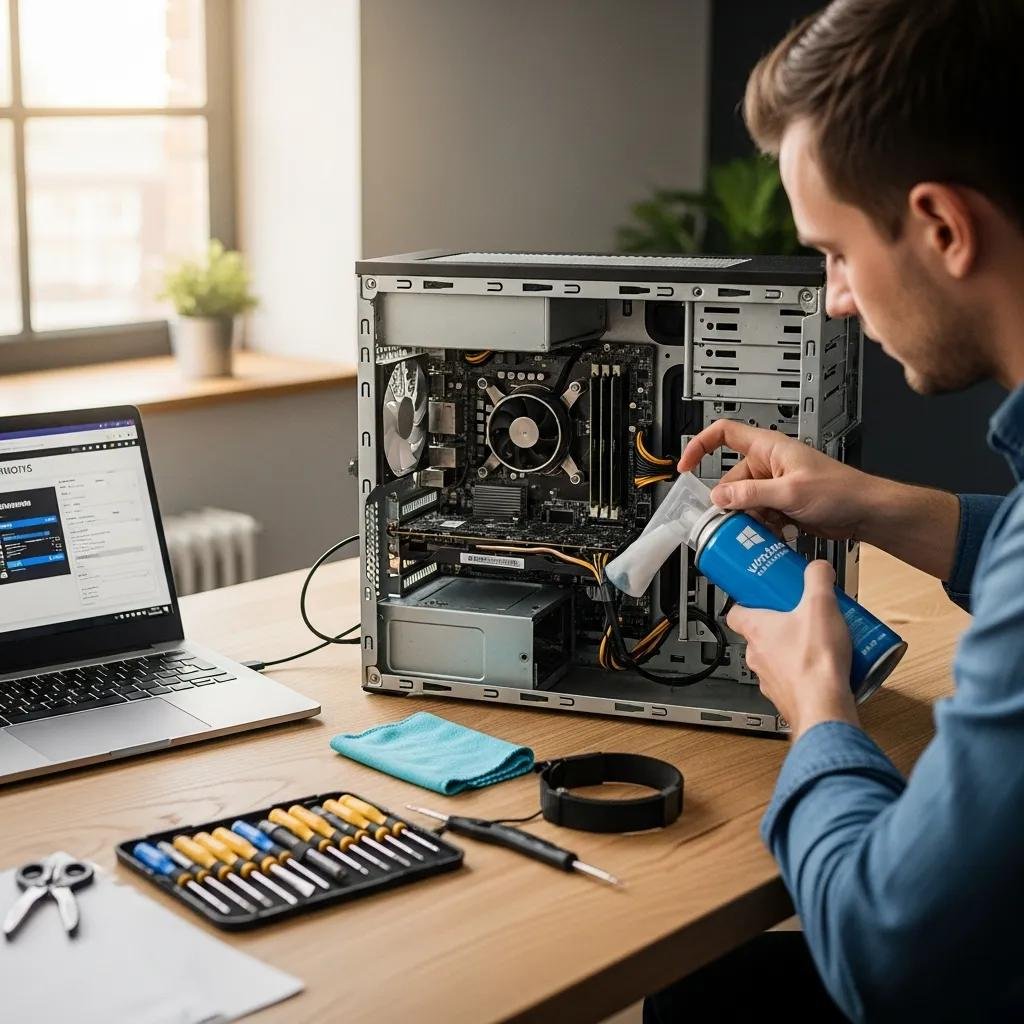
Windows Maintenance Tips: How to Keep Your PC Running Smoothly with Performance Optimization
Keeping a Windows PC responsive requires routine maintenance, timely updates, and occasional troubleshooting to prevent slow boots, freezes, and degraded performance. This guide teaches practical desktop maintenance steps — from cleaning temporary files and managing startup programs to updating drivers and running safe free utilities — so you can reclaim speed and reliability. Many users see significant gains simply by removing clutter, checking drivers, and running lightweight scans; these measures reduce disk I/O, lower background CPU use, and prevent software conflicts. Below we map the most effective windows care actions, safe how-to steps for built-in tools, recommended precautions when using third-party cleaners, and a concise maintenance checklist you can follow weekly, monthly, and annually. Each section includes short step lists, comparison tables, and clear signals for when to escalate problems to remote technical support or professional repair. Throughout, keywords like pc upkeep, windows performance optimization, disk cleanup windows, and update windows drivers are woven into actionable advice you can apply immediately.
What Are the Essential Windows Performance Optimization Tips?
Essential windows performance optimization centers on five repeatable tasks that free space, reduce background load, and keep system components stable. These tasks work by removing transient data, stopping unnecessary startup processes, updating firmware and drivers, scanning for malware, and preserving healthy power and thermal behavior — collectively improving boot times and runtime responsiveness. Apply these regularly to maintain consistent performance and reduce the risk of crashes or slowdowns caused by outdated software or full storage. Below is a compact list of core tasks that most users can run with built-in tools.
Core maintenance tasks that yield the largest, consistent performance gains:
- Disk cleanup and Storage Sense: Remove temporary files and unused system files to free disk space.
- Manage startup programs: Disable nonessential startup entries to shorten boot times.
- Update drivers and Windows: Keep device drivers and OS patches current to prevent conflicts.
- Run antivirus/anti-malware scans: Detect and remove infections that slow systems.
- Regular backups and housekeeping: Archive large files and maintain restore points to recover from issues.
These five tasks form a practical routine you can schedule weekly or monthly, depending on usage patterns. The concise table below summarizes frequency, difficulty, and benefit to help you prioritize.
| Maintenance Task | Frequency | Difficulty | Benefit |
|---|---|---|---|
| Disk cleanup / Storage Sense | Weekly | Low | Frees disk space, reduces clutter |
| Startup program review | Monthly | Low | Faster boot and reduced background CPU |
| Driver & OS updates | Monthly | Medium | Stability, compatibility, performance |
| Antivirus full scan | Weekly | Low | Removes malware that reduces speed |
| Backups & restore points | Monthly/Before updates | Low | Quick recovery from failures |
This schedule clarifies which activities deliver immediate improvements and which protect long-term stability. Applying the tasks in order reduces the time you spend troubleshooting performance issues later.
How to Clean Up Your Hard Drive and Remove Temporary Files
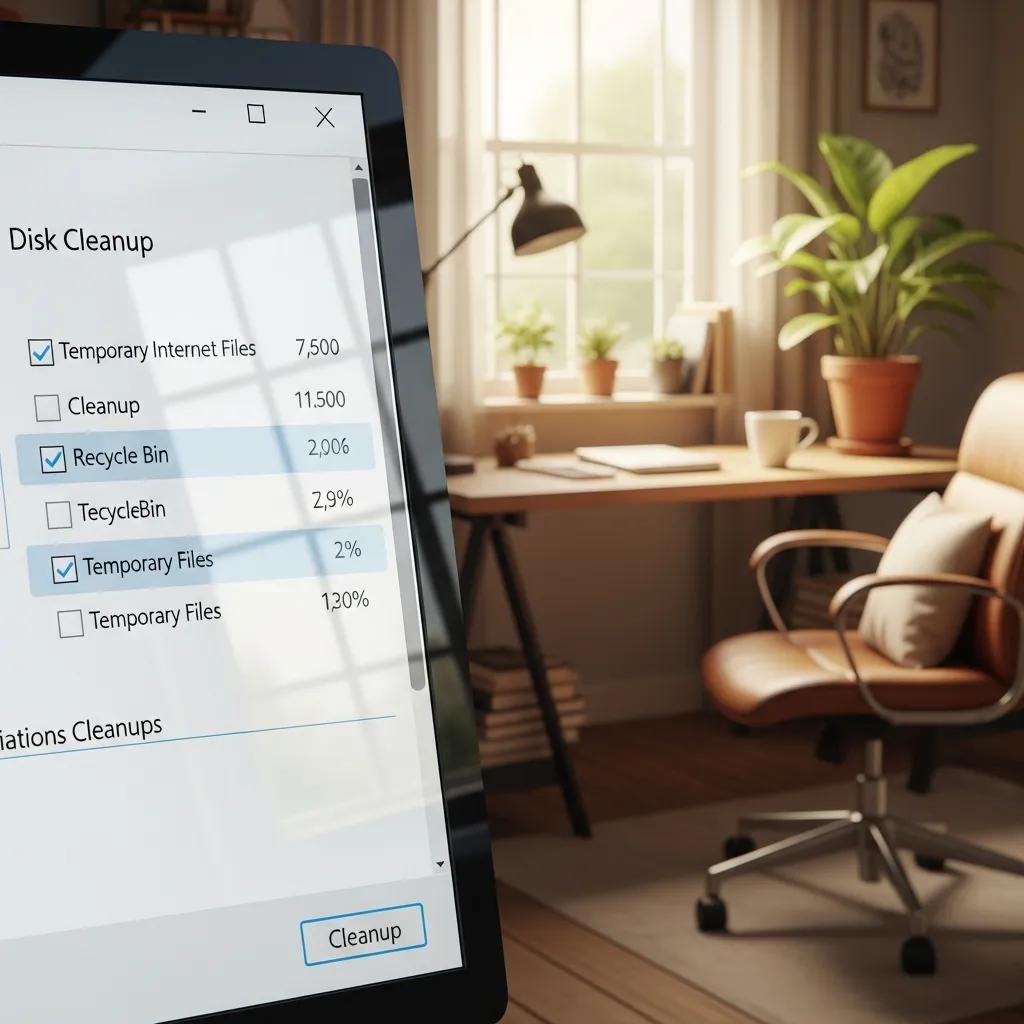
Disk cleanup removes transient files, caches, and installer leftovers that occupy valuable storage and slow disk operations. Use Windows’ built-in Disk Cleanup or Storage Sense to automate safe removals; these tools identify temporary files, system cache, and delivery optimization files that can be deleted without affecting personal data. Manually clearing the Downloads folder and emptying the Recycle Bin complements automated cleanup. Before deleting anything large, create a quick backup or verify files are nonessential to prevent accidental data loss.
Steps to run a basic cleanup safely:
- Open Disk Cleanup or Settings → System → Storage and run Storage Sense.
- Select categories (Temporary files, Recycle Bin) and review before deletion.
- Use “Clean up system files” in Disk Cleanup for Windows update leftovers.
- Archive large media to external drives or cloud storage before removal.
After cleanup, monitor free space and performance to confirm benefits; tight storage on HDDs and SSDs can cause sustained slowdowns, so maintaining at least 10-15% free space is advisable.
How to Manage Startup Programs for Faster Boot Times
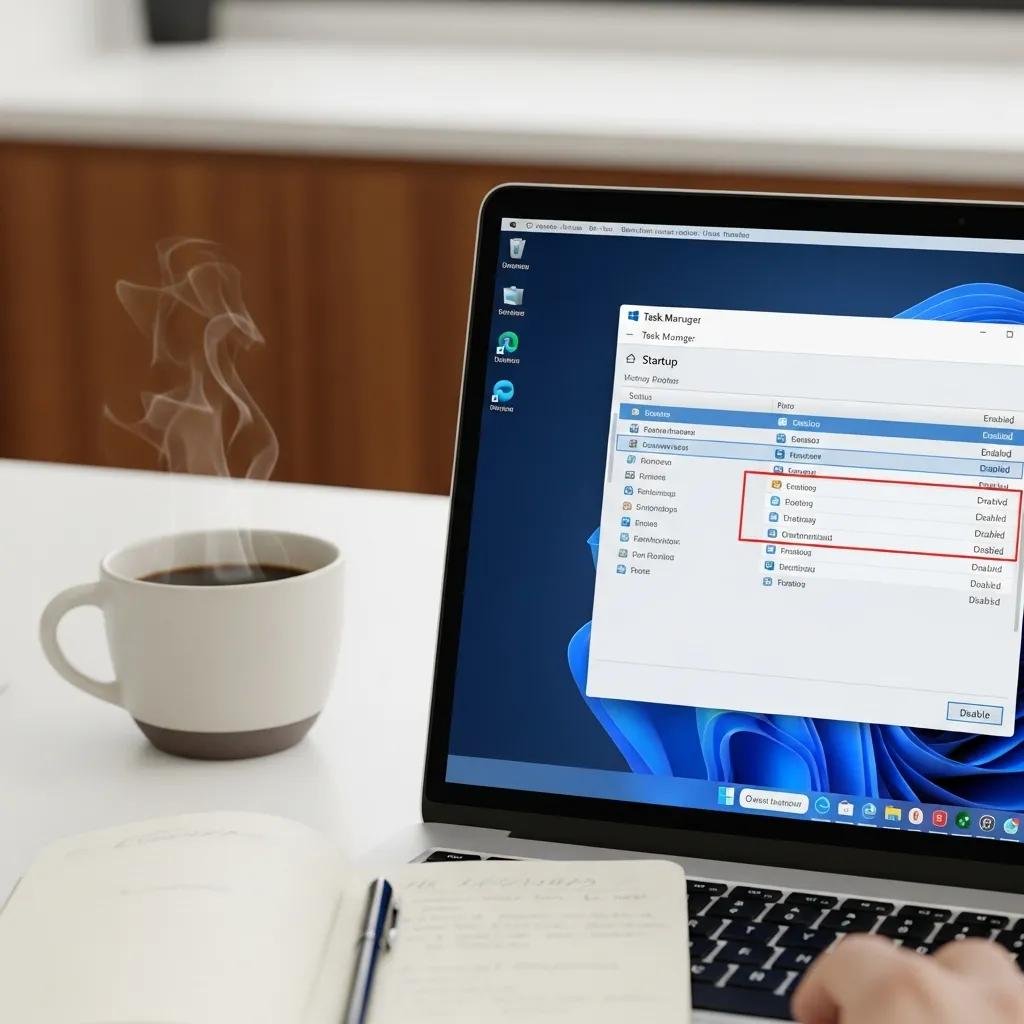
Startup programs load automatically and can significantly extend boot time and consume memory. Task Manager’s Startup tab lists enabled entries with a “Startup impact” rating, allowing you to disable nonessential items without uninstalling them. Focus on disabling apps you recognize as optional — like launchers, updaters, and cloud sync tools that can be started manually. Leave device drivers, security software, and system utilities enabled unless advised otherwise.
How to identify and change startup settings:
- Open Task Manager (Ctrl+Shift+Esc) → Startup tab and sort by Impact.
- Right-click a nonessential item → Disable to prevent automatic launch.
- Test boot time after changes and re-enable if you need a program to auto-run.
- Check Settings → Apps → Startup for additional toggles in newer Windows.
Disabling unnecessary startup entries reduces background processes and improves boot responsiveness while preserving the option to run those programs on demand.
How Can You Update Windows Drivers to Improve PC Speed?
Device drivers mediate hardware and software; outdated or incorrect drivers can cause performance regressions, instability, and reduced throughput for components like GPU, network adapters, and storage controllers. Updating drivers restores compatibility, enables firmware optimizations, and can remove software bottlenecks. Use safe update paths — Windows Update for certified drivers, Device Manager for manual updates, and OEM support pages for manufacturer-provided packages — and always create a restore point before making major driver changes.
Safe methods to update drivers include these steps:
- Windows Update: Check Settings → Update & Security → Windows Update for driver bundles.
- Device Manager: Locate the device, choose “Update driver” and prefer automatic search.
- OEM websites: Download drivers for your exact model directly from the manufacturer.
- Create a restore point before installing a driver and test system behavior after reboot.
If manual updates feel risky or a driver causes conflicts, consider professional assistance. mcHelper.com offers remote driver update and compatibility support for Windows systems, providing expert technician help when manual updates lead to instability or when you prefer a safe, hands-off approach handled remotely by certified experts.
Why Regular Driver Updates Are Crucial for System Stability
Device drivers translate OS calls into hardware actions; when drivers fall behind, the translation layer can mismanage resources, causing slowdowns, crashes, or poor GPU/network throughput. Symptoms of outdated drivers include stuttering video, reduced transfer speeds, unexpected device disconnects, and blue screens. Balancing updates means applying security and stability patches promptly while avoiding brand-new drivers if they introduce regressions; vendor release notes and community feedback help decide timing.
A brief troubleshooting checklist for driver issues:
- Identify symptoms tied to specific hardware (graphics lag, audio glitches).
- Roll back drivers via Device Manager if a new driver caused problems.
- Use vendor tools for driver packages that include firmware updates.
- Keep backups/restore points to recover quickly from failed updates.
What Are the Best Methods to Update Windows Drivers Safely?
Prioritize official sources and incremental changes when updating drivers to avoid compatibility regressions. Start with Windows Update for certified drivers, then use Device Manager for targeted updates. For major component drivers (GPU, chipset), download installers from the OEM or GPU vendor and follow guided installation steps. Always set a system restore point and document current driver versions to enable rollback if the new driver causes instability.
Safety checklist for driver updates:
- Back up data and set a restore point before driver installs.
- Prefer signed drivers from OEMs or Windows Update over unknown third-party packages.
- Install one driver at a time and reboot to test system behavior.
- Avoid automated “driver updater” utilities from unknown vendors that may bundle PUPs.
Which Free PC Cleaner Tools Are Effective for Windows Maintenance?
Free PC cleaner tools can simplify disk cleanup, uninstall unused apps, and analyze large files, but tool quality varies and some include potentially unwanted programs (PUPs). Look for simple UIs, transparent features, and privacy-respecting policies. Use tools that focus on safe temp-file removal, duplicate detection, and uninstall managers rather than aggressive “registry cleaners” that offer little benefit and risk removing needed entries. Below is a quick comparison to help you evaluate common free tool types.
| Tool Type | Cost | Key Features | Safety Concerns |
|---|---|---|---|
| Disk analyzer utilities | Free | Shows largest files and folders | Avoid uninstallers that bundle extras |
| Temporary-file cleaners | Free | Removes caches and temp files | Check defaults to avoid deleting saved data |
| Uninstall managers | Free | Force-remove stubborn apps | Beware bundled offers during install |
Choose tools with clear settings and an option to review actions before deletion. Run a backup or restore point prior to using cleaners that modify system areas.
What Features Should You Look for in a Free PC Cleaner?
A safe free PC cleaner should offer disk analysis, selective temp-file removal, uninstall management, and an option to create a restore point before system changes. Privacy features like safe browser cleanup without harvesting data are important. Red flags include forced “one-click” registry cleaning, bundled toolbars, and aggressive marketing prompts to upgrade to paid versions.
Feature checklist:
- Selective cleaning with preview of files to be removed.
- No bundled PUPs or hidden installers during setup.
- Disk space analysis to locate large, redundant files.
- Clear restore/undo options for safety.
How to Use Free PC Cleaner Software to Optimize Performance
Using a cleaner safely starts with backing up important files and closing active applications to avoid file locks. Run a disk analysis first, then select only clear categories such as temporary files, browser caches, and leftover installer packages. Avoid registry cleaners unless you have expert-level reasons and a verified backup. After cleaning, reboot and verify application behavior and free-space gains.
Safe usage steps:
- Backup important data and create a restore point.
- Run analysis, review items, and uncheck unknown entries before cleaning.
- Reboot and test performance, checking for missing functionality.
- Repeat only as needed, not daily, to avoid unnecessary churn.
If you prefer expert help when selecting or using third-party tools—especially if your PC has complex issues—mcHelper.com provides remote cleaning and optimization services for Windows, handling risky cleanup tasks safely with certified technicians who work remotely and can reverse changes if needed.
What Is a Comprehensive Computer Maintenance Checklist for Windows PCs?
A comprehensive computer maintenance checklist organizes routine tasks by frequency so upkeep becomes predictable and efficient. Regular maintenance reduces the chance of disruptive failures and ensures consistent windows care for both desktop and laptop systems. Below is a compact checklist with recommended timing, quick instructions, and priority levels to help you plan weekly, monthly, and annual work.
Routine maintenance tasks, frequency, and time estimates:
- Weekly: Antivirus quick scan and empty Recycle Bin (5–15 minutes).
- Monthly: Disk cleanup, Storage Sense run, check for Windows and driver updates (20–40 minutes).
- Quarterly: Deep antivirus scan, disk health check, and archive large files (30–60 minutes).
- Annually: Full hardware check, firmware updates, and a clean OS reinstall if needed (varies).
| Task | Recommended Frequency | Time Estimate |
|---|---|---|
| Antivirus quick scan | Weekly | 5–15 min |
| Disk cleanup / Storage Sense | Monthly | 10–20 min |
| Driver & Windows updates | Monthly | 10–30 min |
| Full system backup | Monthly/Before updates | 20–60 min |
Following this schedule keeps core maintenance manageable and prevents small issues from becoming major problems. Prioritize backups and security updates first, since they protect data while improving stability.
Which Routine Tasks Keep Your Windows PC Running Smoothly?
Consistent execution of a few low-effort tasks prevents most slowdowns: quick antivirus scans, weekly disk cleanup, monthly driver checks, and periodic backups. These steps take little time but compound into a reliable system that boots faster and runs with fewer errors. Allocate short windows in your calendar for these tasks to make them habitual.
Routine priorities and impact:
- Antivirus scans to catch infections early.
- Disk cleanup to reclaim space and reduce clutter.
- Driver and OS updates to maintain compatibility.
- Backups and restore points to enable rapid recovery.
When Should You Seek Professional Remote Computer Repair Services?
Seek remote professional support when symptoms persist after basic maintenance: repeated crashes, unexplained slowdowns despite cleanup, boot failures, or data recovery needs. Remote repair services can diagnose complex driver conflicts, remove hard-to-detect malware, and recover data without in-person visits. Have system details ready (error messages, recent changes) to speed diagnosis and resolution.
Signs it’s time to get expert help:
- Persistent slow performance after cleanup and updates.
- Frequent system freezes or blue screens indicating hardware/driver issues.
- Failed boots or corrupted system files requiring repair.
- Data recovery needs after accidental deletion or drive errors.
For reliable remote assistance, mcHelper.com offers 24/7 remote computer repair and technical support for Windows users, an “no fix – no fee” promise for qualifying cases, and certified technicians who can handle slow performance, virus infections, boot-up problems, and data recovery — an option worth considering when routine steps don’t resolve the issue.