External Hard Drive Not Detected: Quick Troubleshooting and Data Recovery Solutions
An external hard drive “not detected” means your computer does not enumerate, mount, or assign a drive letter to the connected storage device, preventing access to files. This guide explains quick checks, common causes, safe recovery options, and when to stop to avoid further data loss, so you can act confidently whether the drive is bus-powered, externally powered, or enclosed. You will learn why connection problems, driver conflicts, file system corruption, and hardware failures cause an external HDD not recognized, plus step-by-step fixes for Windows and macOS. The article maps clear triage steps, practical Disk Management and Disk Utility actions, and decision guidance for DIY software recovery versus professional intervention. Keywords covered include usb drive not showing, external hard drive not appearing in my computer, external hard drive raw format recovery, and external hard drive not spinning to ensure practical troubleshooting language. Read the short sections in order: identify the cause, run safe fixes, decide on recovery, and follow Mac-specific diagnostics to restore access without losing data.
Why Is My External Hard Drive Not Showing Up? Common Causes Explained
An external drive not showing up means the operating system fails to recognize the device at the hardware or logical level, so folders and files are inaccessible. Common root causes include simple connection failures, driver or USB controller errors, corrupted file systems or unallocated partitions, and mechanical or enclosure-level hardware faults. Understanding the cause lets you choose low-risk recovery steps that protect data integrity and avoid destructive actions like reformatting. The next subsection explains how cables, ports, and power delivery influence detection and what to try first.
The most frequent causes are:
- Connection problems: faulty USB cable, damaged port, or missing power.
- Driver or controller errors: USB device driver corruption or outdated controllers.
- File system issues: RAW partitions, corrupted MFT/partition table, or unallocated space.
- Hardware failure: enclosure electronics, failed motor, or click/grind noises.
Recognizing which of these four buckets matches your symptom points you to either quick checks or to stopping and consulting recovery options in the next section.
How Do Connection Issues Affect External Drive Detection?
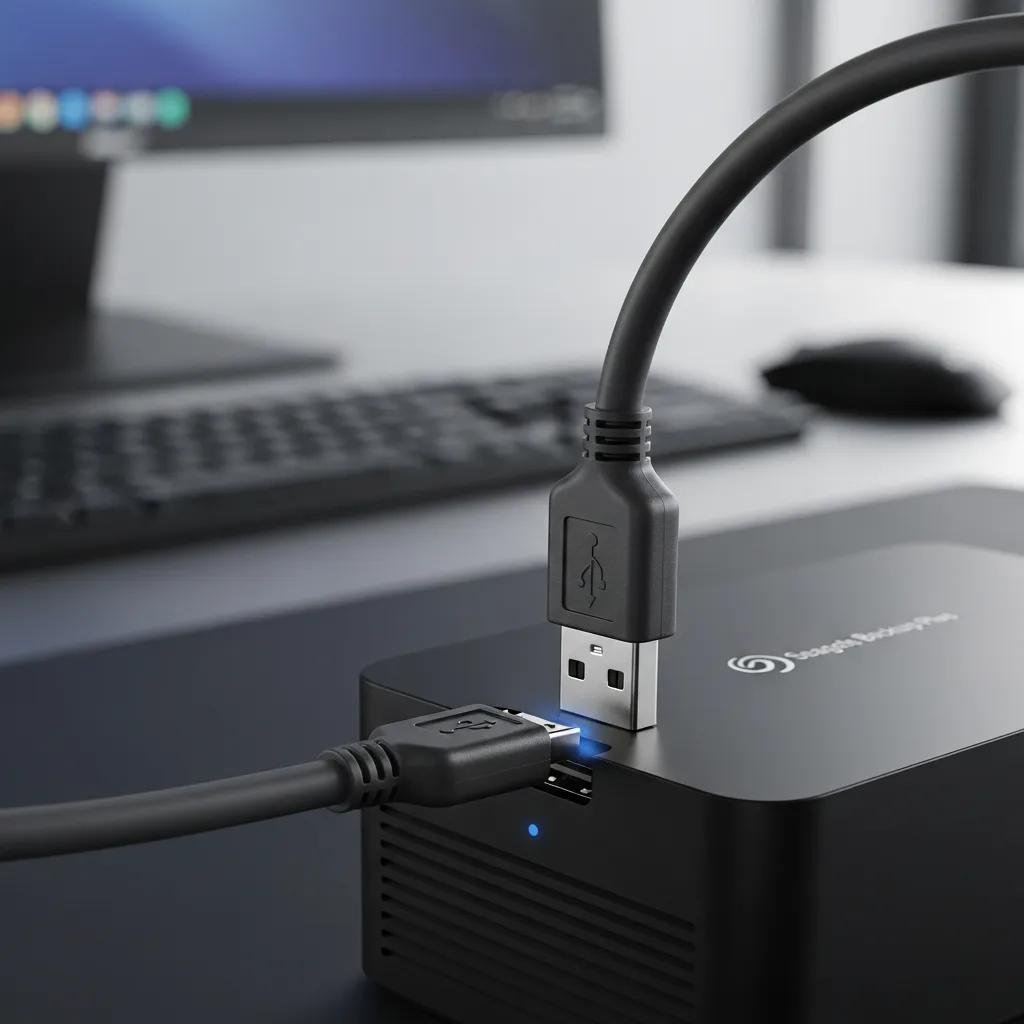
Connection problems prevent enumeration by breaking the link between the drive controller and the host, so the OS shows no device or lists an unknown USB mass storage device. Test by swapping the USB cable, trying a different USB port or PC, and powering desktop enclosures with their DC adapter to distinguish bus-powered from externally powered symptoms. If the drive intermittently appears or spins up then drops, that behavior often indicates a weak cable, failing port, or insufficient power from the host. After these swaps, if the device still fails to enumerate, proceed to driver and software checks described next to avoid needless hardware intervention.
What Driver and Software Conflicts Prevent Recognition?
Driver and software conflicts stop an otherwise healthy external drive from mounting by blocking correct USB controller operation or by leaving the device flagged with an error in Device Manager. On Windows, look for yellow-triangle entries under Universal Serial Bus controllers and under Disk drives, then uninstall and reinstall the USB Mass Storage driver or update the USB controller driver to force re-enumeration. Security software, virtualization tools, or filter drivers can also prevent mounting; temporarily disabling them for testing can reveal conflicts without making permanent changes. If drivers reinstall but the disk shows as unallocated in Disk Management, avoid initializing or formatting and follow the safe repair steps in the next section.
How Can I Fix External Hard Drive Not Detected? Essential Troubleshooting Steps
Start with non-destructive triage that preserves data: check cables and power, test on another computer, then inspect disk visibility in system tools before attempting repairs. This section gives ordered actionable steps to restore detection while minimizing risk, since incorrect actions like formatting or initializing can erase data irreversibly. The EAV table below helps you triage common cable and power configurations quickly so you can rule out connection issues fast. After the quick checks, use Disk Management and Device Manager (Windows) or Disk Utility (Mac) to assess logical status, and only proceed to recovery tools when the drive is visible but unreadable.
Intro to the quick comparison table: use this table to identify likely fixes for basic connection symptoms and to decide whether the drive needs a powered hub, cable replacement, or hardware repair.
| Cable / Connection | Characteristic | Suggested Fix |
|---|---|---|
| Short USB-A cable (bus-powered) | Often used for portable external HDD/SSD; may supply marginal power | Swap to a known-good cable or try a powered USB port |
| Micro-B / USB-C cable | Frequent wear point; data lines can fail while power appears fine | Test with a data-capable cable and different port on another PC |
| External power adapter (desktop drive) | External enclosure relies on adapter for spin-up | Confirm adapter voltage/current and replace with manufacturer spec |
| USB hub (unpowered) | May not supply full current | Use a powered hub or direct motherboard port for testing |
This table narrows connection causes so you can move to OS-level checks. Next, perform the ordered HowTo steps below to restore detection safely.
This numbered troubleshooting list walks through low-risk actions to attempt now:
- Swap the cable and port: Expect the device to appear in Device Manager or System Information if cable/port was the issue.
- Try a different computer: Confirms whether the problem is host-specific or drive-related.
- Check Disk Management / Disk Utility: Look for unallocated, offline, or RAW volumes before changing anything.
- Reinstall/update drivers: Use Device Manager to uninstall the device entry and scan for hardware changes to force a fresh driver load.
- Avoid initialize/format: If data matters, stop before doing destructive steps and consider recovery options.
After these steps, if the drive appears but the filesystem is RAW or partitions are missing, use read-only recovery tools or consult professional recovery to avoid data loss; the next section helps you decide when to escalate.
Which Basic Checks Should I Perform First?
Begin with quick, non-invasive checks you can complete in minutes to determine whether the issue is trivial or critical. Confirm the drive spins (listen/feel), swap the USB cable, test on multiple ports and another computer, and check for external power on desktop enclosures; these actions separate connection problems from controller or mechanical failures. If the drive emits clicking, grinding, or fails to spin, do not repeatedly power-cycle the unit because that can worsen mechanical damage. Once basic checks are done, the following subsection explains how to use Disk Management and Device Manager to safely examine logical status before recovery.
How Do I Use Disk Management and Device Manager to Resolve Issues?
On Windows, open Device Manager to detect driver errors, then open Disk Management to check whether the disk appears as unallocated, offline, or needing a drive letter; these tools let you fix logical problems without data loss when used carefully. To reassign a drive letter, right-click the partition in Disk Management and select Change Drive Letter; to reactivate an offline disk, right-click and choose Online. If the disk shows as unallocated but the partition table seems intact, avoid creating a new partition and instead use partition-recovery software in read-only mode. After these logical checks and safe actions, if the volume remains inaccessible, the decision guide below helps determine whether to attempt software recovery or seek professional help.
When and How Should I Recover Data from an Undetected External Hard Drive?
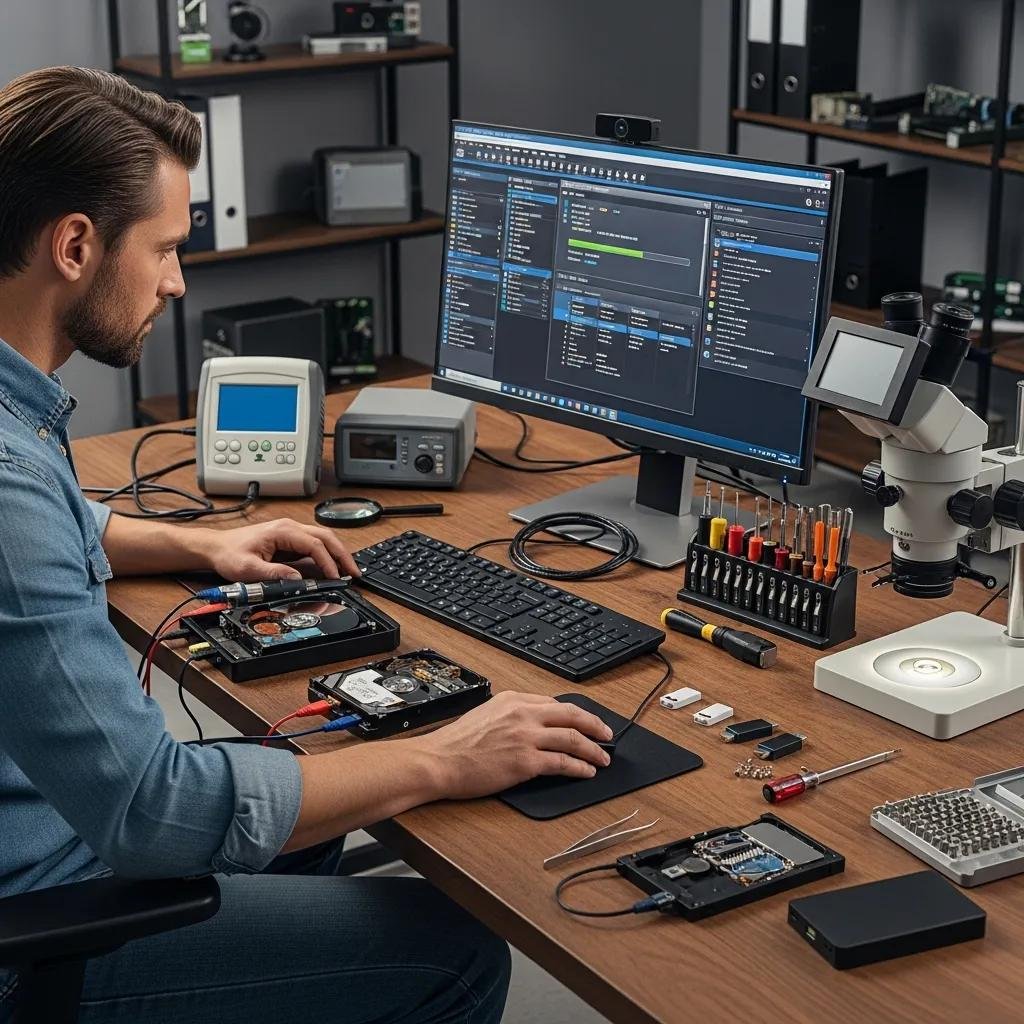
Deciding whether to continue DIY recovery or hire a professional depends on symptom severity and the risk of further damage; follow clear cues to choose wisely. Logical failures like accidental deletion, a RAW file system, or partition table corruption often respond to software recovery when the drive spins normally and is recognized at a device level. Physical or firmware failures—clicking noises, motor not spinning, burning smell, or repeated power cycling failures—require immediate professional attention to avoid irreversible platters or board damage. The decision-support table below maps common symptoms to recommended actions so you can select the safest recovery path.
Intro to symptom-action table: reference this chart to match observable symptoms to recommended next steps and minimize the chance of making a recoverable situation worse.
| Symptom | Likely Cause | Recommended Action |
|---|---|---|
| Drive not spinning | Mechanical motor failure or power issue | Stop powering the device; consult professional recovery |
| Clicking or grinding noises | Internal head or bearing failure | Do not power on again; seek in-lab recovery |
| Visible but RAW filesystem | Filesystem corruption or partition table loss | Use read-only recovery software or remote recovery support |
| Intermittent detection | Faulty cable, enclosure board, or marginal power | Try another cable/port; consider enclosure swap if data critical |
This table clarifies when DIY tools are safe and when to escalate. The following subsection lists red flags indicating professional recovery is needed and then describes how remote recovery services typically operate.
When these red flags appear, professional intervention is the safest route:
- Repeated clicking, grinding, or mechanical silence on power-up.
- Multiple attempts across different hosts fail to detect the device.
- Firmware corruption or enclosure electronics faults suspected after cable swaps.
- Critical data that cannot be replaced and where DIY risks exist.
What Are the Signs That Indicate Professional Data Recovery Is Needed?
Professional recovery is indicated when symptoms point to mechanical or firmware failure, or when logical repairs risk overwriting irreplaceable data. Clear red flags include audible clicking/grinding, the drive failing to spin, strange odors, or repeated detection failure across multiple computers and cables. If attempted software repairs report read/write errors or force reinitialization, stop and preserve the current state by avoiding further writes. Once you recognize these signs, the next subsection explains what remote recovery can do as a first option before lab-based physical recovery.
How Does mcHelper.com Provide Remote Data Recovery Services?
mcHelper.com offers remote data recovery and tech support for both Mac and Windows users, operating 24/7 with certified technicians to diagnose logical failures and perform secure remediation when physical repair is not required. The typical remote workflow begins with a remote diagnosis to determine whether the issue is logical (file system, partition, or driver) or physical, proceeds to a secure remote session for read-only recovery attempts or file extraction, and concludes with verification of recovered files and recommendations. Their “no fix – no fee” promise and continuous availability provide trust signals for users who need fast, reliable remote assistance without risking unnecessary charges; if remote methods cannot recover data due to hardware failure, mcHelper.com advises lab-based recovery options. If you choose remote help, prepare a clear description of symptoms and avoid further power cycles to preserve the drive’s state.
How Do I Troubleshoot External Hard Drive Issues on Mac?
macOS treats external volumes differently from Windows, so using Disk Utility and System Information gives targeted diagnostics for mounting and permission issues on Mac. Start by confirming device enumeration in System Information under USB/Thunderbolt, then check Disk Utility for First Aid status, mount options, and partition visibility. Use safe, read-only approaches first: run First Aid to repair minor filesystem errors, then attempt mounting; do not erase or reformat if data is needed. The following H3 subsections map Disk Utility steps and show how to use System Information to interpret device-level descriptors and power delivery status.
What Steps Does Disk Utility Offer for Drive Detection Problems?
Disk Utility provides First Aid to verify and repair filesystem structures and shows whether a volume is mountable, uninitialized, or needs reformatting. Run First Aid on both the volume and the parent device to correct directory structure problems or minor partition table inconsistencies; if First Aid succeeds and the volume mounts, copy data immediately to a safe location. If Disk Utility suggests erasing or reformatting to repair the disk, stop and consider recovery tools or professional help instead, because reformatting will destroy existing data. Understanding these outcomes prepares you to choose software recovery or escalate to experts as needed.
Intro to the tool-purpose table: this quick reference links macOS utilities to common use cases so you can apply the correct tool without risking data.
| Tool | Purpose | Use Case |
|---|---|---|
| Disk Utility | Verify and repair filesystem/partitions | Run First Aid on unreadable volumes or to attempt safe repairs |
| System Information | Enumerate USB/Thunderbolt devices and power info | Confirm device is recognized at hardware level even if not mounted |
| Terminal (diskutil) | Advanced mounting, repair, and descriptor queries | Use for scripting or when Disk Utility lacks needed detail |
These tools together help you assess whether the problem is logical or physical and guide next steps toward safe recovery.
How Can I Use System Information to Diagnose External Drive Issues?
Open System Information and check the USB or Thunderbolt sections to see if the host enumerates the external enclosure, which indicates the controller is communicating even if the volume is not mounted. Inspect device descriptors such as Vendor ID, Product ID, and power draw to spot enclosure board failures or insufficient bus power. If the device appears in System Information but not in Disk Utility, the issue is likely filesystem-level or partition-related and may respond to First Aid or read-only recovery software. Use this hardware visibility to decide whether to continue with software-based recovery or preserve the drive for professional servicing.