How To Fix A Frozen Computer: Why Is My Computer Freezing? Troubleshooting & Fixes
A computer freezing — where the screen stops responding, the cursor stalls, and input no longer registers — is a clear sign of system instability that demands fast diagnosis to avoid data loss and extended downtime. This guide explains what “computer freezing” looks like across Windows and macOS, why it matters for both casual users and professionals, and how to follow short, safe fixes to get your system responsive again. You will learn common hardware causes like RAM and storage faults, software triggers such as driver or OS corruption, practical immediate steps to unfreeze a machine, and when to escalate to professional remote support. The article uses targeted troubleshooting steps, quick diagnostic tools, and decision criteria so you can diagnose PC freezes or Mac freezing randomly with confidence. Read on for concise lists, actionable commands, and tables that map symptoms to checks so you can decide whether to keep troubleshooting or get expert help.
What Causes Computer To Freeze? Common Hardware Issues
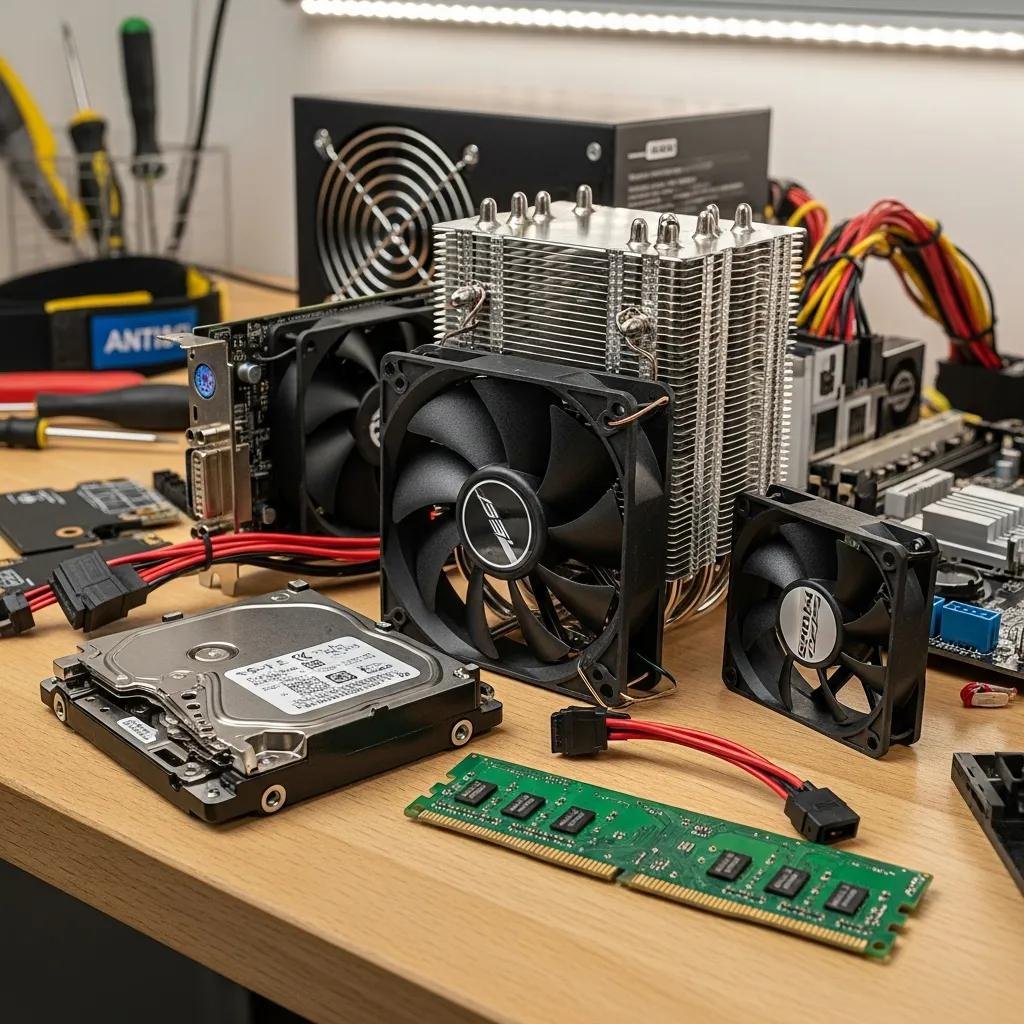
Hardware-related failures are a primary cause when a computer locks up unexpectedly, because physical components directly affect timing, memory, and I/O operations. Faulty RAM leads to memory corruption that manifests as random freezes or blue screens, while failing HDDs/SSDs cause long stalls when the system waits for read/write operations to complete. Overheating forces CPU/GPU throttling and can halt responsiveness under load, and an unstable power supply can cause abrupt lockups or reboots. Identifying the hardware cause quickly narrows the fix and reduces the chance of data loss, so run hardware checks before heavy software interventions.
Top 5 hardware causes and one-line symptoms:
- RAM failure — Random freezes, application crashes, or blue screen errors during normal use.
- Storage (HDD/SSD) faults — Long delays when opening files, freezing during boot, or corrupted saves.
- Overheating / cooling failure — Sudden freezes under load with fans running loudly or thermal warnings.
- Power supply instability — Unexpected freezes and reboots without software error messages.
- GPU/CPU hardware faults — Freezes during graphics tasks, games, or video playback with visual glitches.
These quick cause pointers help you prioritize diagnostics and determine whether to run memory or drive tests next; certified remote technicians can often walk you through initial hardware symptom checks and advise on next steps.
Different hardware parts produce distinct observable signs and simple first checks to run before escalation.
| Component | Common Failure Mode | Observable Symptom / Quick Check |
|---|---|---|
| RAM | Faulty module or insufficient memory | Random freezes, BSOD; run Windows Memory Diagnostic or memtest86+ |
| Storage (HDD/SSD) | Bad sectors, firmware issues | Hangs during file access; check SMART attributes with a disk utility |
| Cooling system | Dust, failed fans, degraded thermal paste | High temps under load; monitor with HWMonitor (Windows) / iStat Menus or Intel Power Gadget (macOS) |
| Power Supply Unit | Voltage instability or aging PSU | Sudden freezes/reboots; look for unexplained shutdowns or voltage alerts |
| GPU/CPU | Throttling or hardware errors | Freezes during graphics tasks; test with thermal and stress tools |
This table clarifies immediate checks to match symptoms to likely hardware culprits and prepares you to run targeted diagnostics described next.
How Do RAM and Hard Drive Problems Lead To Freezing?
RAM errors corrupt in-memory data structures, which causes the operating system or applications to enter undefined states and stop responding; this often appears as random freezes or crashes during memory-intensive tasks. Hard drive or SSD failures interrupt read/write operations so the OS waits for I/O that never completes, producing long stalls, frozen file dialogs, or failed boots. To diagnose, use built-in utilities like Windows Memory Diagnostic or third-party memtest86+ for RAM and SMART-capable tools or CHKDSK on Windows to inspect drive health. These checks isolate whether memory or storage errors require module replacement, firmware updates, or secure backups and recovery.
Can Overheating and Power Supply Failures Cause System Freezes?
Thermal throttling occurs when CPU/GPU temperatures exceed safe thresholds and the system reduces performance to cool down, which can feel like system stuttering or freezing under load. Failed fans, clogged vents, or dried thermal paste increase operating temperatures; monitoring tools such as HWMonitor (Windows) or iStat Menus and Intel Power Gadget (macOS) reveal persistent high readings. Power supply instability introduces voltage fluctuations that abruptly halt processing and can corrupt data; reseating power connectors and checking for burn smells or inconsistent power behavior are initial safety checks. If cleaning or airflow improvements don’t reduce temperatures or freezes continue, a hardware replacement or professional diagnostic is often required.
What Software Issues Cause Computer Freezing?

Software-side causes include corrupt operating system files, driver mismatches, malware, and runaway background processes that exhaust CPU, memory, or disk I/O. These issues create resource contention or kernel-level faults that make the system unresponsive, and they are often reversible through targeted software diagnostics and repairs. Prioritize checking recent updates or driver installations, scanning for malware, and isolating problematic apps via system monitors to restore stability. The following list summarizes common software causes and the first diagnostic actions to take.
Common software causes with quick diagnostics:
- Corrupt or outdated drivers — Check Device Manager or system driver logs, roll back or update drivers for GPU and chipset.
- Operating system file corruption — Run System File Checker (SFC) and DISM on Windows or use Safe Mode recovery on macOS.
- Malware or PUPs — Run a full antivirus/anti-malware scan and review startup items to remove persistent threats.
- Background applications and services — Use Task Manager or Activity Monitor to find high CPU, memory, or disk usage processes.
After identifying a likely software cause, use the tools below to map entities to actions and reduce time-to-fix.
| Software Entity | Common Problem | Diagnostic Tool / Action |
|---|---|---|
| Device Drivers | Outdated or corrupt drivers | Update or roll back via Device Manager; reinstall GPU drivers |
| System Files | Corruption after failed update | Run SFC and DISM (Windows) or Safe Mode repairs (macOS) |
| Malware | Resource hijacking or corruption | Scan with built-in AV and a second-opinion scanner like Malwarebytes |
| Startup Apps | Conflicting or heavy startup items | Disable suspicious items, boot to Safe Mode to test |
This mapping helps you prioritize checks and decide whether a remote session or deeper in-person repair makes sense next.
How Do Operating System Errors and Driver Problems Trigger Freezes?
Operating system file corruption breaks expected system calls and can hang services that other programs depend on, causing widespread freezes or an inability to log in. Driver mismatches—especially graphics, storage, or chipset drivers—can create kernel-level conflicts that block normal operation; these often follow updates or new hardware installs. Inspect Event Viewer logs on Windows for repeated error codes, use SFC and DISM to repair file integrity, and boot to Safe Mode to test if freezes persist without third-party drivers. Rolling back recent drivers or performing a controlled system restore often resolves driver-induced instability when corruption is not hardware-related.
Can Malware and Background Applications Cause My PC To Freeze?
Malware and poorly behaved background applications consume CPU cycles, saturate RAM, or cause excessive disk I/O so the system becomes unresponsive, and persistent infections can also corrupt system files. Use Task Manager on Windows or Activity Monitor on macOS to surface processes with abnormally high CPU, memory, or disk usage and terminate them safely to regain control. Run a full antivirus and a secondary anti-malware scan, then disable or remove suspicious startup entries to prevent recurrence. Regular maintenance—patching, safe browsing, and limiting untrusted installs—reduces the chance that background software will push a system into repeated freezes.
What Are The Best Troubleshooting Steps For A Frozen Computer?
Immediate, safe troubleshooting follows a short sequence: free the system, identify resource hogs, run targeted diagnostics, and preserve data before deeper repairs. First, try to close the unresponsive application using Task Manager (Windows) or Force Quit (macOS); if the whole system is frozen, perform a controlled restart rather than an immediate hard power-off where possible. Next, check resource usage, boot to Safe Mode to eliminate startup items, and run memory and disk checks to find underlying hardware faults. These steps prioritize data safety and aim to restore responsiveness while collecting the information needed if you escalate to professional help.
Quick numbered steps to unfreeze and diagnose:
- Try to close the frozen app using Task Manager (Ctrl+Shift+Esc) or Force Quit on macOS.
- Perform a soft restart to allow graceful shutdown and log file creation for later analysis.
- Disconnect external devices to rule out peripheral-related freezes, then reboot and test.
- Boot into Safe Mode and run memory/disk utilities (Windows Memory Diagnostic, CHKDSK, SFC).
Follow these steps to capture logs and identify the next diagnostic action; if self-troubleshooting is inconclusive, remote technical support can continue diagnostics without needing an in-person visit.
A short note: if you’ve run these diagnostics and still face repeated freezes, consider remote expert assistance to avoid risking data or attempting invasive repairs prematurely.
How To Use Task Manager and Safe Mode To Diagnose Freezing
Task Manager on Windows and Activity Monitor on macOS reveal which processes are consuming the most CPU, memory, or disk I/O so you can target the offending application. Open Task Manager with Ctrl+Shift+Esc on Windows, sort by CPU or Disk to find spikes, right-click to end suspect processes, and note their names for further investigation. Safe Mode disables third-party drivers and startup items, providing a cleaner environment to test whether freezes are driver or app related, and on Windows you can also use Safe Mode to run SFC and DISM repairs. Use these observations to decide whether driver updates, a clean install, or deeper hardware tests are needed.
What Immediate Actions Can Unfreeze My Computer?
When a freeze occurs, prioritize methods that minimize data loss: attempt to close the unresponsive program first, wait a short time for background tasks to finish, and save any open work if the system becomes responsive. If the entire OS is locked, perform a controlled restart from the system menu; use the power button hold only as a last resort because it risks file corruption. Disconnecting external drives, USB devices, or recent peripherals can reveal if an attached device caused the freeze and reduce variables during reboot. After regaining control, run quick scans and create backups of important files to protect against recurrence.
When Should I Seek Professional Help For Computer Freezing?
Escalate to professional help when freezes persist after Safe Mode, hardware diagnostics indicate failing components, SMART reports show repeated drive errors, or you face repeated crashes that threaten data integrity. Remote repair fits many software-focused scenarios—driver conflicts, OS corruption, and malware removal—because certified technicians can run diagnostics, repair system files, and guide safe recovery steps without an on-site visit. In contrast, physical repairs like replacing a power supply, swapping RAM, or recovering data from a failing drive may require in-person service. Use the checklist below to decide whether a remote expert or local technician is appropriate.
Decision guide for escalation:
- Symptom: Repeated freezes after Safe Mode → Likely cause: Deeper software corruption or intermittent hardware → Recommended: Remote professional diagnostic.
- Symptom: SMART drive errors or clicking noises → Likely cause: Failing storage hardware → Recommended: In-person repair and data recovery.
- Symptom: Thermal shutdowns with hardware alarms → Likely cause: Cooling system failure → Recommended: In-person inspection.
| Symptom | Likely Cause | Recommended Action |
|---|---|---|
| Persistent freezes despite Safe Mode | System file corruption or stubborn driver conflicts | Remote certified technician diagnostic |
| Repeated SMART errors or strange drive noises | Imminent storage failure | In-person repair and data recovery |
| Sudden freezes with power loss | PSU instability | In-person power subsystem testing |
This table helps you choose the right path and prepare system logs and recent change notes before contacting support.
What Are The Benefits Of mcHelper.com's Remote Computer Repair Service?
mcHelper.com provides 24/7/365 remote technical support for both Mac and Windows users, staffed by certified technicians who can diagnose freezes, remove malware, fix driver issues, and repair many operating system faults without an on-site visit. Their “No Fix – No Fee” promise reduces financial risk for software and diagnostic work, and an annual subscription option offers ongoing coverage for frequent users at less than a dollar a day. Remote repair is especially effective for driver rollbacks, system file repairs, malware removal, and live troubleshooting sessions that require access to logs and system tools. If you prefer guided remote assistance to continue safe diagnostics after following basic steps, mcHelper.com is a practical option to consider.
How To Know If My Freezing Issue Requires Certified Technician Assistance?
Red flags that should trigger certified technician assistance include repeated crashes after Safe Mode and driver rollbacks, SMART drive failures or persistent I/O errors, firmware or BIOS corruption, and situations where data recovery is at risk. Before contacting support, note recent changes (updates, new hardware, or installs), collect log entries if possible, and write down the exact freeze behavior to accelerate diagnosis. Remote technicians can often resolve software causes and advise whether an in-person repair is required for hardware replacements or data salvage. Preparing this information shortens time-to-resolution and helps ensure the right level of intervention.