

Signs Your Computer Has a Virus: How to Detect Symptoms and Take Immediate Action
Computers develop infections that range from mildly disruptive adware to destructive ransomware, and recognizing malware infection signs early reduces data loss and remediation time. This article explains common computer virus symptoms, how those symptoms map to specific malware behaviors, and immediate containment steps you can take to limit damage. You will learn practical checks — like reviewing startup items, scanning with reputable antimalware tools, and isolating affected devices — plus when to escalate to professional remote support. The guide covers symptom detection (slow performance, pop-ups, unexpected redirects), a concise taxonomy of malware types (ransomware, spyware, trojans, adware, worms), and step-by-step containment and removal strategies. Read on for quick checks, EAV comparison tables for fast triage, and clear criteria for when to use automated tools versus expert remote virus removal.
What Are the Most Common Symptoms of a Computer Virus?
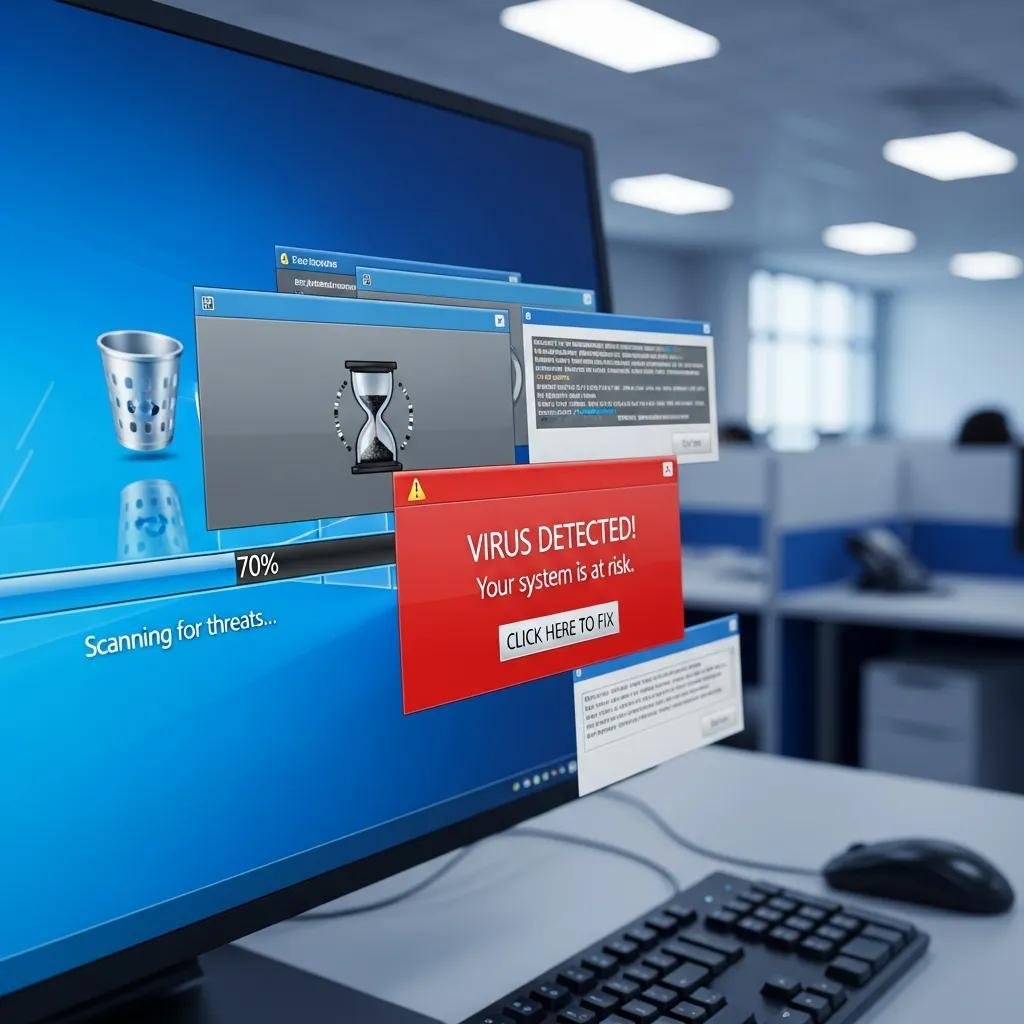
A computer virus often reveals itself through observable symptoms that signal malicious processes, resource abuse, or unauthorized changes to system behavior. These computer virus symptoms include slow performance, frequent crashes or freezing, unexpected pop-ups and browser redirects, new unknown programs, disabled security software, and unexplained network activity. Identifying these signs early lets you run targeted checks such as Task Manager/Activity Monitor inspections, extension audits in browsers, and quick antivirus scans to narrow down possible causes. The following list summarizes the most common, actionable symptoms and is followed by a quick-reference table to match symptoms to immediate actions.
Common symptoms to watch for when your PC is acting strange:
- System runs slowly: CPU, disk, or network spikes often indicate background malware activity.
- Frequent crashes or freezing: Corrupted processes or resource exhaustion can cause instability.
- Unexpected pop-ups or ads: Persistent ads or redirects often point to adware or browser hijackers.
- New programs or startup items: Unknown entries at startup suggest PUPs or trojans.
- Disabled antivirus or security warnings: Malware may attempt to stop defenses to remain persistent.
These quick signs lead into more detailed checks for resource usage and browser integrity that help pinpoint causes.
This table maps symptoms to likely causes and immediate first actions for triage.
| Symptom | Likely Cause | Immediate Action |
|---|---|---|
| Slow performance (CPU/disk high) | Background miner, worm, or heavy PUP | Open Task Manager/Activity Monitor; end suspicious processes; run quick AV scan |
| Frequent crashes or blue screens | System file corruption or rootkit activity | Note error codes; boot safe mode; run integrity checks and offline scans |
| Unexpected pop-ups and redirects | Adware, browser hijacker, malicious extension | Disable extensions; clear browser data; run antimalware scan |
| New startup entries or unknown programs | Trojan or PUP installed silently | Inspect startup items; uninstall unknown apps; run full malware scan |
This mapping helps you decide whether a quick cleanup will suffice or deeper containment is required.
How Does Slow Performance Indicate a Malware Infection?
Slow performance often results when malware consumes CPU cycles, saturates disk I/O, or uses network bandwidth for data exfiltration or command-and-control communications. Monitoring tools such as Task Manager on Windows or Activity Monitor on macOS reveal unusually high processes, persistent background tasks, or repeated spikes that coincide with slowdowns. If a previously idle process is using sustained CPU or your disk queue length increases under normal load, suspect malicious activity rather than ordinary software updates. Run a targeted quick antivirus scan and check for new scheduled tasks or hidden startup items to determine if this is a transient issue or a sign of deeper infection.
Regularly checking resource graphs and correlating symptoms with installed applications narrows the diagnosis and points to whether a full system scan or professional remediation is needed.
What Do Unexpected Pop-Ups and Ads Reveal About Virus Presence?
Unexpected pop-ups and intrusive ads typically indicate adware, browser hijackers, or PUPs that inject content into web sessions and sometimes modify browser settings like the default search engine or new-tab page. These infections often originate from malicious extensions, bundled installers, or deceptive downloads, and they can persist across browser restarts if not removed properly. Immediate actions include disabling suspicious extensions, clearing browser cache and cookies, resetting browser settings, and running a focused antimalware scan designed to remove adware. Persistent redirects or pop-ups that reappear after cleanup suggest a deeper system-level component such as a PUP installed in startup items or a modified hosts file.
After clearing browser-level causes, verify operating-system startup entries and scheduled tasks to prevent reinfection and to confirm whether the issue indicates a broader compromise.
Which Types of Malware Cause Specific Computer Virus Symptoms?
Different malware hyponyms produce distinctive behaviors that map to specific symptoms; understanding these helps prioritize containment and recovery. Malware categories such as ransomware, spyware, trojans, adware, and worms each have typical footprints—ransomware encrypts files and shows ransom notes, spyware produces unusual outbound traffic, trojans install backdoors, adware creates persistent pop-ups, and worms generate network-wide propagation. Use the table below to compare types at a glance and pick the right detection heuristics.
Use this comparison to match observed behavior with likely malware class and follow the recommended initial containment step.
| Malware Type | Typical Symptoms | What to look for / Example |
|---|---|---|
| Ransomware | Encrypted files, ransom notes, inaccessible data | File extensions changed, new text files with payment instructions |
| Spyware | Slow network, unexplained outbound connections, credential misuse | High outbound traffic, unknown processes connecting to remote IPs |
| Trojan | New programs, disabled security, remote access | Unexpected services, new user accounts, remote desktop tools active |
| Adware | Pop-ups, redirects, search hijacks | Browser redirects, intrusive ads even on safe sites |
This comparison helps you determine whether to isolate, backup, or perform an offline scan based on the likely malware type.
How Can You Identify Ransomware and Its Warning Signs?
Ransomware reveals itself through sudden inability to open files, mass file renaming or extensions appended to many files, and visible ransom notes demanding payment for decryption keys. Early signs include abnormal file access errors, a surge in disk activity as files are processed, and creation of new text/html files in folders. The first priority is isolation: disconnect the device from networks to prevent lateral movement and stop ongoing encryption. Preserve logs and do not attempt to pay ransom as the first action; instead, verify backups and consult professional recovery options. Document timestamps and any observed ransom messages for law enforcement and recovery specialists.
Prompt isolation and preservation of evidence increase the chance of recovery from backups or professional decryption support without paying attackers.
What Are the Signs of Spyware and Trojan Infections?
Spyware and trojans are often stealthy and present subtle signs like unexplained outbound network traffic, new or altered user accounts, unexpected credential alerts, or unusual browser or system settings changes. Detection involves checking netstat or firewall logs for persistent outbound connections, scanning running processes for unfamiliar executables, and reviewing recently modified system files or scheduled tasks. If you find persistent remote-access tools or processes that re-enable themselves after removal, treat this as high-risk and avoid logging into sensitive accounts until remediation. Escalate to professional help when evidence suggests data exfiltration or backdoor presence, since confirming and eradicating such threats may require deep forensics.
Early detection through network monitoring and process inspection reduces the risk of credential theft and prolonged unauthorized access.
What Immediate Steps Should You Take If You Suspect a Virus Infection?

When you suspect a malware infection, prioritize containment and evidence preservation before attempting removal to limit damage and avoid accidental data loss. Immediate steps should focus on isolating the device, documenting symptoms, running offline or safe-mode scans, and backing up critical files that are not already compromised. The numbered checklist below provides a prioritized sequence that balances quick containment with safe data handling and forensic readiness.
Follow these prioritized actions as your first line of response to suspected malware.
- Disconnect from the network: Turn off Wi-Fi and unplug Ethernet to stop data exfiltration and lateral spread.
- Power-state decision: If ransomware is suspected, power off to prevent further encryption; otherwise boot into safe mode for scans.
- Document symptoms: Take photos or notes of error messages, ransom notes, and active processes for later analysis.
- Backup unaffected files: Copy critical files to an external device that will not be reconnected to the network.
- Run offline or safe-mode scans: Use reputable antimalware boot tools or safe-mode AV scans to detect and quarantine threats.
Why Is Disconnecting from the Internet Crucial After Virus Detection?
Disconnecting from the internet immediately reduces the malware’s ability to send stolen data, receive remote commands, or spread to other devices on the same network. Network isolation stops command-and-control communication that can prolong an infection and prevents lateral movement to backups or file shares, protecting other systems. On Windows and macOS, quick actions include disabling Wi-Fi, unplugging Ethernet, or toggling router guest networks off; for broader containment, power down or isolate the router and affected device until a plan is in place. If you manage a small office or home network, temporarily segment unaffected machines and change critical passwords from a known-clean device once remediation is complete.
Ensuring network isolation first makes subsequent scans and backups more reliable and reduces the chance of reinfecting cleaned systems.
How to Boot into Safe Mode to Limit Virus Activity?
Booting into Safe Mode restricts startup processes and drivers, preventing many forms of malware from loading and enabling cleaner scans and removal. On Windows, access Safe Mode via the Recovery Options or repeatedly press Shift+Restart, then choose Safe Mode with Networking if you need limited internet for updates; on macOS, hold Shift during startup to enter Safe Boot. Once in Safe Mode, run a full antivirus scan, inspect startup items, and uninstall recently added software that correlates with infection timing. Safe Mode limits what runs automatically, which often exposes malicious files that can be removed or quarantined safely without active defenses being disabled.
After cleaning in Safe Mode, reboot normally and run a secondary scan to confirm persistence issues are resolved before reconnecting the device to your network.
After basic containment, consider professional remote assistance if symptoms persist or if you detect signs of ransomware or data theft.
How Can You Effectively Remove a Computer Virus?
Effective removal depends on the infection type and severity; options include automated antivirus scans, manual removal for advanced users, system restore or OS reinstallation, and professional remote virus removal when infections are persistent or risky. Start with reputable antimalware full scans and boot-time scans to detect known threats, then proceed to manual inspection only if you have technical expertise. The table below compares common removal methods, when to use them, and realistic pros and cons to guide your decision-making.
This comparison helps you choose the most appropriate removal path based on risk tolerance and technical skill.
| Removal Method | When to Use | Pros / Cons |
|---|---|---|
| Antivirus full/boot-time scan | First-line for PUPs, adware, common malware | Pros: automated, safe; Cons: may miss rootkits or new threats |
| Manual removal (advanced users) | When AV identifies removable items or you can edit startup entries | Pros: precise; Cons: high risk of error, time-consuming |
| System restore / OS reinstall | When system integrity is compromised or persistent reinfections occur | Pros: clean slate; Cons: potential data loss, requires backups |
| Professional remote removal | For ransomware, data theft signs, or persistent reinfections | Pros: expert tools and diagnostics; Cons: cost, requires remote access |
When Should You Use Antivirus Software for Virus Removal?
Antivirus software is the right first step for most common infections such as PUPs, adware, and known malware signatures; run quick scans to identify active threats and full/boot-time scans for deeper detection of processes that hide during normal operation. Interpret results by reviewing items marked for quarantine versus deletion, and immediately back up critical uninfected files before destructive removals. If scans repeatedly detect the same items or if core security components are disabled by the malware, consider offline rescue media or professional assistance. Regular updates and using a well-regarded engine improve detection rates and reduce false negatives for evolving threats.
When antivirus tools show persistent or high-risk detections—especially indicators of data exfiltration or ransomware—escalate beyond DIY remediation.
Why and When to Seek Professional Remote Virus Removal Help?
Seek professional remote virus removal when you observe red flags such as confirmed ransomware activity, evidence of data theft, persistent reinfections after multiple cleanups, or disabled security features that you cannot re-enable safely. Remote technicians provide live diagnostics, rootkit detection, and controlled remediation steps while preserving evidence and minimizing downtime; for example, remote specialists can perform offline scans, enumerate network indicators of compromise, and advise on recovery without unnecessary data loss. mcHelper.com offers remote Virus & Spyware Removal and Computer & Internet Security services that operate across Mac and Windows platforms, providing secure remote support with 24/7 availability and a No Fix – No Fee guarantee for qualifying cases. Before arranging a session, prepare system summaries, recent error messages, and a list of observed symptoms to speed diagnostics.
Choosing professional remote removal is the safest route when infection scope, data sensitivity, or technical complexity exceeds what home users can address reliably.
- Red flag — ransomware or encrypted files: Contact professionals immediately rather than attempting risky fixes.
- Red flag — evidence of credential theft or persistent outbound traffic: Prioritize professional forensic checks.
- Red flag — repeated reinfection after cleanup: Use experts to find hidden persistence mechanisms.
- Check running processes and startup items: Use Task Manager or Activity Monitor to identify anomalies.
- Run reputable antimalware tools in safe mode: Prefer engines known for cleaning PUPs and rootkits.
- Isolate and backup clean files: Preserve essential data before aggressive removal steps.
Following these final checks prepares you for either complete self-remediation or a faster, more effective remote session with professionals.