Remove Adware & Spyware: Complete Guide to Clean Your Browser and Protect Your Privacy
Adware and spyware are malicious software types that invade browsers to track activity, display unwanted ads, or exfiltrate data, and this guide shows how to detect them, remove them manually, choose reliable cleaners, and harden your browser privacy. You will learn clear signs of infection such as redirects, persistent pop-ups, and slow browser performance, plus practical step-by-step manual removal actions for Windows and macOS, recommendations for adware removal tool classes, and when to escalate to professional remote help. The article covers definitions, quick triage checks, manual cleanup steps, trusted tool comparisons, browser hygiene, and privacy best practices to reduce future risk. Keywords like browser hijacker fix, adware removal tool, spyware cleaner online, and how to remove browser hijacker are woven into actionable guidance so you can follow the steps immediately. Read on for detection checklists, EAV comparison tables of symptoms and tools, and concise privacy hardening tips that protect credentials and browsing data.
What Are Adware, Spyware, and Browser Hijackers?
Adware is software that injects or displays unwanted advertisements in your browser or system, often monetizing clicks and tracking behavior. Spyware covertly collects information from your device — browsing history, credentials, or system identifiers — and transmits it to third parties, risking identity theft and targeted profiling. A browser hijacker alters browser settings such as homepage, default search engine, or shortcuts to redirect traffic to advertising or affiliate sites and can persist through extensions or modified startup items. These threats differ by intent and persistence: adware monetizes views, spyware exfiltrates data, and hijackers reroute traffic; all three degrade privacy and can slow the system, which is why quick detection and removal matter.
How Do Adware and Spyware Affect Your Computer and Privacy?
Adware and spyware reduce performance by consuming CPU, memory, and network bandwidth, which causes slow page loads and frequent pop-ups that interrupt browsing. They also harvest data like visited sites, search queries, and sometimes saved credentials, creating a privacy risk that can escalate to targeted scams or credential stuffing across accounts. In some cases spyware installs persistent background processes or alters startup items to survive reboots, increasing the difficulty of removal. Understanding these impacts clarifies why you should act quickly to isolate the device, revoke exposed credentials, and follow removal steps to stop data leakage and restore normal performance.
What Is a Browser Hijacker and How Does It Compromise Your Browser?
A browser hijacker compromises settings by modifying shortcuts, replacing the default search provider, installing malicious or unwanted extensions, or changing proxy and DNS settings to redirect traffic. Delivery vectors include bundled installers, deceptive downloads, or convincing social-engineering prompts that grant permissions for extensions or settings changes. Symptoms of hijacking include repeated redirects to unknown search pages, new toolbars you did not install, and search results that prioritize ads or sponsored links. Because hijackers often operate through browser components—extensions, startup entries, and hosts file entries—targeted removal of these meronym parts usually restores control.
How Can You Detect and Remove Adware and Spyware from Your Browser?
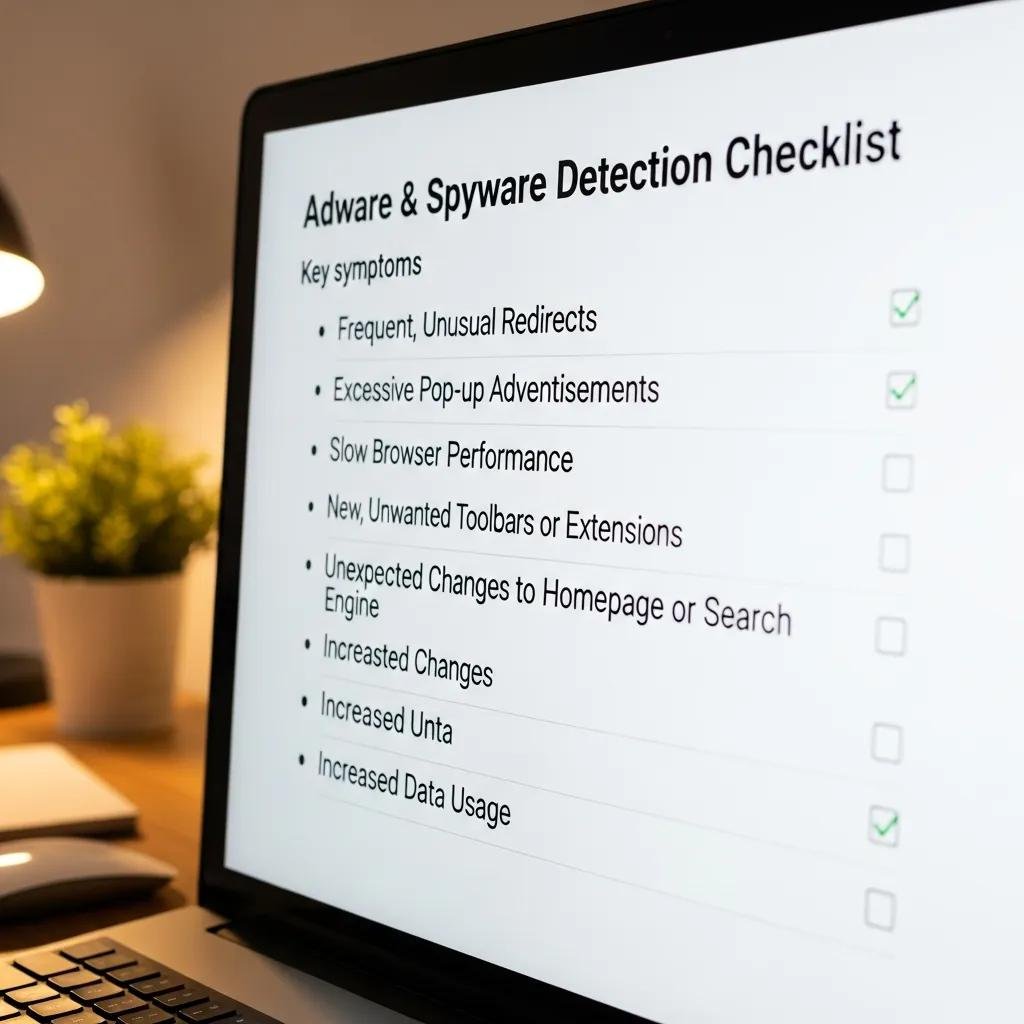
Detecting adware and spyware starts with a short checklist of visible symptoms and quick isolation steps to prevent further data transmission and propagation. Begin by checking for unusual browser redirects, increased pop-ups, new extensions, and unexpected homepage or search changes; then isolate the device from the network, log out of accounts, and avoid entering passwords until the issue is contained. Quick triage maps symptoms to likely causes and immediate actions to help you decide whether to attempt manual removal or run a dedicated scanner. If manual steps fail or the infection appears persistent, consider professional remote removal to avoid accidental data loss or incomplete cleanup.
Different symptoms suggest specific causes and immediate actions:
| Symptom | Likely cause | Quick check / Immediate action |
|---|---|---|
| Repeated redirects to unfamiliar search pages | Browser hijacker (extension or shortcut) | Inspect extensions, reset homepage, check shortcut target |
| Excess pop-ups and ad overlays | Adware injected via extension or bundled app | Disable suspect extensions, clear cookies/cache, block pop-ups |
| Background network activity while idle | Spyware or background miner | Disconnect network, run a full antimalware scan, check startup items |
This symptom-to-action table helps you prioritize checks and reduces time lost to guesswork by pairing observable behavior with focused remediation steps before deeper cleanup.
What Are the Manual Steps to Identify and Remove Adware and Spyware?
Manual removal follows a short, ordered checklist that isolates and eliminates common infection vectors across Windows and macOS. Start by running the browser in safe mode or with extensions disabled to confirm if an extension is responsible, then remove suspicious extensions and reset browser settings to defaults. Next, check operating system startup items and uninstall recently added programs through Control Panel on Windows or Applications and Login Items on macOS, and inspect the hosts file and proxy settings for unauthorized changes. Finally, clear cookies and cached data, change compromised passwords, and run an offline antimalware scan to catch residual components that manual cleanup may miss.
Manual removal quick steps:
- Disable extensions: Start browser with extensions off and remove unknown add-ons.
- Reset settings: Reset homepage, search engine, and clear browsing data to remove injected entries.
- Check startup and programs: Uninstall unknown applications and remove suspicious startup items.
Follow these steps in order to confirm the source of the problem and stop persistence; if any step fails or malware returns after reboot, escalate to automated tools or professional help.
Which Are the Best Adware Cleaner Software and Online Spyware Removal Services?
Choosing a tool depends on platform and whether you prefer free scanners or paid remediation with support; reputable options include platform-specific adware cleaners and general antimalware suites that detect browser hijackers. Below is a concise EAV-style comparison to help you pick based on type and best use-case.
Recommended tools and services comparison:
| Tool / Service | Type & Platform | Best for / Notes |
|---|---|---|
| Dedicated adware cleaner (free/paid) | Free/paid; Windows & macOS | Best for targeted removal of browser ad-injections and PUPs |
| Full antivirus suite | Paid; cross-platform | Best for broad malware detection including spyware and rootkits |
| Remote removal service | Paid; remote support | Best when infections are complex or manual steps risk data loss |
This table highlights that adware cleaners excel at browser-specific infections while full suites detect deeper threats; remote services complement tools when you need expert guidance and guaranteed cleanup.
How to Clean Your Browser from Malware and Protect Your Privacy?
Cleaning a browser combines removal actions with privacy-hardening habits that reduce reinfection and data exposure. Begin by removing suspicious extensions, clearing cookies and cache, and resetting the browser profile to remove injected settings and stored trackers. After cleaning, adjust privacy settings to block third-party cookies, limit site permissions (camera, microphone, location), and enable click-to-play for plug-ins to reduce attack surface. Supplement browser hygiene with a reputable antivirus on the host system, consider a privacy-focused extension for tracker blocking, and keep both browser and operating system updated to patch vulnerabilities that malware exploits.
What Are Effective Browser Cleaning Techniques to Remove Malware?
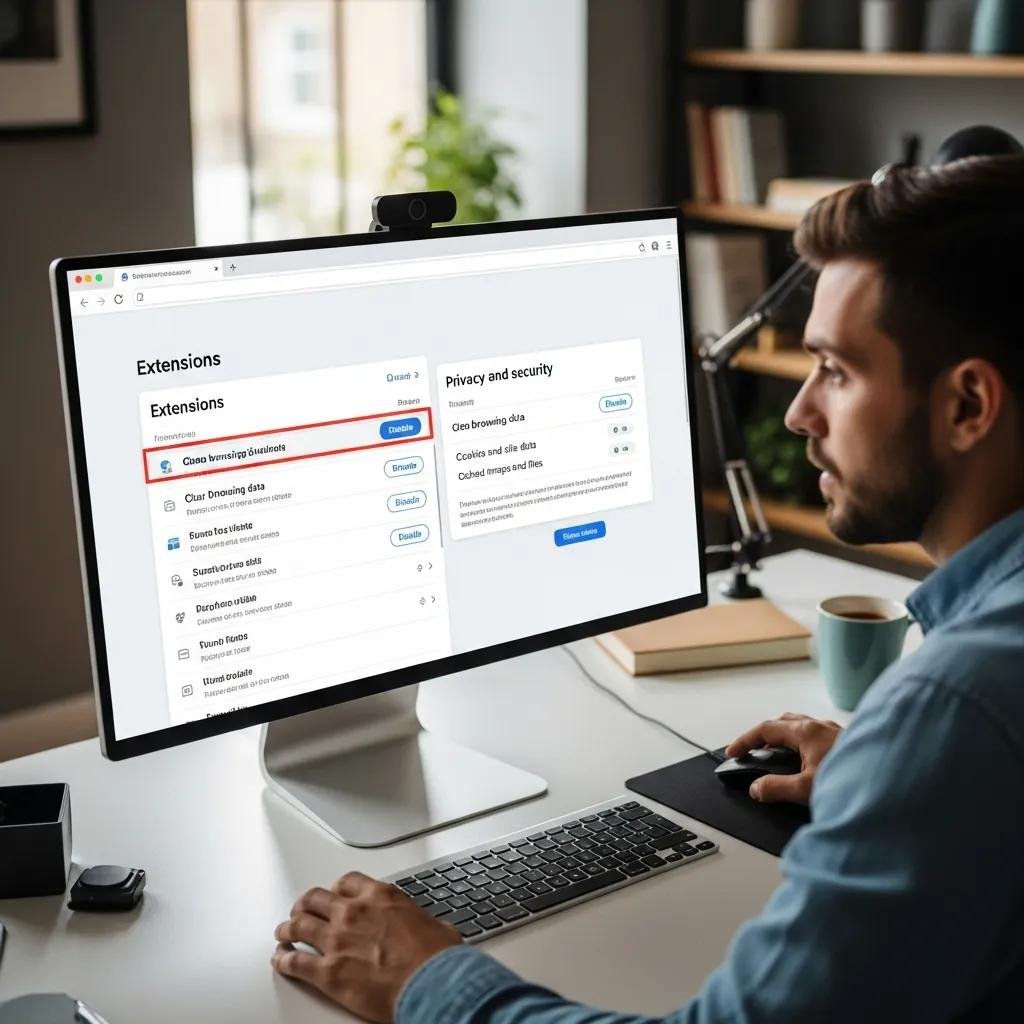
Effective cleaning is an ordered process: disable or remove suspect extensions, clear stored data, reset the profile, and scan with trusted cleaners to find hidden components. On major browsers use the extensions/add-ons menu to remove objects installed without consent, then use settings to clear cookies, cached files, and site data that may store tracking tokens. Resetting the browser profile restores defaults and removes persistent setting changes, while following up with a reliable adware removal tool or antimalware scan helps remove leftover files and background processes. These steps together restore normal behavior and reduce the chance of immediate recurrence.
Intro to the list above: The following ordered checklist summarizes a practical cleanup workflow.
- Remove unknown extensions: Eliminate add-ons you did not install or recognize.
- Clear browsing data: Delete cookies, cached files, and site data to remove tracking tokens.
- Reset browser profile: Restore default settings to undo persistent configuration changes.
Completing these actions in sequence removes most browser-based malware and prepares the device for a deeper antimalware scan if needed.
How Can You Safeguard Your Privacy While Browsing Online?
Private browsing requires both configuration and tool choices that reduce data exposure and tracking across sessions. Use built-in privacy settings to block third-party cookies and revoke unnecessary site permissions, employ content-blocking extensions to stop trackers and fingerprinting, and consider a reputable VPN when using untrusted networks to encrypt traffic and hide your IP. Maintain strong, unique passwords and enable multi-factor authentication where available to limit harm if credentials are captured, and keep browser and system updates current to close known exploit paths. These measures combine to create layered defenses that reduce the value of data collected by adware and spyware.
Privacy hardening tips:
- Use a tracker-blocking extension and enable “Do Not Track” where supported.
- Limit site permissions to essentials and review them regularly.
- Use a VPN on public networks and strong unique passwords with MFA.
Together these practices reduce the data attackers can harvest and make browser-based surveillance less effective.
Why Choose Remote Virus and Spyware Removal Services Like mcHelper.com?
Remote malware removal is a practical option when infections are persistent, complex, or when users risk data loss by attempting advanced manual removal. mcHelper.com offers remote virus & spyware removal with 24/7 availability and certified technicians who provide cross-platform support for macOS and Windows, which is useful when time-sensitive cleanup or expert forensic steps are required. Their “no fix – no fee” guarantee aligns technician incentives with outcomes, reducing buyer risk when a cleanup attempt is billed only if successful. Remote sessions typically allow technicians to diagnose, remove persistent components, and advise on hardening steps without the need for on-site visits.
What Are the Benefits of 24/7 Certified Remote Support for Malware Removal?
Round-the-clock remote support shortens response time and limits the window during which spyware can exfiltrate data or adware can monetize traffic, delivering faster containment. Certified technicians bring experience handling cross-platform issues and reduce the chance of removal mistakes that could corrupt user profiles or delete important files. Remote sessions are convenient because they avoid travel and get expert tools and workflows applied quickly to your device, which reduces downtime and restores secure browsing sooner.
How Does the No Fix - No Fee Guarantee Ensure Reliable Computer Security?
A “no fix – no fee” guarantee means payment is contingent on a successful remediation outcome, which mitigates financial risk for the user and focuses the technician on delivering a complete cleanup. This alignment encourages technicians to prioritize effective detection and verified removal rather than partial fixes, increasing the likelihood of resolving covert spyware or stubborn browser hijackers. While not a substitute for cautious behavior, such a guarantee can make professional remote cleanup a cost-effective choice when manual options fail.
For readers who prefer professional help after following the steps above, consider contacting a remote removal provider like mcHelper.com, which lists 24/7 remote support, certified technicians, cross-platform coverage, and a no fix – no fee guarantee as core service attributes.