How to Fix Mac Kernel Panic Errors and Prevent Crashes: Essential Troubleshooting and Prevention Guide
A kernel panic on a Mac is a low-level system error where macOS detects an unrecoverable condition and stops to protect data integrity. This guide explains what a kernel panic is, why it interrupts work and risks data loss, and how to apply quick fixes, advanced diagnostics, and long-term prevention to stop system restart mac issues and fix mac crash events. You’ll find practical steps for triage, Safe Mode and NVRAM/SMC resets, Disk Utility and recovery options, plus best practices to prevent repeat macOS kernel crash troubleshooting scenarios. The article covers causes and symptoms, a step-by-step troubleshooting checklist, proven prevention habits, and clear triggers for when to escalate to professional help. Keywords like system restart mac, mac kernel error, kernel panic logs mac, and Mac system restart loop fix are used in context so you can follow the right actions for your Mac model and macOS build.
What Causes Kernel Panic on Mac and How to Identify Symptoms?
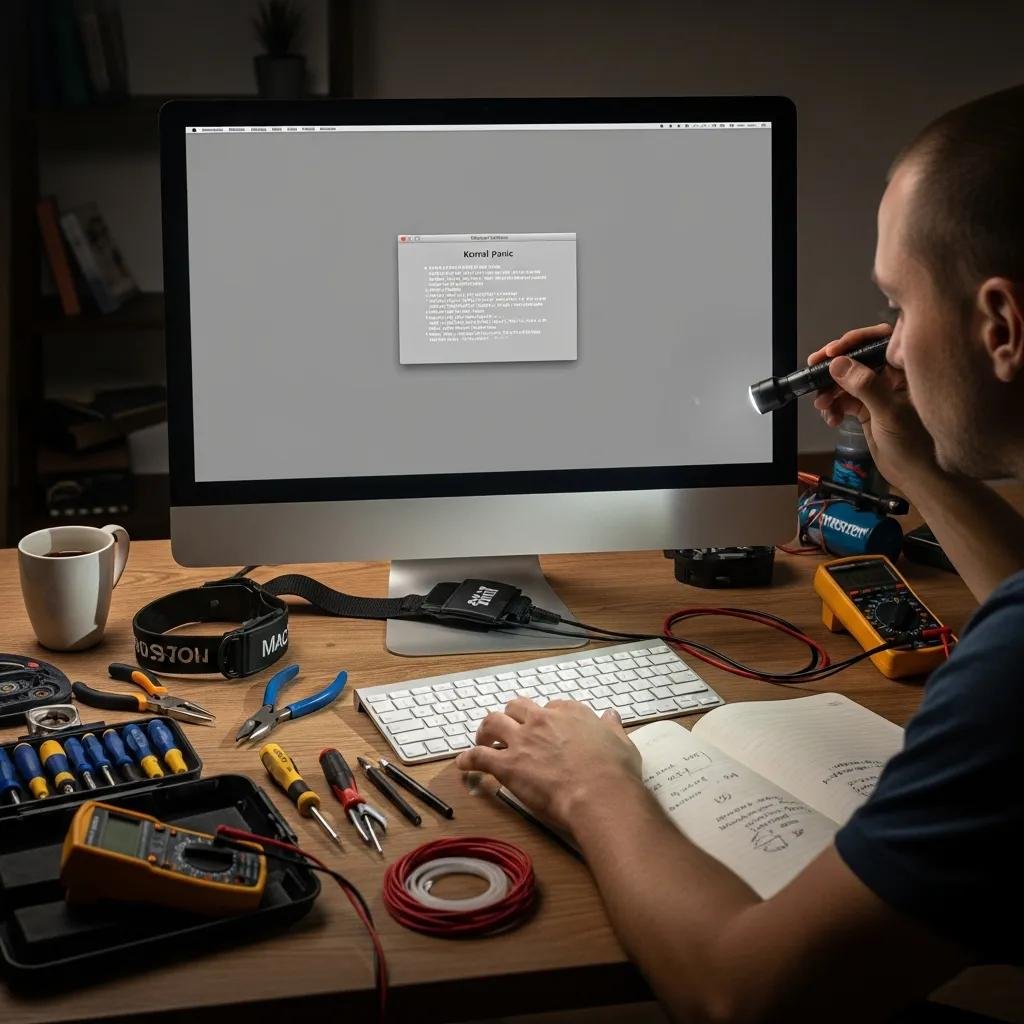
A kernel panic is a protection mechanism triggered when critical kernel components or kernel extensions fail, causing the system to display a panic message and restart. The mechanism occurs at the kernel (XNU) level where kernel extensions (kexts), drivers, firmware components, or hardware interact and can fail, producing panic logs that indicate whether the root is software, peripheral, or hardware. Identifying symptoms—repeated restart loops, a gray/black screen with a panic message, crashes during sleep/wake, or panics tied to a specific app—helps triage the likely cause quickly. Below are the most common high-level causes to check first; they serve as a practical checklist for immediate triage before deeper diagnostics.
Top causes of kernel panics on Mac:
- Software conflicts and bad kexts: Incompatible kernel extensions or outdated drivers can crash the kernel.
- Hardware failure: Failing RAM, SSD, or GPU components frequently cause reproducible panics.
- External peripheral conflicts: Faulty USB devices, docks, or displays can introduce instability.
- Disk corruption or low free space: Full APFS volumes or corrupted system files can trigger panics.
- Kernel-level bugs: macOS kernel bugs or security vulnerabilities may cause system-wide crashes.
The table below maps common panic messages to likely causes and a recommended first step to help you prioritize troubleshooting.
| Panic message excerpt | Likely cause | Recommended first step |
|---|---|---|
| Kernel trap at 0x… | Faulty kext or driver | Boot Safe Mode and remove recent kexts |
| CPU interrupted / stack trace | Hardware fault (RAM/CPU) | Run Apple Diagnostics and reseat memory if possible |
| I/O error | Storage or disk corruption | Run Disk Utility First Aid in Recovery mode |
| GPU panic | GPU/graphics driver issue | Disconnect external displays and test onboard graphics |
Which Software Conflicts and macOS Issues Lead to Kernel Panics?
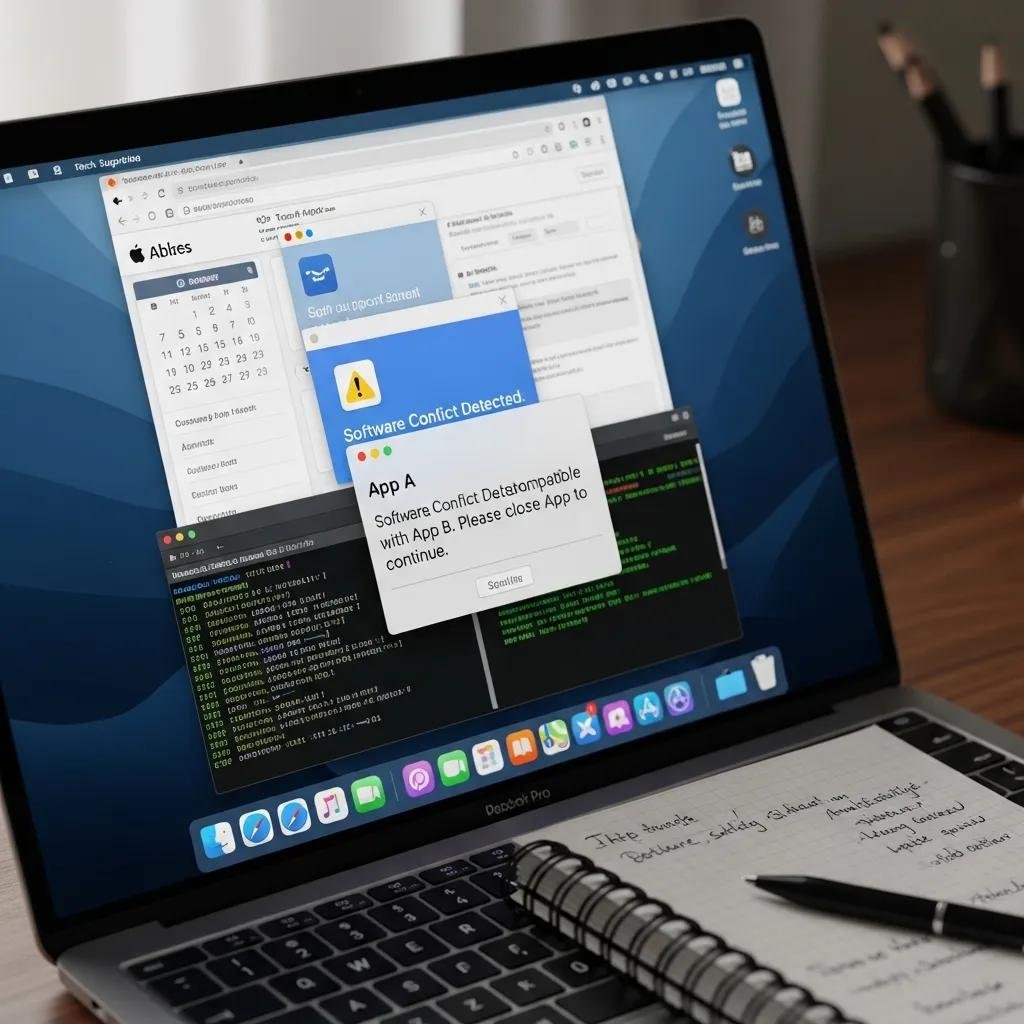
Software-origin panics commonly come from kernel extensions, third-party drivers, and background agents that run in kernel space and can destabilize macOS. Kernel extensions (kexts) load with high privilege and, if incompatible with your macOS version or poorly coded, will cause immediate kernel crashes when invoked. Recent macOS upgrades, virtualization tools, audio/video drivers, or low-level backup and disk utilities are frequent culprits and should be considered first when a newly-updated system begins crashing. To detect software-origin issues, use Safe Mode to prevent third-party kexts and login items from loading, inspect kernel panic logs in Console.app for kext names, and uninstall or update suspect apps and drivers.
If you cannot identify the offending kext or the system won’t remain stable in Safe Mode, consider remote Mac repair or professional Mac support to collect logs safely and apply targeted removal of problematic drivers.
How Do Hardware Problems and Peripheral Devices Trigger Mac Crashes?
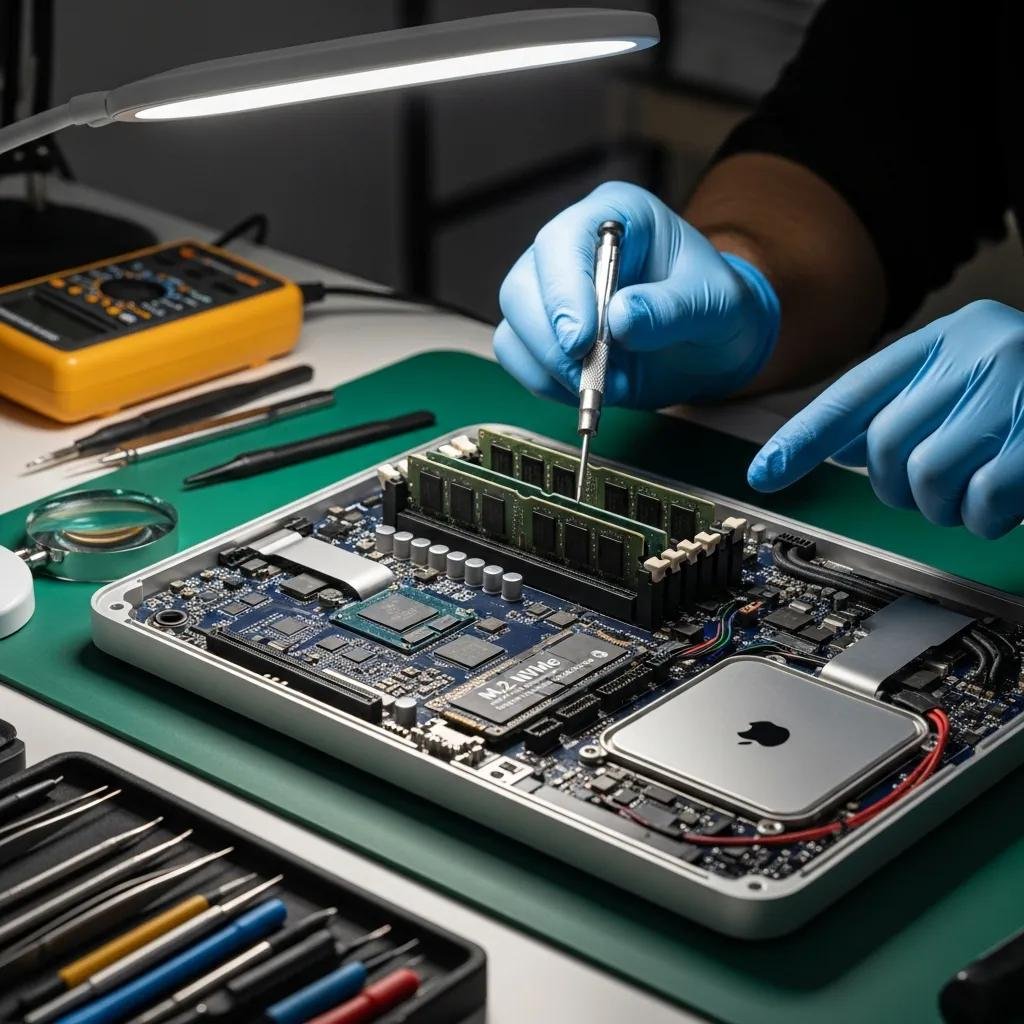
Hardware faults produce consistent, reproducible panic patterns and often occur during similar operations such as heavy GPU use, file transfers, or sleep/wake transitions; this helps distinguish them from intermittent software conflicts. Faulty RAM, a failing SSD, or thermal/CPU issues typically produce kernel-level stack traces pointing to memory or I/O subsystems. External peripherals and hubs can introduce unstable firmware or bad electrical signals, so a quick isolation test—disconnect all USB/Thunderbolt devices and reboot—helps identify peripheral causes. Use Apple Diagnostics to run a hardware scan, swap or reseat components where possible, and test with known-good spares to confirm hardware failure before pursuing software repairs.
Understanding whether the kernel panic originates from hardware versus software guides whether to run Apple Diagnostics or focus on kext removal and software updates next.
How Can You Troubleshoot Mac Kernel Panic Errors Step-by-Step?
Troubleshooting kernel panic errors follows an ordered progression: quick, low-risk fixes first, then targeted diagnostics and repairs if problems persist. Start by freeing disk space, disconnecting peripherals, and installing any pending macOS updates that address kernel-level bugs or CVEs. Next, use Safe Mode and login-item removal to test for software conflicts, run Disk Utility First Aid from Recovery for filesystem issues, and inspect kernel panic logs for traces of offending kexts or drivers. If quick fixes fail, perform NVRAM/SMC resets (Intel) or Safe Mode/Apple Diagnostics on Apple Silicon, and escalate to reinstalling macOS or a clean install only after backing up data.
Follow this numbered checklist for systematic troubleshooting:
- Power cycle and disconnect peripherals: Remove all external devices and restart to rule out peripheral conflicts.
- Boot Safe Mode: Prevent nonessential kexts and login items from loading and test stability.
- Free disk space and update macOS: Ensure the system has room to operate and has kernel patches.
- Run Disk Utility First Aid: Repair APFS volume metadata and directory issues via Recovery.
- Reset NVRAM/SMC or use Apple Diagnostics: Apply platform-specific resets and hardware scans.
These steps form a prioritized macOS kernel crash troubleshooting path, helping most users resolve common causes without invasive repairs. If you reach a blocked step or find panic logs referencing kexts you cannot remove, consider remote Mac repair or professional Mac support for guided log collection and remediation.
Advanced troubleshooting options appear below in a compact comparison table that shows when to use each tool and the expected outcome or time-to-complete.
| Tool | Recommended use | Expected result / time |
|---|---|---|
| Safe Mode boot | Isolate software conflicts | Boot without third-party kexts; minutes |
| Disk Utility First Aid | Repair disk and APFS metadata | Fix filesystem errors; 10–30 minutes |
| NVRAM/SMC reset (Intel) | Address firmware/config corruption | Clear low-level settings; minutes |
| Apple Diagnostics | Detect hardware faults | Report hardware error codes; 5–15 minutes |
| Reinstall macOS / Clean install | Resolve deep OS corruption | Restore system integrity; 30–120 minutes |
What Basic Fixes Should You Try First to Stop Mac Restart Loops?
Begin troubleshooting with immediate, low-risk actions that often break restart loops and restore access without data loss. Power-cycle the Mac by holding the power button to force shutdown, then attempt a Safe Mode boot to limit loaded drivers and login items; on Apple Silicon hold the power button to access startup options, and on Intel hold Shift during boot to enter Safe Mode. While in Safe Mode, remove recently installed apps or kernel extensions and free at least 10–20% of disk space by deleting large files or offloading media to external storage. If you can access Recovery, run Disk Utility First Aid and, if necessary, restore a recent Time Machine backup or export important files before more invasive repairs.
If these basic fixes fail to stop the Mac from restarting, proceed to the advanced resets and diagnostics described below or seek guided assistance from professional Mac support.
How to Use Safe Mode, NVRAM/SMC Reset, and Disk Utility for Advanced Troubleshooting?
Safe Mode prevents third-party kexts, fonts, and login items from loading and performs a directory check that can resolve certain startup issues; boot time is longer and some features will be disabled while testing. Resetting NVRAM (Intel Macs) clears settings like boot volume and display resolution and can address startup misconfigurations, while SMC reset deals with power, battery, and thermal management anomalies; on Apple Silicon these resets are handled differently and a shutdown plus power-cycle often mimics the effect. Disk Utility First Aid runs APFS consistency checks and can repair directory structures or metadata corruption; if First Aid fails repeatedly, back up and consider a clean reinstall of macOS to remove systemic file corruption. After each action, reboot and monitor kernel panic logs to confirm whether the intervention changed the failure pattern.
What Are the Best Practices to Prevent Mac Kernel Panic and System Crashes?
Preventive maintenance reduces the chance of kernel panic errors and improves long-term system stability. Keep macOS and all drivers up to date so kernel-level patches and security fixes are applied promptly, and remove legacy kexts or unsupported drivers that can break after major OS updates. Maintain healthy disk space—aim for at least 10–20% free on SSD/APFS volumes—to avoid instability from low free space or swap pressure, and use Time Machine or cloud backups to preserve data before major updates or repairs. Vet peripherals and docking stations before prolonged use, and limit login items and launch agents to trusted software to reduce background kernel interactions.
Practical prevention checklist:
- Enable automatic macOS and app updates: Apply kernel and driver fixes promptly.
- Keep 10–20% free disk space and verify SSD health: Prevent swap and APFS issues.
- Audit and remove legacy kernel extensions: Eliminate outdated drivers that run in kernel space.
- Manage login items and background agents: Limit unnecessary startup processes.
How Does Regular Software Updating and Disk Space Management Help?
Regular software updates patch kernel-level vulnerabilities and compatibility issues—recent security advisories and patches through mid-2024 demonstrate that keeping macOS current prevents exposure to kernel bugs and CVEs that cause panics. Disk space management avoids excessive swapping and ensures macOS can write necessary system logs and cache files; for SSDs, maintaining headroom also reduces wear and helps APFS perform background optimizations. Practical tips include enabling automatic updates for the macOS system and critical apps, running periodic First Aid checks, clearing caches and large temp files, and keeping frequent backups so you can revert safely after an update if instability appears. These policies together reduce the incidence of kernel panic errors and make recovery safer and faster.
Keeping system-level software and storage healthy is a foundational prevention strategy that directly reduces mac kernel error rates.
Why Should You Monitor and Manage Peripheral Compatibility and Login Items?
Peripherals like USB audio interfaces, hubs, and external GPUs introduce firmware and driver layers that often run close to the kernel and can trigger panics if incompatible. To isolate peripheral-related panics, disconnect all externals and test boot stability, then reintroduce devices one at a time to identify the offender. For login items, audit System Settings to remove unnecessary startup agents and third-party daemons that may load kernel extensions or heavy background processes. Prefer peripherals from vendors with current macOS drivers and avoid devices that require undocumented kernel patches; when in doubt, use vendor-supplied firmware update tools and verify compatibility notes before prolonged use.
Proactive peripheral and login-item management prevents many avoidable kernel panics and makes root-cause isolation far simpler when crashes occur.
When Should You Seek Professional Help for Mac Kernel Panic Issues?
Escalate to professional help when you face repeated, unexplained panics or when panics occur during critical operations like system reinstall, firmware updates, or backups. Professional escalation is also appropriate if Apple Diagnostics reports hardware faults, if the Mac cannot boot into Safe Mode or Recovery, or when panic logs reference low-level components you cannot safely modify. A clear decision checklist helps determine when to call for help: if panics recur after standard troubleshooting, if hardware tests show errors, or if a clean reinstall fails to restore stability, professional support can avoid data loss and unnecessary hardware replacement.
Decision checklist for seeking professional help:
- Yes — escalate: Panics repeat after Safe Mode and First Aid, hardware diagnostics show errors, or panic occurs during firmware/update operations.
- Maybe — monitor: Single, isolated panic after a new app install or update; try Safe Mode and updates first.
- No — self-serve: One-off panics tied to a specific app that can be removed or updated safely.
For users who need guided intervention, mcHelper.com offers remote computer repair and tech support focused on system freezes, boot-up problems, and instability that includes kernel panic errors. mcHelper.com provides remote service delivery so you can get professional diagnostics and guided remediation without leaving home, and they advertise 24/7 availability and a “no fix – no fee” promise to reduce risk when you seek help. Typical remote workflow begins with the user reporting symptoms, the technician collecting panic logs and running remote diagnostics, and then applying fixes or recommending escalation to in-person hardware service if needed. This model maps directly to the troubleshooting steps described above and can save time when self-help reaches a stopping point.
How Does mcHelper.com Provide Remote Repair Services for Kernel Panic?
mcHelper.com operates as a remote repair and tech support provider for Mac users in the USA, focusing on issues like kernel panic errors, boot failures, and system instability. Their remote model centers on collecting diagnostic information such as panic logs, running guided checks that mirror Safe Mode and Disk Utility steps, and applying noninvasive fixes remotely where possible; if diagnostics indicate hardware faults, they advise the next steps. The service emphasizes remote delivery so users can remain at home while a technician walks them through or executes allowable remote procedures, and the workflow typically includes report → remote diagnostics → remediation or escalation to local hardware service when necessary. This approach aligns with the stepwise troubleshooting process outlined earlier and can reduce the time to a working system when panics persist.
This service option is intended for cases where self-troubleshooting stalls or when log analysis and guided remediation are required to safely address kernel-level failures.
What Are the Benefits of 24/7 Support and No Fix-No Fee Guarantees?
Round-the-clock availability matters because kernel panics can interrupt work at any hour, and immediate access to professional help can prevent data loss and reduce downtime. A “no fix – no fee” policy provides cost certainty so users do not incur charges for unsuccessful remote diagnostics, which lowers the barrier to seeking expert help when panic patterns are unclear. For stressed users, these UVPs offer reassurance that help is timely and that the provider shares the risk of unsuccessful remote remediation. When selecting professional support, confirm the provider’s scope—remote diagnostics, guided fixes, and escalation pathways—so expectations match real-world outcomes.
These guarantees make professional assistance a practical option when repeat panics, hardware indications, or failed reinstalls push beyond what a typical user can safely handle.