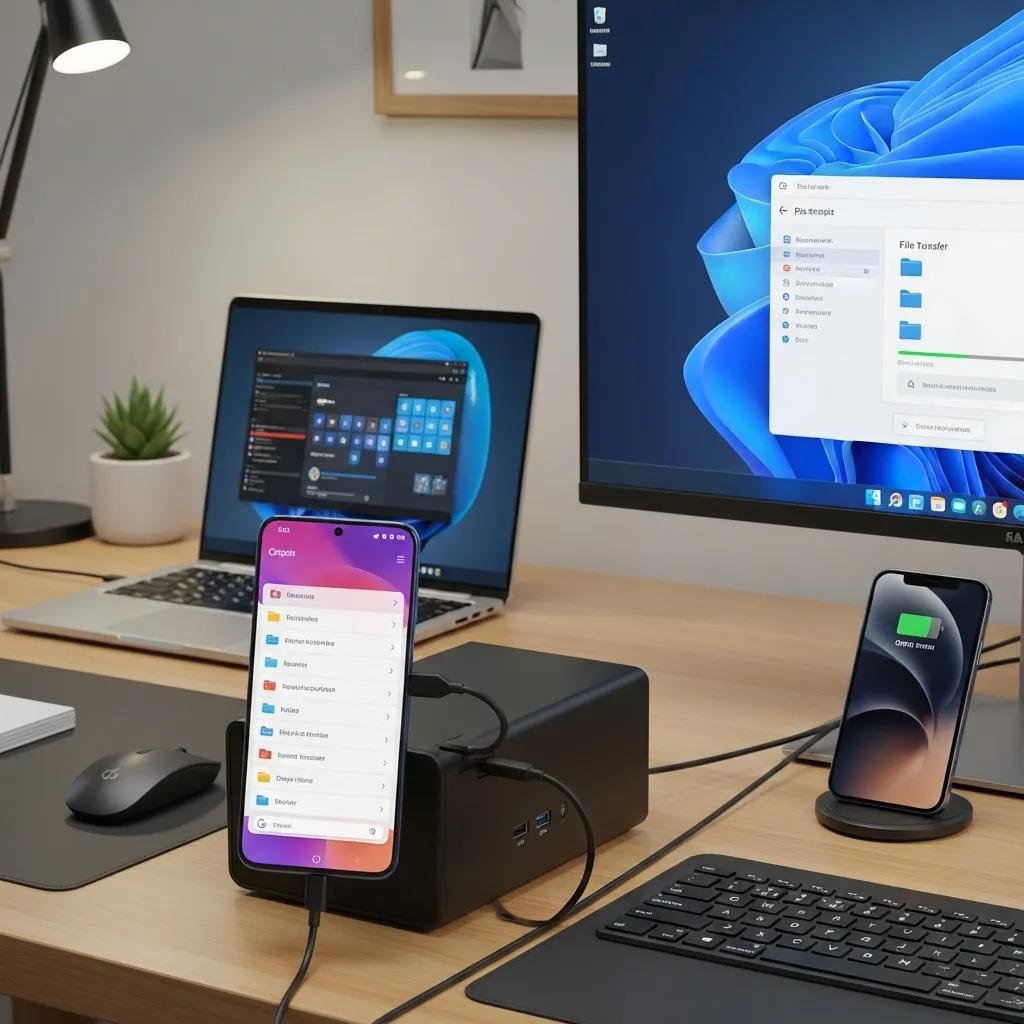
How to Connect Your Android Phone to a Windows PC: Easy USB and Wireless Methods Explained
Connecting an Android phone to a Windows PC lets you transfer files, mirror your screen, and use your phone as a webcam, improving productivity and media management. This guide explains the main connection methods — USB (MTP/ADB), wireless options (Microsoft Phone Link, Bluetooth, Wi-Fi apps), and screen mirroring tools — and shows practical steps, quick troubleshooting, and recommended tools to get a stable connection. Many users simply want fast Android file transfer or low-latency mirroring; understanding USB modes, driver needs, and wireless trade-offs removes common friction. Below you’ll find step-by-step USB instructions optimized for featured snippets, a compact comparison of wireless approaches, actionable mirroring options like scrcpy and DroidCam, and a troubleshooting decision table to diagnose detection errors and transfer failures. Throughout, keywords such as “android file transfer”, “usb debugging android”, and “connect android to pc” are used naturally to help you find the exact procedure you need.
How do I connect my Android phone to a Windows PC using USB?
USB connections provide reliable, high-speed file transfer and enable developer tools like ADB for advanced control. When you connect via USB, the phone negotiates a USB mode (Charging, MTP/File Transfer, PTP, or ADB), and Windows loads appropriate USB drivers so the device appears in File Explorer. The main benefit is speed and direct access to files without network dependency, which is ideal for large media or backups. Below are concise steps optimized for quick execution and featured-snippet use; follow them in order if your goal is immediate file transfer or to prepare for mirroring tools like scrcpy.
| USB Mode | Primary Use | Typical Behavior |
|---|---|---|
| MTP / File Transfer | Transfer photos, videos, documents | Exposes device storage in File Explorer |
| PTP (Camera) | Camera-only access | Offers photo import tools, limited file view |
| Charging only | Power only | No file access, minimal device negotiation |
| ADB / USB Debugging | Developer control, scrcpy, backup tools | Enables command-line access and device control |
The table clarifies when to pick MTP for general file transfer and when ADB is necessary for advanced mirroring or debugging. Understanding the mode helps you avoid common detection issues and choose the correct next step if Windows does not show your device.
What steps enable USB file transfer between Android and Windows?
Below is a short, actionable checklist that gets file transfer working in most cases. Follow these steps in sequence to ensure the phone is detected and visible in Windows File Explorer. If one step fails, move to the next to isolate the issue and restore transfer functionality.
- Unlock your Android phone and connect it to the PC with a data-capable USB cable.
- On the phone, open the USB notification and select “File Transfer (MTP)” or “Transfer files”.
- In Windows, open File Explorer and look for the phone under “This PC” or “Devices and drives”.
- If the device does not appear, try another USB port or a different known-good cable.
These steps resolve most basic transfer needs quickly, and they prepare the device for more advanced operations such as using scrcpy or ADB if you need screen mirroring or remote control next. If file transfer still fails, the next subsection explains enabling MTP and USB debugging.
How to enable MTP and USB debugging modes on Android?
MTP and USB debugging enable file access and developer tools respectively; enabling them ensures Windows recognizes the device and lets advanced tools connect. To switch to MTP, connect the phone, open the system notification for USB options, and choose “File Transfer (MTP)”; on some phones the option appears as “Transfer files.” To enable USB debugging, open Settings → About phone → tap Build number seven times to unlock Developer Options, then return to Settings → System → Developer Options and toggle “USB debugging.” Always accept the debugging prompt on the phone when the PC requests permission, and disable USB debugging when not using it for security. If you’re uncomfortable changing drivers or enabling developer features, mcHelper.com offers remote assistance to install drivers or resolve USB-detection issues securely and quickly.
What are the best wireless methods to connect Android to a Windows PC?
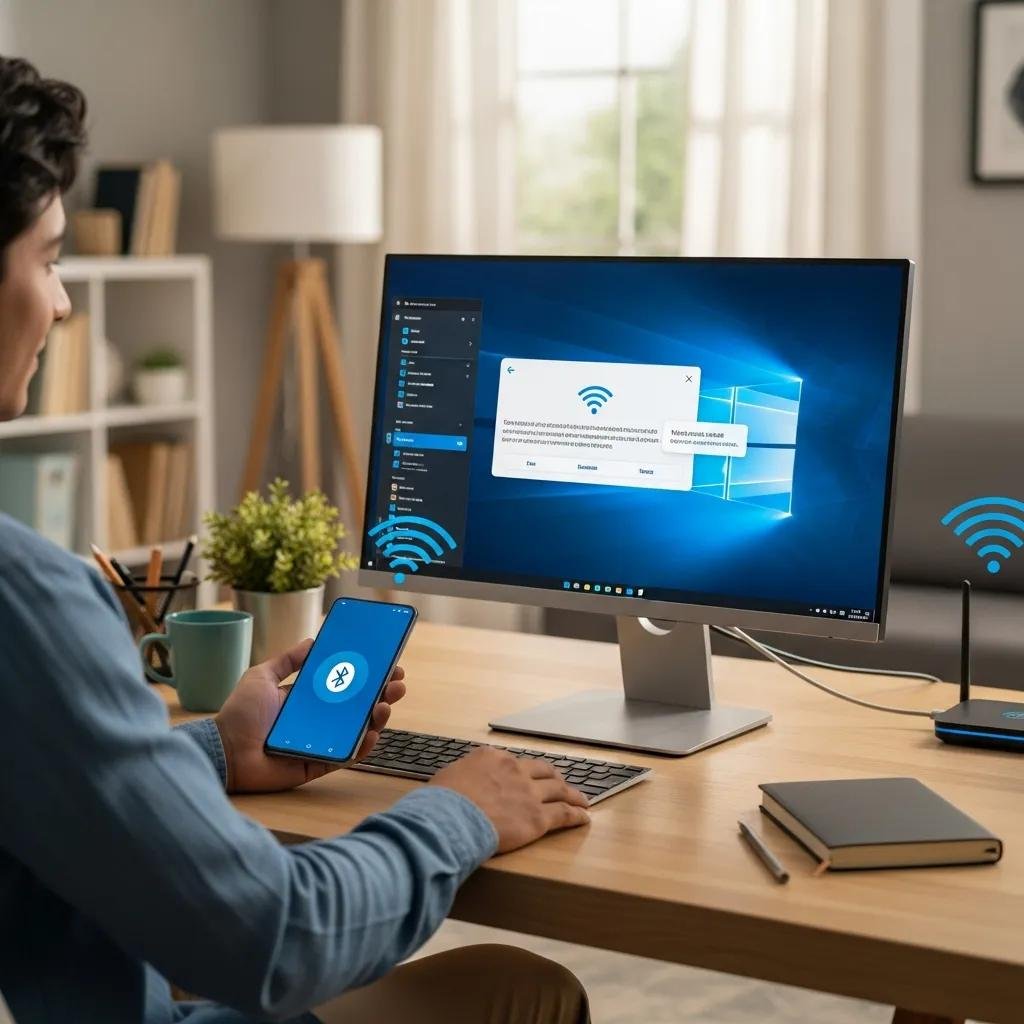
Wireless methods remove cables and let you transfer files, mirror screens, or integrate notifications; each method balances speed, ease, and security differently. Phone Link (Link to Windows) offers deep integration for messages, calls, and light mirroring, while Wi-Fi Direct/LocalSend/Quick Share or dedicated apps provide fast large-file transfers without internet routing. Bluetooth works for small transfers and pairing but is much slower. Below is a quick comparison to help you pick the best wireless approach for your needs.
| Method | Required App/Protocol | Pros | Cons |
|---|---|---|---|
| Phone Link (Link to Windows) | Microsoft Phone Link / Link to Windows | Deep OS integration, notifications, calls | Limited full-control mirroring on some devices |
| Wi-Fi Direct / LocalSend / Quick Share | App or native protocol | Fast for large files, local-only transfers | Requires same-network or hotspot setup |
| Bluetooth | Built-in Bluetooth stack | Simple pairing, no extra apps | Slow transfer speeds, limited file size |
This comparison shows Phone Link is best for daily productivity features while Wi-Fi-based transfers excel for large media. Knowing the pros and cons helps you choose the right method depending on whether you prioritize integration or raw transfer speed.
How to set up Microsoft Phone Link for seamless Android-PC connection?
Phone Link creates a persistent connection between Android and Windows for notifications, messages, and basic mirroring while keeping authentication and privacy straightforward. To set it up, install or update Phone Link on Windows and the “Link to Windows” companion app on Android, sign into the same Microsoft account on both devices, and follow the QR-code pairing flow inside the Windows app. Grant the companion app the requested permissions for notifications, contacts, storage, and calls when prompted on the phone; without these permissions, features like messaging or photo access will be limited. If pairing fails, check that both devices are on the same network, update apps, and retry the QR scan; resolving these network or permission issues is usually sufficient to restore seamless integration.
How to connect Android and PC via Bluetooth and Wi-Fi for file sharing?
Bluetooth and Wi-Fi file sharing serve different use cases: Bluetooth handles small files and simple pairings, while Wi-Fi solutions handle larger transfers quickly. For Bluetooth, enable Bluetooth on both devices, pair them from Settings, and use “Send via Bluetooth” from the Android share menu; accept the transfer on Windows when prompted. For Wi-Fi file sharing, either connect both devices to the same local network or create a hotspot, then use an app that supports local transfers (LocalSend, Quick Share alternatives) to select files and push them to the PC. Wi-Fi transfers are significantly faster than Bluetooth and avoid cellular usage, which makes them preferable for photos, videos, and backups.
How can I mirror my Android screen to a Windows PC?
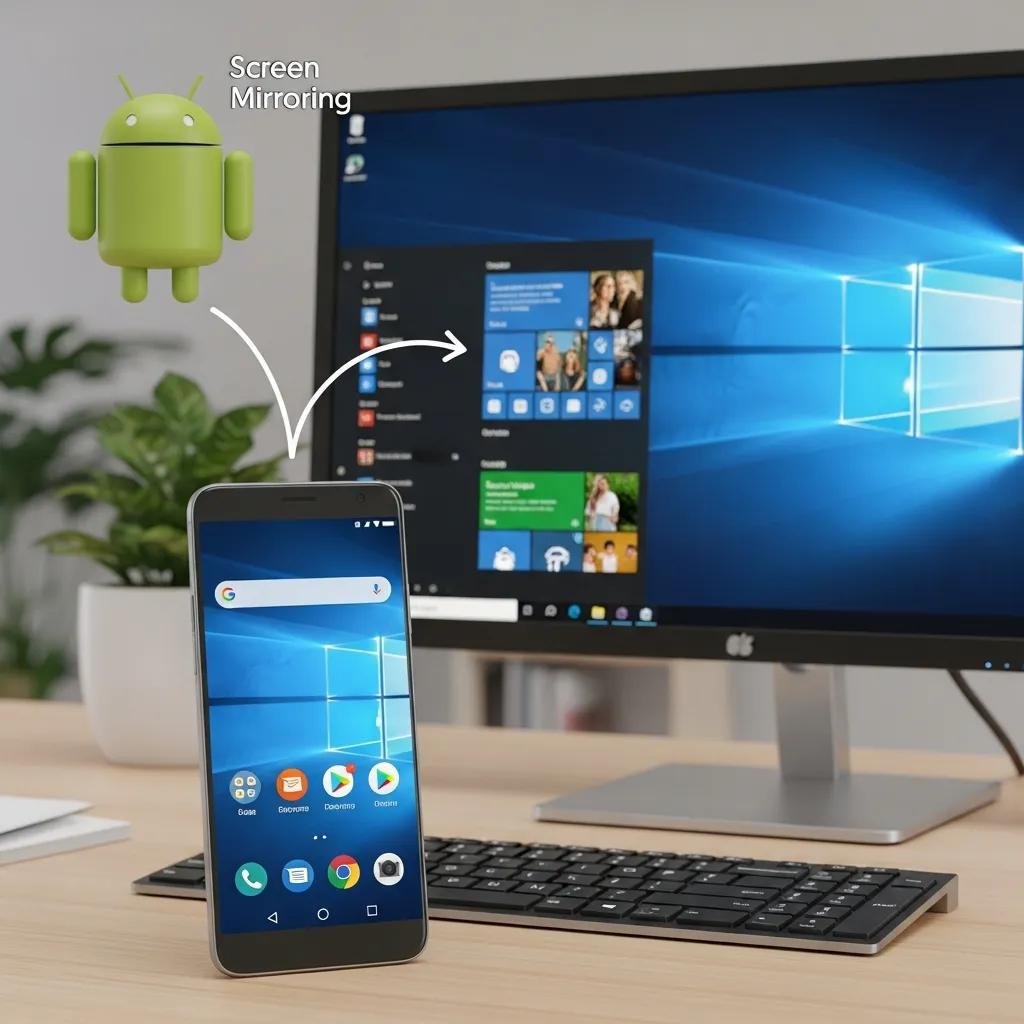
Screen mirroring lets you view or control your phone from the PC for presentations, app demos, or remote troubleshooting; options range from integrated solutions like Phone Link to advanced low-latency tools such as scrcpy. Mirroring works either wired via ADB or wirelessly over the local network; choose scrcpy if you need precise control and low lag, or Phone Link for simpler viewing and notification handling. Below is a short tool guide to help you select the right mirroring approach and what to expect from each tool.
| Tool | Feature | Best Use |
|---|---|---|
| Phone Link | Basic mirroring and notifications | Casual use, messaging, simple app previews |
| scrcpy | Low-latency control via ADB/wireless | Developers, presentations, responsive control |
| Vysor / DroidCam | Mirroring and webcam functions | Webcam replacement or cross-platform mirroring |
These options highlight that scrcpy is the go-to for minimal latency and control, while Phone Link and Vysor suit simpler needs or webcam scenarios. Choosing a tool depends on whether you prioritize control, video quality, or ease of setup.
What tools enable Android screen mirroring on Windows?
Several popular tools make mirroring straightforward with different trade-offs in latency, setup complexity, and features. scrcpy provides free, low-latency mirroring for advanced users and supports both wired ADB and wireless modes, making it excellent for interactive control. Vysor offers a commercial option with browser-based mirroring and simple setup, while Phone Link delivers integrated features like messages and calls without extra software on supported phones. Choose scrcpy for performance-sensitive uses, Phone Link for quick integrated access, and Vysor/DroidCam when you need webcam compatibility or simpler cross-platform functionality.
How to use Android as a webcam for Windows PC?
Turning your phone into a webcam increases video quality for calls and recordings and keeps setups flexible. Install an app like DroidCam on both devices (phone client and Windows client), grant camera and microphone permissions on the phone, and connect via USB or Wi-Fi following the app’s pairing instructions; then select the virtual DroidCam device inside your conferencing app. For best video quality, use a USB connection or a high-bandwidth Wi-Fi network, and check app settings for resolution and frame-rate options. If the webcam option does not appear in your conferencing software, verify that drivers and permissions are correctly installed and that the phone client is running and paired.
What are common Android-PC connection issues and how do I troubleshoot them?
Connection failures typically come from hardware problems (bad cable or port), incorrect USB mode, locked phone, or missing Windows drivers; diagnosing in logical order saves time and often resolves the issue. Start with physical checks such as trying a different data-capable cable and another USB port, confirm the phone is unlocked and set to MTP/File Transfer, and inspect Windows Device Manager for driver errors or unknown devices. If those steps fail, reinstall or update the USB driver, enable USB debugging and accept PC authorization, or switch to wireless methods for file transfer. The table below provides a quick decision guide for common problems and fixes.
| Problem | Likely Cause | Quick Fix |
|---|---|---|
| Phone not detected | Faulty cable or charging-only cable | Try known-good data cable and different USB port |
| Files not visible | USB mode set to Charging | Select “File Transfer (MTP)” on the phone |
| Driver errors | Missing or outdated drivers in Windows | Update/reinstall drivers via Device Manager |
This quick-reference table helps you move from simple hardware checks to driver-level fixes systematically, reducing trial-and-error and restoring reliable connections faster.
Why is my Android phone not detected by Windows PC via USB?
If Windows doesn’t detect the phone, the most common causes are a non-data USB cable, a locked phone, or the device set to Charging mode instead of MTP. First, confirm the cable supports data by testing with another phone or using a different cable and port. Unlock the phone screen, check the USB notification and select File Transfer (MTP), and inspect Device Manager on Windows for devices with warning icons; right-click to update or reinstall the driver if necessary. Performing these checks in order isolates hardware issues versus configuration or driver issues and often resolves detection problems without advanced troubleshooting.
How to fix Android file transfer problems and connection errors?
Resolve transfer problems by progressing from simple to advanced steps: restart both devices, try a different cable or USB port, and confirm MTP is selected on the phone. If the issue persists, update Windows and device drivers through Device Manager, enable USB debugging for deeper tools, or use alternative transfer methods such as Wi-Fi file-sharing apps or cloud storage as temporary workarounds. For unresolved or complex errors—such as persistent driver failures, corrupted device drivers, or when remote access is needed—mcHelper.com provides 24/7 remote computer repair and tech support for Windows and Mac, offering fast, secure remote assistance with a “No Fix – No Fee” guarantee to help reinstall drivers, perform diagnostics, or restore connectivity.
For additional troubleshooting, try these quick checklist tips:
- Restart both phone and PC to clear temporary errors.
- Use a known-good data cable and test multiple USB ports.
- Switch to a wireless transfer method if hardware issues persist.