How to Recover Corrupted Files on Mac & Windows: Effective Data Recovery Software and Repair Methods
Corrupted files are digital documents or media that fail to open correctly, display errors, or contain scrambled data due to logical or physical damage. This guide shows how both Mac and Windows users can assess recoverability, run built-in OS tools, use third-party data recovery software, and apply file-type repair steps to restore unreadable files. You will learn quick pre-recovery checks, step-by-step instructions for Time Machine, Disk Utility, SFC/DISM and CHKDSK, how to choose recovery software, and practical workflows for repairing Word, Excel, PDF, photo, and video files. Throughout the article we use clear diagnostic cues (error messages, SMART data, encryption signs) and recovery patterns so you can decide when a DIY approach is sufficient and when to escalate to professional remote data recovery. Keywords covered include recover corrupted files Mac, recover corrupted files Windows, repair corrupted Word files, and recover corrupted photos and videos.
What Are the Common Causes of File Corruption on Mac and Windows?
File corruption occurs when data structures on storage media or within files become inconsistent or unreadable, undermining file integrity and access. Common causes include improper shutdowns or interrupted writes, malware or ransomware encrypting or scrambling content, hardware failures such as bad sectors or failing SSD controllers, and software bugs or application crashes that leave files half-written. Understanding the cause matters because logical corruption (software/metadata) is often recoverable with repair tools, while physical damage (mechanical drive failure) usually requires specialized recovery methods. Before attempting recovery, run quick checks like noting exact error messages, trying an alternate viewer or application, and verifying file permissions to guide the safest next step.
The following list highlights top causes and a one-line recoverability cue for each.
- Improper shutdowns/interrupted writes: Often recoverable with file repair or previous-version restore if metadata intact.
- Malware and ransomware: Encryption often not recoverable without keys; containment and professional help recommended.
- Hardware failure (HDD/SSD/USB): Physical damage reduces recoverability; imaging and expert recovery may be required.
- Software bugs or format errors: Frequently fixable with repair utilities or reimport/export workflows.
These causes determine whether you should attempt OS tools first or move to imaging and specialized recovery.
How Do Malware and Ransomware Affect File Integrity?
Malware and ransomware differ in effect: some malware corrupts or truncates files, while ransomware encrypts file contents and appends suspicious extensions or ransom notes. Corruption from non-encrypting malware may leave partial content that repair and recovery software can reconstruct, but ransomware encryption changes the cryptographic state of the file and usually prevents recovery without the decryption key. Immediate containment steps include isolating the device from networks, avoiding further writes to the affected volume, and running a full antivirus scan from a clean environment to identify active threats. If signs point to ransomware—renamed file extensions, ransom notes, or mass encryption—professional intervention is often the safest route to avoid destroying remaining recoverable data.
These containment actions naturally lead to hardware considerations, since a failing drive can mimic infection symptoms and requires different handling.
What Hardware Failures Lead to Corrupted Files?
Hardware problems that cause corruption include HDD bad sectors, failing SSD controllers, unstable power to USB flash drives, and faulty cables or ports that interrupt writes. Symptoms include audible clicking on HDDs, SMART warnings, sudden read/write errors, and files that report I/O errors or disappear from directory listings. Safe immediate actions are to stop using the device to avoid further degradation, run non-destructive diagnostics like SMART checks or Disk Utility/CHKDSK read-only scans, and, when possible, create a sector-level disk image before further attempts. If the drive shows physical failure signs or imaging fails, escalate to professional services to avoid accelerating damage and reducing the chance of successful recovery.
Knowing whether damage is logical or physical helps decide between manual OS repair and software imaging or professional remote recovery.
Which Manual Methods Fix Corrupted Files on Mac and Windows?

Built-in OS tools can resolve many logical corruption and permission issues without third-party software. On macOS, Time Machine can restore earlier clean versions, and Disk Utility First Aid checks and repairs disk directory structures; on Windows, Previous Versions/System Restore can revert files, while SFC, DISM, and CHKDSK diagnose and repair system file and file system errors. Start with a pre-recovery checklist: do not overwrite the affected disk, check for backups, attempt to open files in alternate programs, and note exact error wording to guide commands. If these manual methods fail or diagnostics show hardware faults, stop further writes and consider imaging or expert remote recovery to prevent data loss.
Below is a quick table mapping manual methods to when to use them.
| Manual Method | When to Use | Risk Level |
|---|---|---|
| Time Machine restore | Restore single files or folders from known good backup | Low |
| Disk Utility First Aid | Repair directory/metadata issues on macOS disks | Low-Medium |
| Windows Previous Versions/System Restore | Revert files or system state after application corruption | Low |
| SFC / DISM / CHKDSK | Repair system files, component store, and file system errors on Windows | Medium |
These methods solve many logical problems, but the next steps explain how to run core tools safely.
How to Use Time Machine and Disk Utility to Repair Mac Files?
Time Machine provides point-in-time restores by browsing backups and restoring individual files or folders to their previous versions. To restore, open Time Machine, navigate to the folder or file, use the timeline to locate a clean snapshot, and click Restore to recover without overwriting unrelated data. Disk Utility First Aid scans the selected volume, checks the file system, and attempts automated repairs; run First Aid from macOS Recovery if the boot volume is affected. If First Aid reports it cannot repair the disk or errors persist, create a block-level image of the drive and seek professional help to avoid further data loss.
How to Restore Previous Versions and Use SFC/DISM Commands on Windows?
Windows lets you access Previous Versions via File Properties or use System Restore to roll back system state and files to earlier snapshots. Run SFC by opening an elevated Command Prompt and executing to verify and repair protected system files; follow with DISM commands () to repair the component store if SFC reports issues. Use CHKDSK to scan and repair file system errors with but be aware CHKDSK can take hours and may change allocation tables—create an image if data is critical. These steps should be run with administrator privileges and after verifying that the problem is logical, not physical, to avoid worsening hardware issues.
After attempting OS-level fixes, consider software options when manual tools are insufficient.
What Are the Best Data Recovery Software Options for Mac and Windows?
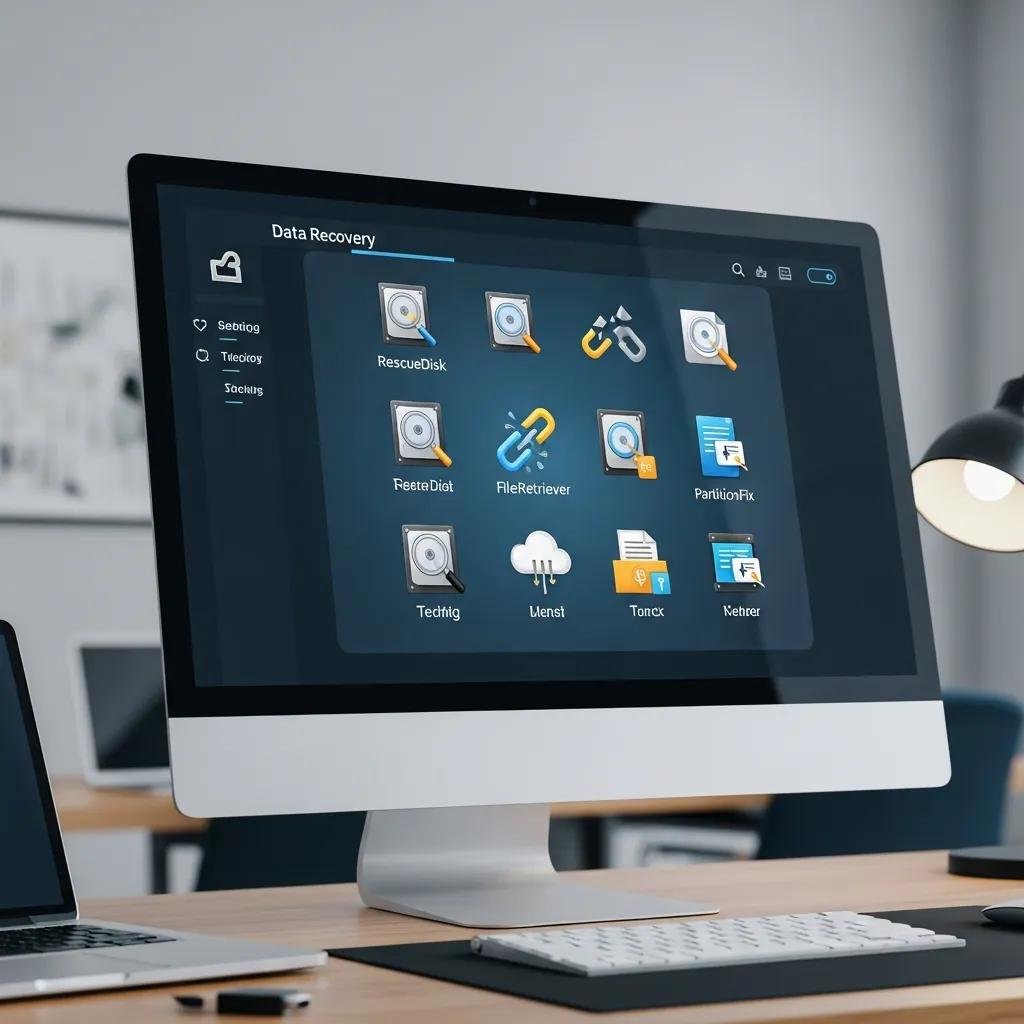
Third-party recovery tools can reconstruct deleted or corrupted files with features like deep scans, partition recovery, and file-type signature searches; however, trial behavior often limits actual recovery until a license is purchased. Key features to look for include read-only scanning, preview of recoverable files, support for target file types (.docx, .xlsx, .pdf, .jpg, .mp4), ability to create disk images, and partition or bootable media support for severe cases. DIY software is appropriate for logical corruption, deleted files, or formatted partitions where the drive hardware is healthy; for physical damage, encrypted ransomware cases, or after failed repair attempts, professional remote recovery is a safer alternative. When choosing between DIY and experts, weigh the risk of further writes, the importance of the data, and whether round-the-clock support or no-fix-no-fee assurance matters.
The table below compares common recovery tools and their behaviors to help pick software by OS and file-type support.
| Software | Supported OS | Key Features | File Types | Free/Trial Behavior |
|---|---|---|---|---|
| Disk Drill | Mac / Windows | Deep scan, partition recovery, disk imaging | docx, xlsx, pdf, jpg, mp4 | Free scan and preview |
| Wondershare Recoverit | Mac / Windows | Signature recovery, media repair | docx, pdf, jpg, mp4 | Free preview, paid recovery |
| EaseUS Data Recovery Wizard | Mac / Windows | Partition restore, wizard UI | docx, xlsx, pdf, jpg, mp4 | Limited free recovery (up to 2GB) |
| Stellar Data Recovery | Mac / Windows | Bootable media, file repair options | docx, pdf, jpg, mp4 | Free scan & preview |
Summary: Use a tool with read-only scanning and preview capability first; choose imaging and deep scan features for severe corruption.
Which Features Should You Look for in Data Recovery Software?
When evaluating recovery software focus on features that increase success while minimizing risk: read-only or safe-scan modes, deep signature-based scans, preview of recoverable files, disk imaging to work from a clone, and specific file-repair modules for documents and media. Deep scans target file signatures to recover fragmented or formatted data, while preview functions let you verify integrity before paying for recovery. Avoid tools that default to writing to the source disk and prefer those that can create a sector image to work on a copy. These feature choices directly influence success rates in scenarios like deleted file recovery versus corrupted partition reconstruction.
This decision point brings up a common comparison among top tools and typical use cases.
How Do Top Tools Like Disk Drill and Wondershare Recoverit Compare?
Disk Drill typically emphasizes an intuitive interface, safe read-only scanning, and good preview behavior for quick deleted-file recovery, making it suitable for non-technical users recovering recently deleted documents or media. Wondershare Recoverit often highlights signature recovery and media repair features that help with partially corrupted photos and videos, which is useful for damaged media files from cameras or cards. EaseUS and Stellar offer stronger partition recovery and bootable media options for complex scenarios where the OS won’t boot or partitions are missing. For quick deleted-file needs use Disk Drill; for media file repair use tools with explicit media repair modules; for partition/boot issues consider tools that offer imaging and bootable recovery.
How Can You Repair Specific Damaged Documents and Restore Unreadable Files?
Repairing damaged documents depends on file type: documents often have built-in repair options, while media files may require header/frame reconstruction by specialized utilities. Start by making a copy of the damaged file and attempt built-in repair (e.g., Word’s Open and Repair), export or recover text, and try opening the file in alternate apps that tolerate corruption. For photos and videos, create a disk image of the source medium, use media-oriented recovery tools that rebuild headers or frames, and validate recovered files using previews. Escalate to recovery software when manual fixes fail, and consider professional assistance for encrypted ransomware, severe fragmentation, or physically degraded media.
The table below maps common file types to typical symptoms and recommended fixes so you can pick the right approach quickly.
| File Type | Common Error Symptoms | Manual Fixes / Tool Options |
|---|---|---|
| Word (.docx) | “File is corrupted” or format errors | Use Word’s Open and Repair, Recover Text, try Google Docs or file-repair tools |
| Excel (.xlsx) | Broken formulas, unreadable workbook | Use Excel repair, extract to CSV, open in LibreOffice for recovery |
| Cannot open, missing pages | Rebuild via print-to-PDF, use PDF repair tools or export text | |
| Photo (jpg/png) | Partial image, broken header | Use image repair tools, recover from camera card with imaging and media repair |
| Video (mp4/mov) | Playback fails, audio/video desync | Create disk image, use video repair utilities to reconstruct headers/frames |
Summary: Work from copies, try built-in repairs first, then use specialized repair utilities or recovery software when necessary.
What Are the Steps to Repair Corrupted Word, Excel, and PDF Files?
For Word, begin by creating a copy and using Word’s function, then attempt or open in an alternate editor to extract content. For Excel, try from Excel’s file dialog, extract sheets as CSV if structure is damaged, and use formula-checking after recovery to validate data integrity. For PDF files, try opening in multiple readers, use a print-to-PDF rebuild if pages display, or employ PDF repair utilities that can rebuild object streams and cross-reference tables. If built-in methods fail, export whatever readable content you can, then use recovery tools focused on the file type or consult experts for critical documents.
How to Recover Corrupted Photos and Videos from Hard Drives and External Devices?
Recovering media requires a non-destructive workflow: stop using the device, create a full disk image, and run recovery or repair utilities against the image rather than the original. Use recovery tools that preview thumbnails to confirm file integrity and specialized media repair software that can fix header/frame corruption or rebuild indexes for fragmented video files. Verify recovered media by checking playback and integrity at multiple players and export a lossless copy if possible to avoid recompression artifacts. If the storage device shows hardware symptoms or imaging fails, professional services with hardware-level recovery are the safer option.
After these repair steps, if data remains inaccessible or the drive exhibits physical failure, consider professional remote recovery that offers expert diagnostics and risk-mitigation. mcHelper.com provides remote computer repair and tech support for Mac and Windows users, including data recovery services. Their stated service attributes include 24/7 availability, remote support, a “no fix – no fee” promise, an annual subscription option for comprehensive support, and certified/expert technicians; these options are factual professional alternatives when complex hardware issues, ransomware, or severe file system damage exceed safe DIY recovery.
Choose manual OS tools for logical errors and backups first, then safe DIY recovery software with imaging for deeper corruption, and rely on professional remote recovery when hardware faults or ransomware make DIY attempts risky.