Gaming Performance Tweaks: How to Maximize Your FPS for Smoother Gameplay
Low or inconsistent frames per second (FPS) turns otherwise enjoyable PC gaming into a frustrating experience by producing stutters, input lag, and reduced responsiveness. FPS measures how many images your system renders per second; higher, stable FPS improves perceived smoothness and reduces input lag, directly affecting competitive and immersive play. This guide gives concise, actionable tweaks—covering in-game settings, software and OS-level optimizations, hardware upgrade priorities, and troubleshooting steps—to help you boost gaming FPS and stabilize performance. If you prefer expert help rather than manual adjustments, mcHelper.com’s Remote Computer Repair and Optimization Service offers remote diagnostics and optimization to get your system performing better quickly. Read on for specific settings to lower, software tasks to maintain, upgrade priorities to consider, and when remote assistance makes sense.
What Are the Most Effective In-Game Settings to Boost FPS?
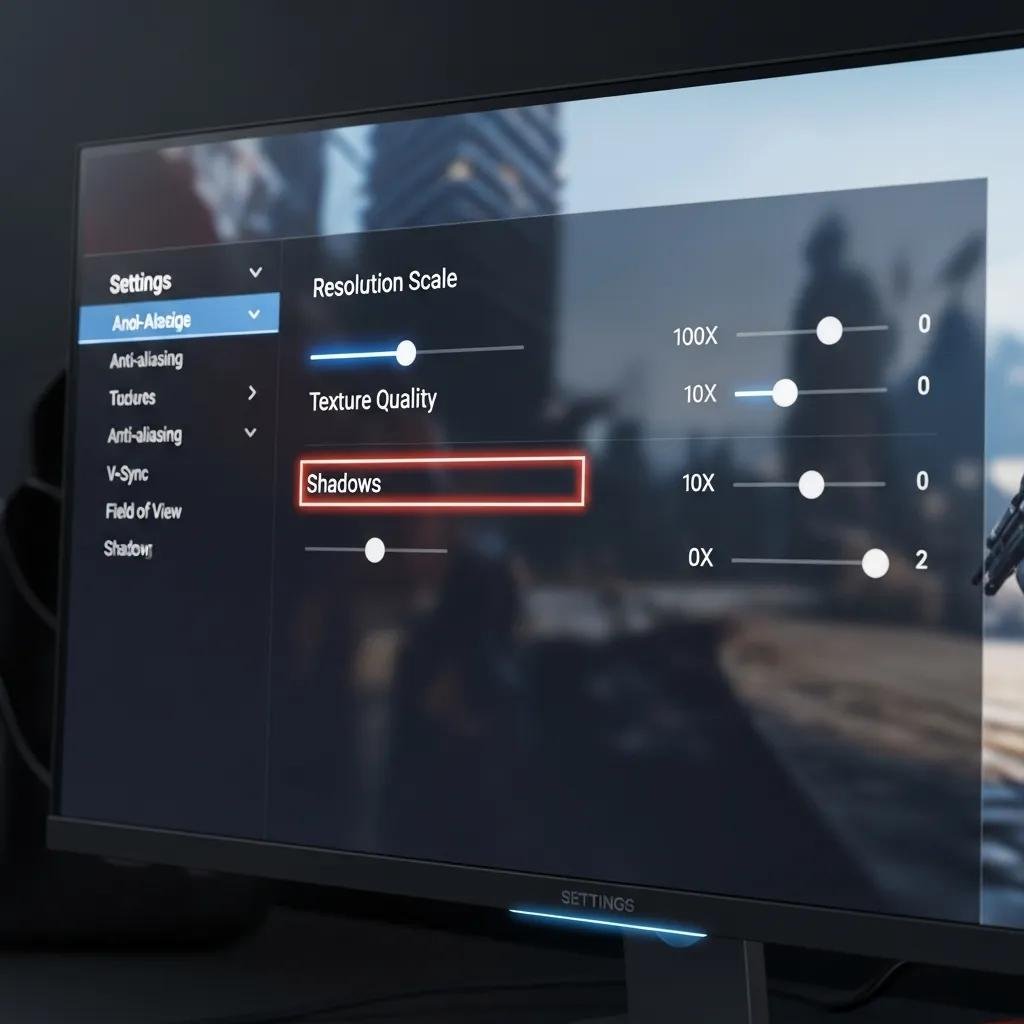
In-game graphics settings control GPU load and VRAM usage and directly influence FPS by changing how much work your GPU must perform each frame. Reducing or disabling high-cost effects lowers GPU utilization and raises FPS, while preserving key visual cues for gameplay. The five settings with the biggest FPS impact are resolution scale, texture quality, shadows, anti-aliasing, and post-processing; adjusting these in that order usually yields the best performance gains. Below is a quick featured-snippet style list of top options to change and a short three-step suggestion to apply them effectively.
- Resolution Scale: Lowering render scale reduces internal rendering workload and raises FPS.
- Texture Quality: Set textures to match available VRAM to prevent streaming stutters.
- Shadows: Drop shadow quality or turn off contact shadows for large FPS gains.
- Anti-Aliasing: Use lightweight AA (FXAA) or disable for competitive play to reduce GPU cost.
- Post-Processing: Disable motion blur and depth-of-field to keep frames consistent.
Apply these changes in three steps:
- Lower resolution scale first, test with a benchmark or in-game scene, and note FPS delta.
- Adjust texture and shadow quality according to VRAM and CPU/GPU balance.
- Disable expensive post-processing and heavy AA, then fine-tune remaining settings for image clarity.
These adjustments trade visual fidelity for smoother FPS while preserving important visual information for gameplay. The next section explains how resolution and texture choices specifically affect VRAM and GPU load.
How Does Adjusting Resolution and Texture Quality Impact FPS?
Resolution scaling changes the number of pixels the GPU renders each frame; lowering render resolution reduces pixel fill-rate and shader work, improving FPS especially on GPU-bound systems. Texture quality controls memory footprint and streaming: high-resolution textures use more VRAM and may cause hitching if VRAM is exceeded or streaming is slow. For example, moving from native 1440p to 1080p can yield a 20–40% FPS increase on many mid-range GPUs depending on the game and settings. Rule of thumb: if VRAM usage exceeds your GPU’s capacity, lower texture quality first to reduce stuttering and stabilize FPS. Understanding these trade-offs helps set sensible presets that match your GPU and monitor.
Intro to a quick mapping of settings to impact before the table:
| In-Game Setting | Typical Performance Impact | Recommendation |
|---|---|---|
| Resolution Scale | High — large FPS gains when reduced | Lower to boost FPS, keep UI readable |
| Texture Quality | Medium — VRAM-dependent stuttering | Match to GPU VRAM; lower if streaming occurs |
| Shadows | High — costly per-frame work | Set to Low/Medium for best FPS gains |
| Anti-Aliasing | Medium — depends on method | Use FXAA or disable for competitive play |
| Post-Processing | Medium — visual only | Disable motion blur/depth-of-field for clarity |
This table helps prioritize which graphics options to reduce first for the largest FPS improvements. Next, we cover anti-aliasing choices and synchronization features that affect both FPS and input lag.
Which Anti-Aliasing and V-Sync Options Optimize Performance?
Anti-aliasing methods vary in cost and quality: MSAA produces high-quality edges but is GPU-expensive, TAA smooths edges with moderate cost but can blur motion, and FXAA is cheap but less precise. For FPS-focused play, lightweight AA or no AA is recommended; competitive players often disable AA entirely to maximize frame rates and clarity. V-Sync eliminates tearing but can add input lag and cause stutter if FPS fluctuates; adaptive sync technologies like G-Sync and FreeSync are preferable because they reduce tearing without the same input lag penalty. For immersive single-player titles, enable moderate AA and adaptive sync if available; for competitive play, favor unlocked FPS with minimal AA and adaptive sync where possible to minimize latency.
How Can You Optimize Your PC Software for Gaming Performance?
Software-level maintenance and OS configuration reduce background interference and unlock performance headroom by ensuring drivers, power plans, and background processes are aligned to gaming needs. Key software tasks are updating graphics drivers, enabling Windows Game Mode, selecting a high-performance power plan, and stopping unnecessary background apps that consume CPU, GPU, or disk I/O. Below is a concise checklist and a short table summarizing tasks and recommended cadence for upkeep.
Essential steps to keep software optimized:
- Update graphics drivers regularly to get game-specific optimizations and bug fixes.
- Enable Windows Game Mode and set the power plan to High Performance to favor gaming load.
- Manage background apps via Task Manager and disable heavy startup items that interfere with gaming.
| Maintenance Task | Recommended Frequency | Expected Benefit |
|---|---|---|
| Graphics Drivers | Monthly or as released | Improved game-specific FPS and bug fixes |
| Windows Updates | Monthly (manage restarts) | System stability and security without disruptive restarts |
| Background Cleanup | Weekly review | Lower CPU/disk usage and fewer frame drops |
Keeping these software tasks current reduces common non-hardware causes of low FPS and keeps gameplay stable. For users who prefer remote help for driver updates, background app management, and Windows configuration, mcHelper.com’s Remote Computer Repair and Optimization Service can perform these tasks remotely to save time and reduce risk.
Why Are Graphics Driver Updates Crucial for Maximizing FPS?
Graphics drivers provide optimized paths for game engines to speak to your GPU and often include game profiles that unlock performance improvements and fix rendering bugs. Updating drivers can yield measurable FPS gains, sometimes improving performance by single-digit percentages or fixing regressions that cause frame pacing issues. To update safely, download whitelisted drivers from vendor release notes and be prepared to rollback if a specific version causes instability. Regular checks—monthly or when a major new title launches—ensure you receive critical optimizations without unexpected regressions.
How Does Windows Game Mode and Background App Management Improve FPS?
Windows Game Mode prioritizes CPU and GPU resources for the active game and reduces background interruptions, which can improve frame stability on some systems. Switching to a high-performance power plan prevents aggressive CPU/GPU throttling and allows components to sustain higher clocks during gameplay. Use Task Manager to identify and disable demanding background processes and consider limiting overlays or recording software when not needed to free system resources. These OS-level tweaks combine to reduce background contention and reduce micro-stutters that harm perceived FPS.
What Hardware Upgrades Provide the Best FPS Boosts?
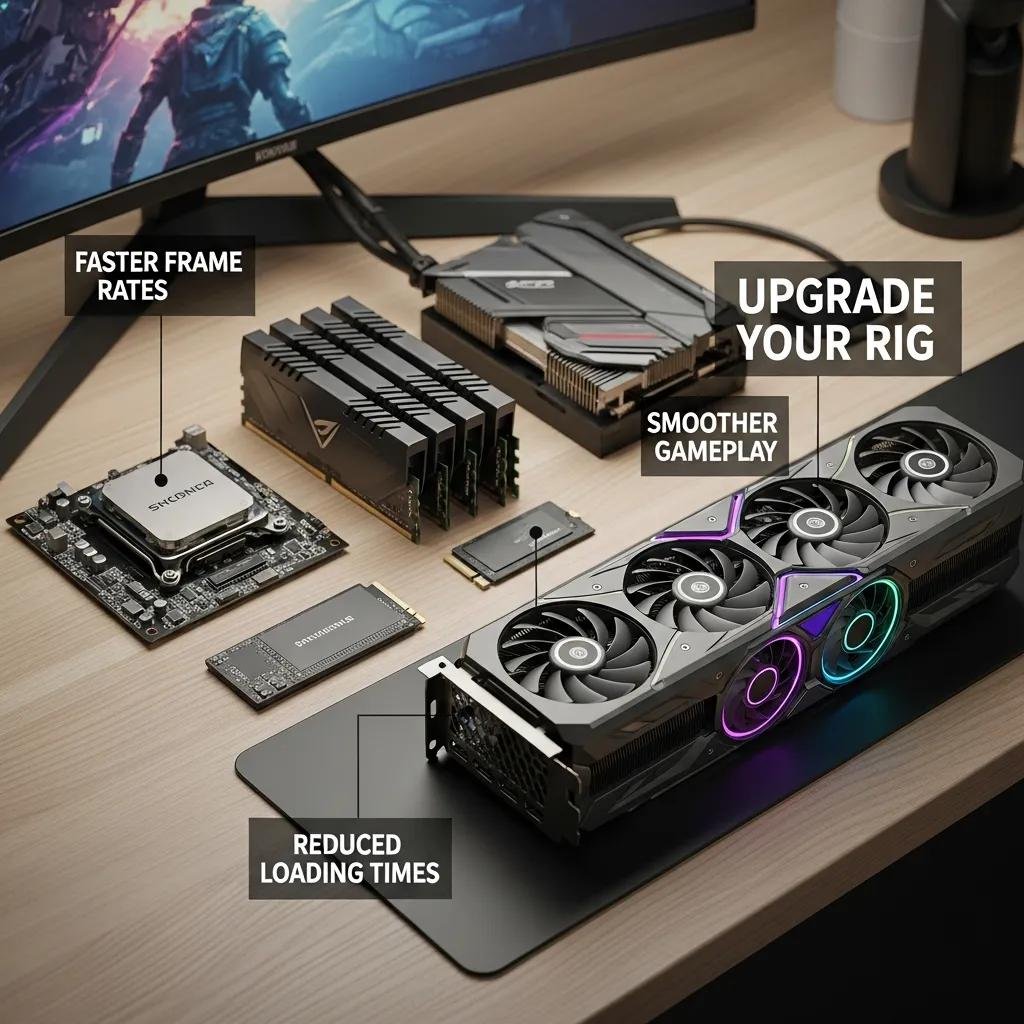
Hardware upgrades produce predictable FPS improvements when chosen according to your bottleneck: GPU upgrades almost always yield the largest FPS increase, followed by CPU, then RAM, with SSDs improving load times and stutter rather than raw FPS. Prioritizing parts based on a bottleneck analysis avoids unnecessary spending and maximizes FPS per dollar. The comparison table below maps typical upgrades to expected impact and helps rank upgrade choices for different game types.
Intro before hardware EAV table:
| Component | Key Attribute | Expected Impact on FPS |
|---|---|---|
| GPU | VRAM / Shader Throughput | Highest — major FPS uplift in GPU-bound titles |
| CPU | Core count / Clock speed | High in CPU-bound or simulation-heavy games |
| RAM | Size / Speed | Medium — stabilizes performance and reduces swapping |
| SSD | Read/Write speed | Low on FPS, high on load times and stutter reduction |
This table shows the order and nature of typical gains; GPU upgrades matter most for graphical fidelity and raw FPS. Next, specific guidance on RAM, CPU, and SSD impacts is provided.
How Do RAM, CPU, and SSD Upgrades Affect Gaming Performance?
Increasing RAM reduces paging and avoids frame drops caused by memory swapping, with 16GB commonly recommended and 32GB beneficial for multitasking and heavy modded titles. Upgrading the CPU helps when games are CPU-limited—look for higher single-core performance and sufficient core counts for modern engines. Moving game installs to an SSD dramatically reduces load times and reduces stuttering that arises from slow texture streaming on HDDs. Matching upgrades to observed bottlenecks preserves budget and yields better real-world FPS stability than random component replacement.
Why Is Monitor Refresh Rate Important for FPS and Gaming Experience?
Monitor refresh rate determines how often the display presents a new frame; matching or exceeding your monitor’s refresh rate with your FPS produces the smoothest experience and reduces perceived input lag. On 60Hz displays, gains above 60 FPS are less perceivable, while 144Hz and 240Hz monitors benefit greatly from higher FPS for competitive responsiveness. Adaptive sync technologies let the monitor adjust to variable FPS to prevent tearing without the latency penalty of V-Sync. Practical advice: cap FPS slightly above your refresh rate if thermal or power limits cause volatility, or run uncapped with adaptive sync when stable high FPS is achievable.
How Can Troubleshooting and Remote Assistance Help Fix Low FPS Issues?
Troubleshooting isolates whether low FPS stems from software, thermal throttling, drivers, or hardware bottlenecks, and structured diagnostics often resolve issues faster than guesswork. A standard diagnostic checklist includes checking Task Manager for background CPU/GPU use, monitoring temperatures to detect throttling, verifying driver versions, and running benchmarks to identify GPU or CPU limits. For persistent or complex problems, remote assistance enables experts to run diagnostics and apply fixes safely and efficiently without requiring in-person service. Below is a practical troubleshooting checklist followed by a note on when to escalate to remote help.
Troubleshooting checklist intro paragraph:
- Check CPU and GPU utilization in Task Manager during gameplay to find bottlenecks.
- Monitor temperatures to ensure thermal throttling is not reducing clocks.
- Confirm graphics driver versions and rollback if a recent update caused regressions.
- Test with lowered graphics presets to see if the issue is GPU-bound or systemic.
These steps quickly separate configuration issues from hardware problems and guide targeted remediation. When self-help fails, remote experts can provide deeper analysis.
What Are Common Causes of Low FPS and Stuttering in Games?
Common causes include outdated or buggy graphics drivers, background processes consuming CPU or disk bandwidth, thermal throttling from poor cooling, hardware bottlenecks where one component lags behind others, and insufficient VRAM causing texture streaming stalls. Quick checks—monitoring resource usage, observing temperature sensors, and trying reproducible in-game scenes—help isolate the cause. Once identified, fixes range from driver updates and OS tweaks to targeted hardware upgrades or cooling improvements. Systematic diagnostics minimize downtime and unnecessary spending.
How Does mcHelper.com's Remote PC Optimization Service Enhance Gaming FPS?
mcHelper.com’s Remote Computer Repair and Optimization Service offers remote diagnostics and hands-on optimization for drivers, background cleanup, Windows configuration, and performance tuning to improve gaming FPS without in-person visits. The service is available 24/7 and includes a “No Fix – No Fee” promise to reduce risk for users seeking professional help; mcHelper.com also offers a comprehensive annual support package for $199.99 for ongoing maintenance.
Expect remote tasks such as driver installation, Game Mode and power-plan configuration, background process management, and basic thermal/driver advice; users should prepare to authorize remote sessions and describe observed issues for efficient diagnostics.
For persistent or unclear FPS problems, this remote support option gives an accessible next step and avoids the trial-and-error cycle for many users seeking immediate performance improvements.