Ad Blockers & Privacy: Best Tools and Methods to Enhance Your Browsing Experience in 2025
Ad blockers remain a foundational privacy tool in 2025, filtering intrusive ads and stopping many common tracker requests before they execute. This article explains which ad blocking solutions work best today, how to combine browser privacy settings and extensions, advanced anti-tracking strategies, and when to add VPNs and endpoint security for layered protection. Readers will learn practical setup steps for Chrome, Firefox, and Safari, get a concise comparison of leading blockers such as uBlock Origin and Adblock Plus, and see how anti-fingerprinting and DNS-based blocking raise the bar against persistent tracking. The guide also maps tracking threats (fingerprinting, supercookies) to concrete mitigations and shows real-world trade-offs between usability and maximal privacy hardening. Finally, we note how remote technical support can help configure complex stacks across devices when tools conflict or when DNS/anti-fingerprinting measures need expert tuning. Throughout, targeted keywords like best ad blockers, browser privacy tools, and browser fingerprinting are used to keep the guidance practical and discoverable.
What Are the Best Ad Blockers for Enhanced Browsing in 2025?
Ad blockers are software that prevent ads and many tracking requests by applying blocklists, filtering network calls, and controlling extension permissions to reduce telemetry exposure. In practice, the best ad blockers combine efficient filter lists with low CPU/memory overhead, clear telemetry policies, and cross-platform availability so they work on desktop and mobile browsers. Choosing a top blocker depends on priorities: strict privacy, minimal resource use, or compatibility with streaming sites. Below is a compact comparison to help match needs to features, followed by short reviews of privacy strengths and trade-offs to guide selection.
This short list highlights three top picks and one-line rationales suitable for featured snippets and quick decisions:
- uBlock Origin — Best for privacy and lightweight performance across browsers.
- Ghostery — Best for user-friendly anti-tracking with visual tracker insights.
- Adblock Plus — Best for compatibility and easy rule management for casual users.
These picks cover privacy-first, lightweight, and streaming-friendly needs while illustrating trade-offs between strict blocking and occasional site breakage.
Which Ad Blocker Software Offers the Most Effective Privacy Protection?
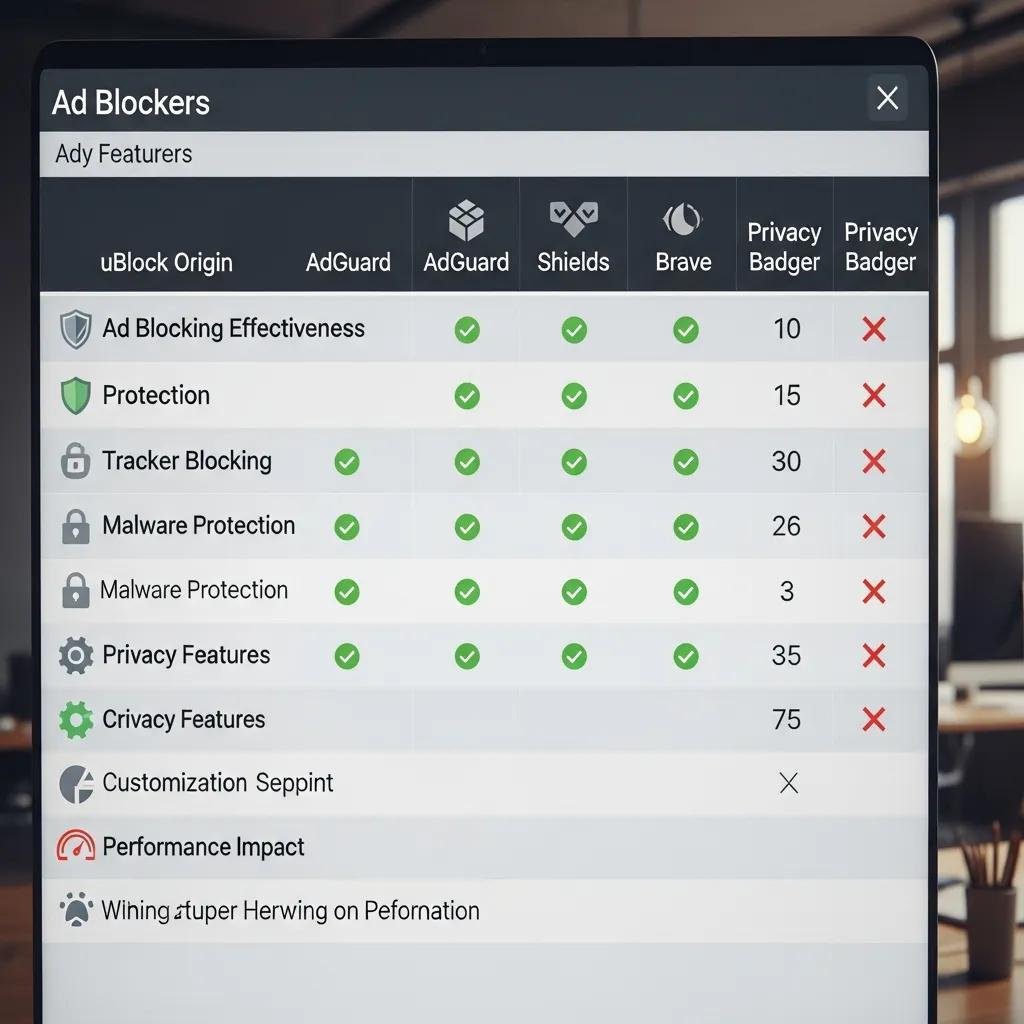
Effective privacy protection in an ad blocker comes from strong default blocklists, anti-tracking lists, minimal telemetry, and the ability to control extension permissions and network filtering. A privacy-oriented blocker should support custom filter lists, enforce strict blocking of third-party cookies and tracker domains, and avoid sending usage data back to maintainers. Real-world limitations include browser platform changes (manifest v3 constraints) and mobile OS restrictions that can reduce a blocker’s capacity to intercept network calls. Understanding those constraints helps users choose solutions that maximize tracker blocking without unintended telemetry leaks or performance penalties.
How Do Popular Ad Blockers Like uBlock Origin and Adblock Plus Compare?
uBlock Origin emphasizes minimal resource use, a large curated filter set, and a no-telemetry stance, making it a strong choice for privacy-conscious users. Adblock Plus focuses on ease of use, community-maintained lists, and broad compatibility, which suits users who prioritize convenience over the strictest privacy posture. Ghostery and Privacy Badger act as complementary anti-tracking tools by visualizing trackers or heuristically blocking trackers rather than relying solely on static blocklists. Choose uBlock Origin for aggressive, low-overhead blocking; choose Adblock Plus for straightforward setup and fewer site breaks.
Different blockers implement filter list maintenance and permission models differently, so testing a chosen solution on your regular sites is recommended to find the best balance between privacy and site functionality.
| Ad Blocker | Platform / Browser Support | Key Privacy/Anti-tracking Features |
|---|---|---|
| uBlock Origin | Windows / macOS / Linux / Android / Chromium-based browsers | Large filterlists, low CPU/memory use, strict blocking, no telemetry |
| Adblock Plus | Chrome / Firefox / Edge / Android | User-friendly filters, Acceptable Ads opt-out, broad compatibility |
| Ghostery | Chrome / Firefox / Edge / Mobile browsers | Tracker visualization, integrated anti-tracking with user controls |
This comparison table clarifies compatibility and feature trade-offs to guide selection based on device and privacy priorities.
How Can You Master Browser Privacy Tools to Prevent Online Tracking?
Browser privacy tools combine built-in protections (third-party cookie blocking, tracking protection) with extensions and careful permissions management to limit cross-site tracking and data leakage. Mastery requires configuring cookie policies, site permissions, privacy-related flags, and sync settings while pairing those settings with recommended extensions for anti-tracking and anti-fingerprinting. The following steps provide a concise HowTo sequence for major browsers and a short checklist for cross-device considerations to reduce linkability between sessions.
- Disable third-party cookies and enable enhanced tracking protection in your browser.
- Limit or block third-party site permissions (camera, microphone, location) by default.
- Use privacy-focused extensions (ad blocker, anti-tracking, anti-fingerprinting) selectively and review extension permissions.
- Consider separate profiles or containers for sensitive browsing to isolate cookies and storage.
Applying these steps reduces passive tracking and helps prevent cross-site profile building.
A few practical tips: avoid syncing personally identifiable bookmarks or autofill across devices when privacy is a priority, and periodically audit installed extensions and site permissions to reduce unexpected data sharing across the web.
What Are the Key Browser Privacy Settings in Chrome, Firefox, and Safari?
Each major browser exposes settings that materially affect tracking exposure: cookie handling, tracker prevention level, and site permission defaults are the most important controls. In Chrome, block third-party cookies and review site permissions in ; note manifest v3 affects extension network interception capabilities and may limit some ad blocker features. In Firefox, use Enhanced Tracking Protection set to Strict and leverage Containers to separate site state; Firefox also offers robust anti-fingerprinting options via for advanced users. Safari has Intelligent Tracking Prevention and focuses on cross-site tracking reduction on Apple platforms, but it may offer fewer extension choices on mobile. These settings reduce common tracking vectors when combined with careful extension selection.
How Do Browser Extensions and Built-in Features Enhance Privacy?
Extensions complement built-in browser protections by adding specialized capabilities such as ad blocking, script control, and anti-fingerprinting heuristics that the browser alone may not provide. However, overlapping protections can conflict; for example, multiple script blockers may block each other’s UI or cause site breakage, so prioritize a small stack of well-maintained extensions. Manage extension permissions, keep them updated, and prefer open-source projects with clear telemetry policies to reduce risk. When built-in protections suffice for casual browsing, add only one or two vetted extensions; privacy-focused users should combine strict browser settings with carefully chosen blockers to harden their environment.
For users who want hands-on help configuring these settings across multiple devices and browsers, mcHelper.com provides remote assistance to set up browser privacy tools and reconcile conflicts among extensions and settings.
What Are Advanced Online Tracking Prevention Methods to Secure Your Data?

Advanced tracking prevention targets techniques that survive simple cookie clearing, such as browser fingerprinting and supercookies, and uses hardened browsers, DNS-level filtering, and anti-fingerprinting measures to reduce linkability across sessions. Techniques like browser hardening change or minimize fingerprintable attributes (canvas, fonts, plugins, user-agent), while DNS-based ad blocking stops tracker domains at the resolver level before connections occur. These methods trade some usability for significantly improved privacy, and understanding the trade-offs helps decide the right stack for casual versus privacy-focused users. The table below maps common tracking threats to practical prevention strategies.
| Tracking Threat | How It Works | Prevention Strategies |
|---|---|---|
| Browser fingerprinting | Collects unique device/browser attributes (canvas, fonts, UA) | Anti-fingerprinting extensions, browser hardening, privacy browsers |
| Supercookies (persistent storage) | Uses storage outside normal cookies to persist identifiers | Clear less-common storage areas, use private profiles, DNS blocking |
| Cross-site trackers | Third-party requests and embedded scripts | Blocklists, DNS resolvers with blocklists, strict third-party cookie policies |
This mapping helps prioritize mitigations based on the specific threats you observe during browsing.
How Does Browser Fingerprinting and Supercookies Affect Your Privacy?
Browser fingerprinting aggregates subtle device and browser attributes to create a unique identifier that can re-identify users without cookies, making simple cookie clearing ineffective against cross-site tracking. Supercookies (such as those in alternate storage or via ETags) can persist across standard cookie deletion and reappear unless the browser storage types are explicitly cleared or isolated. Detection tools and measurement services can reveal fingerprint uniqueness and help guide whether to pursue aggressive anti-fingerprinting measures. Because fingerprinting can be difficult to eliminate entirely, combining hardened browsers, anti-fingerprinting extensions, and DNS-level blocking reduces exposure significantly.
Which Strategies and Tools Effectively Block Online Tracking?
Different user profiles call for different stacks: casual users benefit from a strong ad blocker and strict cookie settings; privacy-conscious users should add anti-fingerprinting tools and browser hardening; technical users can combine custom DNS resolvers with blocklists and browser isolation. Recommended stacks include an ad blocker + anti-tracking extension for general users, and for advanced protection, a hardened privacy browser with DNS ad blocking and script control. Here are three practical stacks to consider:
- Casual: Ad blocker + strict cookie settings + regular extension audits.
- Privacy-conscious: uBlock Origin + anti-fingerprinting extension + isolated profiles/containers.
- Technical: Hardened browser or privacy browser + DNS-level filtering + VPN with custom blocklists.
Choosing a stack depends on tolerance for site breakage and the technical effort you’re willing to apply; expert support can streamline complex configurations and resolve tool conflicts.
Underpinning these advanced setups, mcHelper.com can assist remotely with implementing DNS-based blocking and anti-fingerprinting measures and troubleshooting conflicts when extensions, resolvers, and VPNs interact.
How Do VPNs and Internet Security Software Complement Ad Blockers for Privacy?
VPNs and internet security software provide layers that ad blockers alone cannot: VPNs mask IP addresses and encrypt traffic on untrusted networks, while endpoint security can block malicious ads that attempt to deliver malware. Ad blockers stop many tracker calls at the browser level, but a VPN obscures the originating network identity and can prevent ISP-level tracking or correlation of sessions. DNS-level blocking via a VPN or resolver adds a network-layer filter that catches tracker domains even when browser extensions are restricted. Combining these tools thoughtfully yields layered defenses that reduce tracking and increase protection on public Wi-Fi and insecure networks.
| Tool Type | Primary Privacy Benefit | Typical Value |
|---|---|---|
| VPN | IP masking and encryption | Protects network identity and public Wi-Fi sessions |
| DNS ad blocker | Domain-level blocking | Stops tracker and ad domains before connection |
| Endpoint security | Malware/ad threat blocking | Prevents ads from delivering malicious payloads |
This table clarifies how each tool contributes a distinct layer of privacy or security to a comprehensive setup.
What Are the Privacy Benefits of Using VPNs Alongside Ad Blockers?
Using a VPN together with an ad blocker hides your IP and location while local filters block tracker domains and intrusive ads, reducing linkability across sessions and protecting activity on public networks. A VPN encrypts traffic, preventing local network observers from reading request contents or correlating requests to a personal IP, while ad blockers reduce fingerprintable network calls originating from the browser. Limitations include potential VPN logging and possible leaks from misconfigured WebRTC or DNS, so choose services that prioritize privacy and configure clients to prevent leaks. For example, a combined stack is particularly useful on public Wi-Fi where encrypted tunnels and local filtering together reduce both passive and active threats.
How Does mcHelper.com Support Enhance Your Online Security and Privacy?
mcHelper.com offers remote Computer & Internet Security and VPN Support to help implement privacy stacks and troubleshoot interactions between ad blockers, DNS resolvers, and VPN clients. Their service emphasizes 24/7 availability and a no fix – no fee promise, providing remote assistance for Mac and Windows users who need setup help, configuration of DNS-based blocking, or resolution of extension conflicts. If you prefer expert configuration—such as aligning a VPN’s DNS settings with local ad-blocking lists or hardening browsers against fingerprinting—mcHelper.com can perform those remote tasks and verify the stack functions across devices. This support is intended to be supplementary to the article’s primary guidance, helping users who want hands-on help to implement complex privacy measures.