
How to Set Up, Use & Fix Windows Phone Link App on Android & iPhone
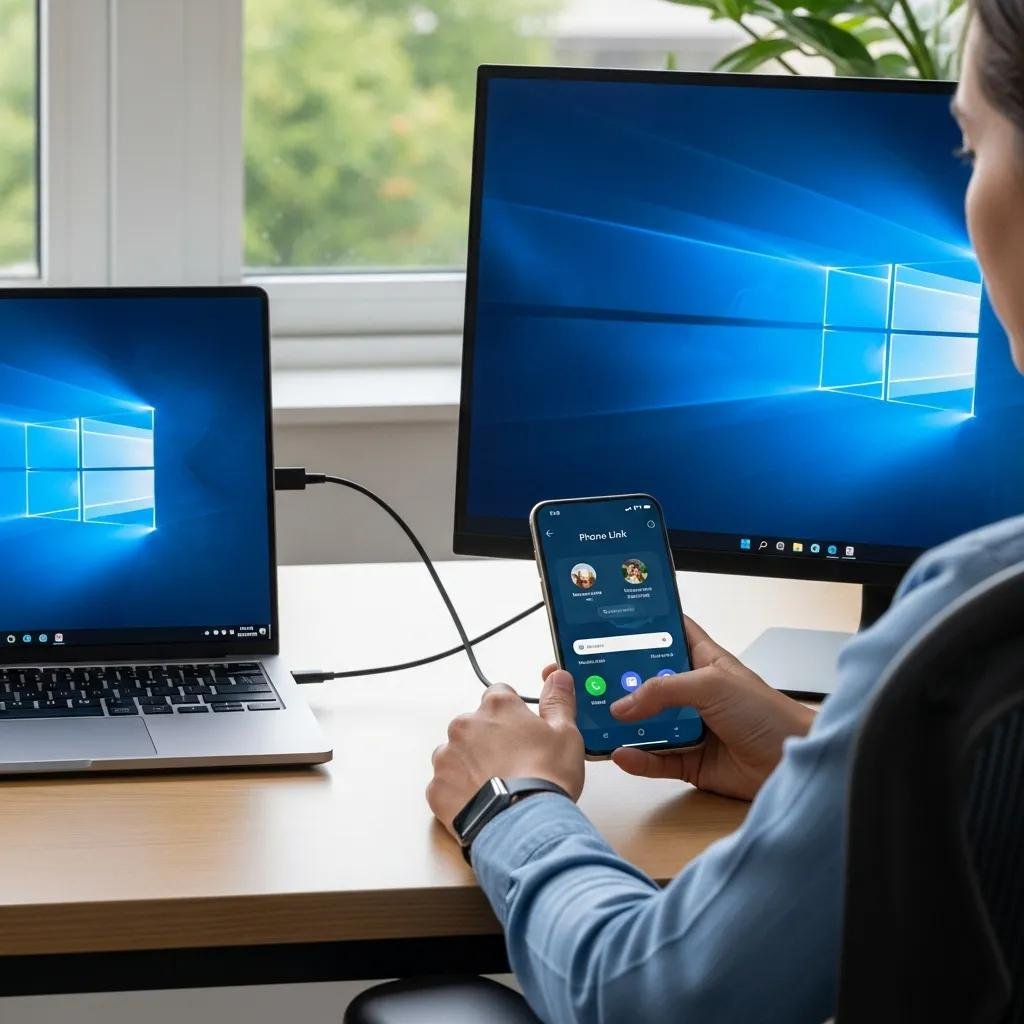
The Windows Phone Link app (also called Phone Link) connects Android and iPhone devices to a Windows PC to mirror notifications, messages, calls, and select apps for faster workflow. This guide shows how to set up Phone Link on Android and iPhone, outlines core Phone Link features and platform limits, and offers practical troubleshooting steps to resolve common connectivity problems. Many users want “android on pc” functionality, reliable notification syncing, and the ability to handle calls from their Windows 11 machine; Phone Link is the Microsoft solution that enables those capabilities when prerequisites and permissions are correct. Below you will find step-by-step setup instructions, feature comparisons between Android and iPhone, compact troubleshooting checklists, and iPhone-specific requirements and permission guidance. Read on to learn how to pair devices, grant notification access, test calls and messages, and maintain a stable Phone Link connection.
How do you set up the Windows Phone Link app on Android and iPhone?
Phone Link setup requires a Windows PC with Phone Link installed or built into Windows 10 (version 1809 and later) or Windows 11, the companion Link to Windows app on Android devices or the supported iPhone workflow, a Microsoft account for linking, and an available network or Bluetooth for pairing. The mechanism uses a Microsoft account and local pairing methods so your phone and PC can exchange notification and message data securely; granting notification and accessibility permissions on Android is essential to enable full features. This section outlines prerequisites, a brief checklist, and introduces the Android pairing steps in the H3 below.
Before the step list, confirm these prerequisites:
- Make sure the Windows PC is running the Phone Link-compatible build of Windows and has the Phone Link app available.
- Ensure the phone has the Link to Windows app (Android) or the supported iPhone workflow installed and is signed into the same Microsoft account.
- Have Bluetooth enabled or be on the same Wi-Fi network for discovery and pairing.
- Prepare to grant Notification access and Accessibility permissions on Android when prompted.
These preparatory checks reduce common pairing friction and lead directly into the Android connection steps described next.
What are the steps to connect Android devices to Windows 11 using Phone Link?
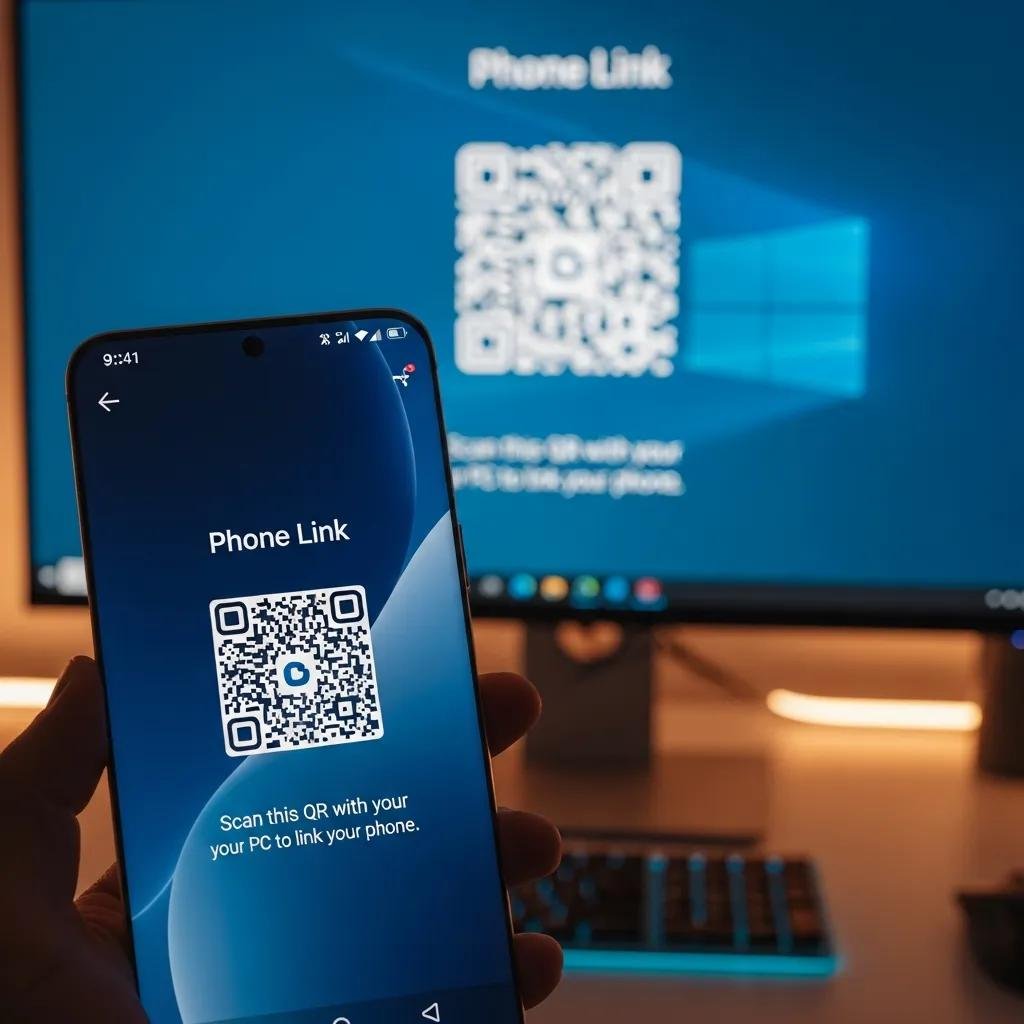
Start by installing and opening Phone Link on Windows 10 (version 1809 or later) or Windows 11 and Link to Windows on Android, then sign in with the same Microsoft account on both devices. On Windows, choose “Set up a phone” and follow prompts to either scan a QR code or allow Bluetooth discovery; the PC will present a pairing code or QR that the phone uses to confirm the connection. On Android, accept the Notification access and Accessibility permission prompts; these enable notifications and in-app interactions to be mirrored to your PC. Finally, test the connection by sending a message or triggering a notification and confirm it appears on the Windows desktop; this validation step ensures message sync and notification mirroring are functioning. If the test fails, restart both devices and retry the pairing sequence.
What features does the Windows Phone Link app offer for Android and iPhone users?
Phone Link provides notification sync, message mirroring, call handling, file transfer, and app/screen access (with Android supporting deeper app streaming). The app acts as a phone-to-PC connectivity hub, letting users view notifications, reply to messages, manage calls, and in some cases stream Android apps or mirror the device screen. For iPhone, notification and call capabilities are more limited due to platform restrictions, so expectations should be adjusted accordingly. The next subsections break down notification/message sync and call/app benefits with practical usage notes and quick fixes.
Phone Link feature highlights include the following practical capabilities:
- Notification mirroring for most Android apps to the Windows notification center.
- Message viewing and replying from the PC for supported messaging apps.
- Call handling that shows incoming calls and allows answer/reject and call history access.
- App access and screen mirroring on Android for running phone apps on the PC.
- File drag-and-drop and quick photo transfer between phone and Windows.
These core features make Phone Link useful for productivity workflows where minimizing phone handling speeds work on a Windows PC.
Intro to feature comparison table and platform limits:
| Feature | Android support | iPhone support | Notes/limitations |
|---|---|---|---|
| Notifications sync | Full (with Notification access) | Limited | iOS restricts third-party access; selective notifications may appear |
| Messages mirroring | Supported for many SMS and messaging apps | Limited | iMessage and some apps have limited mirroring on iPhone |
| Call handling | Supported (Bluetooth/Companion pairing) | Basic incoming call display | Full call audio routing is not supported on iPhone |
| App streaming / screen mirroring | Supported on many Android devices | Not supported | iOS platform restrictions block app streaming |
This comparison clarifies which Phone Link meronyms—notifications sync, messages sync, and app streaming—are fully available on Android versus the selective support on iPhone. Understanding these differences helps set realistic expectations before pairing.
How can you sync notifications and messages between your phone and Windows PC?
Notification and message sync operate by granting the Phone Link companion app Notification access on Android and enabling message access where permitted; the app forwards notification content to Windows through your Microsoft account and local network pairing. On Android, grant Notification access in Settings → Apps & notifications → Special app access → Notification access, then enable Accessibility permissions for Link to Windows to allow reply actions. On iPhone, incoming notifications may appear only for certain app categories because iOS tightly controls cross-app notification access; using email or cloud apps can bridge some gaps. If notifications fail to appear, a common quick fix is to toggle Notification access off and on, restart the Link to Windows app, and re-establish the Phone Link pairing on the PC.
Common quick fixes for notification or message sync issues:
- Restart both devices and reopen Phone Link apps.
- Revoke and re-grant Notification access and Accessibility permissions on Android.
- Sign out and back into the Microsoft account on both devices to refresh link tokens.
These steps recover most notification sync problems and lead into troubleshooting additional causes addressed below.
What are the benefits of using Phone Link for calls and app access?
Phone Link centralizes call controls and app access so users can handle communications and some mobile apps without switching devices, improving focus and workflow. For calls, Phone Link displays incoming caller info, lets you accept or reject calls from the PC, and shows recent call history; call audio routing often uses Bluetooth or a companion pairing method on Android. For app access, Android users can launch or mirror phone apps directly on the Windows desktop to use mobile-only apps with keyboard and mouse input. This integration reduces friction for multitasking scenarios like copying an authentication code or transferring photos, and it supports “android on pc” workflows by enabling app streaming where supported.
Practical limitations to keep in mind:
- Call audio routing depends on Bluetooth and hardware capabilities and is not supported for call audio on iPhone.
- iPhone users will encounter feature limits due to iOS restrictions on third-party mirroring and deep integration.
- Screen mirroring and app streaming are strongest on compatible Android devices and may vary by OEM support.
These benefits and limits should guide whether you rely on Phone Link for daily tasks or use alternate file transfer and cloud workflows for tasks that iPhone cannot support.
How to troubleshoot common issues with the Microsoft Phone Link app?
Troubleshooting Phone Link starts with prioritized quick fixes: restart apps and devices, verify permissions, confirm network/Bluetooth conditions, and update both Windows and mobile apps. Many connection problems stem from permission settings, account mismatches, or outdated software; addressing those first yields the highest success rate. Below is a compact troubleshooting reference table followed by focused fixes and maintenance advice.
Intro to troubleshooting table with concise diagnostic intent:
| Problem | Likely cause | Quick fix / Steps to resolve |
|---|---|---|
| Pairing fails | Microsoft account mismatch or discovery blocked | Sign into same Microsoft account, enable Bluetooth/Wi-Fi, retry pairing |
| Notifications not appearing | Notification access or Accessibility revoked | Re-enable Notification access, restart Link to Windows app |
| Calls drop or no audio | Bluetooth or companion pairing issues | Re-pair Bluetooth, check microphone permissions, restart devices |
This EAV-style table maps common problems to likely causes and immediate resolution steps so readers can triage issues rapidly before deeper debugging.
Top quick fixes list — prioritized and actionable:
- Restart Phone Link on Windows and Link to Windows on the phone to reset sessions.
- Check and re-grant Notification access and Accessibility permissions on Android.
- Verify both devices are on the same local network or have active Bluetooth pairing.
- Update Windows, Phone Link, and the mobile companion app to the latest versions.
Applying these fixes in order addresses the majority of everyday connectivity issues and reduces the need for advanced troubleshooting.
What are common connection problems and how to fix them?
Connection problems commonly include failed pairing, missing notifications, and call instability; each usually ties back to permissions, account tokens, network conditions, or outdated app/software versions. Begin with simple actions: restart both devices, confirm both are signed into the same Microsoft account, and re-enable the Link to Windows permissions on Android. If pairing still fails, check Bluetooth settings and ensure the PC’s Phone Link discovery is active; for Wi-Fi pairing, verify both devices are on the same subnet. When issues persist after these steps, reinstall the companion app on the phone and use the Phone Link repair options within Windows, which often clears stale pairing records.
These ordered steps prioritize low-effort, high-impact fixes first and then escalate to reinstalling or resetting the app only when necessary, keeping troubleshooting efficient.
How to update and maintain the Phone Link app for optimal performance?
Routine maintenance for Phone Link includes checking Windows Update for system and Phone Link updates, updating the Link to Windows app on Android, and periodically reviewing notification and Accessibility permissions to ensure they remain enabled. Regularly restarting the Phone Link service and re-pairing devices annually or after major OS updates prevents token drift and permission breakage. If performance degrades, clear the app cache on Android, sign out and back into the Microsoft account, and confirm Bluetooth firmware on devices is current. These small maintenance tasks preserve stable notification sync, call handling, and app streaming functionality over time.
How to connect your iPhone to Windows PC using the Phone Link app?

Connecting an iPhone to Windows via Phone Link requires a compatible Windows build (Windows 10 version 1903 or later or Windows 11), the Phone Link app on Windows, and signing into the same Microsoft account on both devices; however, iOS platform rules limit deep integration compared with Android. The mechanism typically enables incoming call display, limited notification mirroring, and some message previews, but does not support full app streaming or screen mirroring due to iOS restrictions. Prepare to use alternative workflows—such as cloud services or email—for tasks that Phone Link on iPhone cannot perform, and ensure iOS and Windows are updated before attempting to pair.
What are the requirements and limitations for iPhone integration?
iPhone integration requires a Windows PC with Phone Link support, a matching Microsoft account, and iOS 14 or later versions that permit limited notification mirroring; exact capabilities vary because iOS restricts third-party apps from full notification and app streaming access. The main limitations are the absence of app streaming and reduced message mirroring capability; call handling may be restricted to display-only or require specific Bluetooth setups. Workarounds include using cloud sync for files and email or relying on platform continuity features for Apple ecosystems when deeper integration is needed.
These requirements and realistic expectations help avoid confusion and guide users toward the most effective cross-device workflows when using an iPhone with Phone Link.
How to manage permissions and settings for iPhone linking?
To manage permissions for iPhone linking, verify that Phone Link on Windows is signed into your Microsoft account and that any prompt on iOS allowing notification forwarding or call access is accepted; then check iOS Settings for notification delivery options for the specific apps you expect to mirror. On Windows, enable Phone Link notifications in Settings → System → Notifications so mirrored alerts appear on the PC. If permissions appear correct but features still fail, sign out and sign back into the Microsoft account on both devices and restart both devices to refresh session tokens. These steps consolidate permission alignment across platforms and are the final check to validate available iPhone integration features.





